
Posted in

How to Implement OAuth 2.0 Client Credentials Authentication for ORDS REST APIs

In this blog post, we will see how to enable OAUTH2.0 for ORDS REST API.

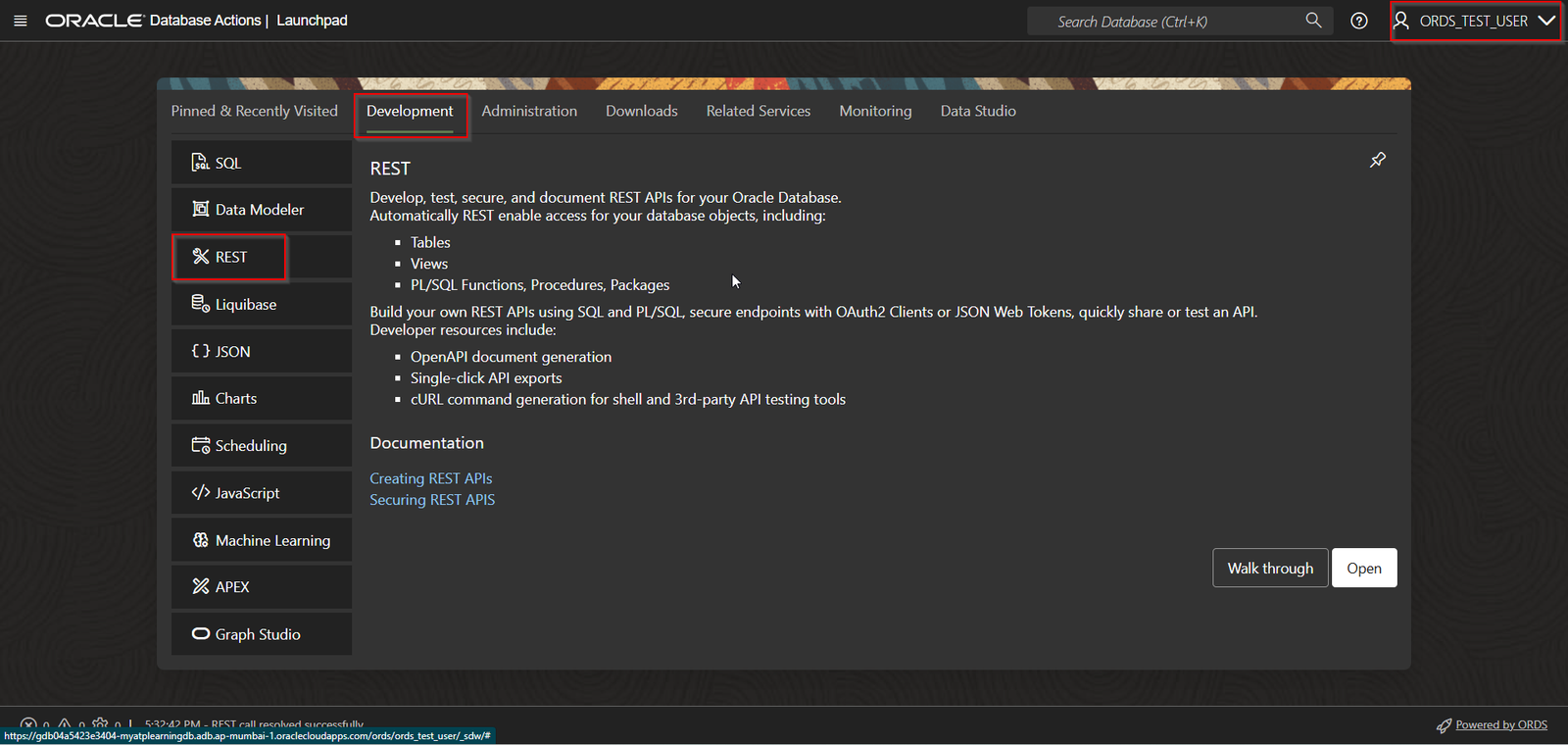
Login with ORDS_TEST_USER.

Navigate to Development —>REST.
A screenshot of a computer
AI-generated content may be incorrect.

Click on Open.

Step1: Create Role for OAUTH2.0

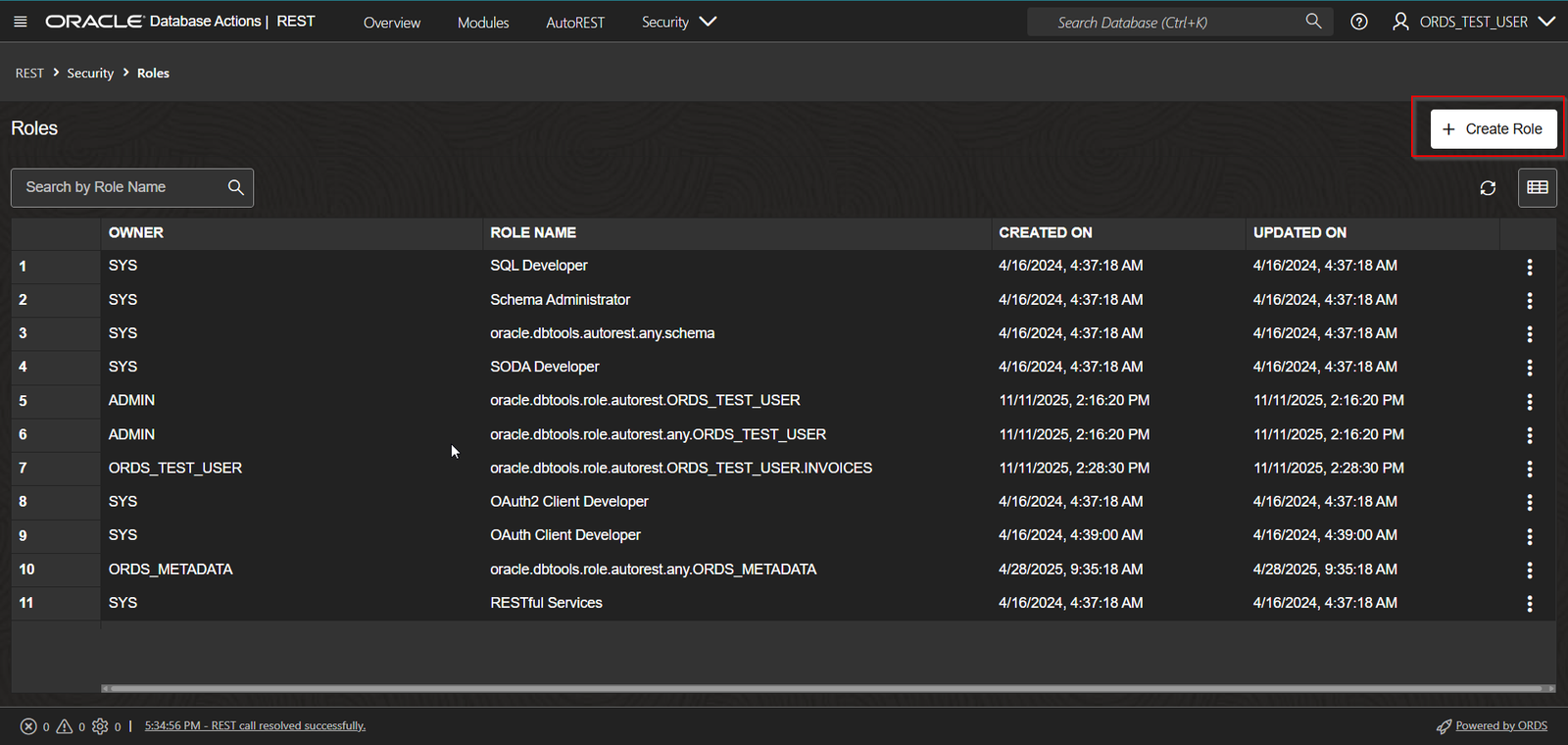
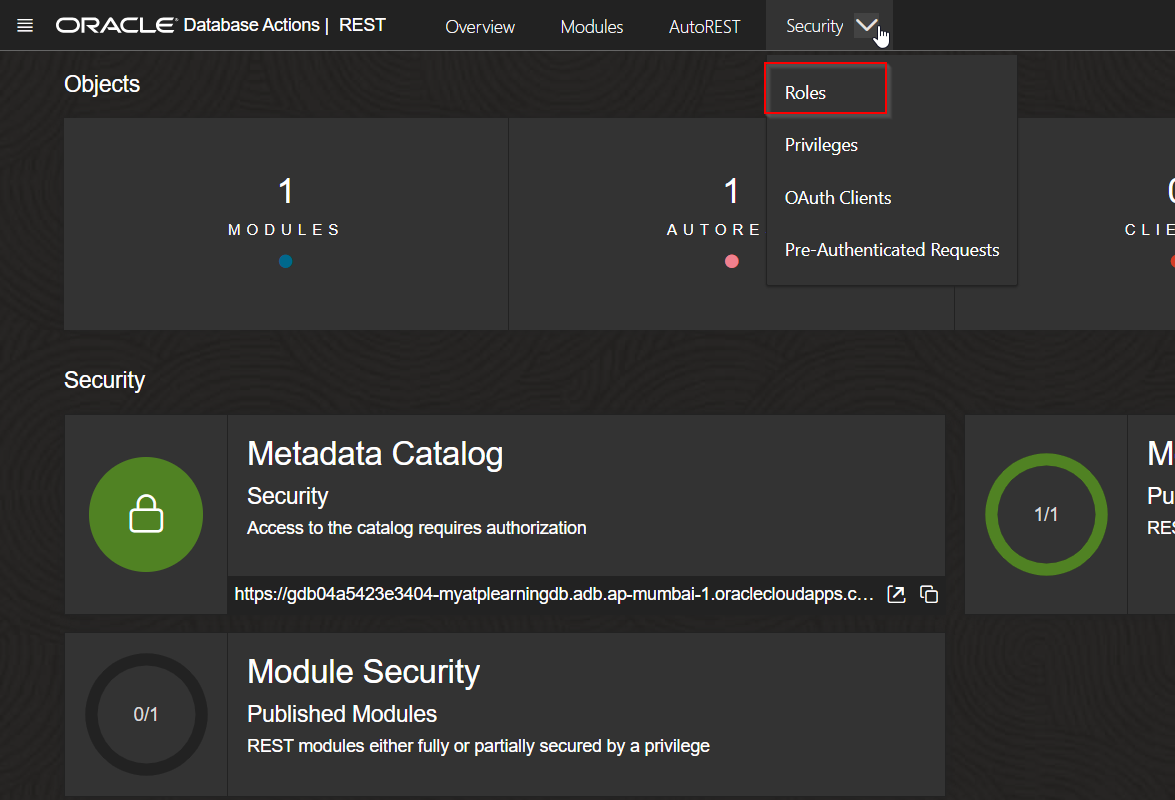
Navigate to Security —>Roles.
A screenshot of a computer
AI-generated content may be incorrect.

A screenshot of a computer
AI-generated content may be incorrect.

Click on Create Role.

A screenshot of a computer
AI-generated content may be incorrect.

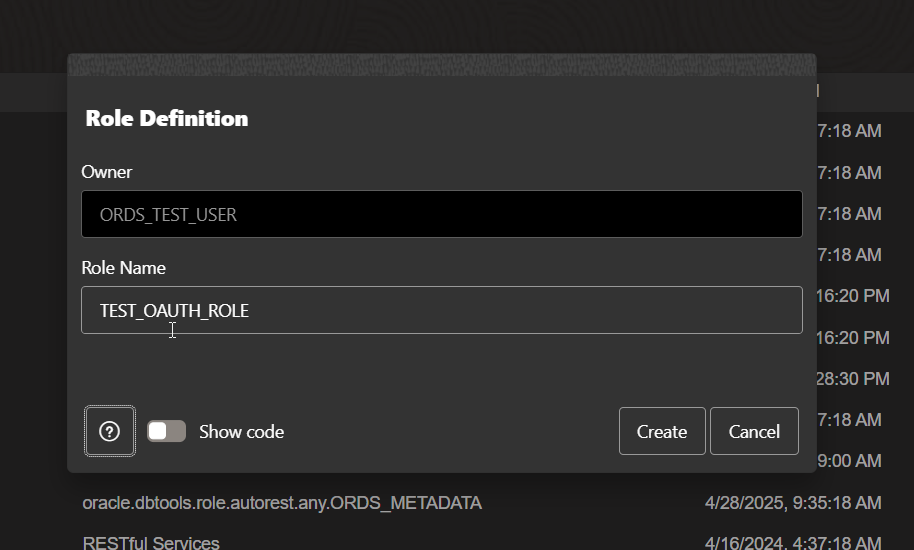
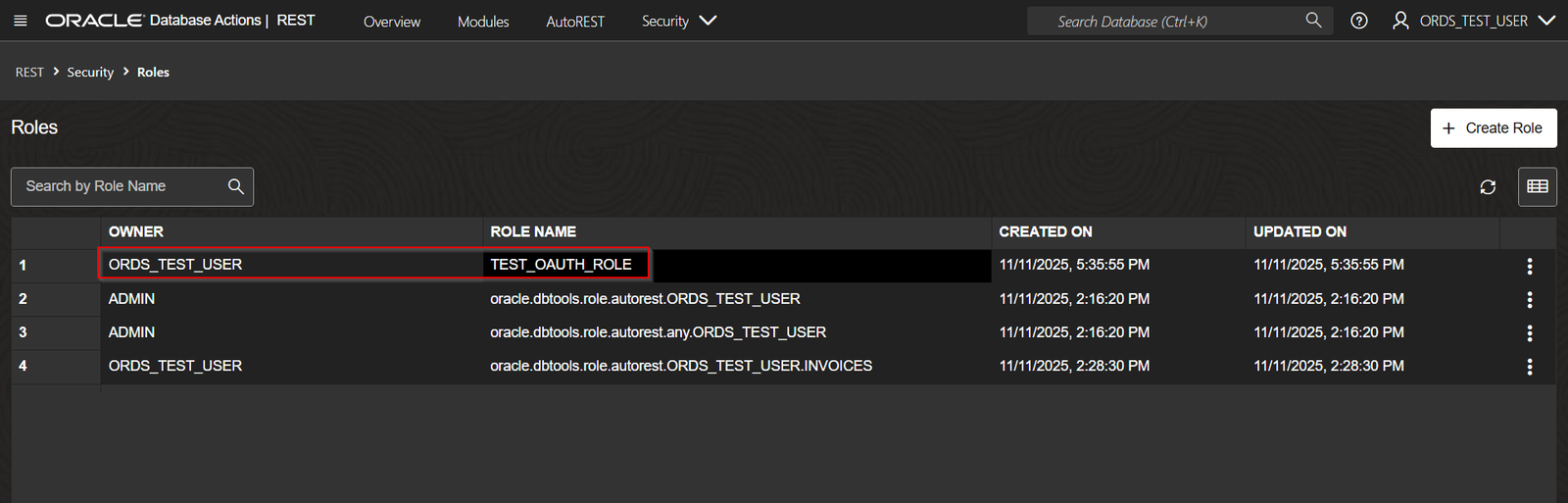
Provide Role Name and Click on Create.
A screenshot of a computer
AI-generated content may be incorrect.

Step2: Create Privileges

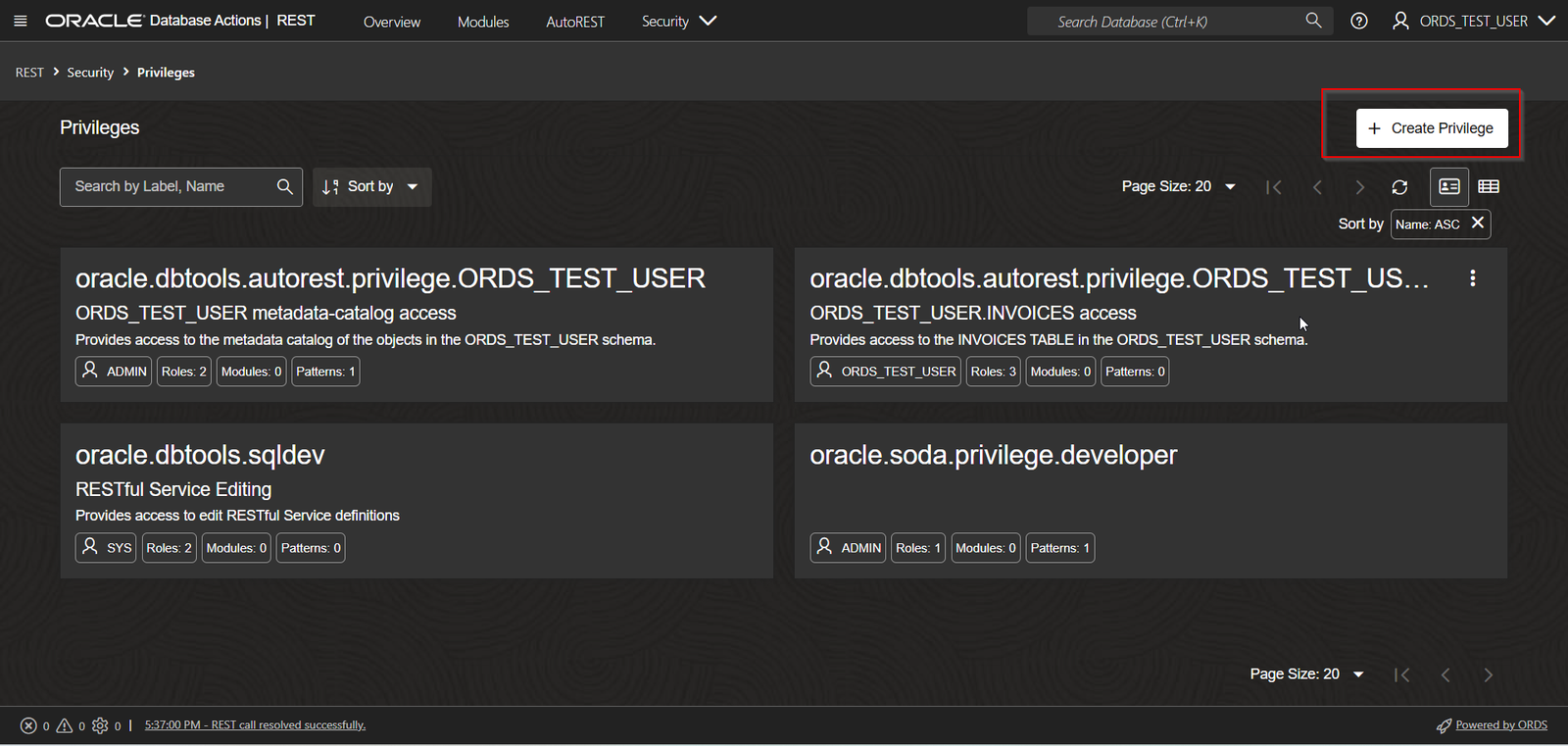
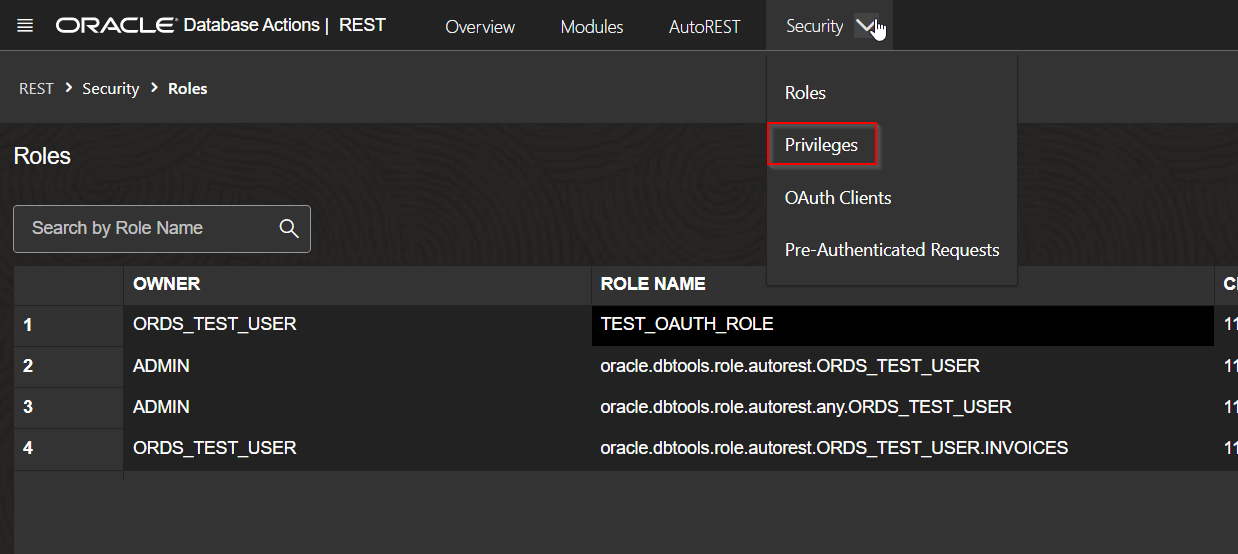
Navigate to Security —> Privileges
A screenshot of a computer
AI-generated content may be incorrect.

A screenshot of a computer
AI-generated content may be incorrect.

Click on Create Privilege.

A screenshot of a computer
AI-generated content may be incorrect.


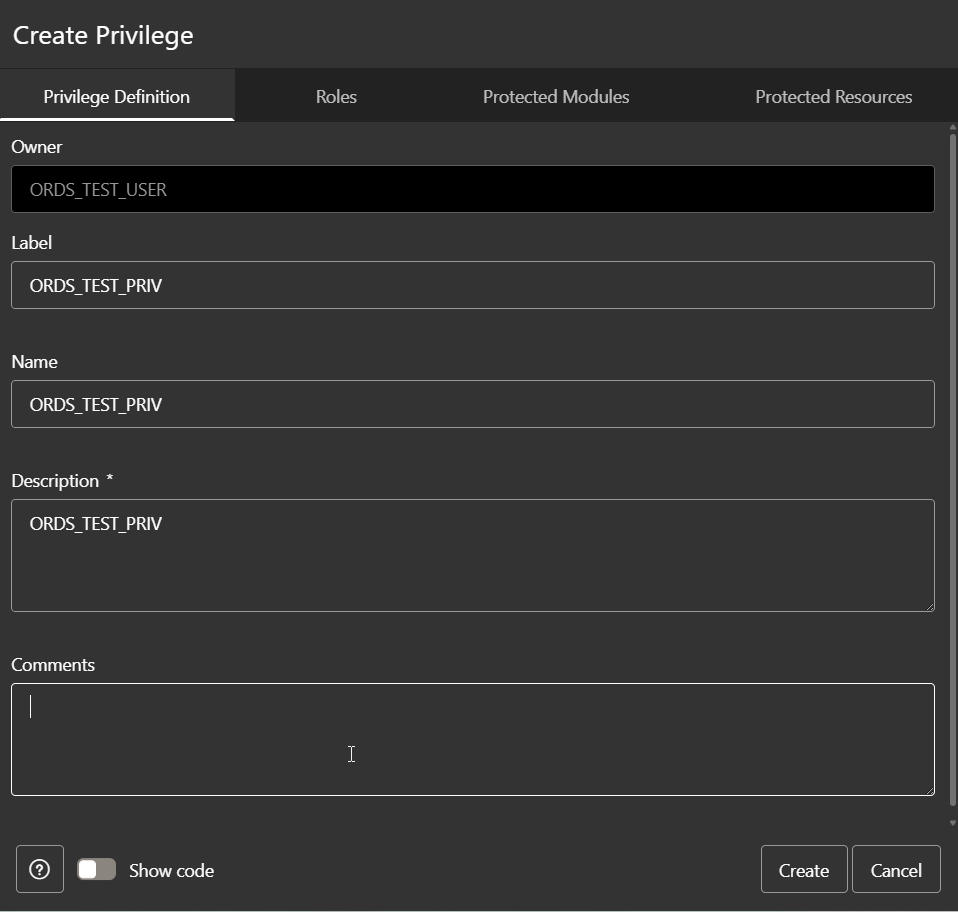
Provide Name, Description and click on Create.
A screenshot of a computer
AI-generated content may be incorrect.

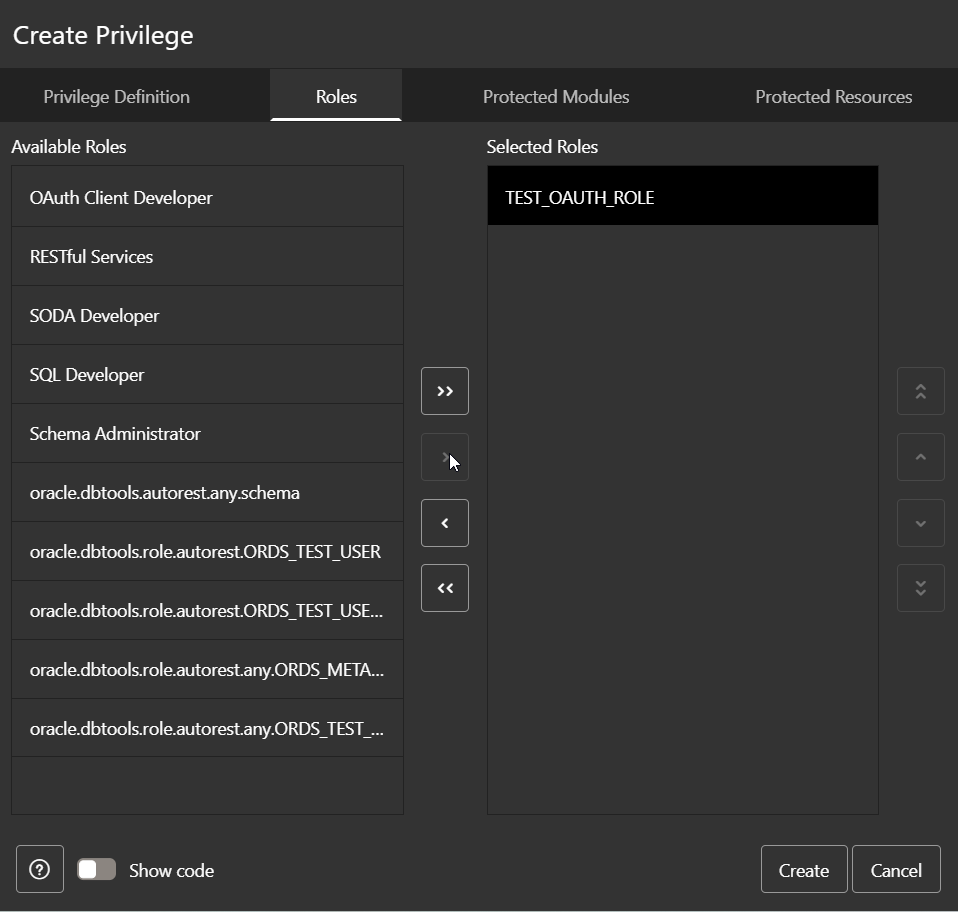
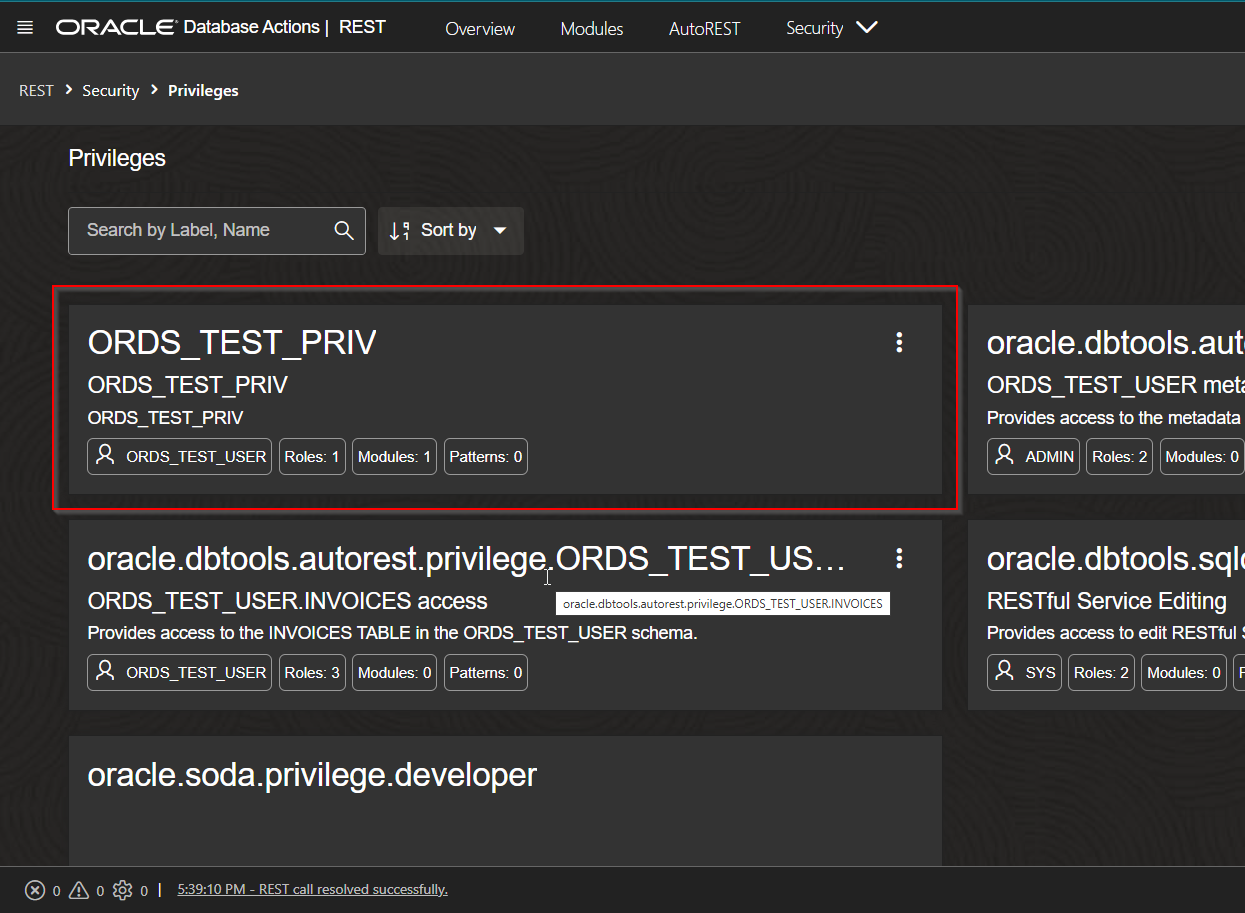
Go to Roles and select TEST_OAUTH_ROLE role.

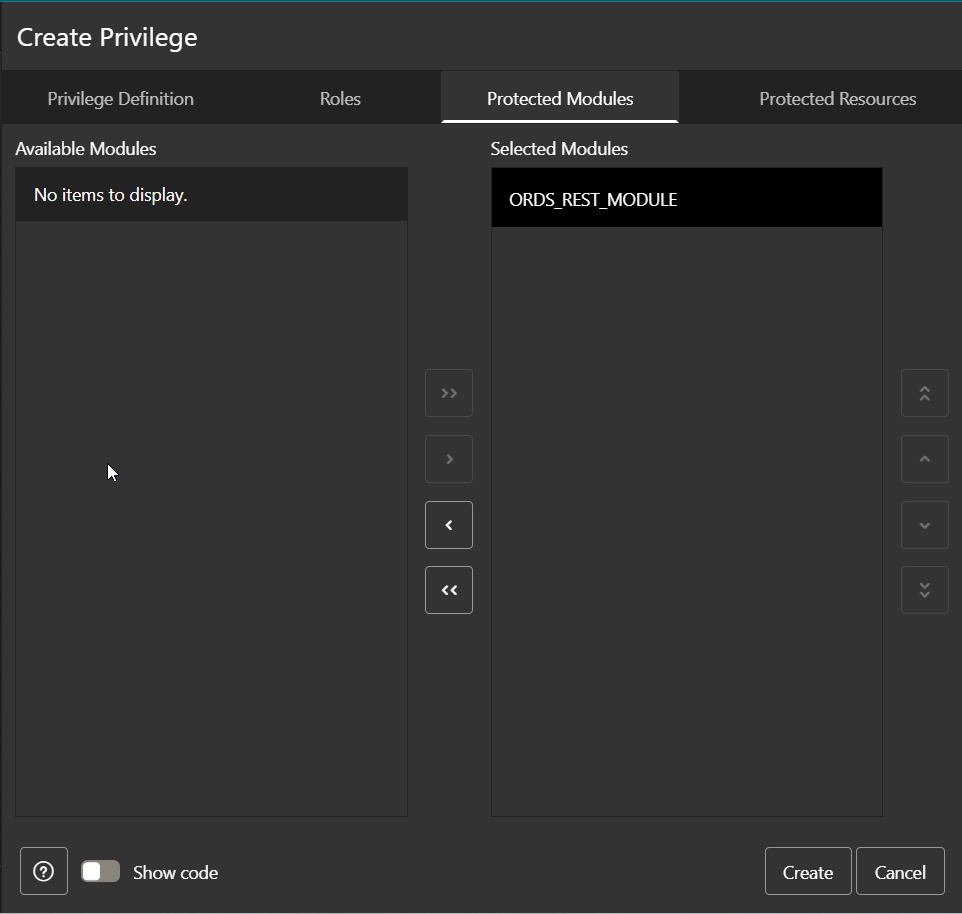
Navigate to Protected Modules.
A screenshot of a computer
AI-generated content may be incorrect.

Select ORDS_REST_MODULE module and click on Create.
A screenshot of a computer
AI-generated content may be incorrect.

Step3: Create OAuth Clients.

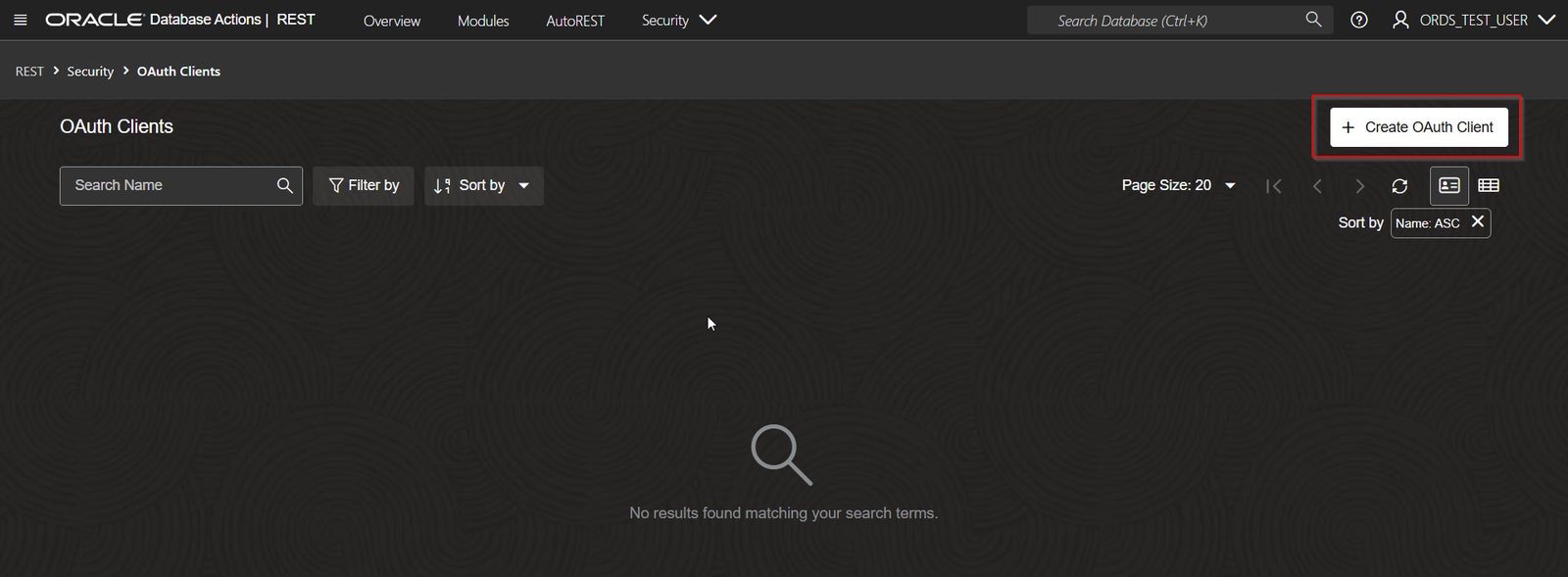
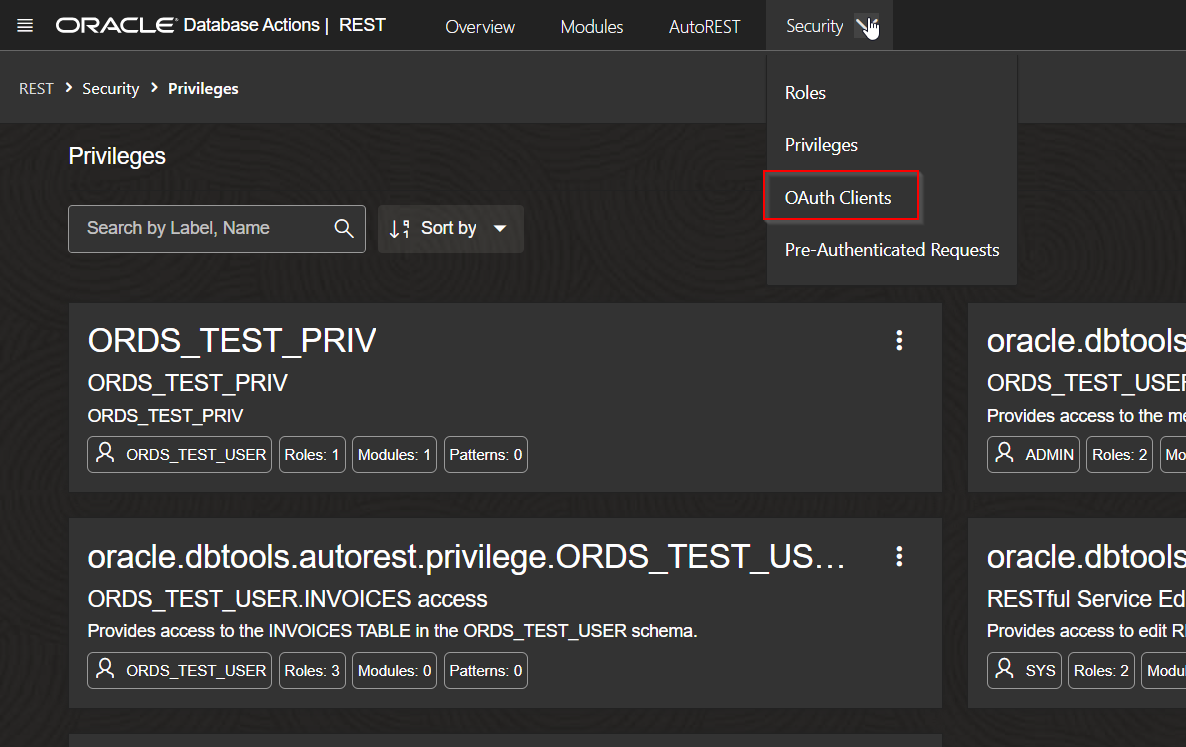
Navigate to Security —> OAuth Clients
A screenshot of a computer
AI-generated content may be incorrect.

A screenshot of a computer
AI-generated content may be incorrect.

Click on Create OAuth Client.

A screenshot of a computer
AI-generated content may be incorrect.

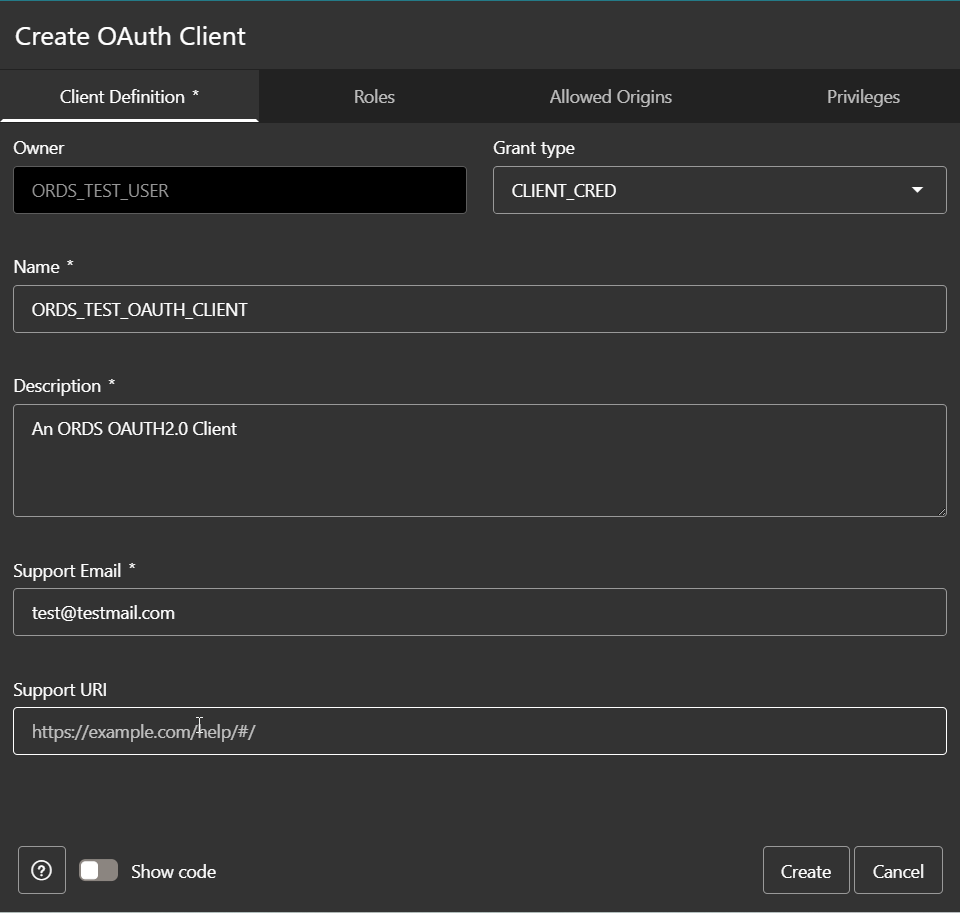
Provide Name and description, support Email.

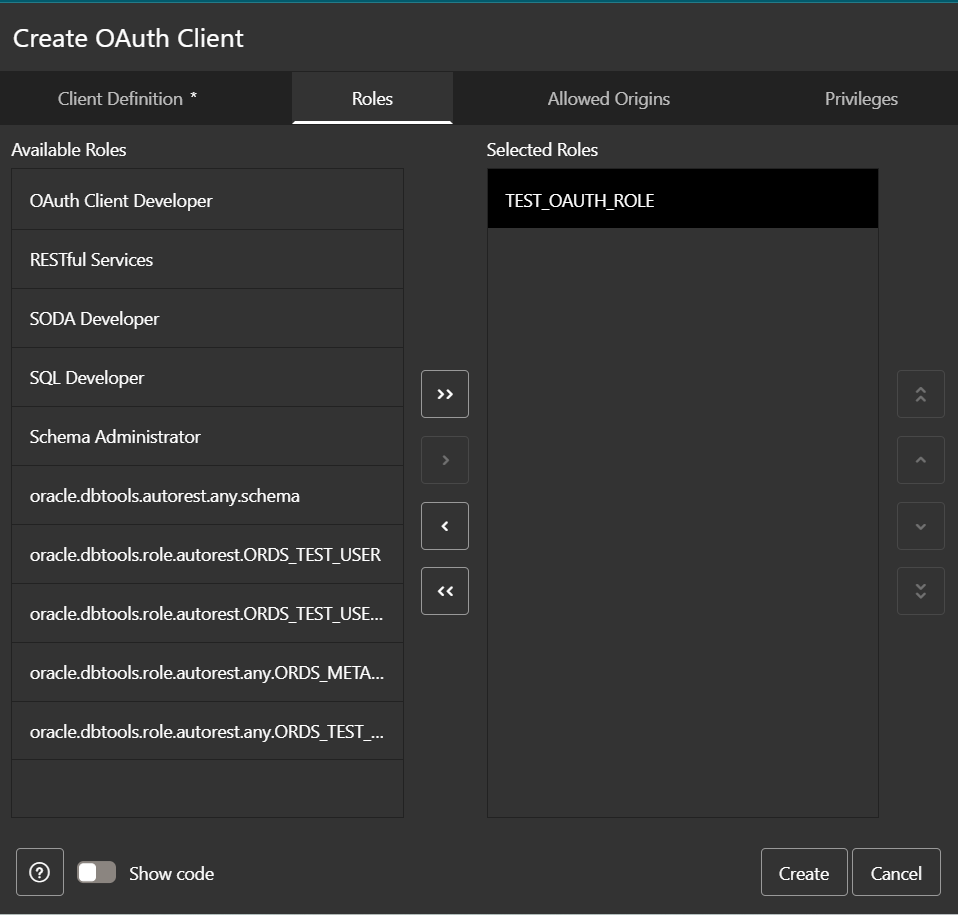
Navigate to Roles and select “TEST_OAUTH_ROLE”.
A screenshot of a computer
AI-generated content may be incorrect.

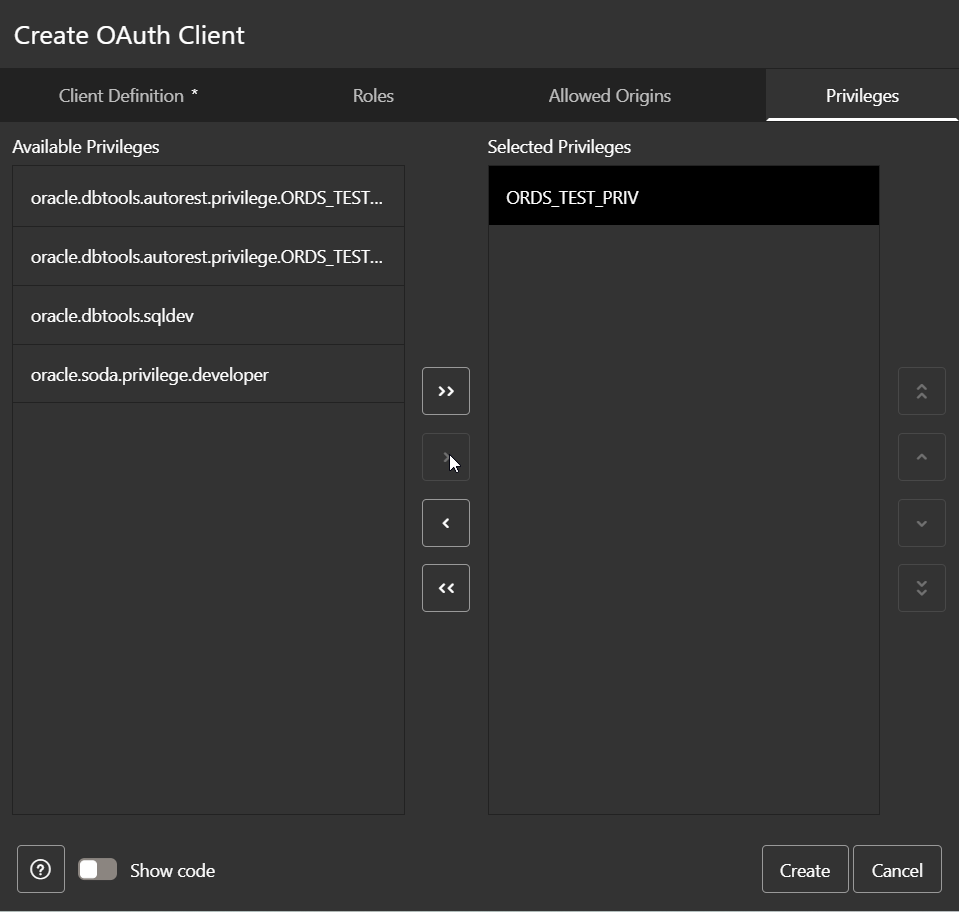
Navigate to Privileges and select “ORDS_TEST_PRIV”.
A screenshot of a computer
AI-generated content may be incorrect.

Click on Create.

A screenshot of a computer
AI-generated content may be incorrect.

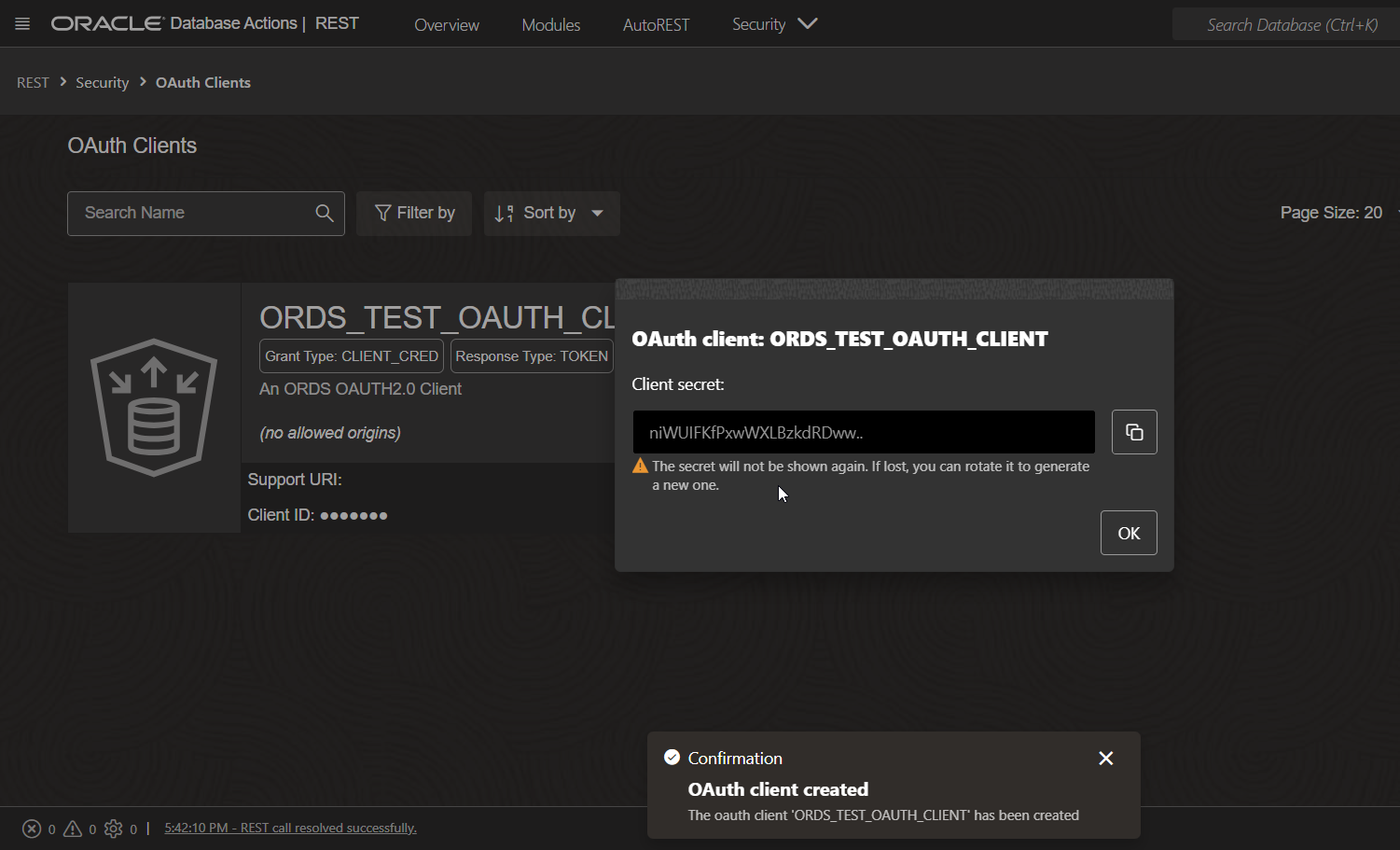
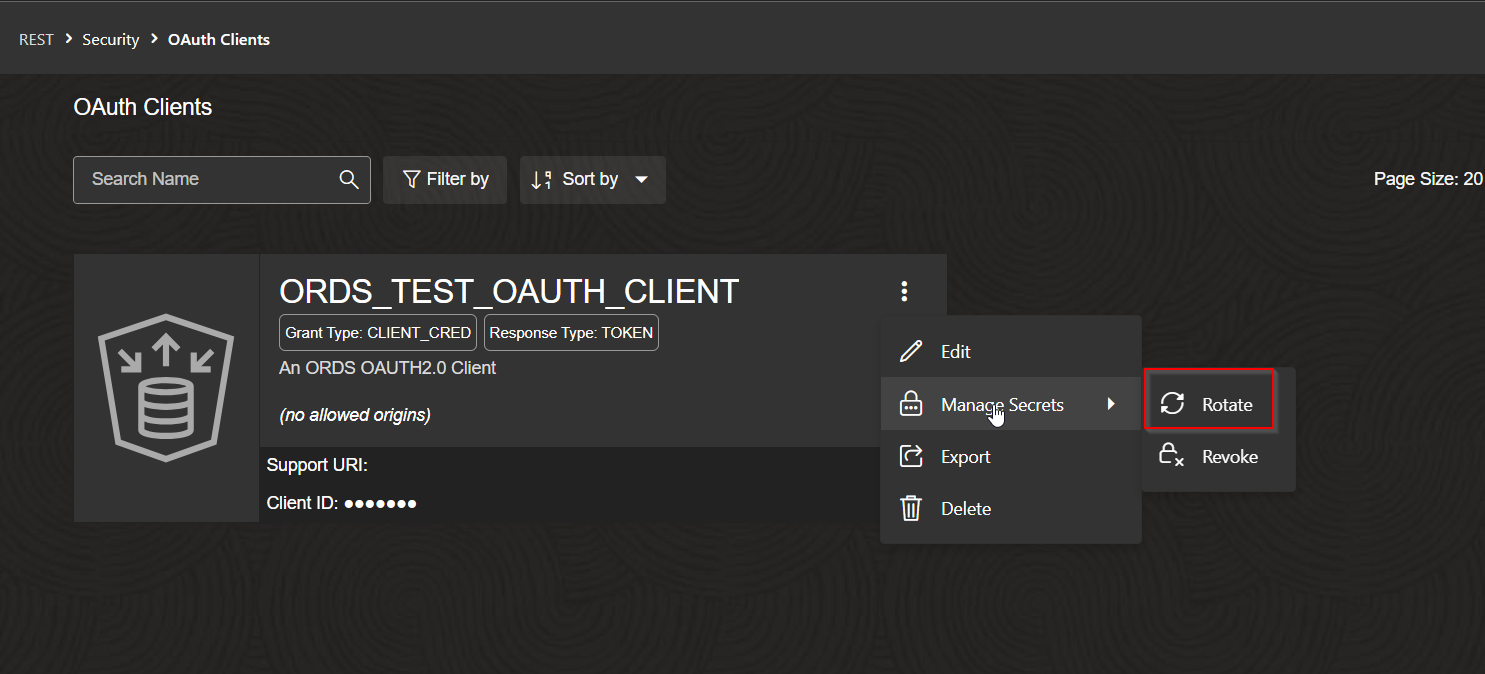
OAuth Client is created. This will generate client secret.

Let us rotate Secrets.

Navigate to Manage Secrets —>Rotate.
A screenshot of a computer
AI-generated content may be incorrect.

A screenshot of a computer
AI-generated content may be incorrect.

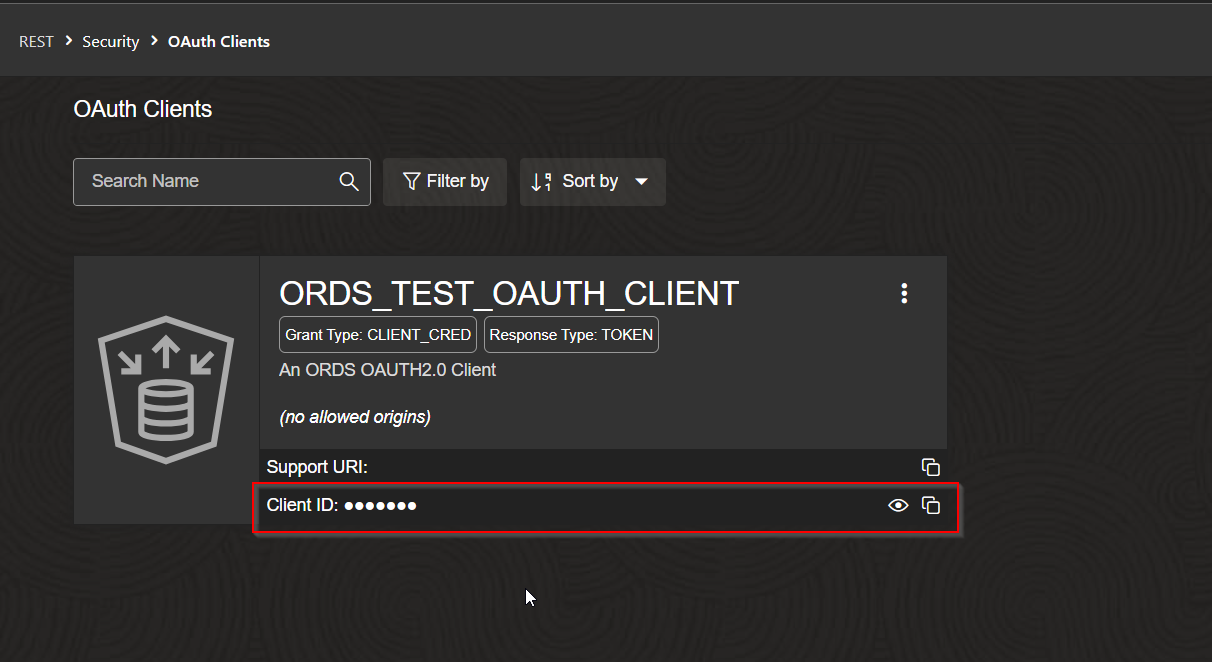
Make note of Client ID.

Let us access ORDS Rest endpoint using OAUTH2.0 using Postman.

Step4: Test ORDS using Postman.

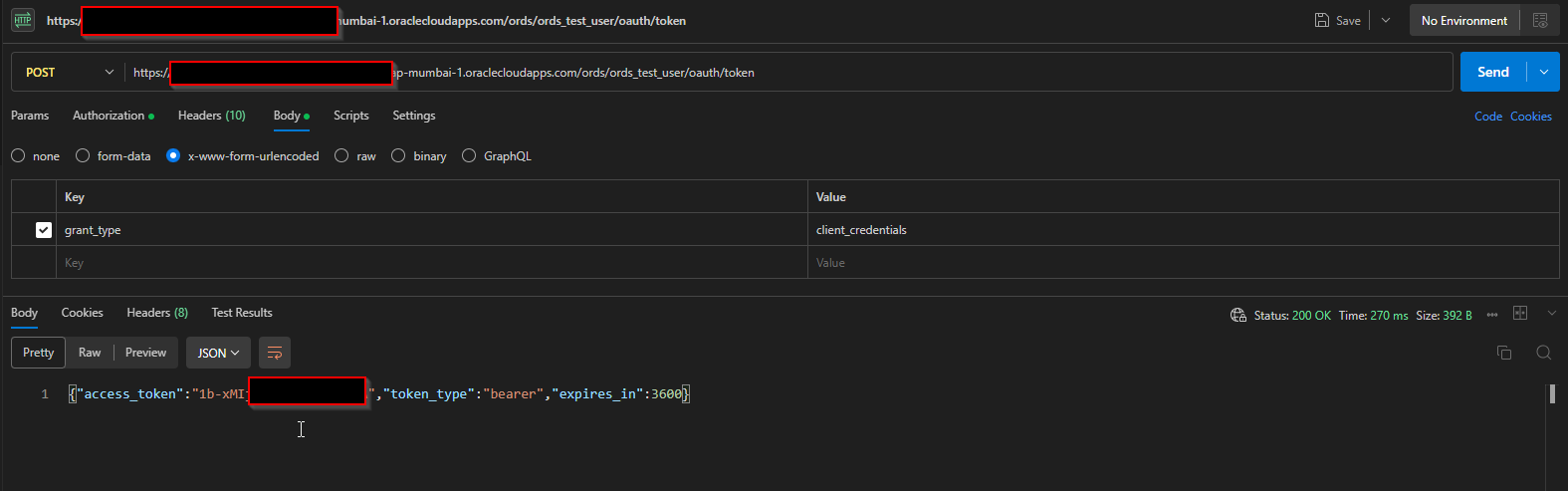
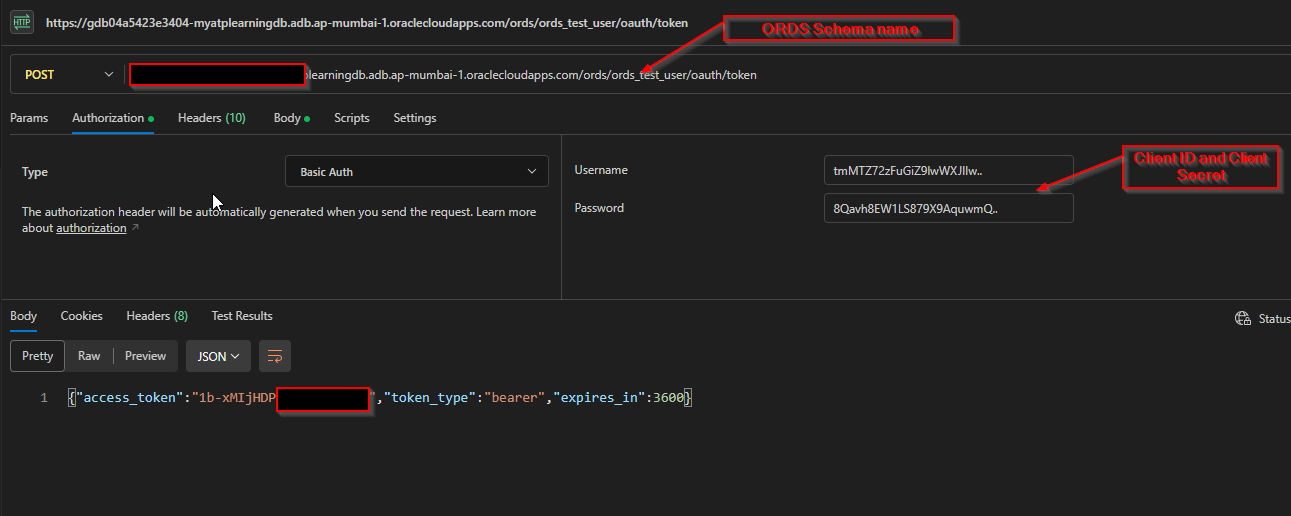
Get Access Token using the URL below:

Access Token URL:

https:// [MY ADB’s OCI]-[My ADB Name]. adb. [My-Region].oraclecloudapps.com/ords/ords101/oauth/token

https://gdb04a5423e3404-XXXXX.adb.ap-XXX-1.oraclecloudapps.com/ords/ords_test_user/oauth/token
A screenshot of a computer
AI-generated content may be incorrect.

A screenshot of a computer
AI-generated content may be incorrect.

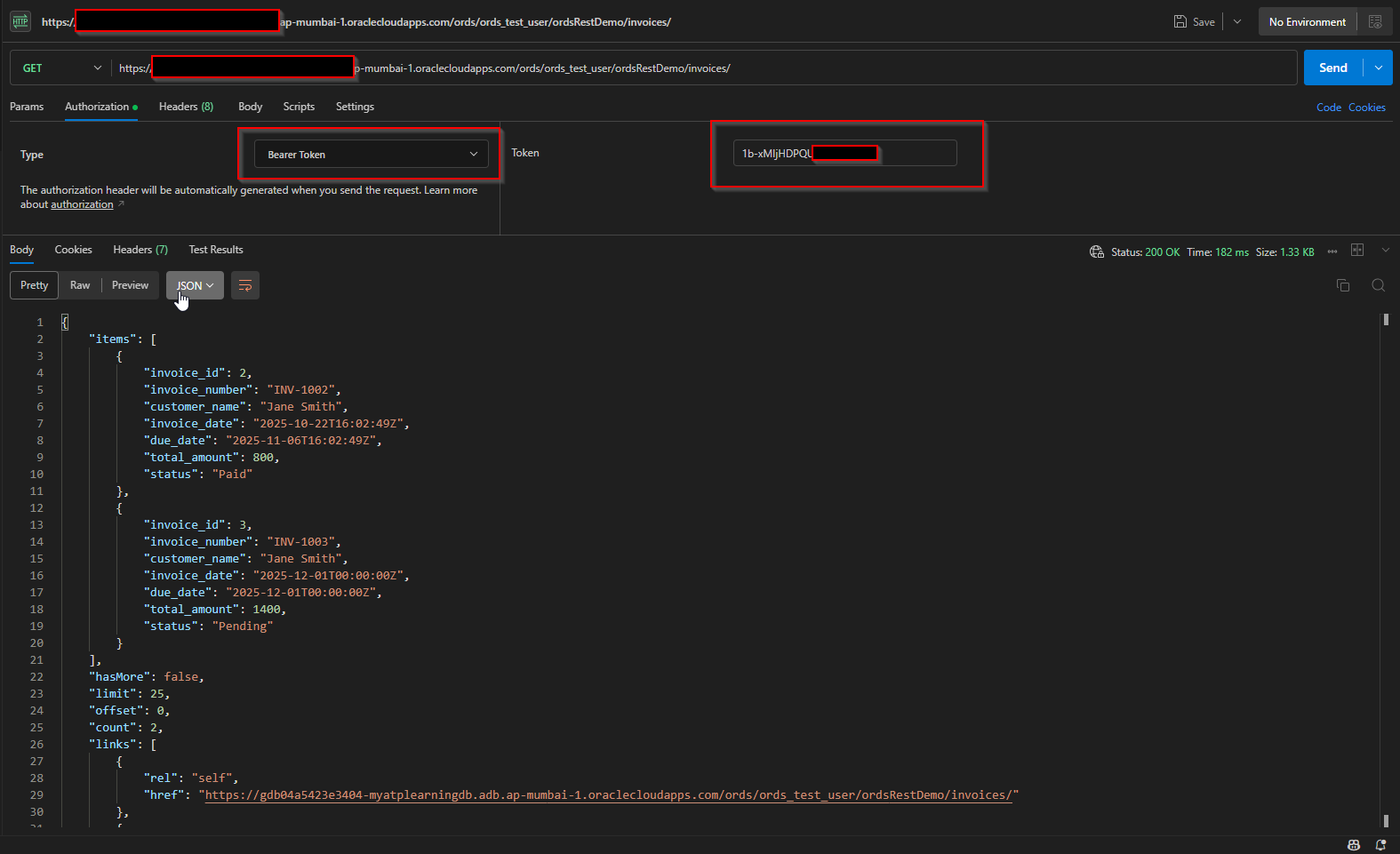
Use this Access Token to call ORDS REST API.

Select Authorization Type as “Bearer Token” and provide Access Token and click on Send.
A screenshot of a computer
AI-generated content may be incorrect.

Leave a Reply

Your email address will not be published. Required fields are marked *