ORDS Part-4: How to create Restful ORDS API for ATP database.
In earlier posts, we have seen how to provision ATP database in OCI and how to connect ATP database from SQL developer using Wallet key.
In this post, we will see how to enable ORDS for ATP database.
ORDS stands for Oracle Rest Data Services. It is bridge between HTTPS and oracle database.
Let us login to OCI console and navigate to ATP database.

Select compartment and click on Database.

This will open ATP database console as shown below:
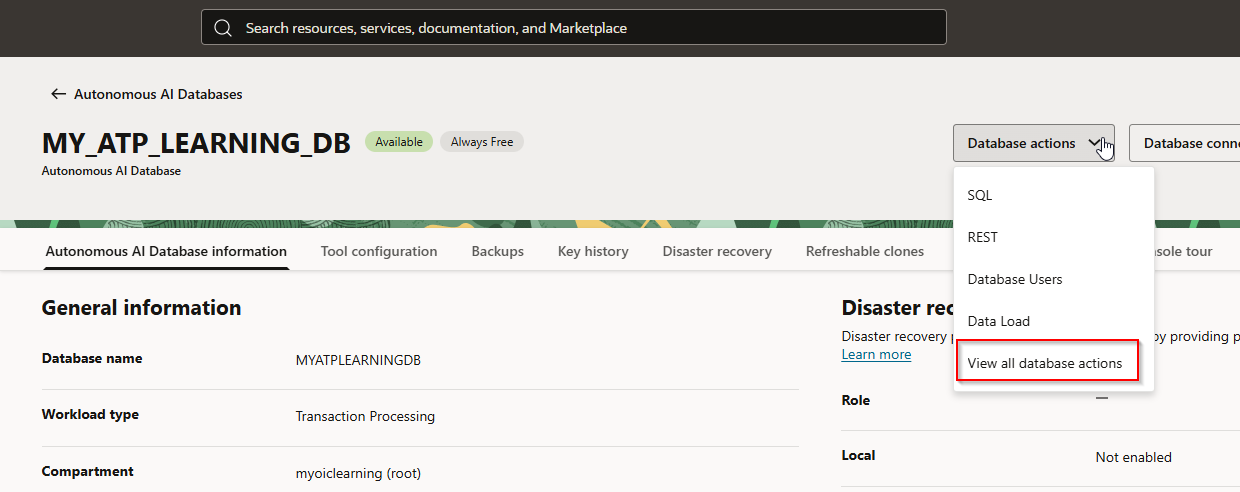
Go to Database actions —->View all database actions.
It will navigate to Launchpad as shown.
Step1: Create Database User for ORDS
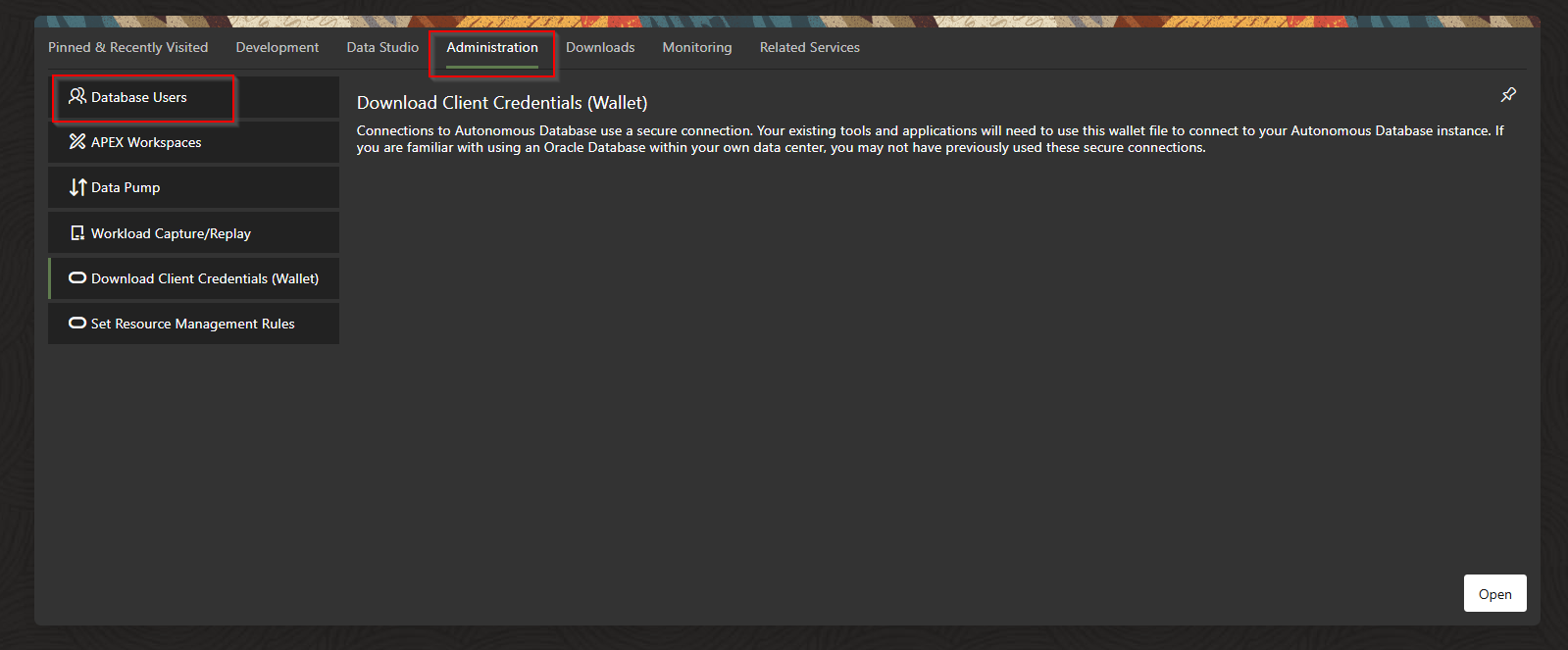
Go to Administration –> Database Users
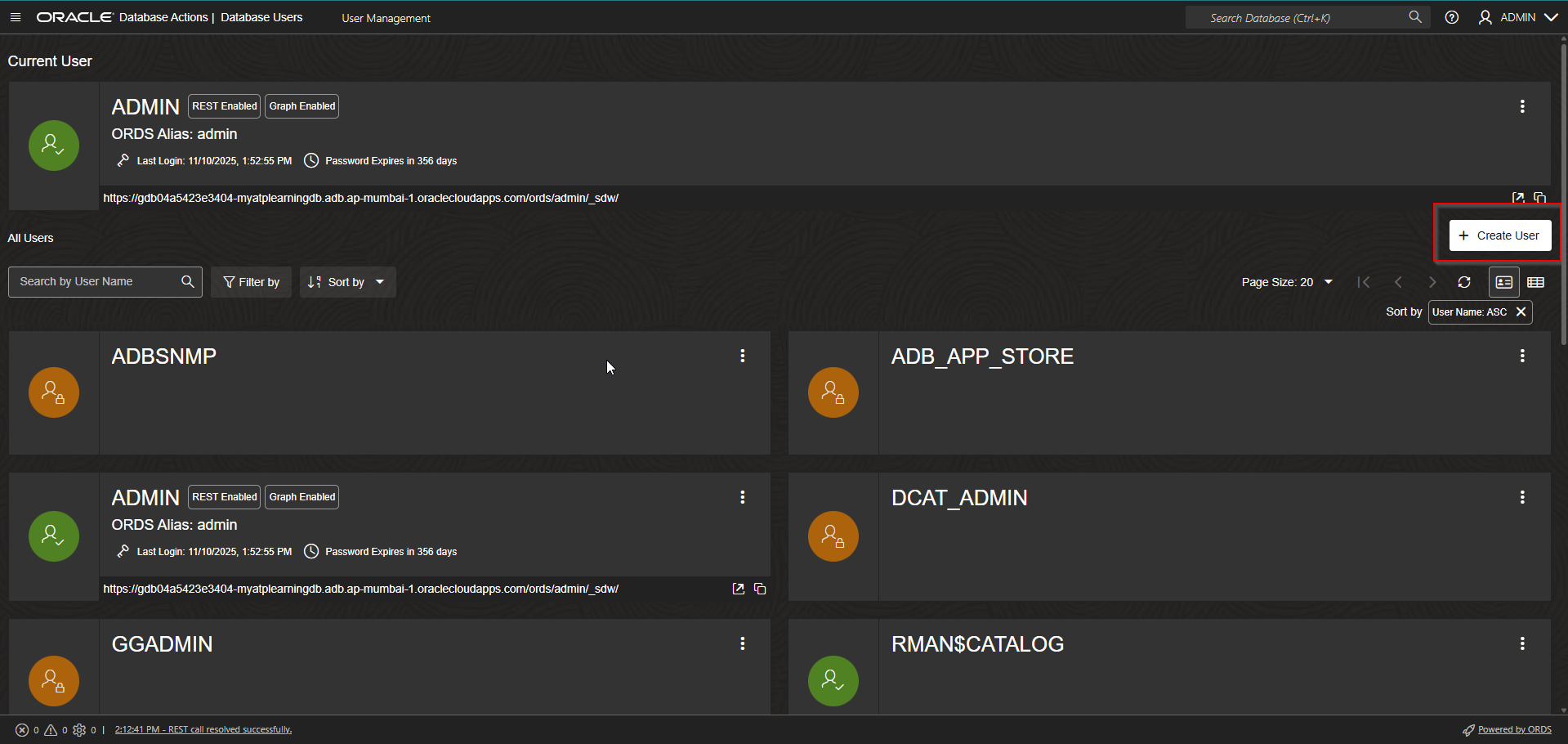
Click on Create User and provide details as shown below to create new user.
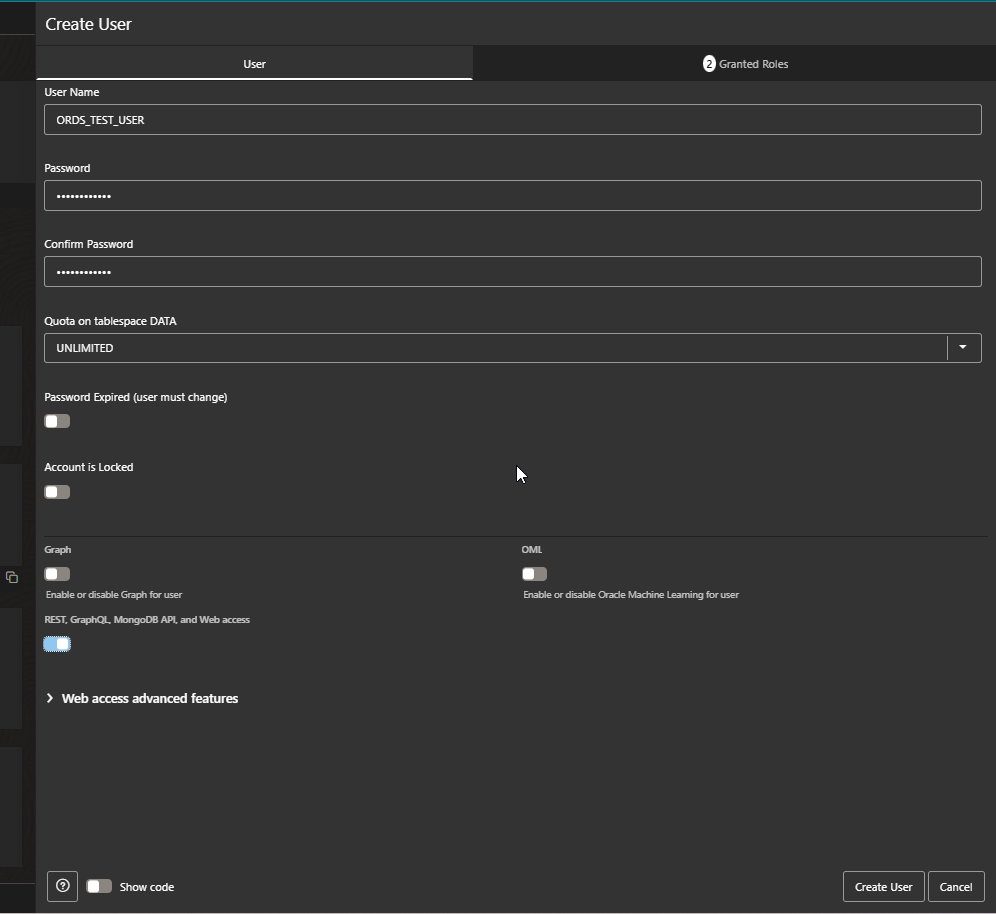
Click on “Granted Roles”.
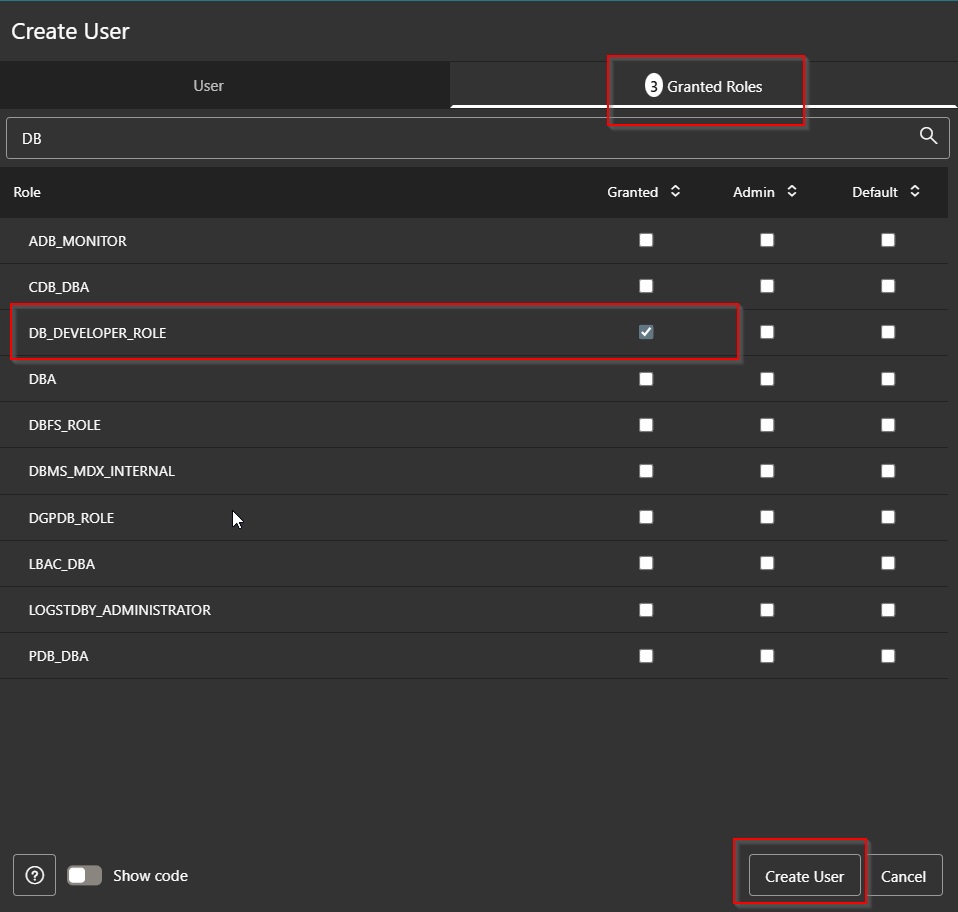
Select DB_DEVELOPER_ROLE and Click on Create user.
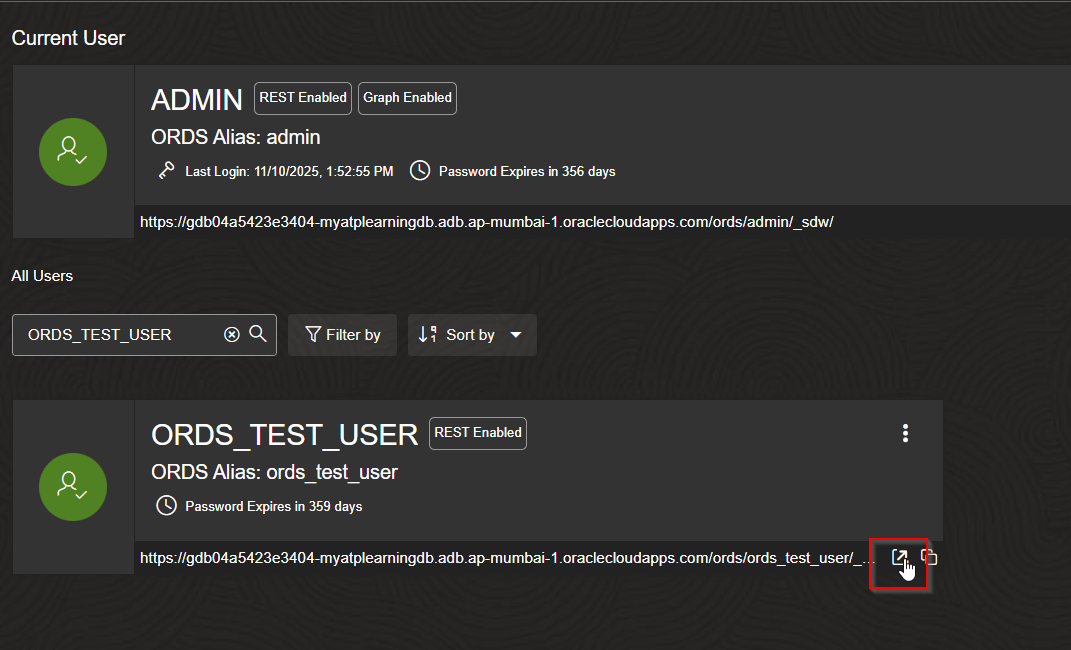
Let us open ORDS URL

Click on Sign In.


New Schema ORDS_TEST_USER is created now.
Step2: Create Sample Tables
Let us create some sample tables in this DB schema to enable ORDS for those DB objects.
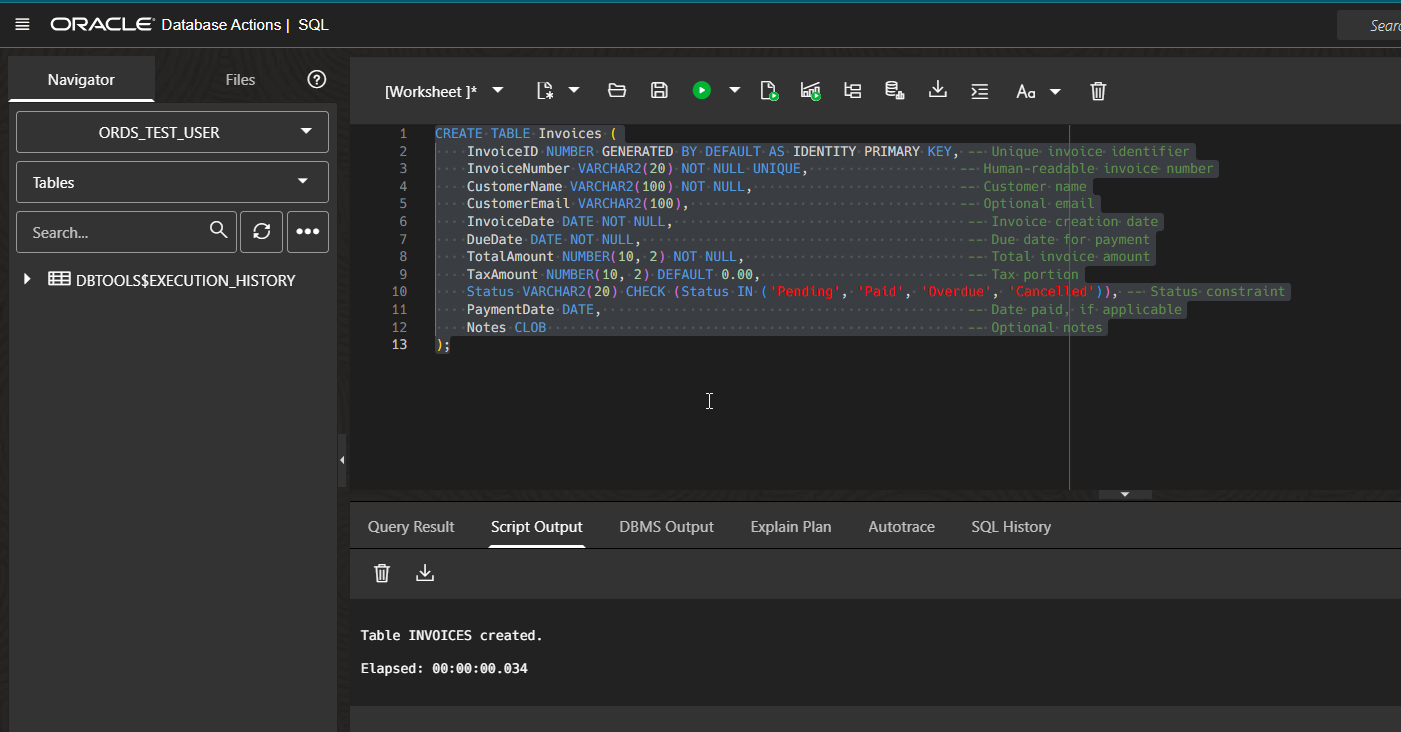
CREATE TABLE Invoices ( InvoiceID NUMBER GENERATED BY DEFAULT AS IDENTITY PRIMARY KEY, — Unique invoice identifier InvoiceNumber VARCHAR2(20) NOT NULL UNIQUE, — Human-readable invoice number CustomerName VARCHAR2(100) NOT NULL, — Customer name CustomerEmail VARCHAR2(100), — Optional email InvoiceDate DATE NOT NULL, — Invoice creation date DueDate DATE NOT NULL, — Due date for payment TotalAmount NUMBER(10, 2) NOT NULL, — Total invoice amount TaxAmount NUMBER(10, 2) DEFAULT 0.00, — Tax portion Status VARCHAR2(20) CHECK (Status IN (‘Pending’, ‘Paid’, ‘Overdue’, ‘Cancelled’)), — Status constraint PaymentDate DATE, — Date paid, if applicable Notes CLOB — Optional notes ); |
Insert some sample data.
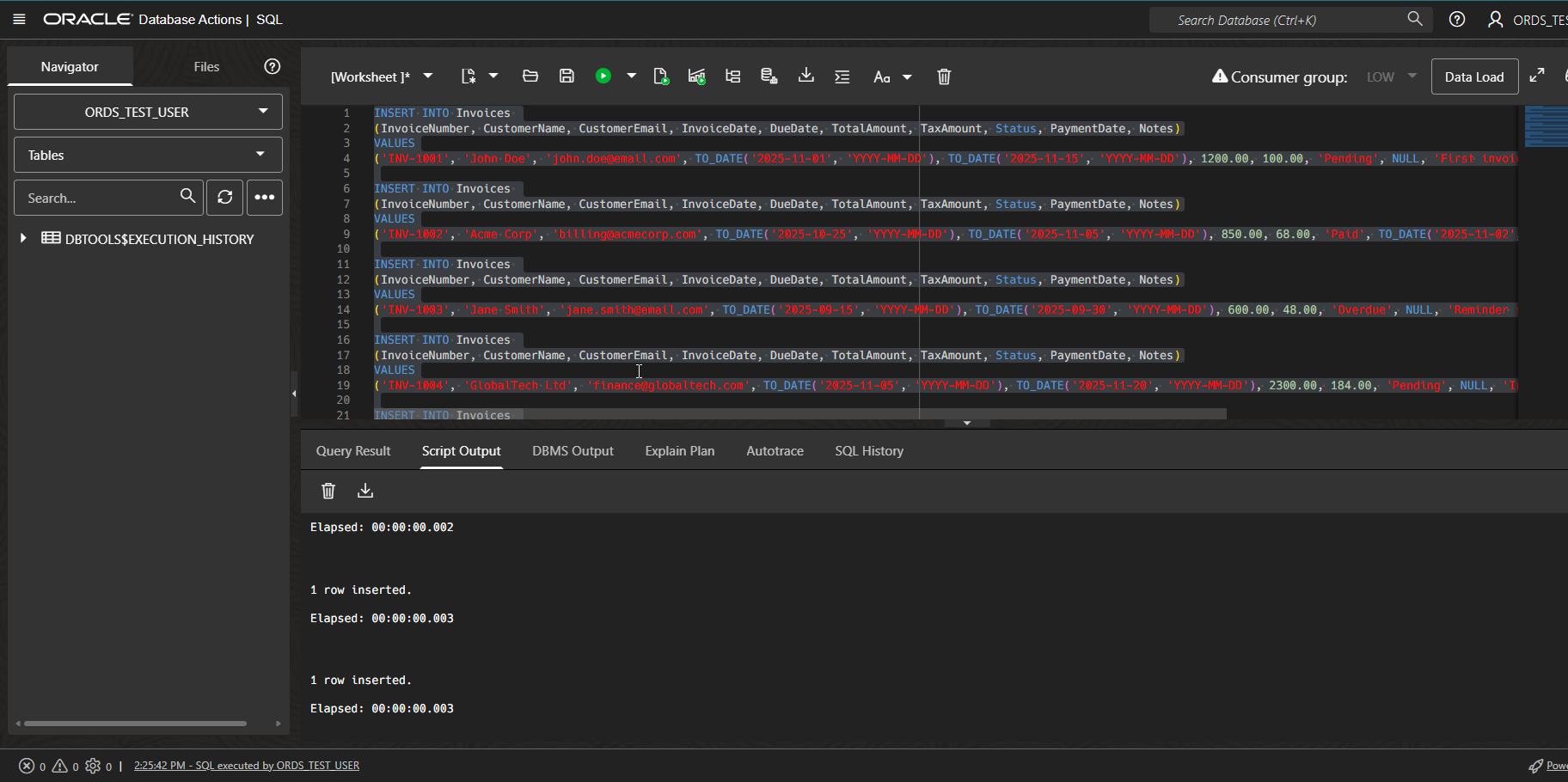
INSERT INTO Invoices (InvoiceNumber, CustomerName, CustomerEmail, InvoiceDate, DueDate, TotalAmount, TaxAmount, Status, PaymentDate, Notes) VALUES (‘INV-1001’, ‘John Doe’, ‘john.doe@email.com’, TO_DATE(‘2025-11-01’, ‘YYYY-MM-DD’), TO_DATE(‘2025-11-15’, ‘YYYY-MM-DD’), 1200.00, 100.00, ‘Pending’, NULL, ‘First invoice for website project’); INSERT INTO Invoices (InvoiceNumber, CustomerName, CustomerEmail, InvoiceDate, DueDate, TotalAmount, TaxAmount, Status, PaymentDate, Notes) VALUES (‘INV-1002’, ‘Acme Corp’, ‘billing@acmecorp.com’, TO_DATE(‘2025-10-25’, ‘YYYY-MM-DD’), TO_DATE(‘2025-11-05’, ‘YYYY-MM-DD’), 850.00, 68.00, ‘Paid’, TO_DATE(‘2025-11-02’, ‘YYYY-MM-DD’), ‘Payment received via bank transfer’); INSERT INTO Invoices (InvoiceNumber, CustomerName, CustomerEmail, InvoiceDate, DueDate, TotalAmount, TaxAmount, Status, PaymentDate, Notes) VALUES (‘INV-1003’, ‘Jane Smith’, ‘jane.smith@email.com’, TO_DATE(‘2025-09-15’, ‘YYYY-MM-DD’), TO_DATE(‘2025-09-30’, ‘YYYY-MM-DD’), 600.00, 48.00, ‘Overdue’, NULL, ‘Reminder sent twice’); INSERT INTO Invoices (InvoiceNumber, CustomerName, CustomerEmail, InvoiceDate, DueDate, TotalAmount, TaxAmount, Status, PaymentDate, Notes) VALUES (‘INV-1004’, ‘GlobalTech Ltd’, ‘finance@globaltech.com’, TO_DATE(‘2025-11-05’, ‘YYYY-MM-DD’), TO_DATE(‘2025-11-20’, ‘YYYY-MM-DD’), 2300.00, 184.00, ‘Pending’, NULL, ‘Includes hardware maintenance fees’); INSERT INTO Invoices (InvoiceNumber, CustomerName, CustomerEmail, InvoiceDate, DueDate, TotalAmount, TaxAmount, Status, PaymentDate, Notes) VALUES (‘INV-1005’, ‘BlueWave Media’, ‘accounts@bluewave.com’, TO_DATE(‘2025-10-10’, ‘YYYY-MM-DD’), TO_DATE(‘2025-10-25’, ‘YYYY-MM-DD’), 1750.00, 140.00, ‘Cancelled’, NULL, ‘Cancelled before payment due’); |
Let us verify the data inserted.
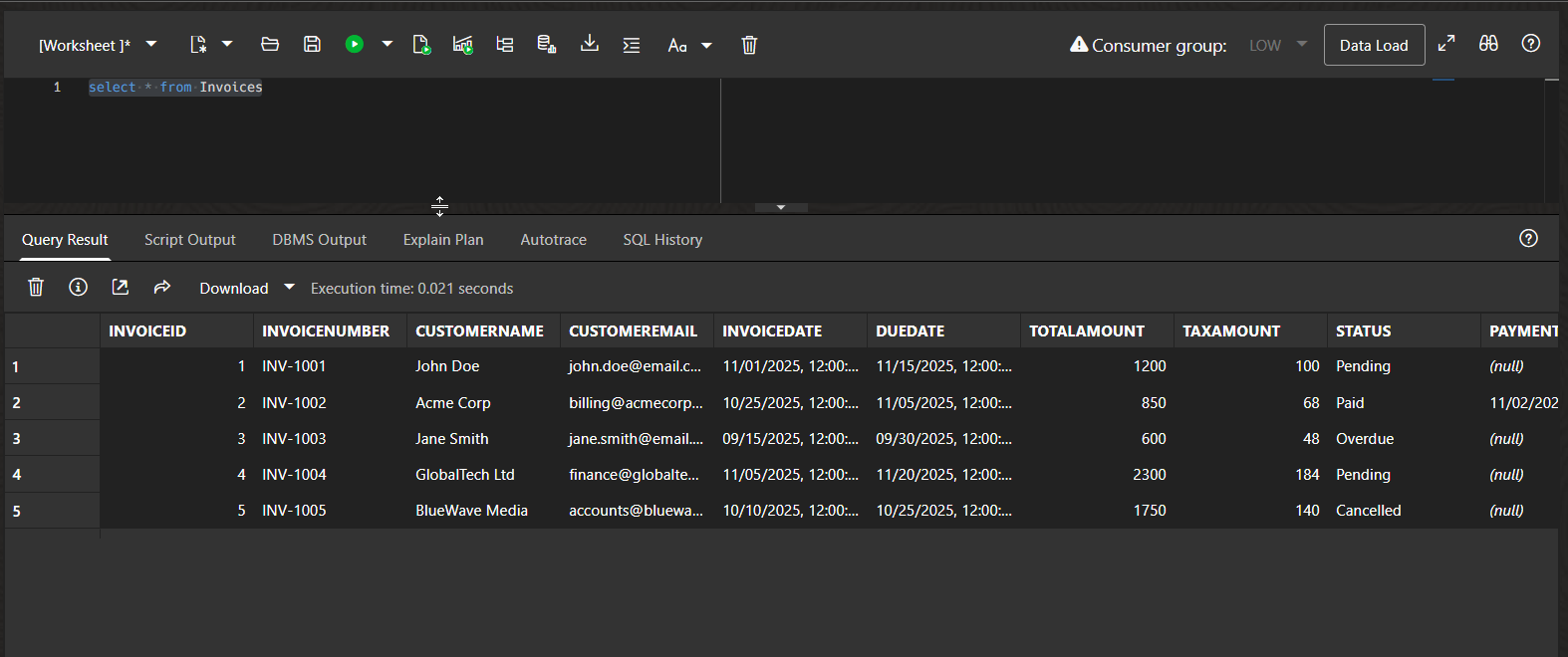
Step3: Enable AUTO-REST
Let us enable AUTO-REST for this table.
Right Click on table —->Invoices —>REST —>Enable

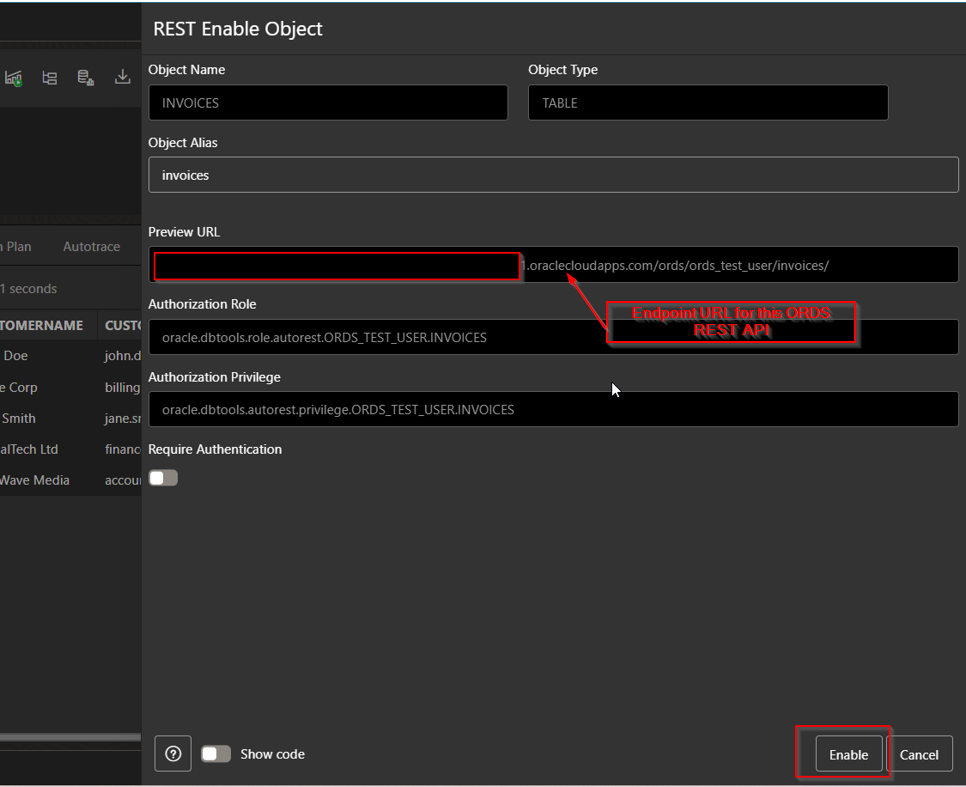
Click on Enable.

Now run this ORDS REST API from postman.
(3.1) GET Method:

(3.2) POST Method:

(3.3) PUT Method:
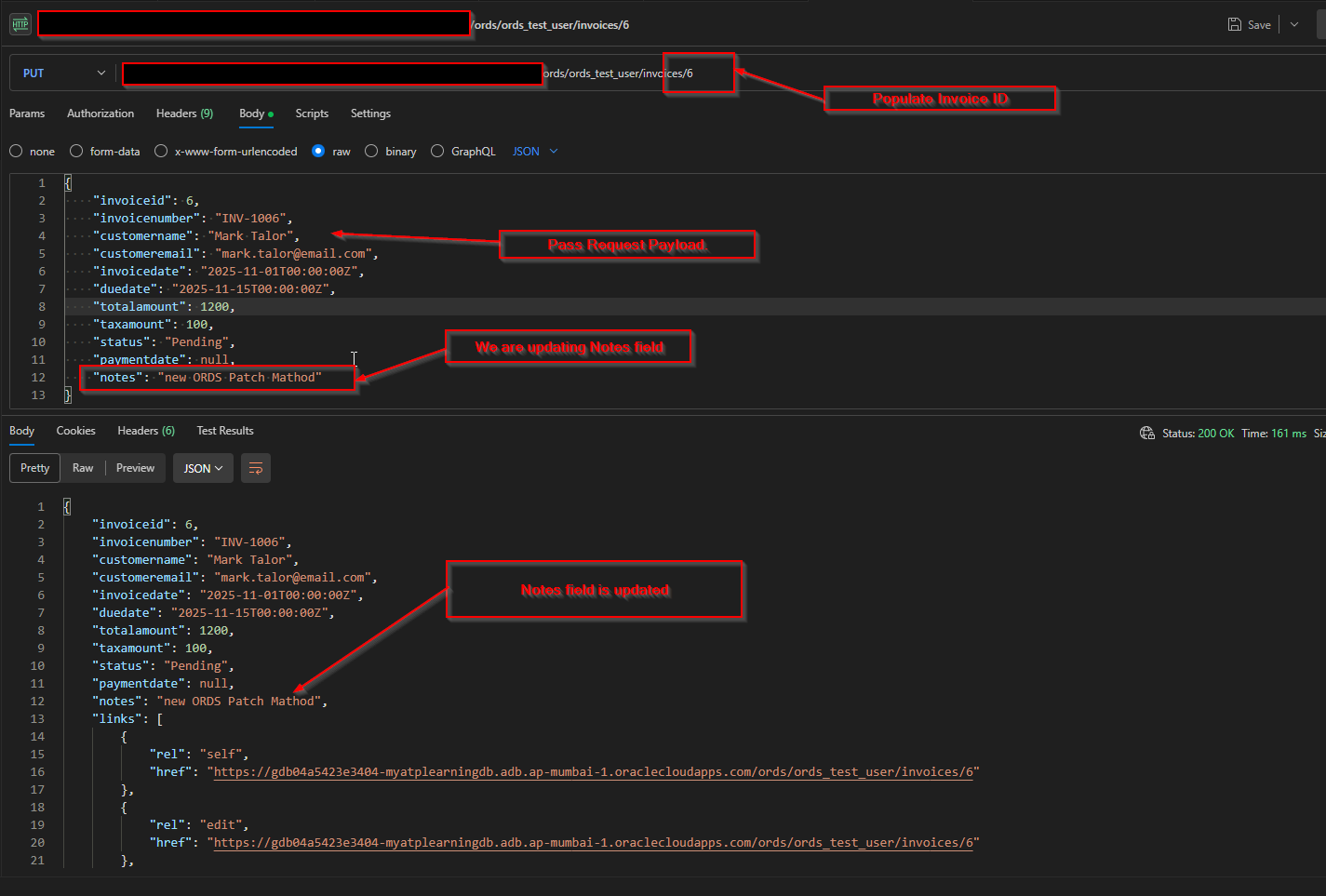
(3.4) DELETE Method:
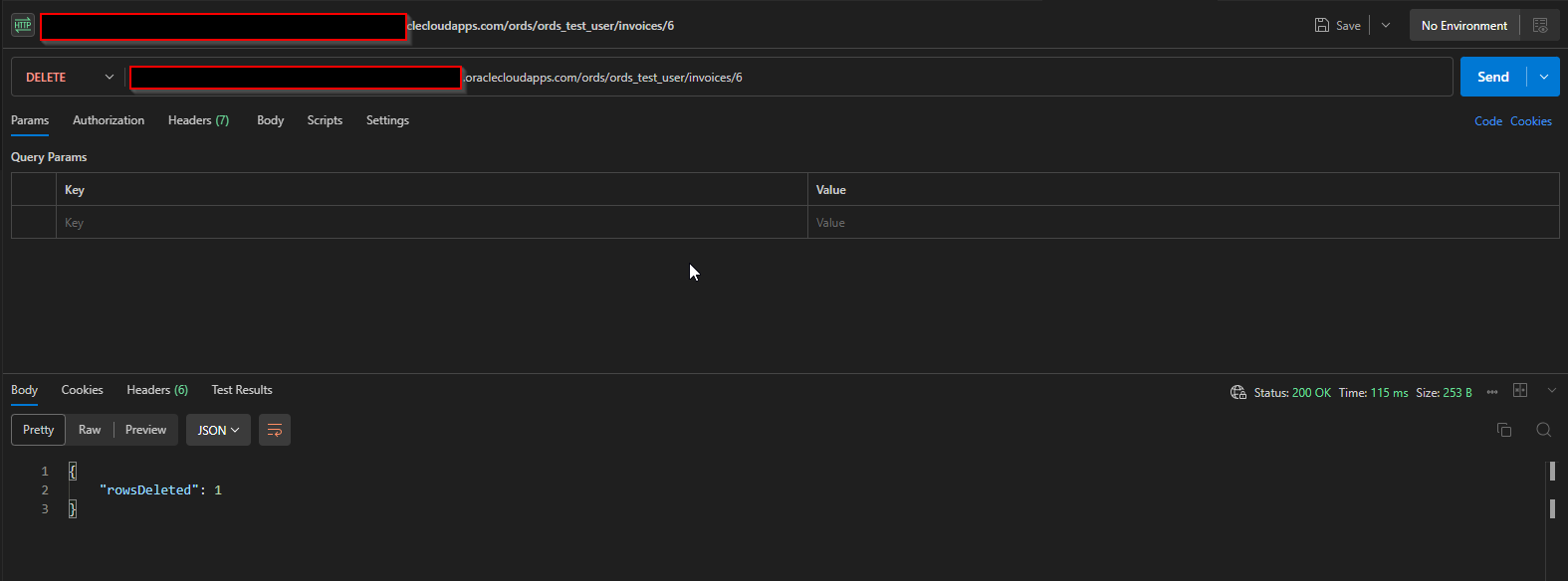
(3.5) Limit and Offset:
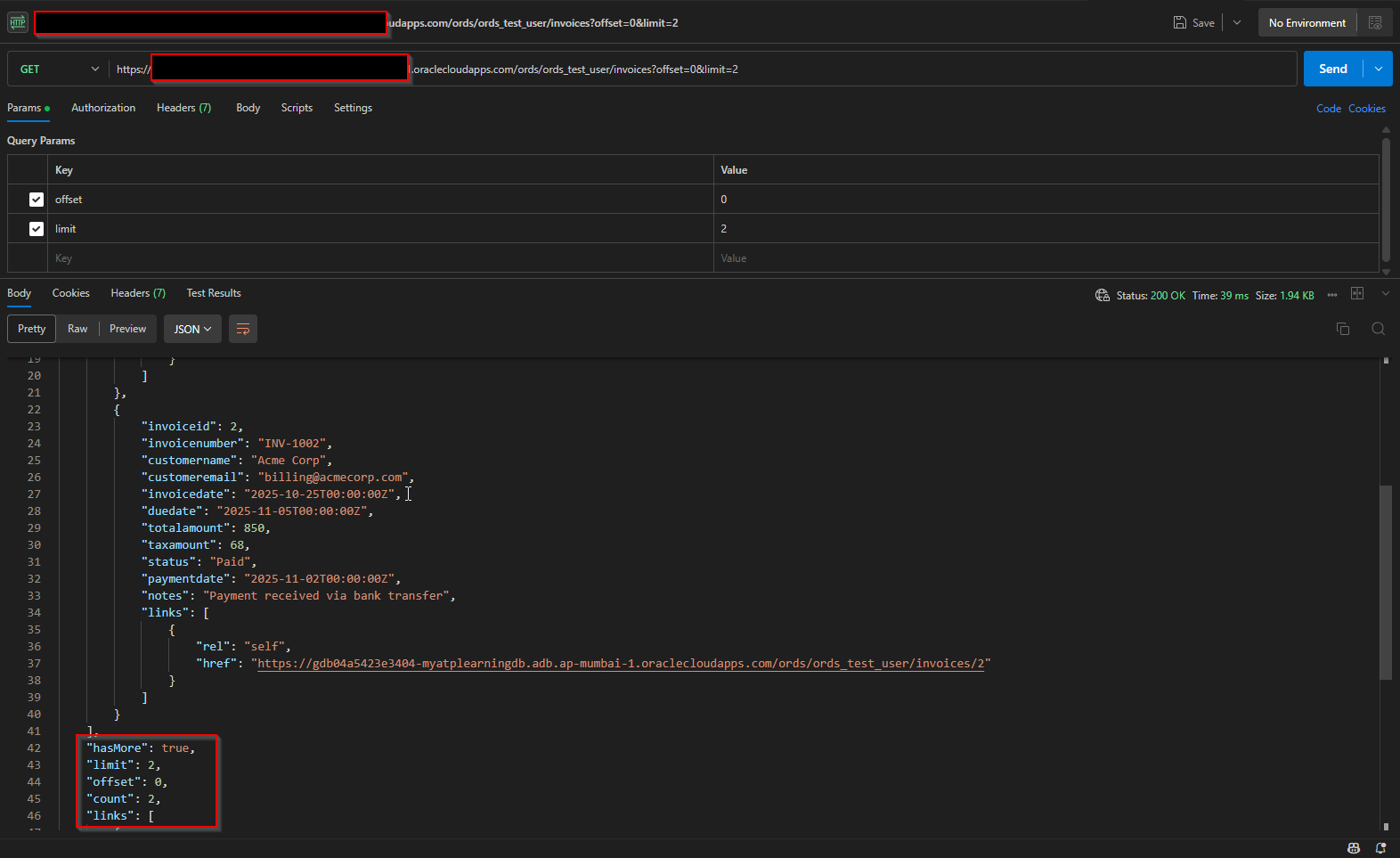
Step4: Create ORDS REST API using Custom module.
Let us create below two Tables in Database.
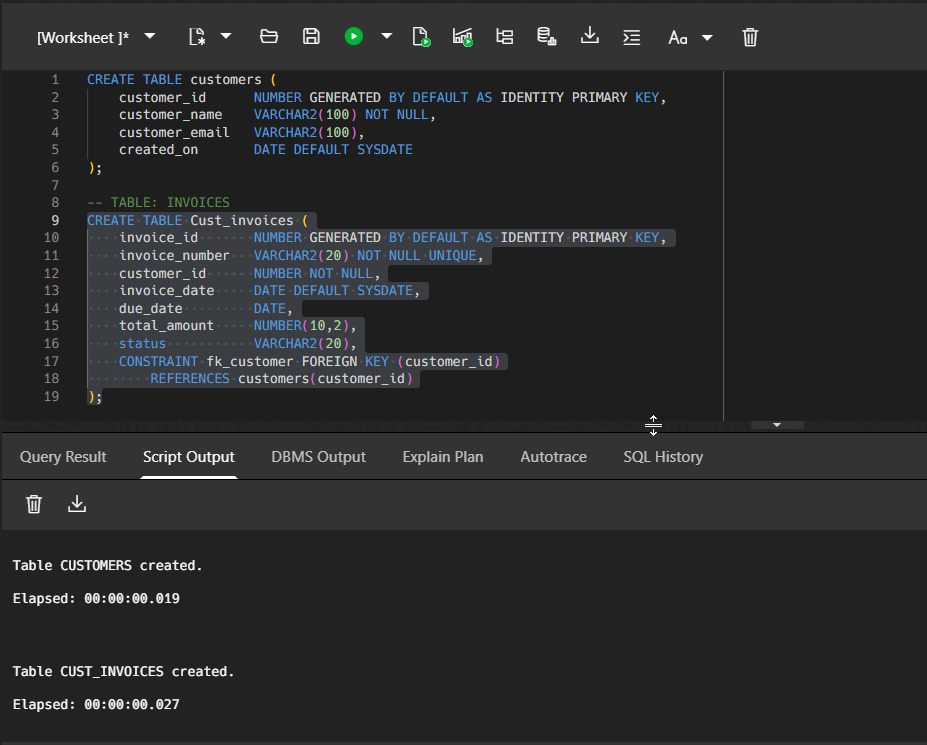
Script:
CREATE TABLE customers ( customer_id NUMBER GENERATED BY DEFAULT AS IDENTITY PRIMARY KEY, customer_name VARCHAR2(100) NOT NULL, customer_email VARCHAR2(100), created_on DATE DEFAULT SYSDATE ); — TABLE: INVOICES CREATE TABLE Cust_invoices ( invoice_id NUMBER GENERATED BY DEFAULT AS IDENTITY PRIMARY KEY, invoice_number VARCHAR2(20) NOT NULL UNIQUE, customer_id NUMBER NOT NULL, invoice_date DATE DEFAULT SYSDATE, due_date DATE, total_amount NUMBER(10,2), status VARCHAR2(20), CONSTRAINT fk_customer FOREIGN KEY (customer_id) REFERENCES customers(customer_id) ); |
Insert some sample data.

Script:
INSERT INTO customers (customer_name, customer_email) VALUES (‘John Doe’, ‘john.doe@email.com’); INSERT INTO customers (customer_name, customer_email) VALUES (‘Jane Smith’, ‘jane.smith@email.com’); INSERT INTO Cust_invoices (invoice_number, customer_id, invoice_date, due_date, total_amount, status) VALUES (‘INV-1001’, 1, SYSDATE – 10, SYSDATE + 20, 1200.00, ‘Pending’); INSERT INTO Cust_invoices (invoice_number, customer_id, invoice_date, due_date, total_amount, status) VALUES (‘INV-1002’, 2, SYSDATE – 20, SYSDATE – 5, 800.00, ‘Paid’); |
Enabling ORDS using Custom modules includes following steps:
(4.1) Create Module:
Navigate to Development —>REST

Click on Modules.
Click on Create Module.

Provide Module Name, Base Path and Click on Create.
(4.2) Create Template:
Once module is created, next step is to create Template.
Click on Create Template.

Provide Module Name and other details as shown above. Click on Create.
(4.3) Create Handler:
Click on “Create Handler”
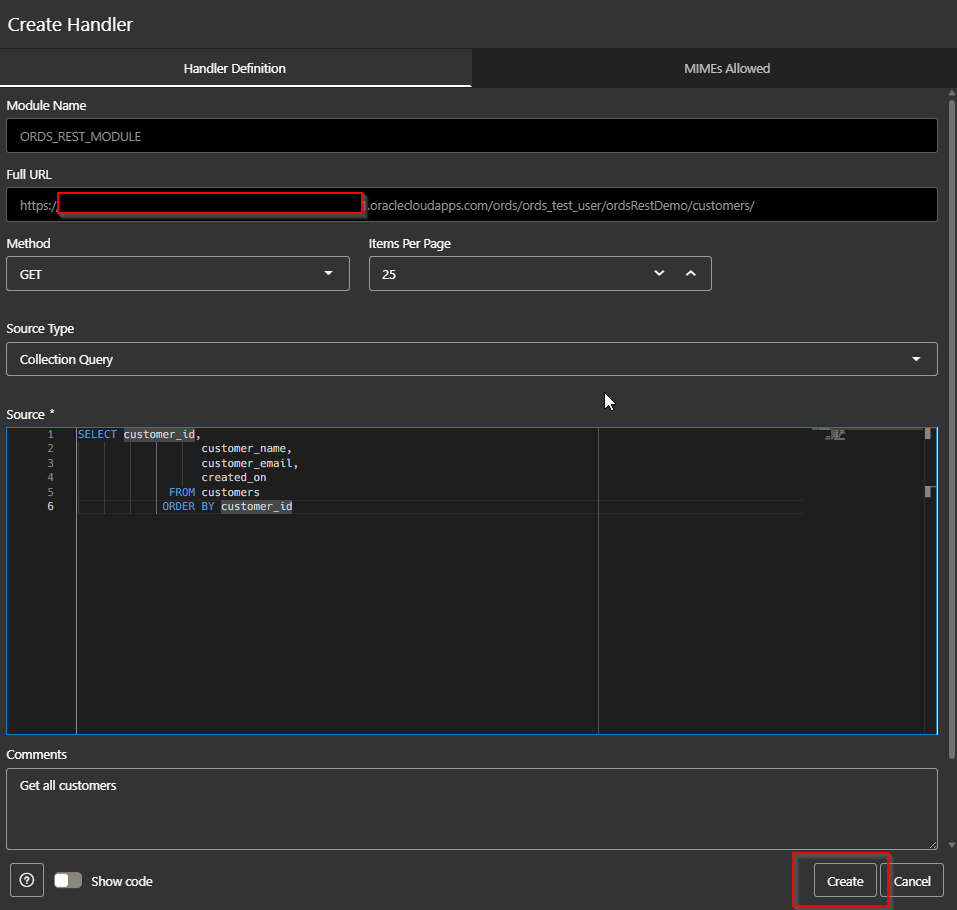
Provide details as shown and click on create.
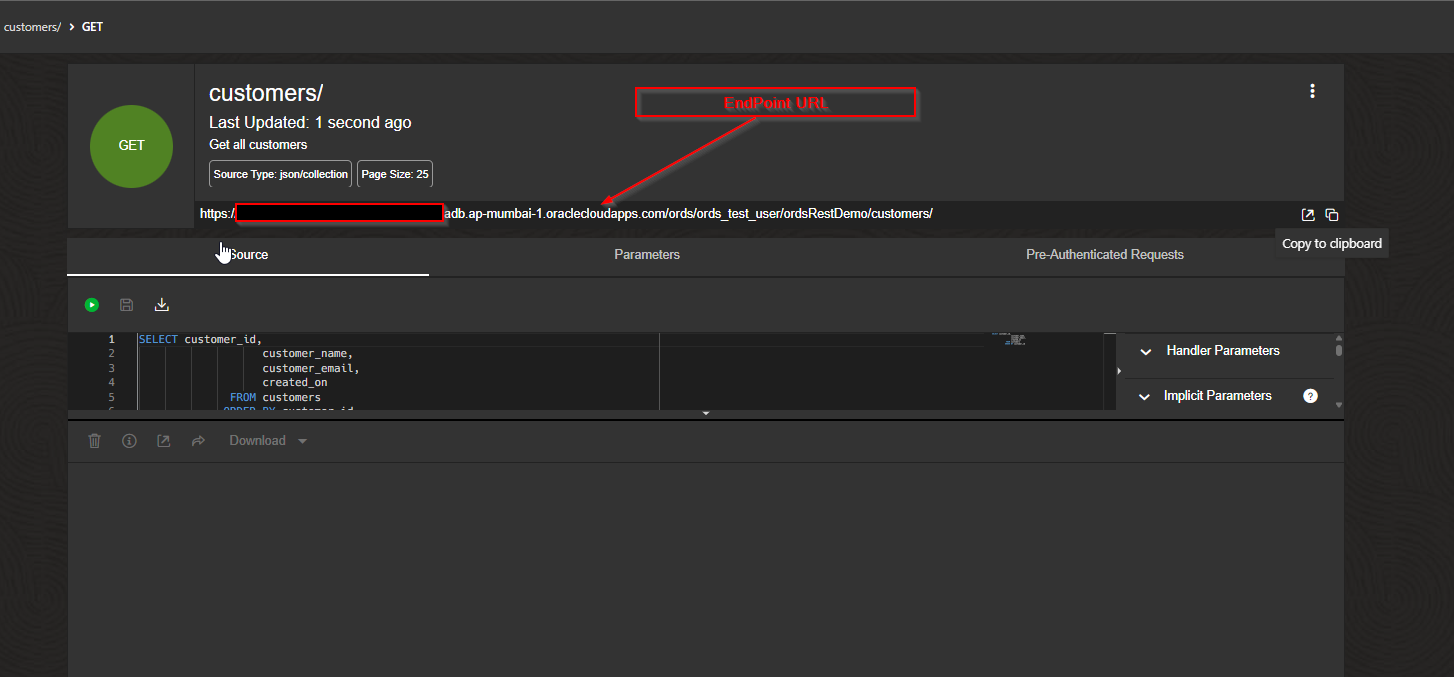
This will generate ORDS Endpoint.
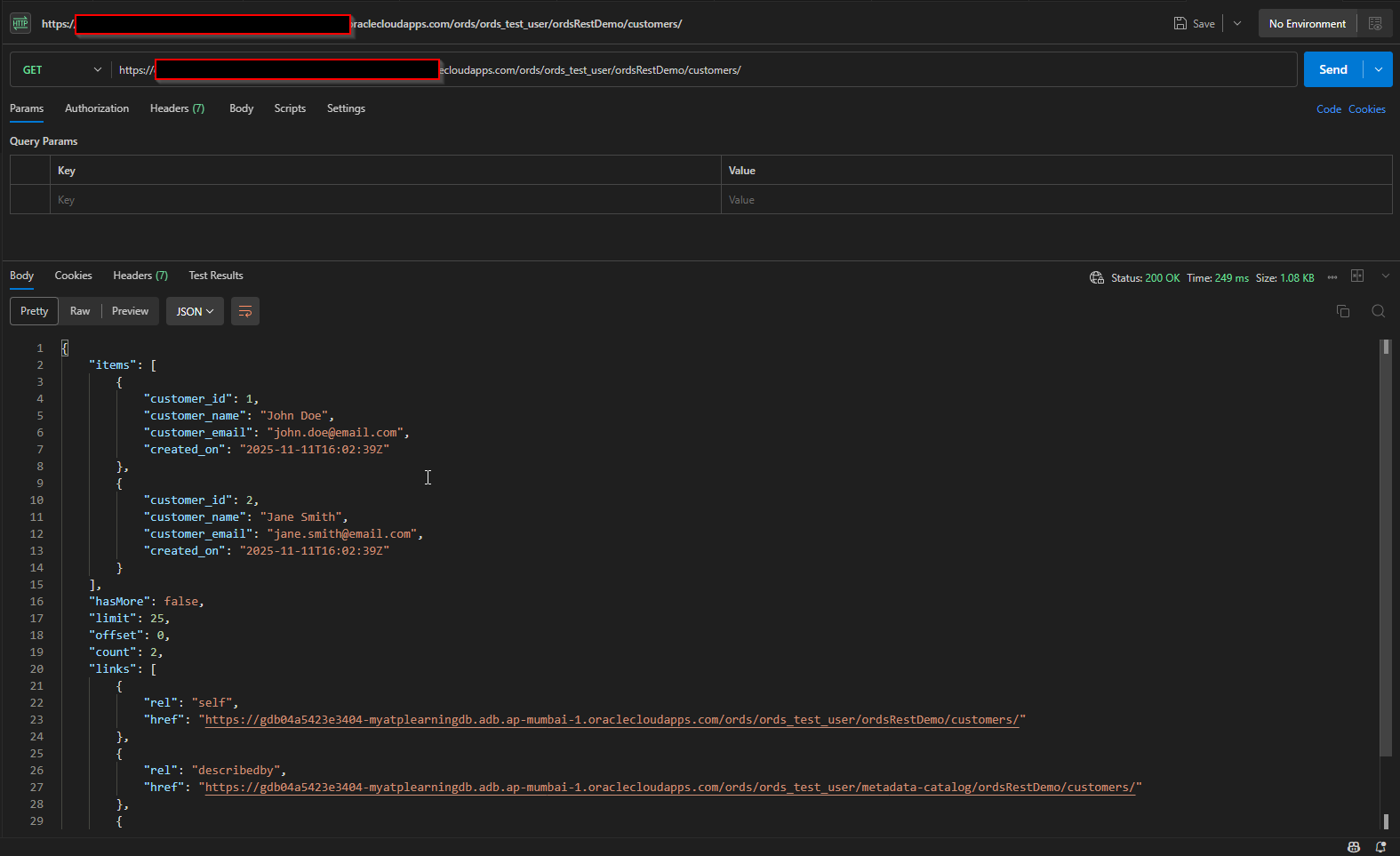
Let us test ORDS endpoint with GET operation.
Similarly, let us create Template for Invoices.
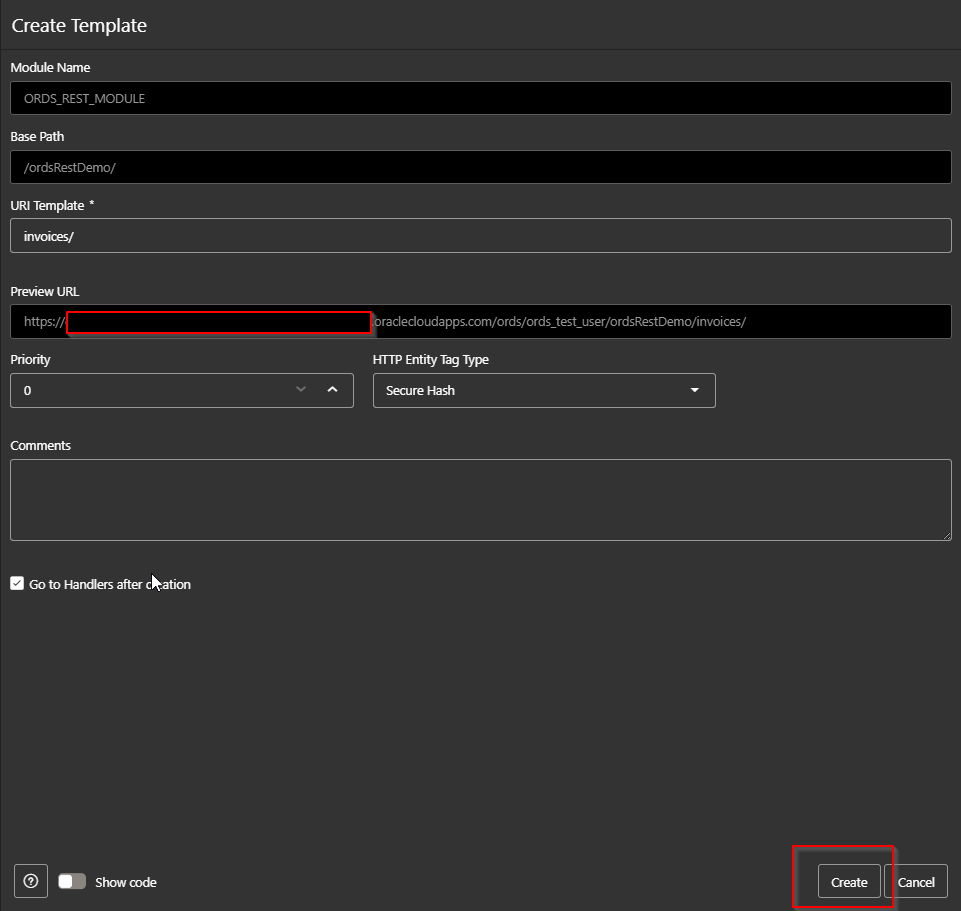
Provide details and click on Create.
Create Handler.

Here we are writing query with two table joins.
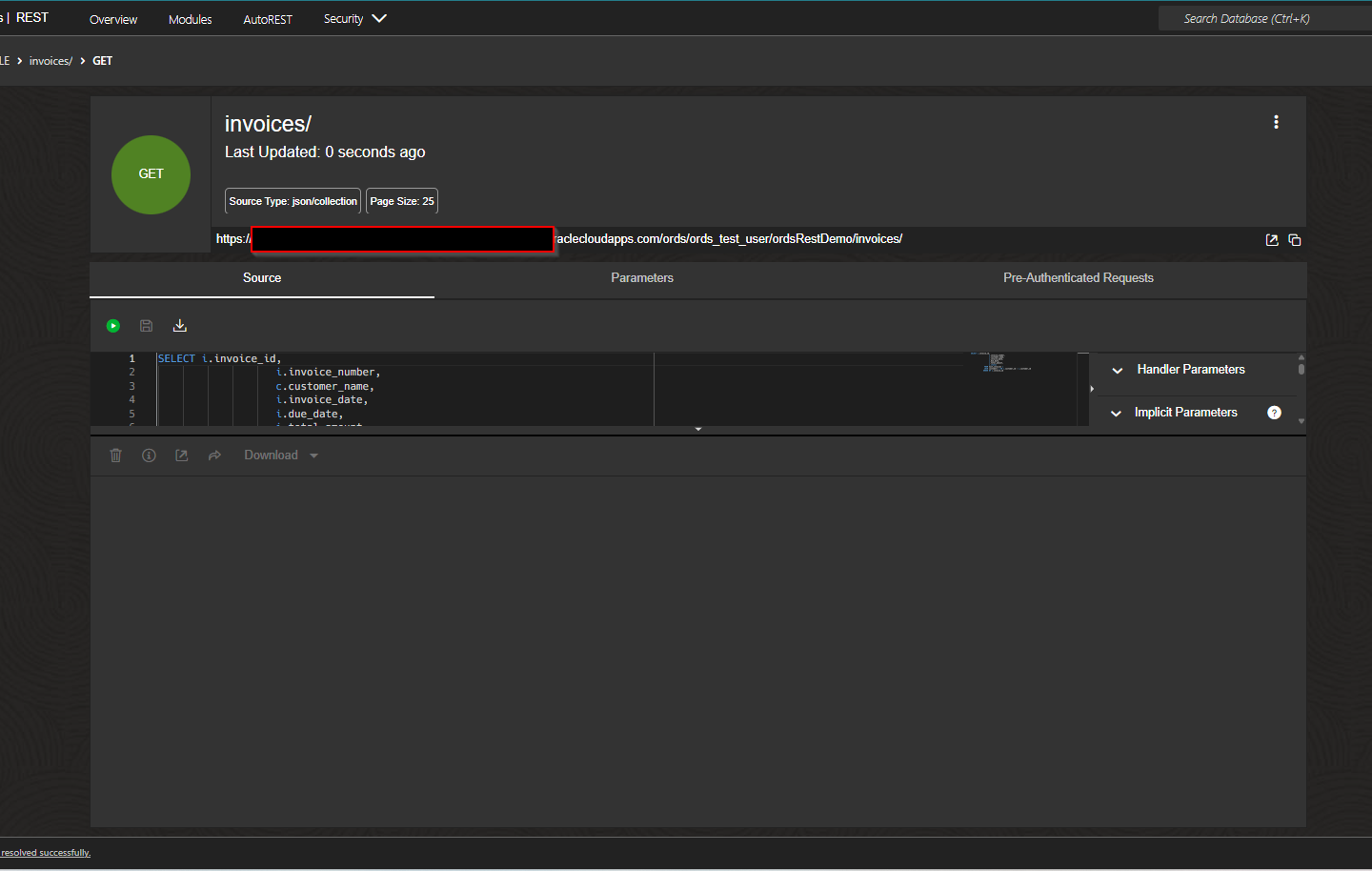

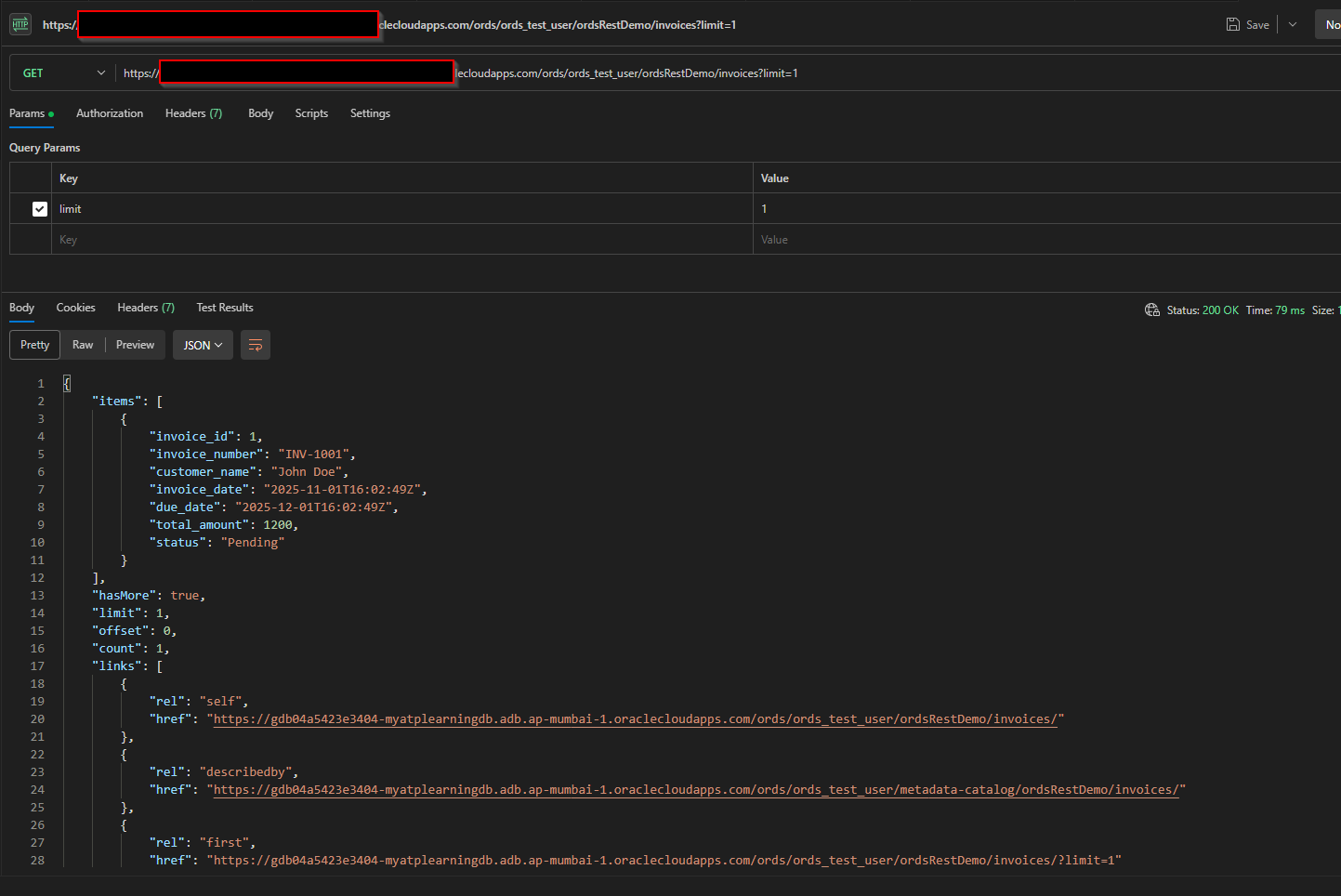
With limit.
(4.3) Create Handler for Single Record GET Endpoint:
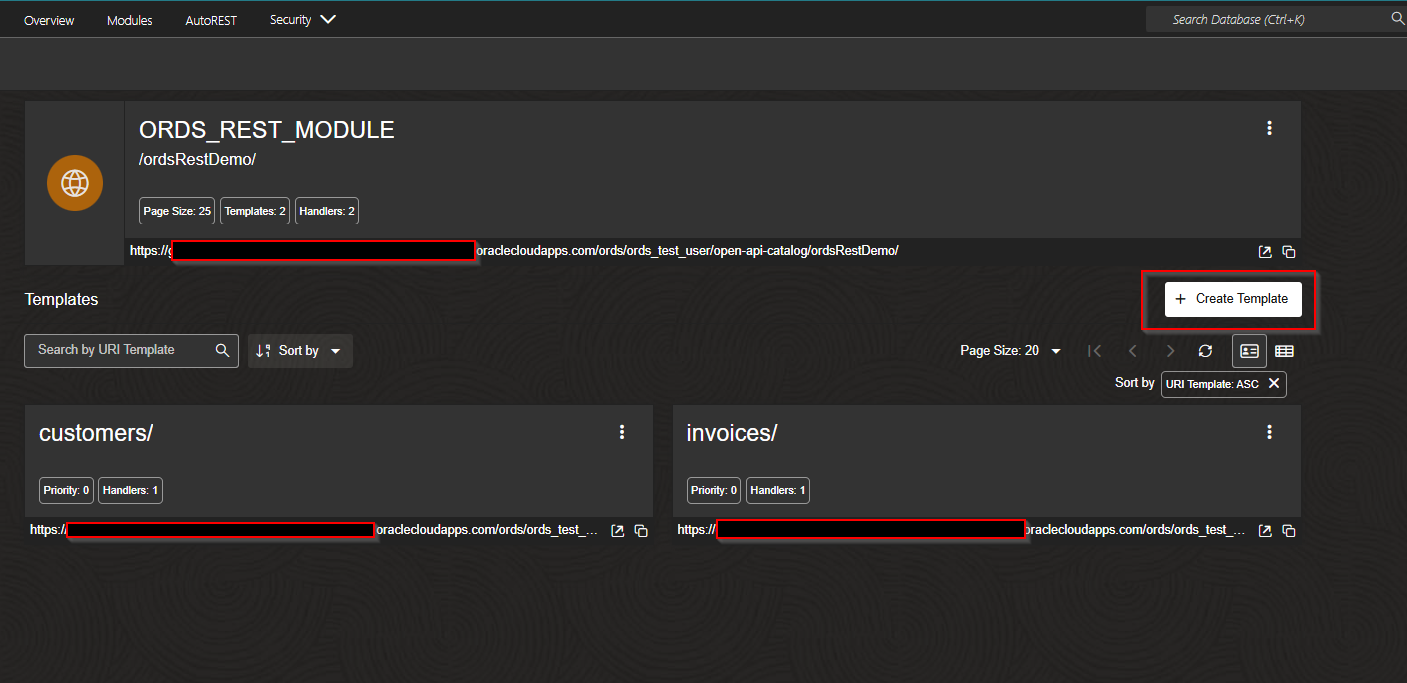
Click on Create Template.
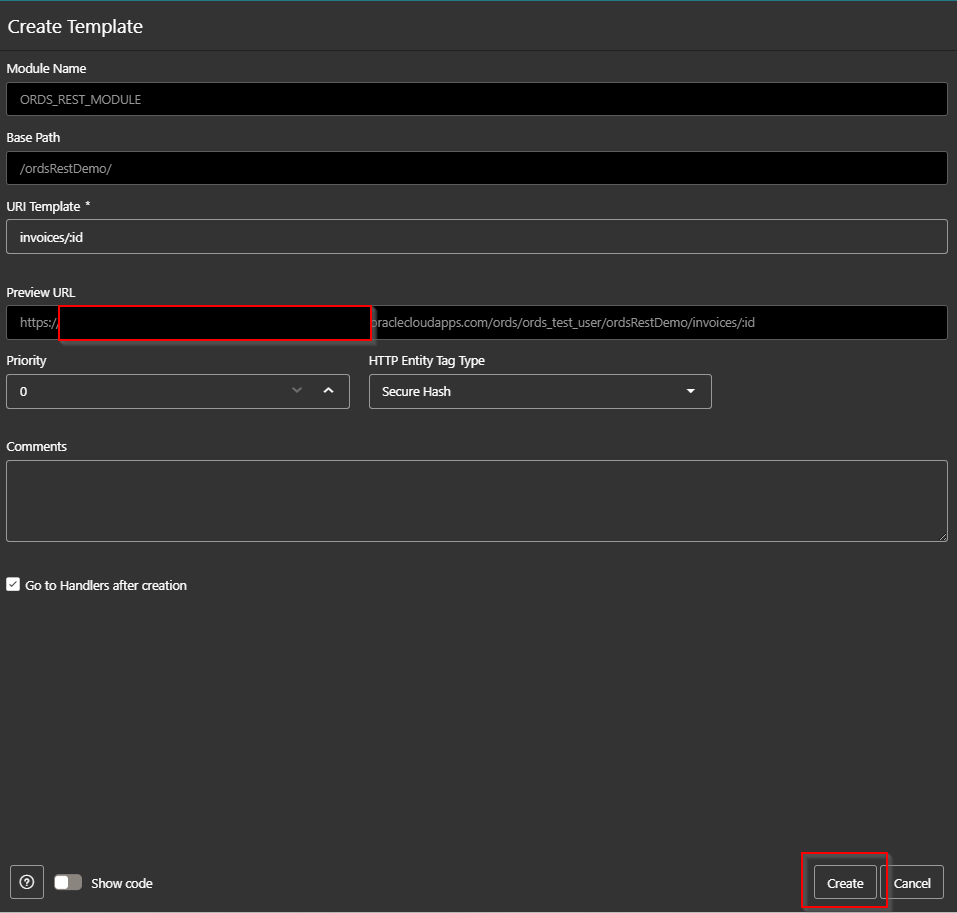
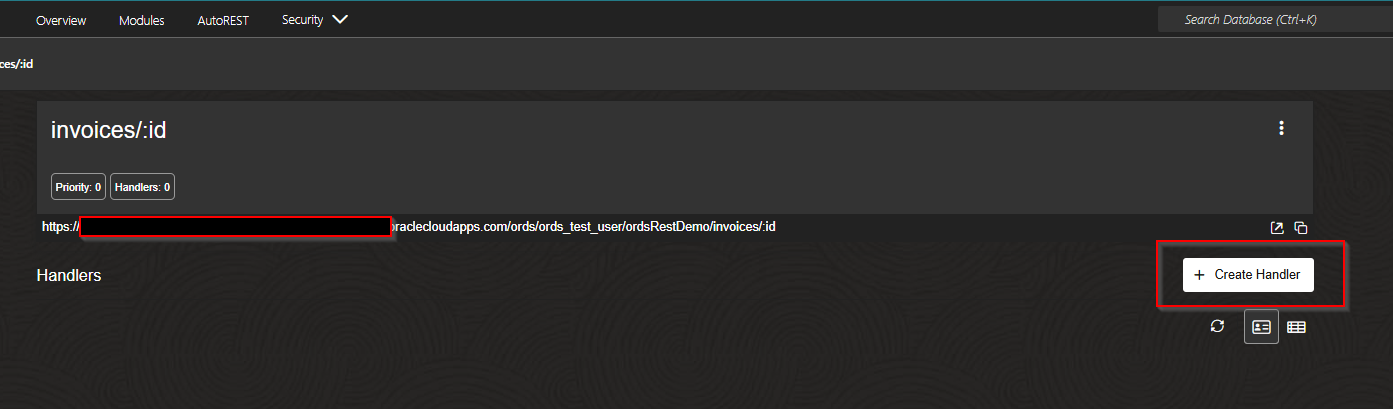
Click on Create Handler.

Create query with bind parameter as shown above.
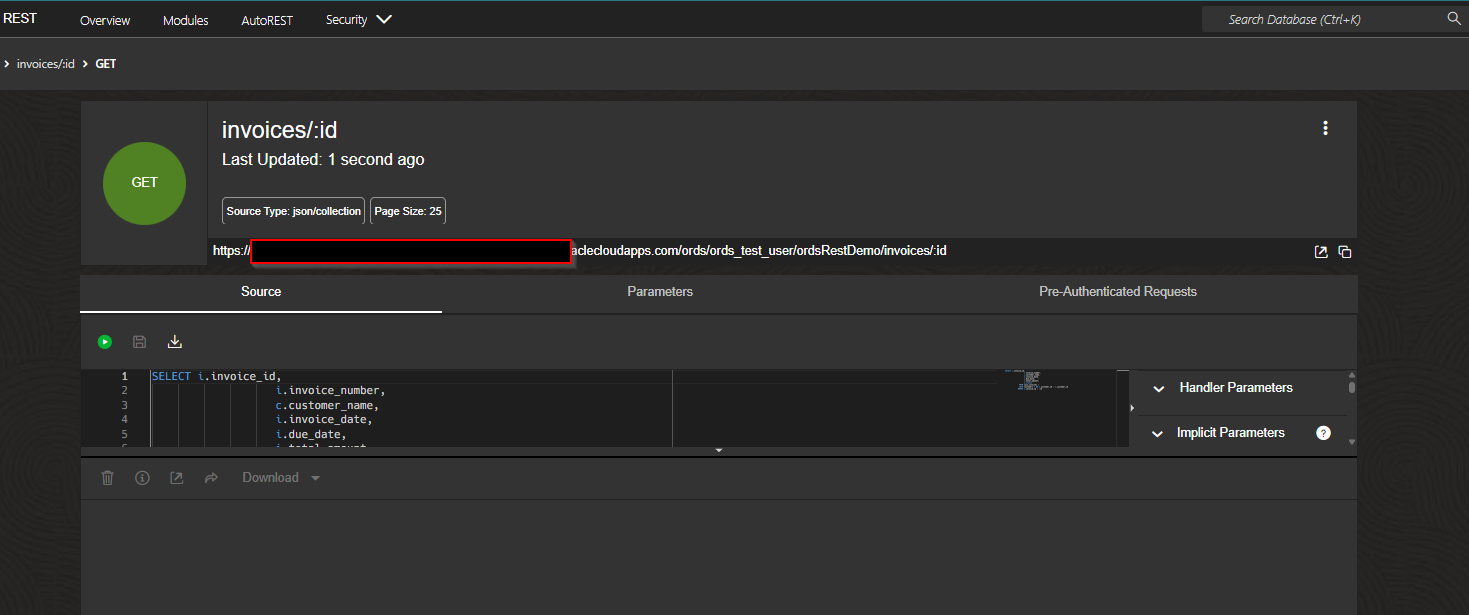
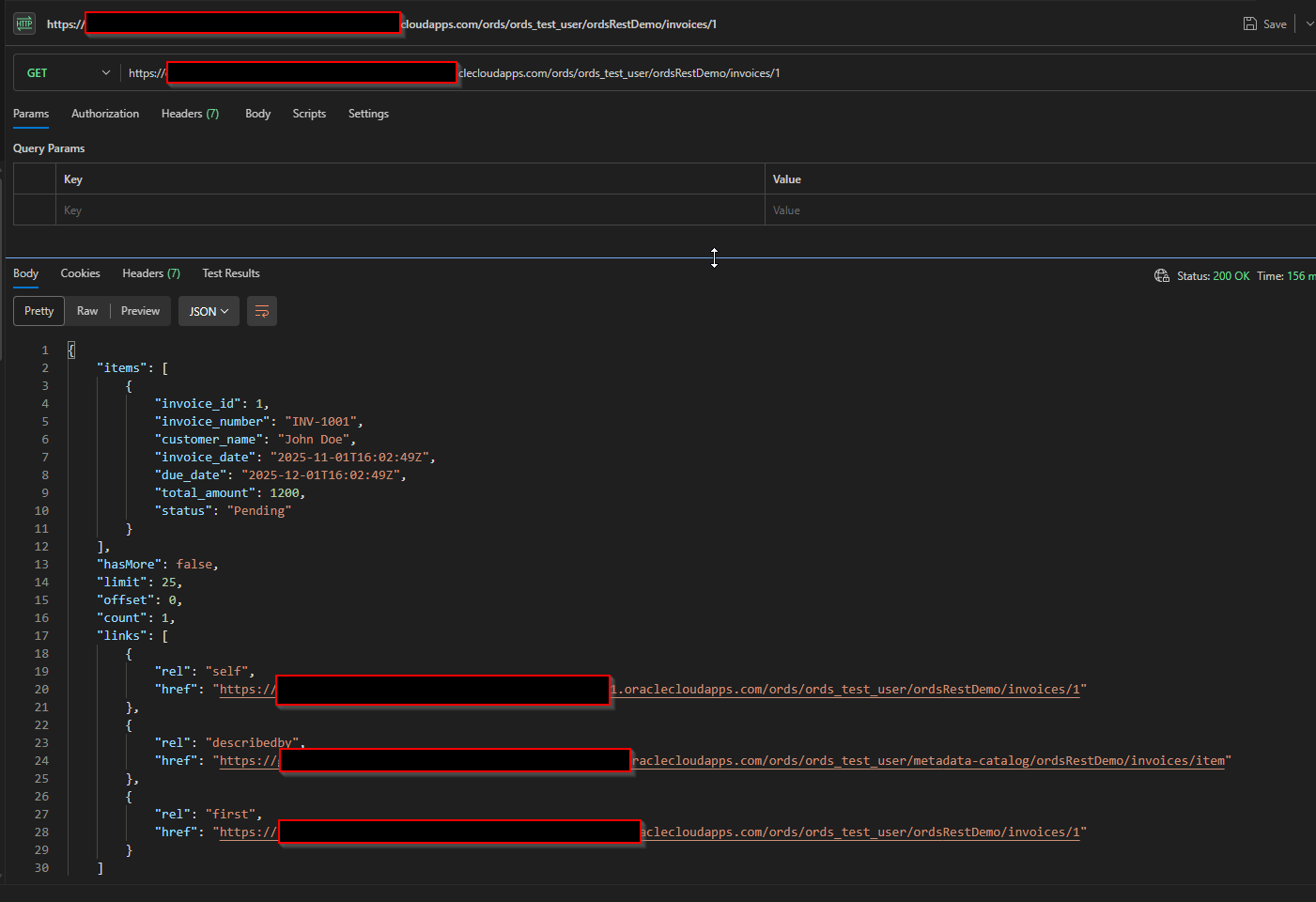
Now here we can pass Invoice_id as path parameter.
(4.4) Create Handler POST Endpoint:
Let’s extend your existing ORDS custom module (for invoices/customers) by adding a POST operation that uses a PL/SQL procedure to insert new invoices.
Create the PL/SQL Procedure
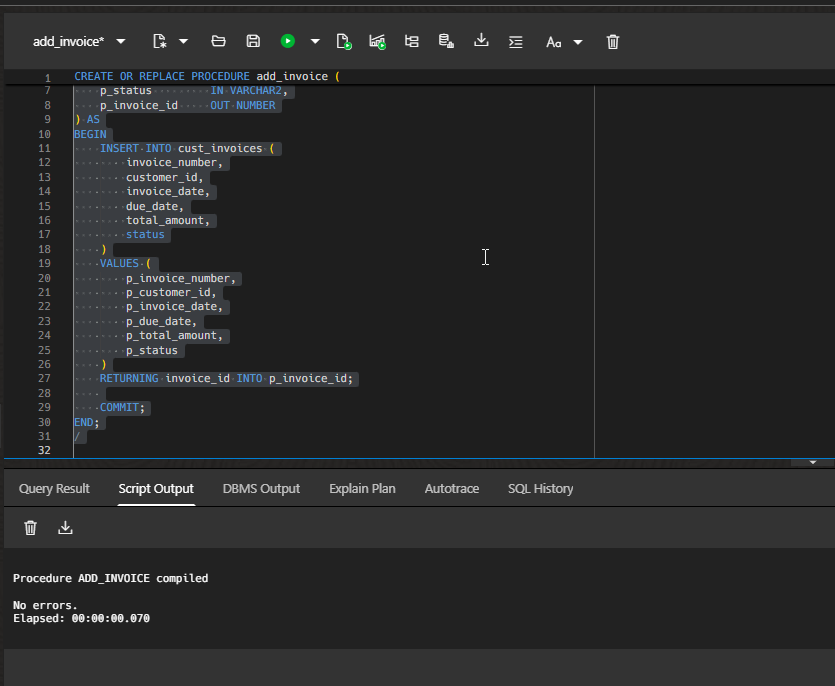
Scipt:
CREATE OR REPLACE PROCEDURE add_invoice ( p_invoice_number IN VARCHAR2, p_customer_id IN NUMBER, p_invoice_date IN DATE, p_due_date IN DATE, p_total_amount IN NUMBER, p_status IN VARCHAR2, p_invoice_id OUT NUMBER ) AS BEGIN INSERT INTO cust_invoices ( invoice_number, customer_id, invoice_date, due_date, total_amount, status ) VALUES ( p_invoice_number, p_customer_id, p_invoice_date, p_due_date, p_total_amount, p_status ) RETURNING invoice_id INTO p_invoice_id;
COMMIT; END; / |
Select Invoices Module.
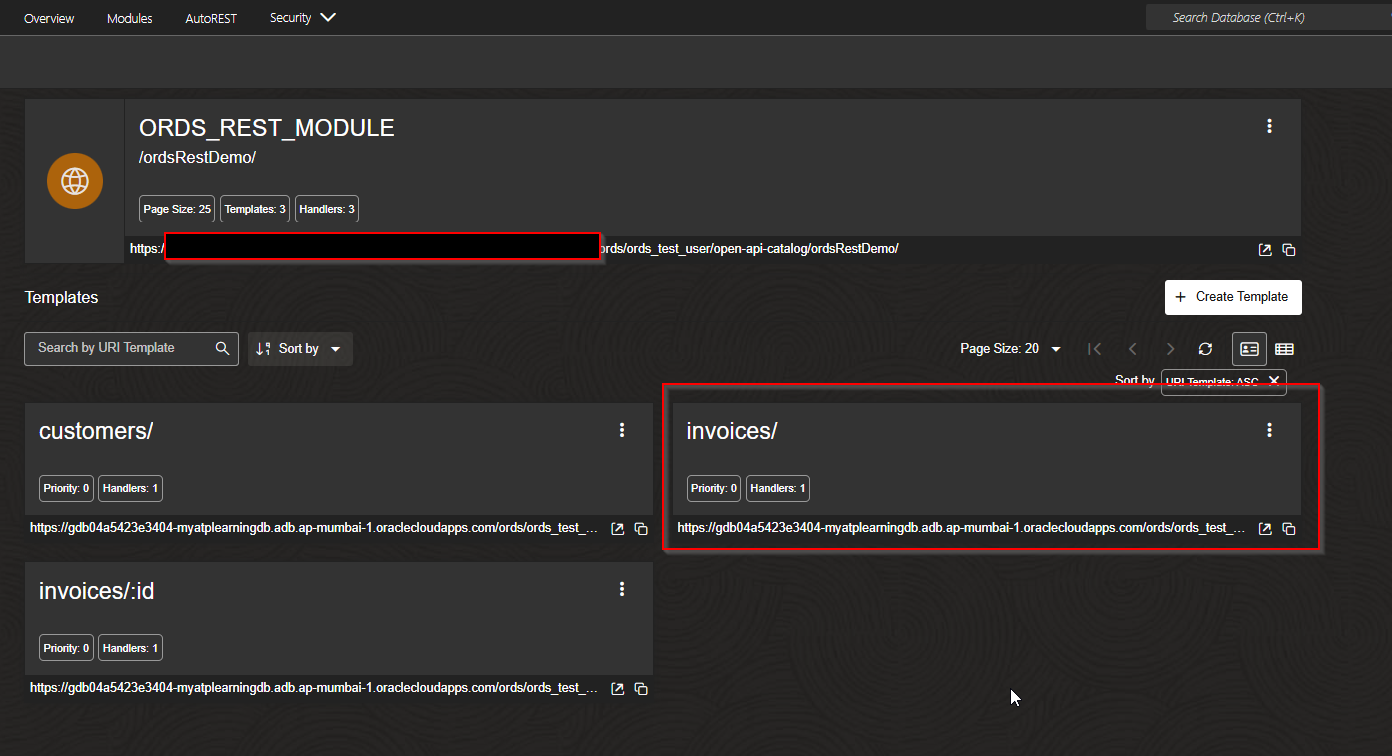
Click on “Create Handler”.
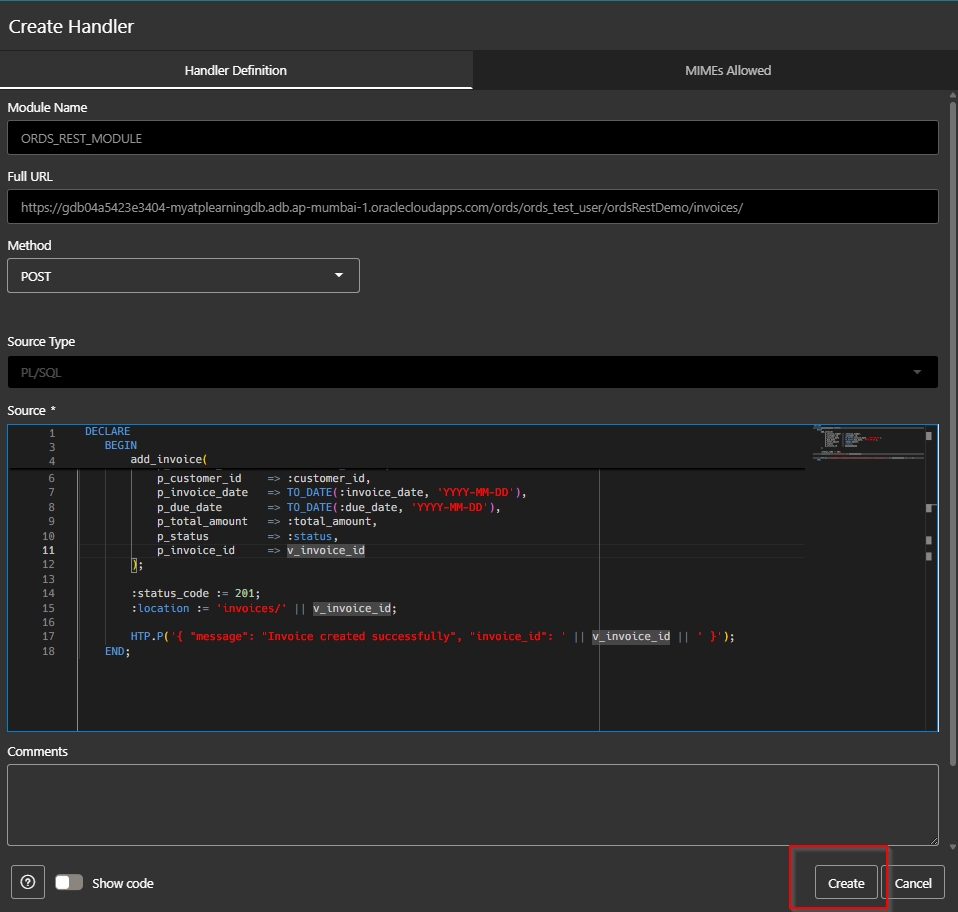
Add above PLSQL code and click on Create.

Handler is created now.
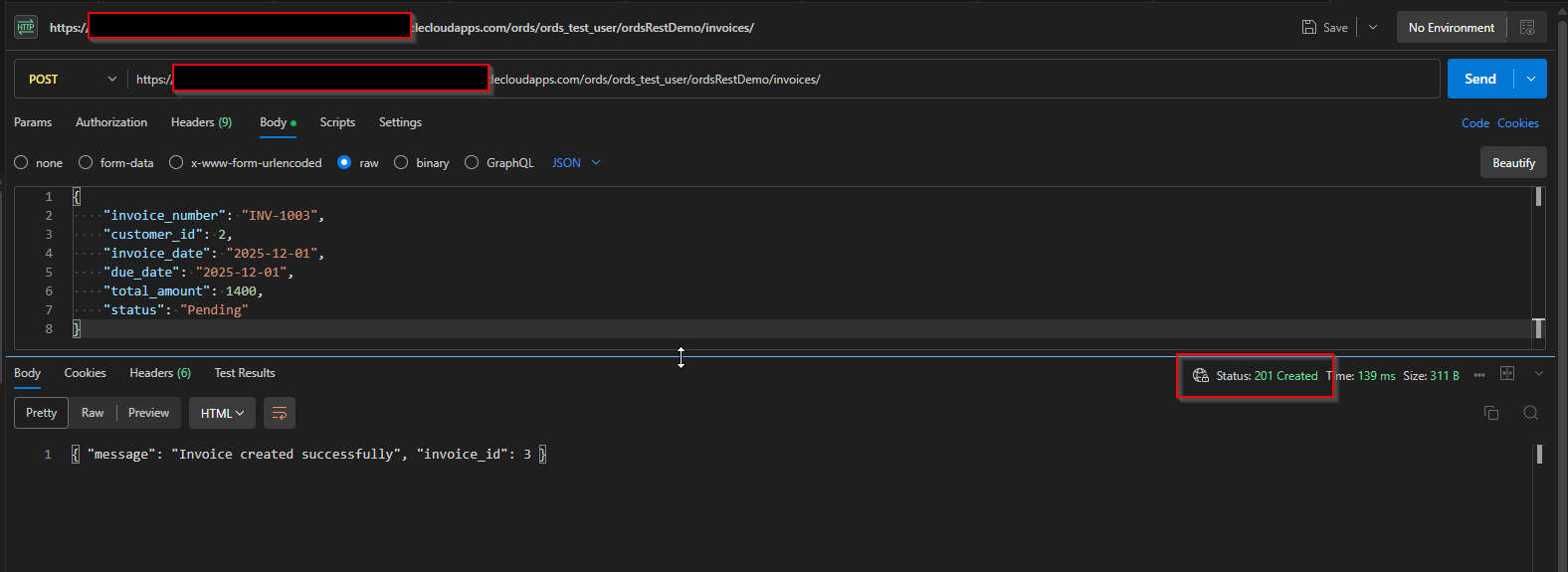

(4.4) Create Handler PUT Endpoint:
Create new procedure for updating invoices.
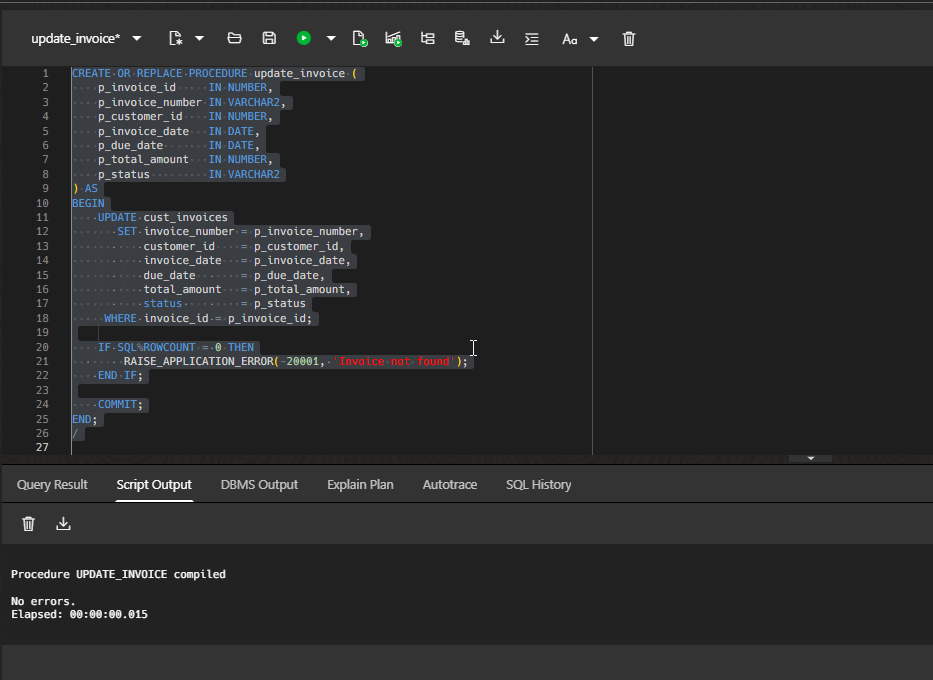
Script:
CREATE OR REPLACE PROCEDURE update_invoice ( p_invoice_id IN NUMBER, p_invoice_number IN VARCHAR2, p_customer_id IN NUMBER, p_invoice_date IN DATE, p_due_date IN DATE, p_total_amount IN NUMBER, p_status IN VARCHAR2 ) AS BEGIN UPDATE cust_invoices SET invoice_number = p_invoice_number, customer_id = p_customer_id, invoice_date = p_invoice_date, due_date = p_due_date, total_amount = p_total_amount, status = p_status WHERE invoice_id = p_invoice_id; IF SQL%ROWCOUNT = 0 THEN RAISE_APPLICATION_ERROR(-20001, ‘Invoice not found’); END IF; COMMIT; END; / |
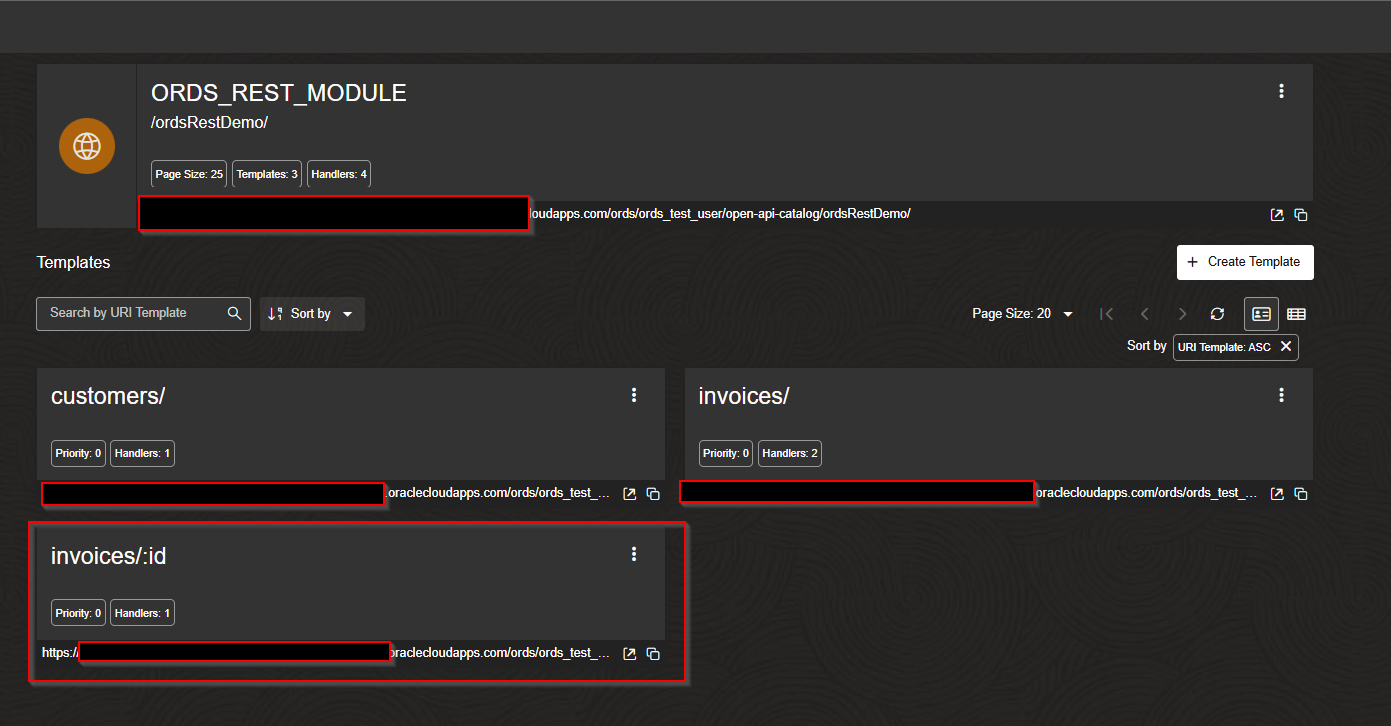
Let us create handler.
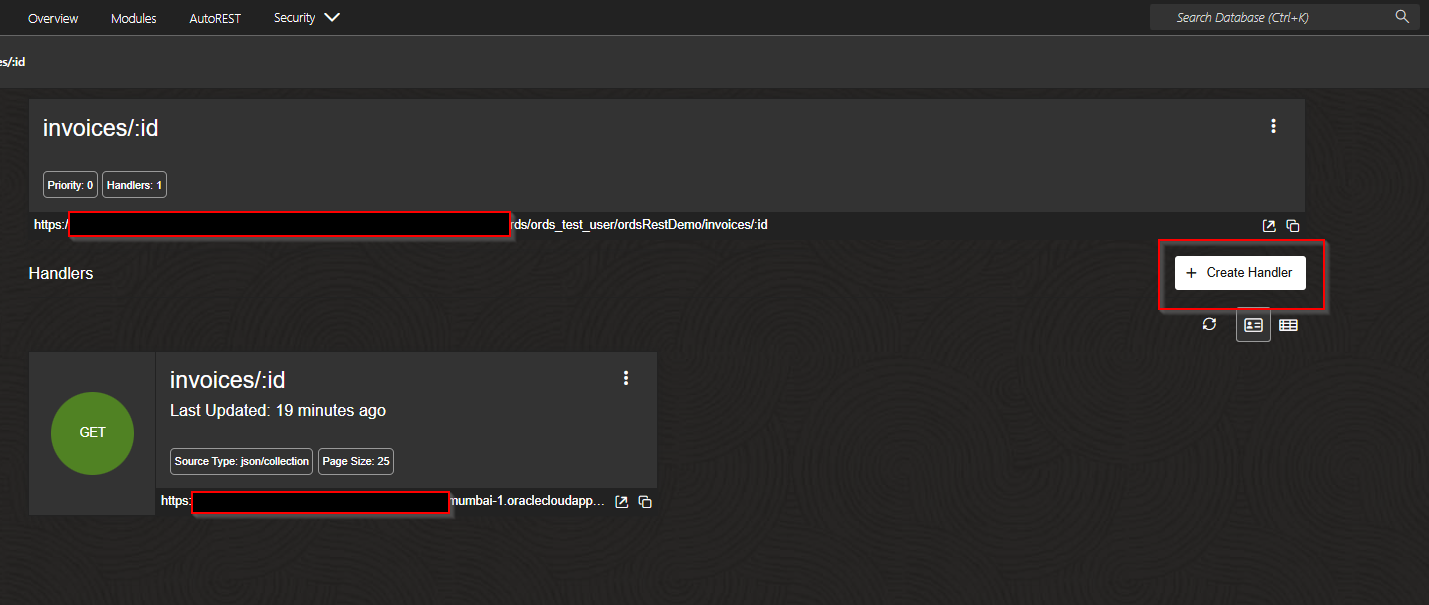
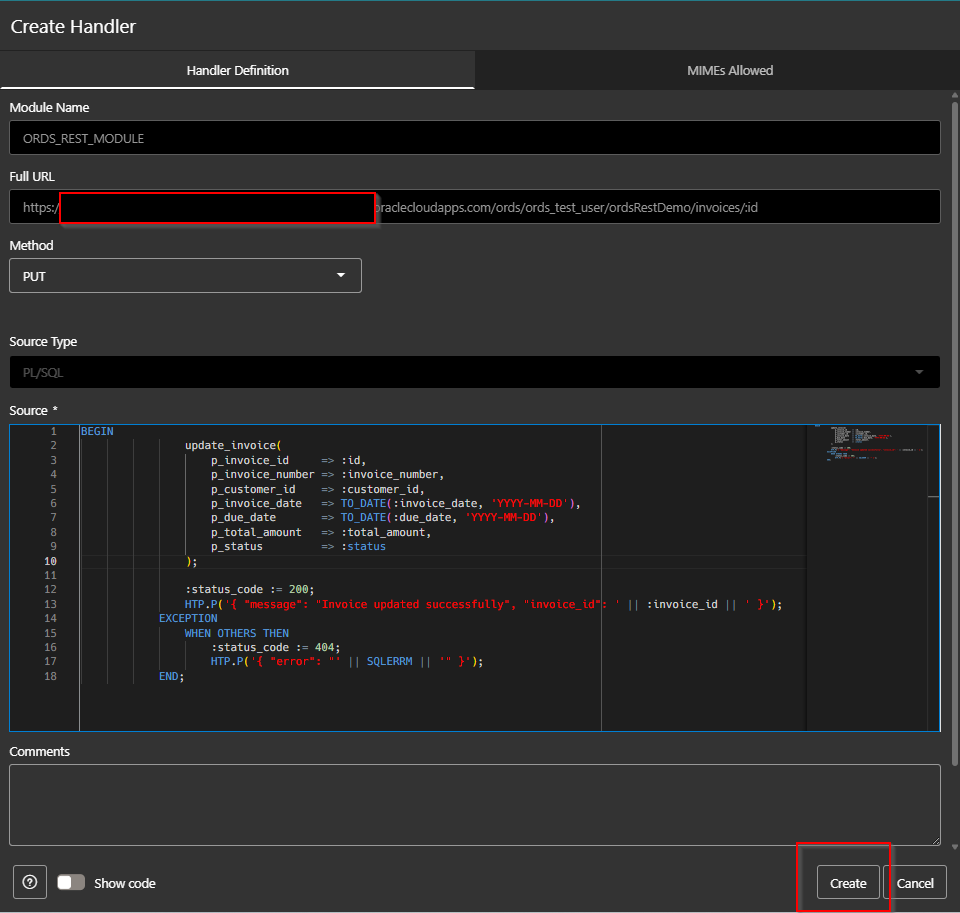
Click on create.
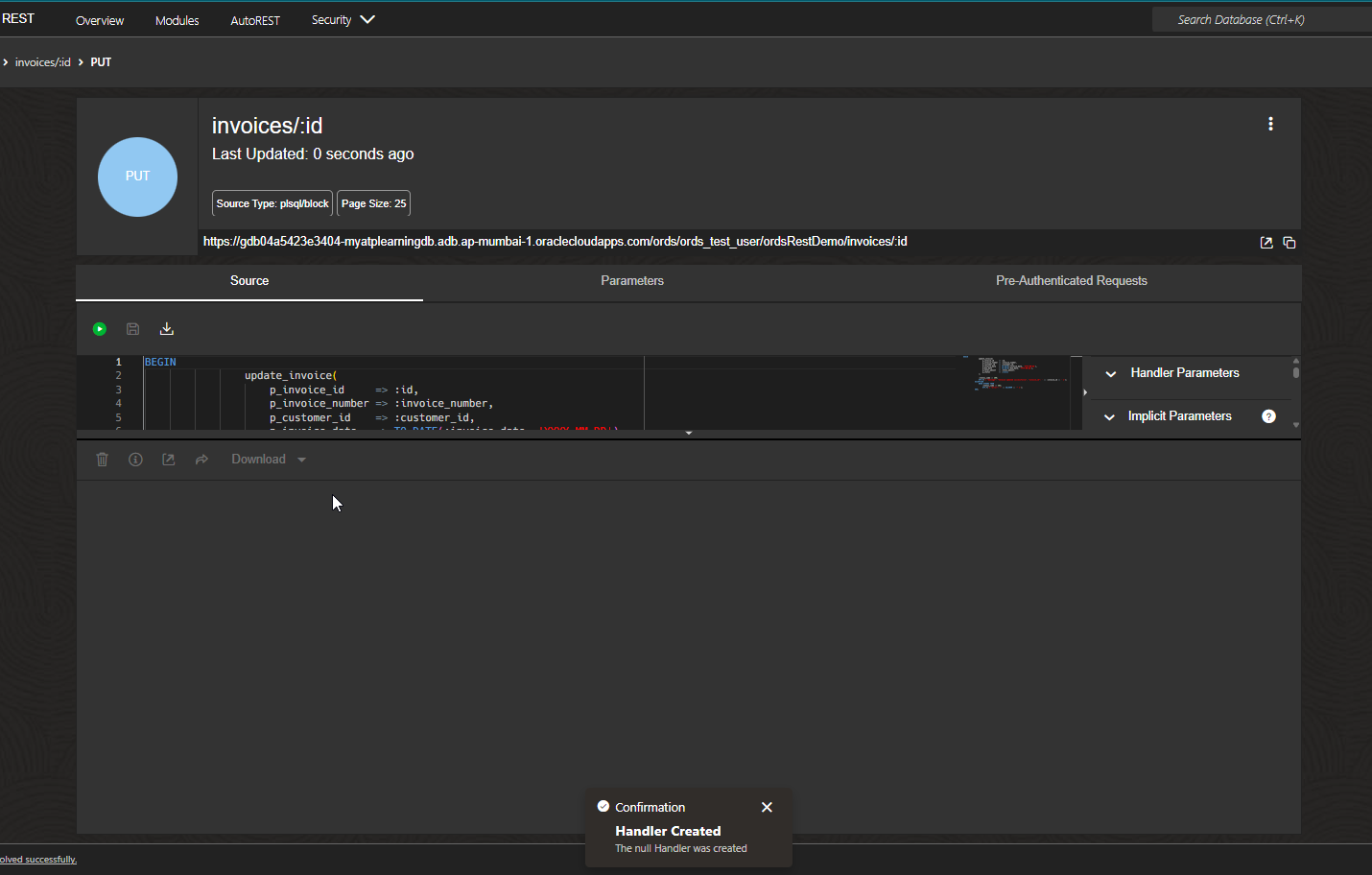
Let us use this endpoint to update TOTAL_AMOUNT using PUT operation.
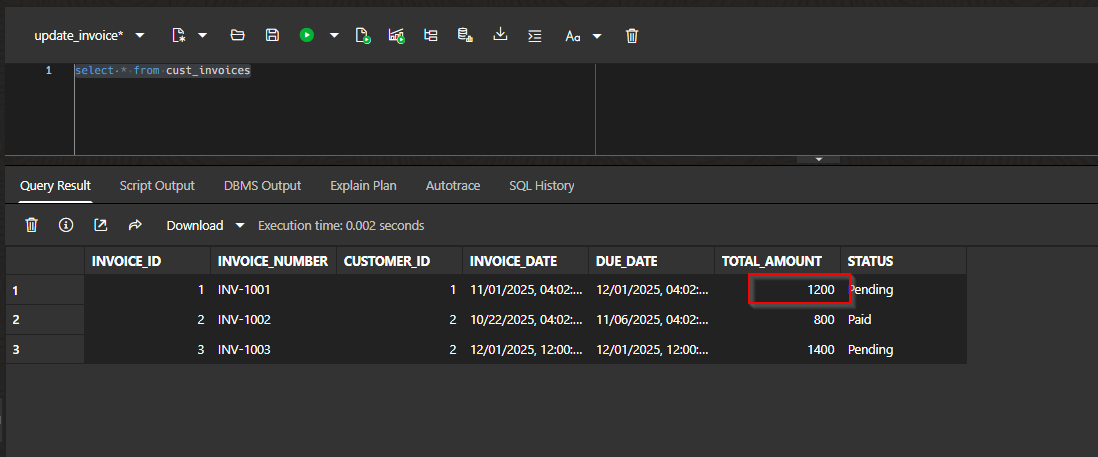
Let us verify TOTAL_AMOUNT before Update.

Use PUT method and click on Send.
This will update record into database.

(4.4) Create Handler DELETE Endpoint:
Create PLSQL procedures for DELETE operation.
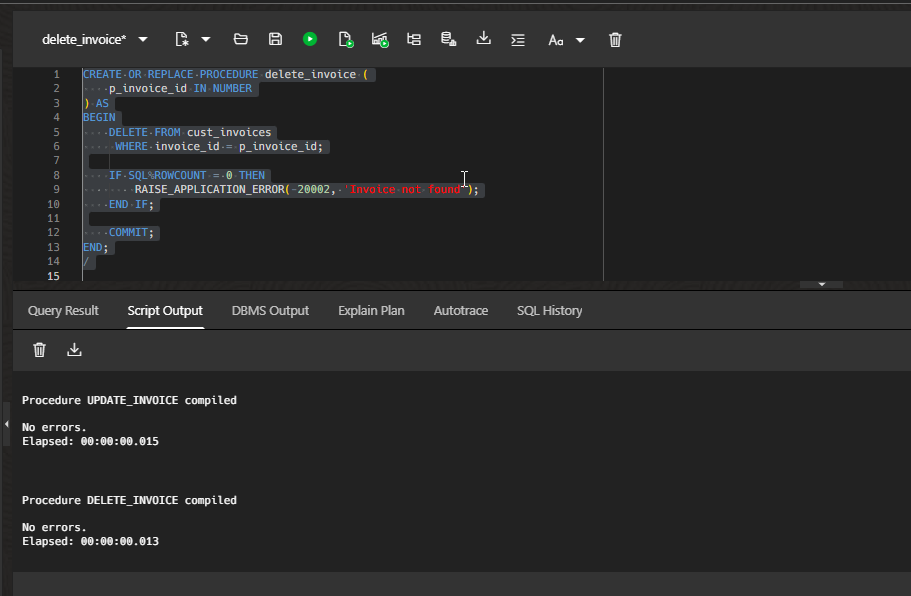
CREATE OR REPLACE PROCEDURE delete_invoice ( p_invoice_id IN NUMBER ) AS BEGIN DELETE FROM cust_invoices WHERE invoice_id = p_invoice_id; IF SQL%ROWCOUNT = 0 THEN RAISE_APPLICATION_ERROR(-20002, ‘Invoice not found’); END IF; COMMIT; END; / |
Create new handler for DELETE.
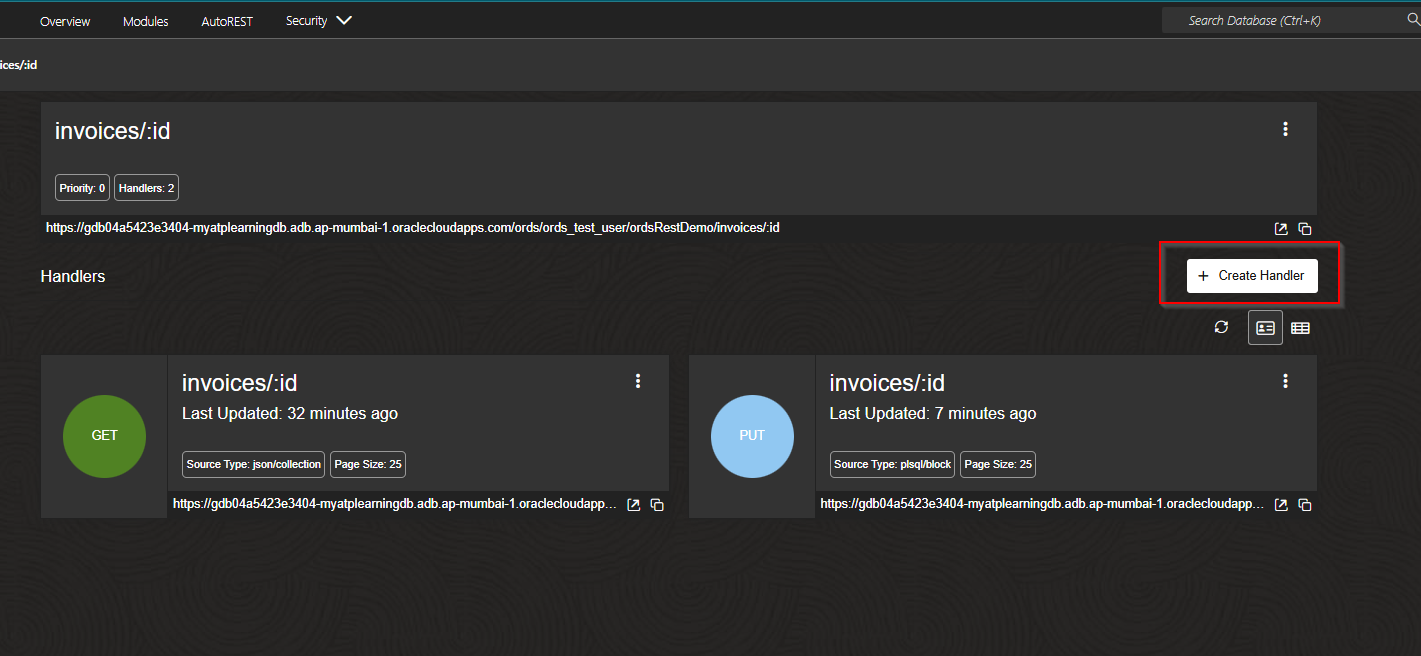

Click on Create.
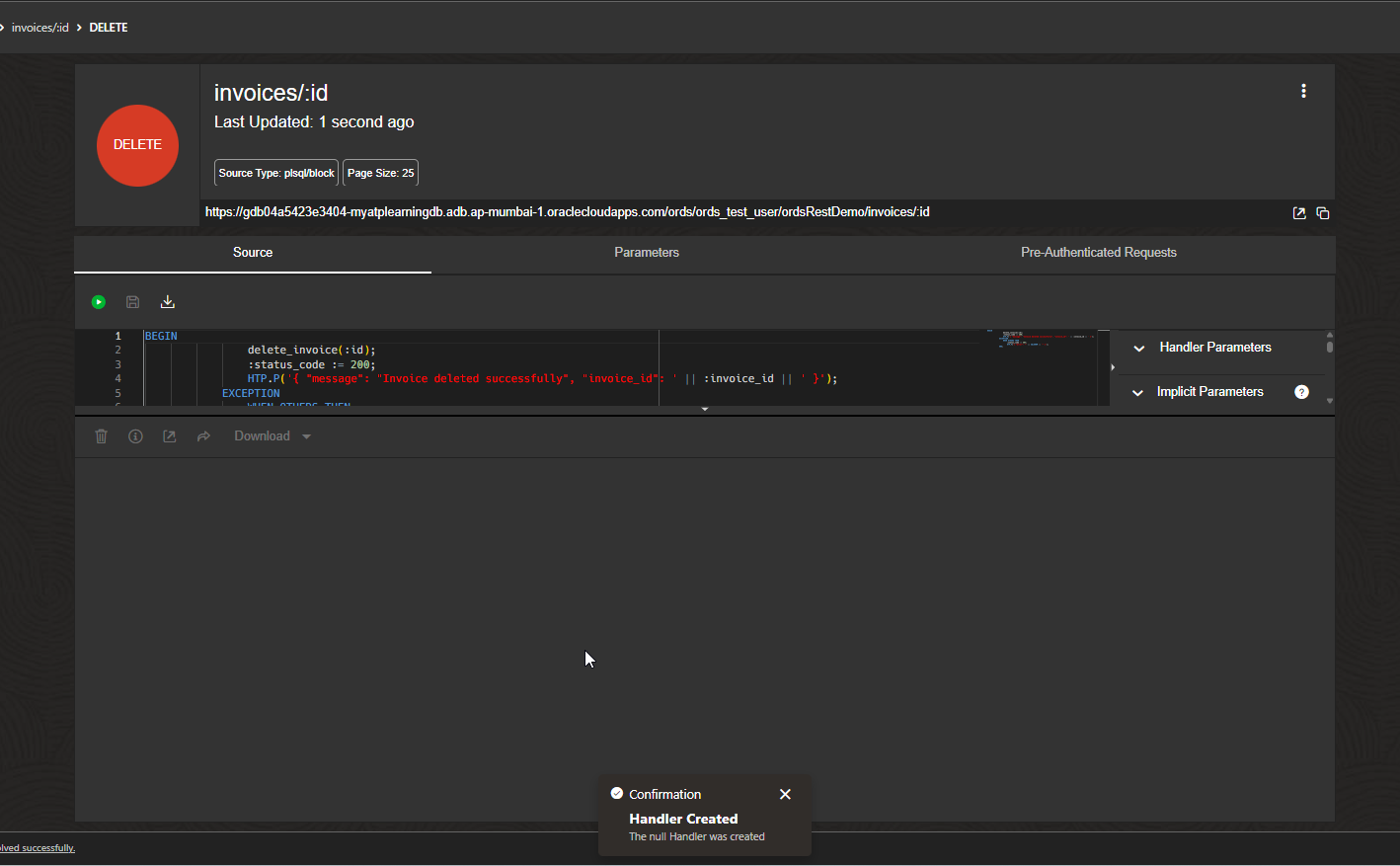
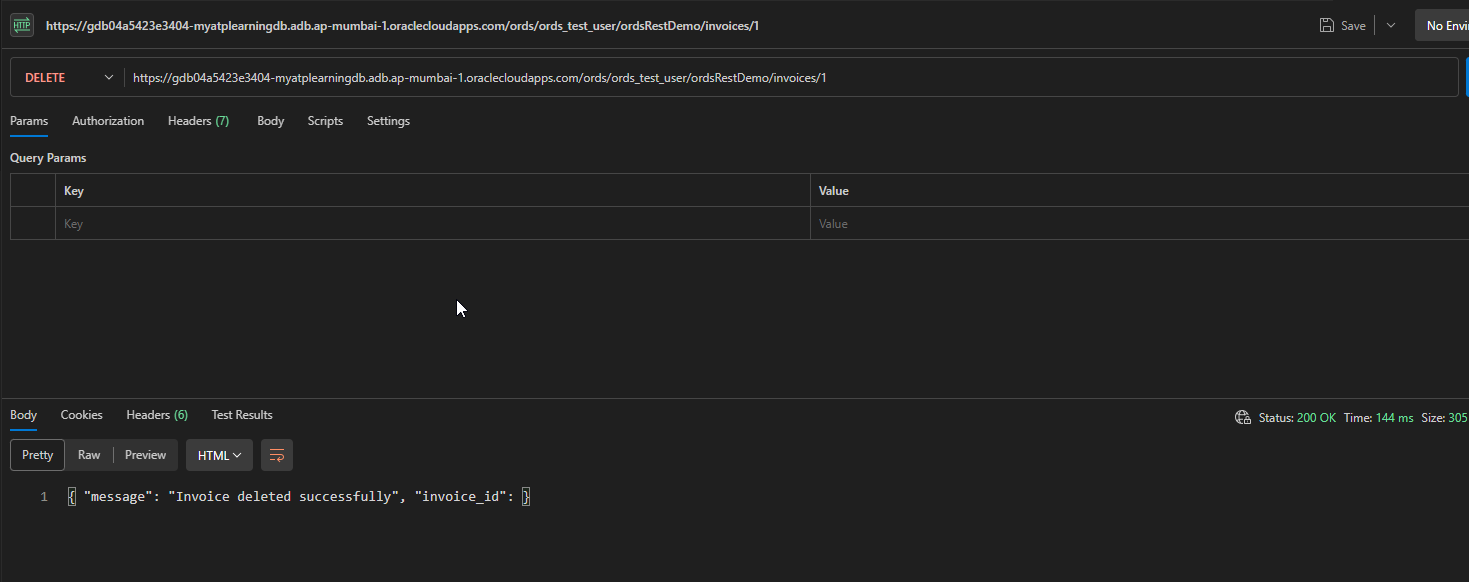
Select DELETE operation and click on send.
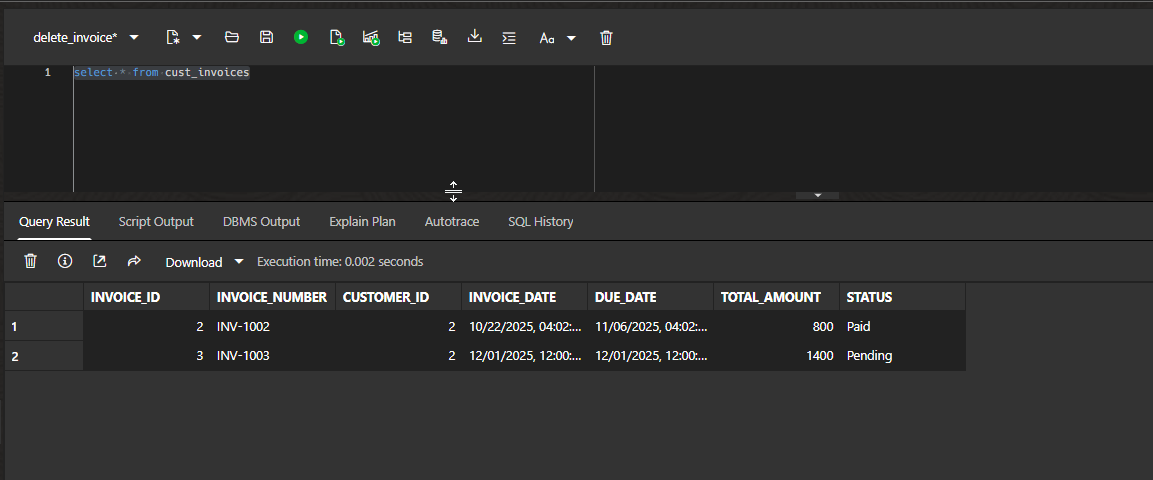
This will delete record from database.
Result:
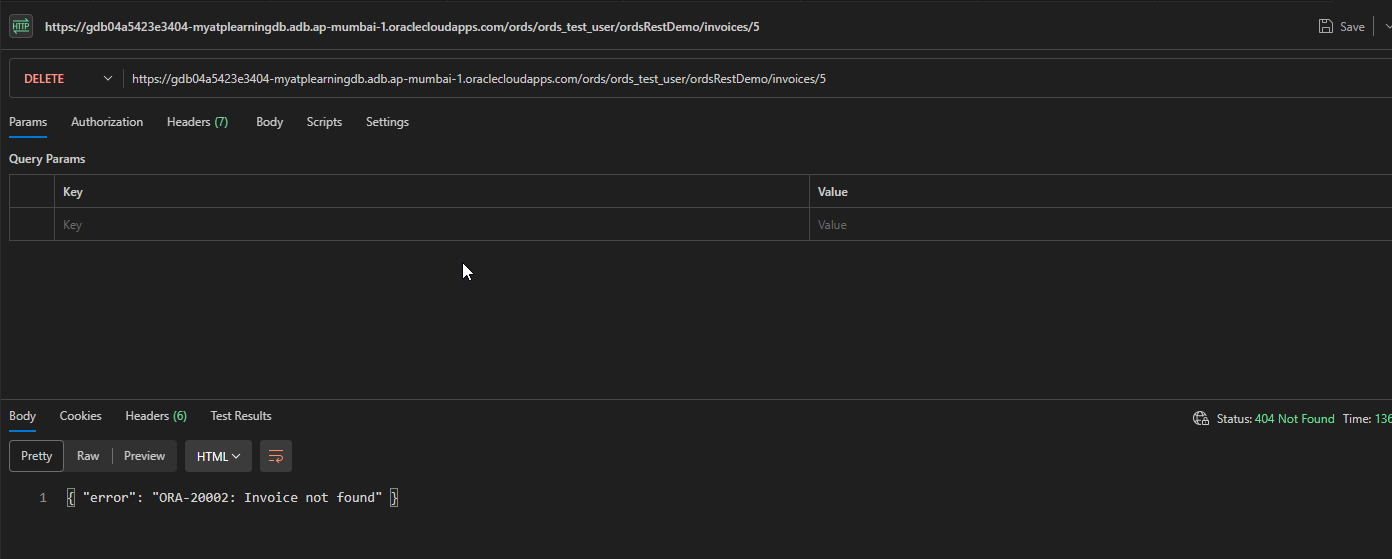
Let us test exception for DELETE operation.