How to use OAUTH Using the JWT User Assertion in OIC
This article will demonstrate how to use OAUTH using JWT User Assertion in OIC.
What is JWT User Assertion?
- JWT User Assertion is a security token that represents a user’s identity and is issued by a trusted identity provider.
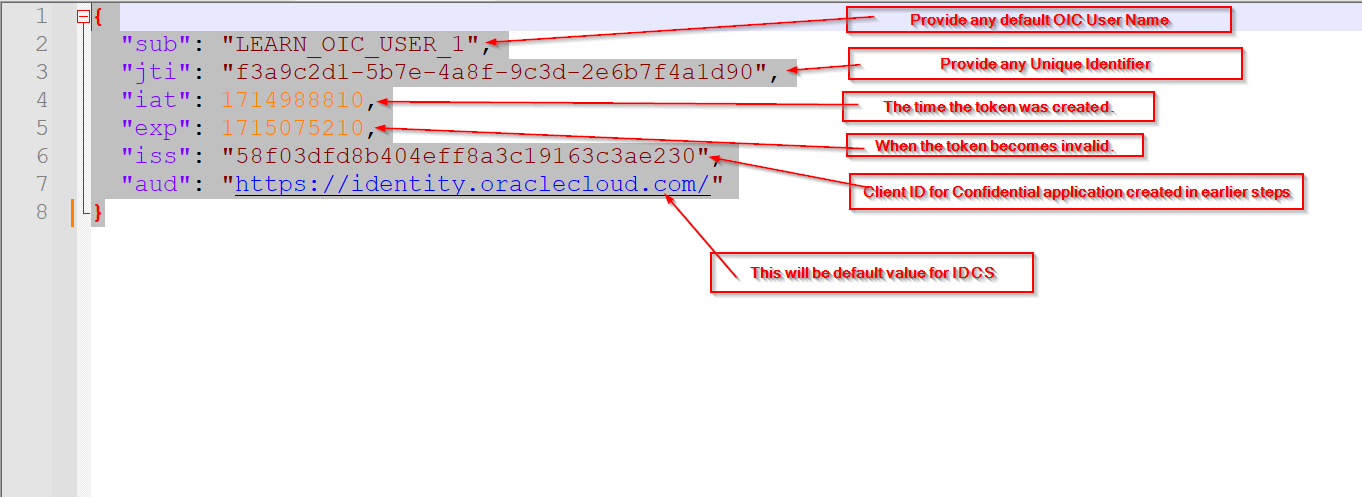
- It is digitally signed and includes claims such as User ID (sub), issuer (iss), audience(aud) and expiration(exp)
- Used in Oauth2.0 flows. It allows security identity propagation and token exchange without direct user interaction.
Step1: Generate the key
(A) Generate the self-Signed key pair
Open command prompt and run below command to generate self-signed key pair
Command:
keytool -genkey -keyalg RSA -alias demojwtkey -keystore sampleKeystore.jks -storepass Oracle@123 -validity 365 -keysize 2048
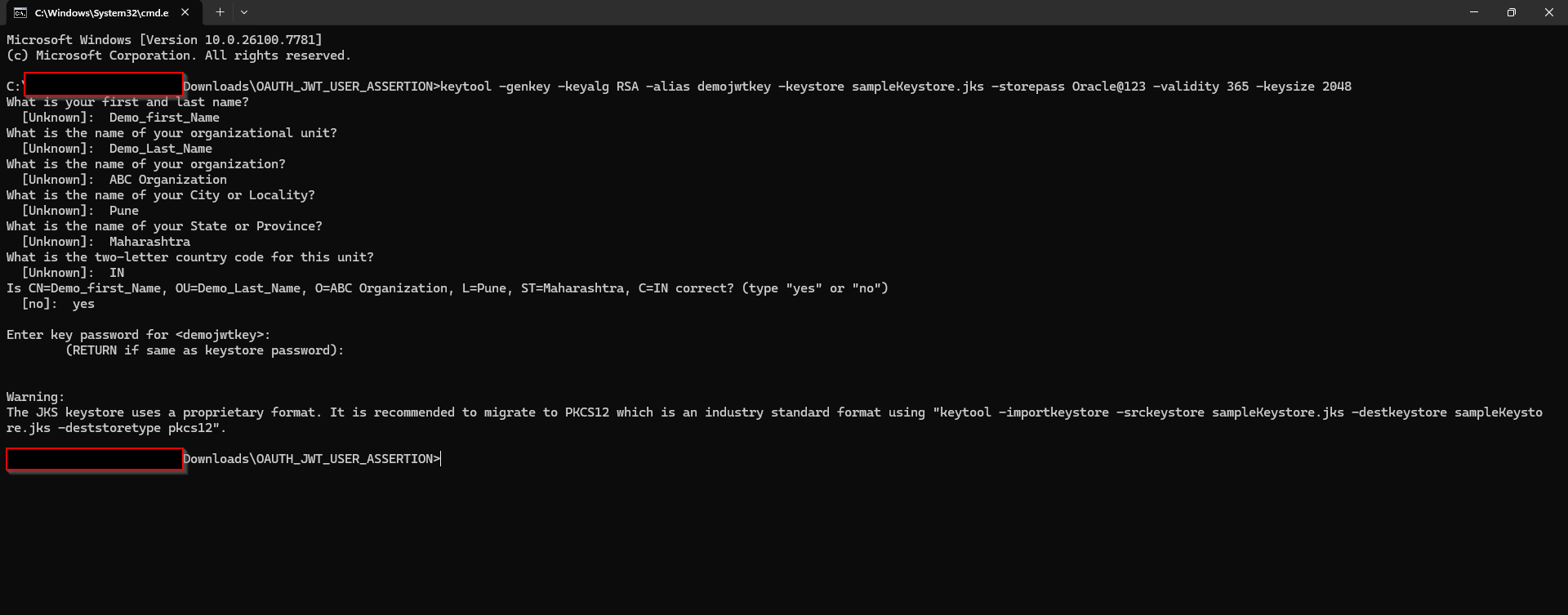
This will generate sampleKeystore.jks file as shown below:

(B) Export the public key for signing the JWT assertion
Command:
  keytool -exportcert -alias <your_alias> -file <filename> -keystore <keystore_file> -storepass <password>


  ##example

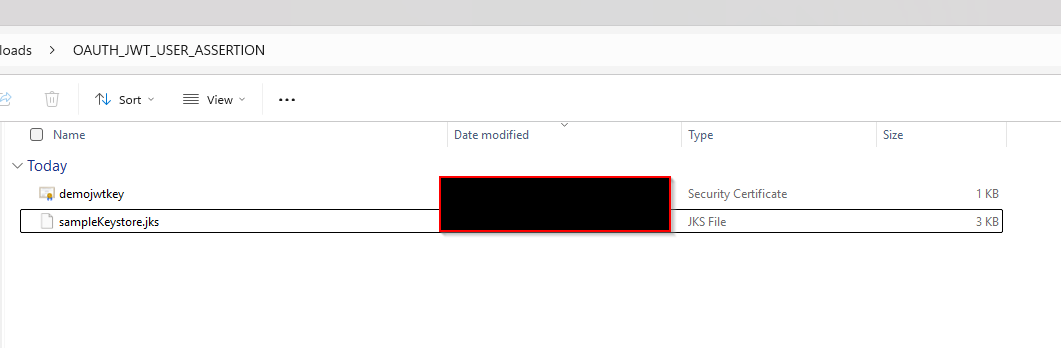
  keytool -exportcert -alias demojwtkey -file demojwtkey.cer -keystore sampleKeystore.jks -storepass Oracle@123


  ## This should show a success message e.g. Certificate stored in file <assert.cer>

(C) Convert the keystore to P12 format:
Command:
  keytool -importkeystore -srckeystore <filename> -srcstorepass <password> -srckeypass <password> -srcalias <your_alias> -destalias <your_alias> -destkeystore <destFileName> -deststoretype PKCS12 -deststorepass <password> -destkeypass <password>


  ##example

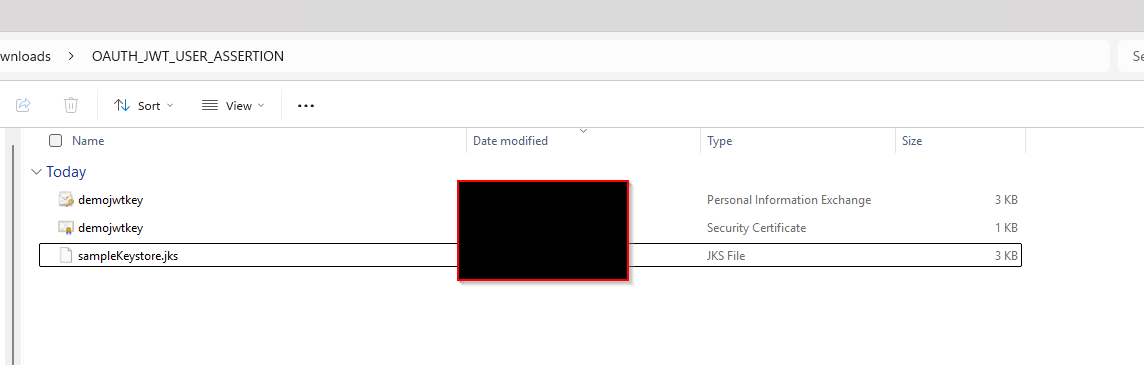
  keytool -importkeystore -srckeystore sampleKeystore.jks -srcstorepass Oracle@123 -srckeypass Oracle@123 -srcalias demojwtkey -destalias demojwtkey -destkeystore demojwtkey.p12 -deststoretype PKCS12 -deststorepass Oracle@123 -destkeypass Oracle@123


  ## This should show a success message e.g. Importing keystore sampleKeystore.jks to assert.p12...

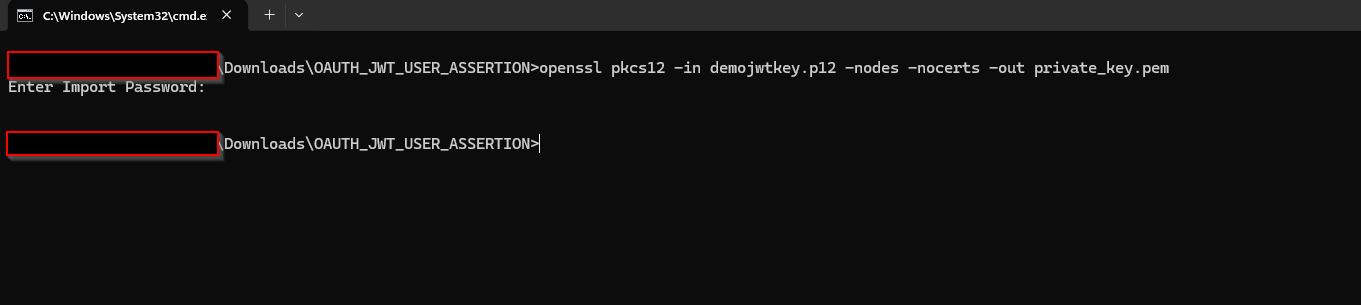
(D) Export the private key from the P12 key store:
Command:
  openssl pkcs12 -in <destFileName> -nodes -nocerts -out <pem_file>

  ##example

  openssl pkcs12 -in demojwtkey.p12 -nodes -nocerts -out private_key.pem

  ## This should show a success message: MAC verified OK
Install open ssl before running this command.
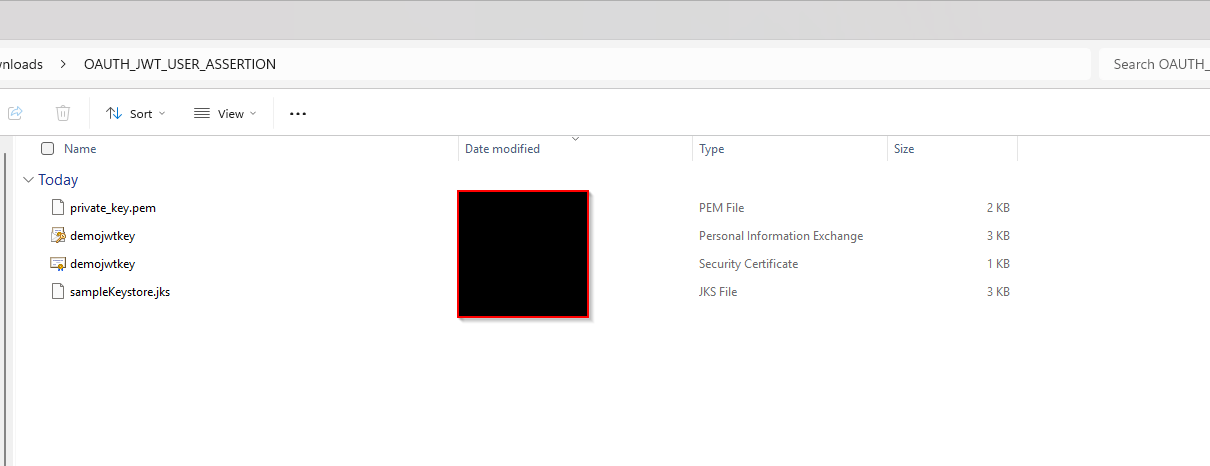
Step2: Crate Confidential Application in IDCS.
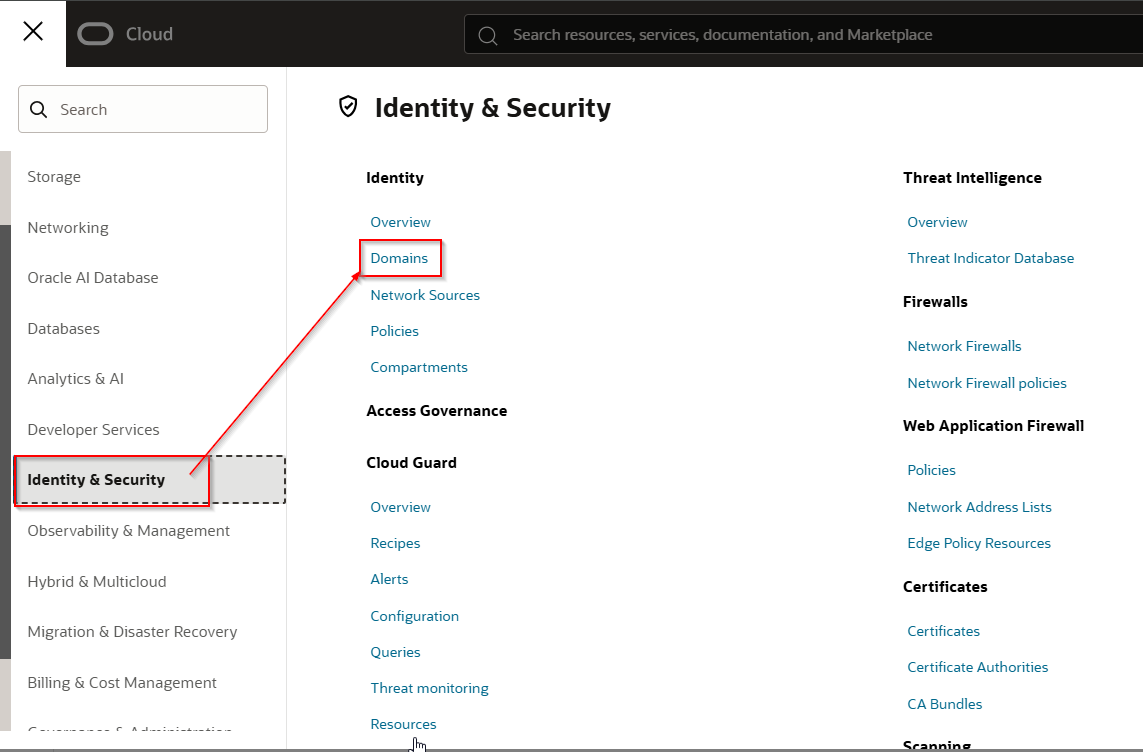
Login to OCI console.
Navigate to Identity & Security —>Domains
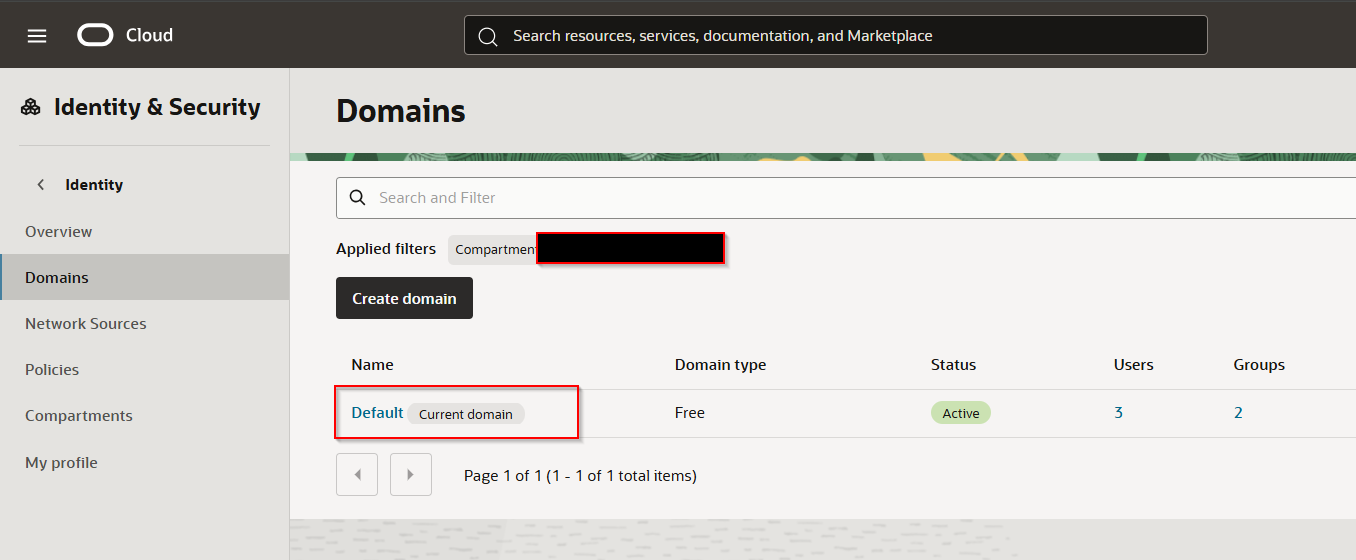
Select the domain.
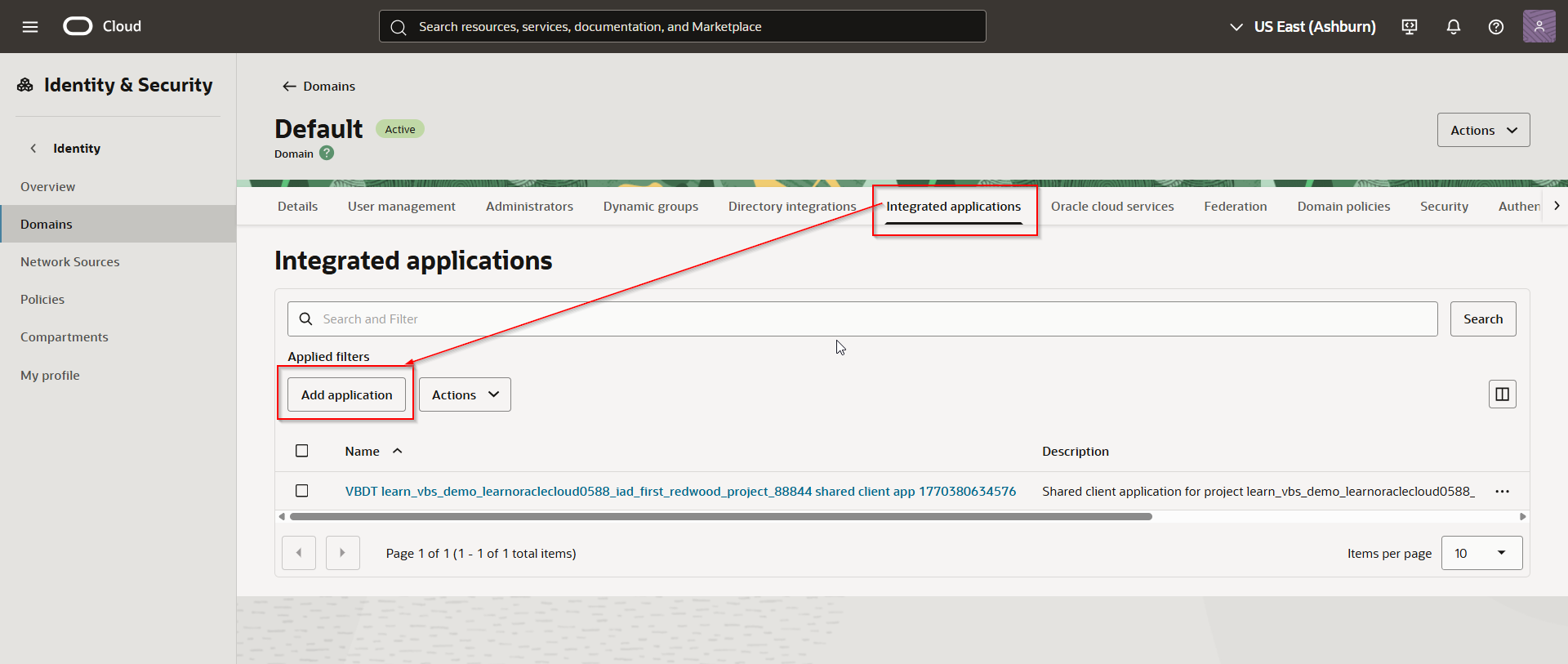
Navigate to Integrated applications —> Add Application.
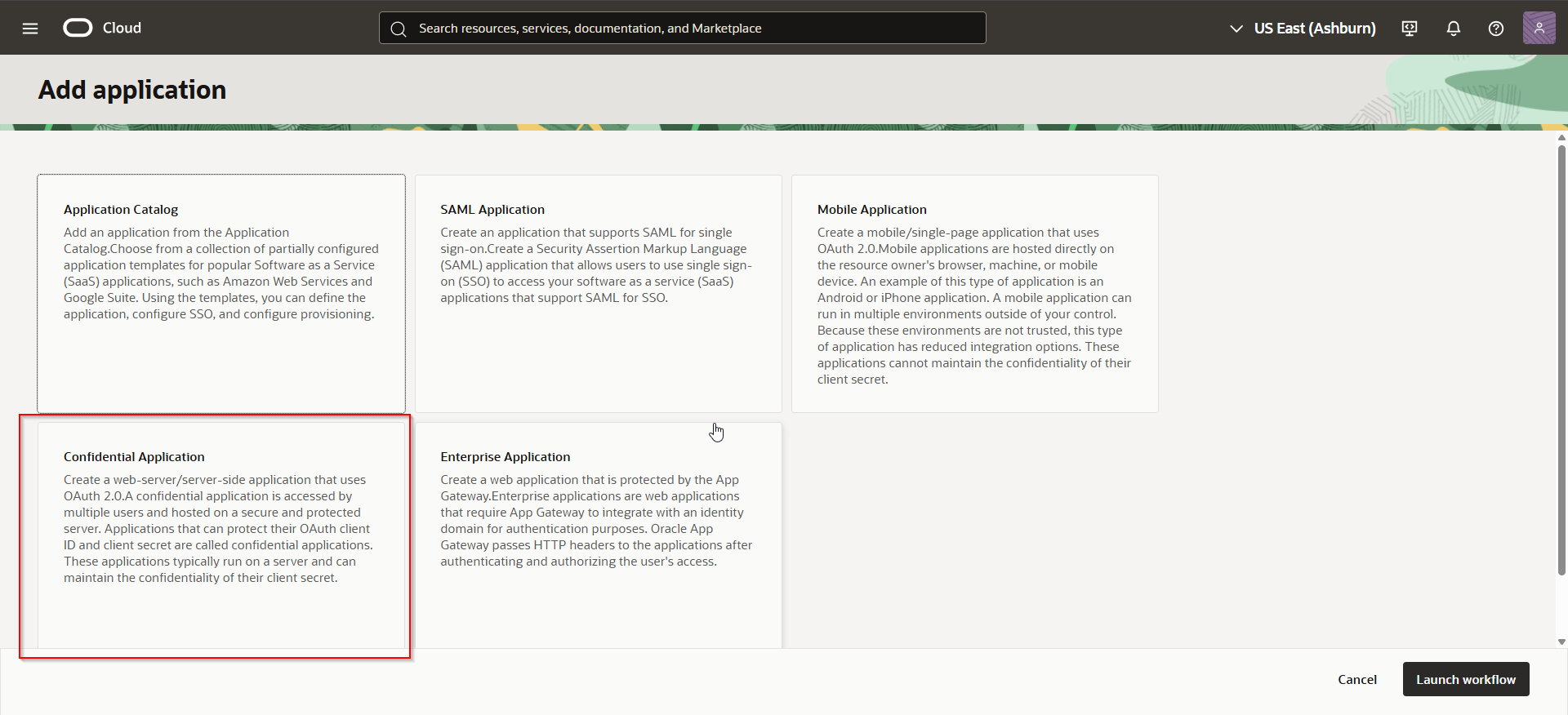
Select “Confidential Application” and click Launch workflow.
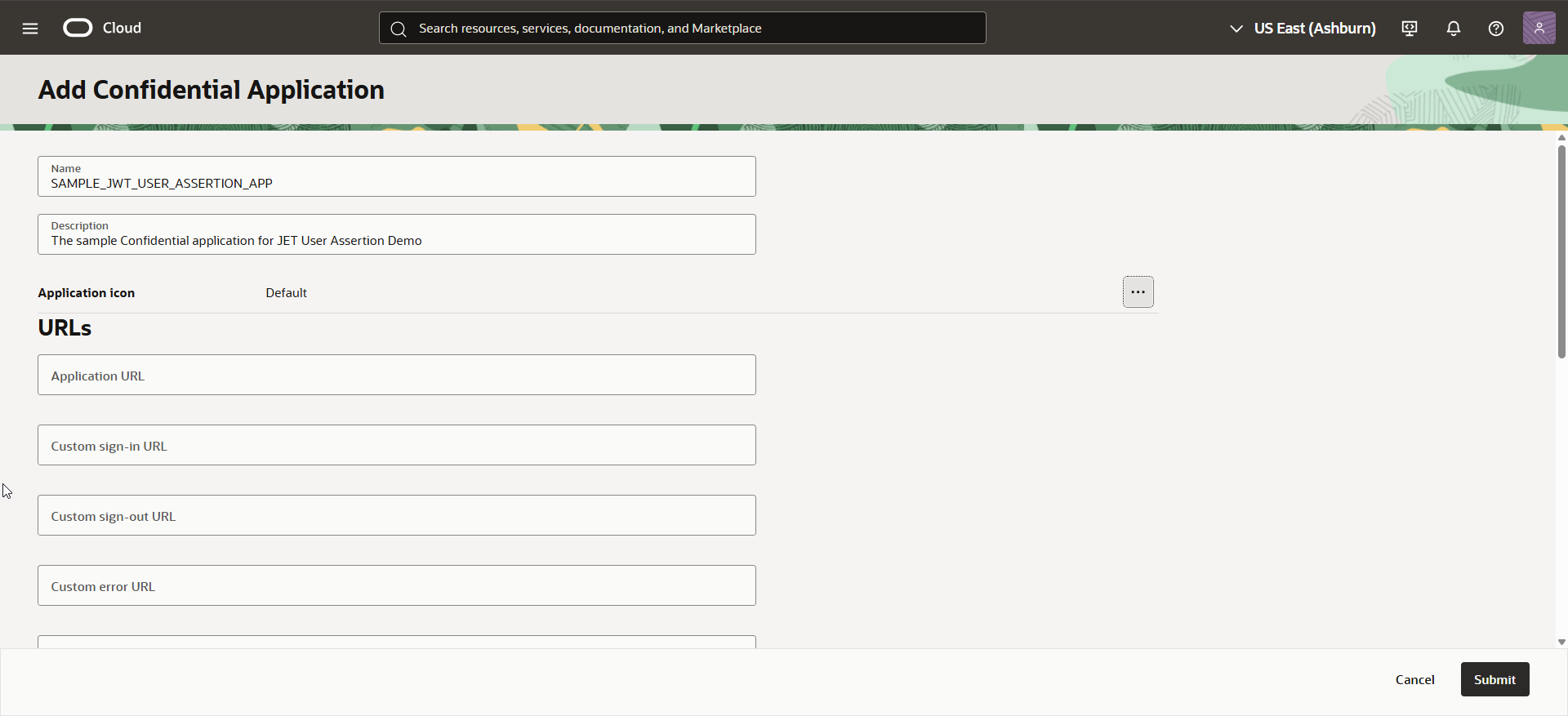
Provide the name and description to application and click Submit.
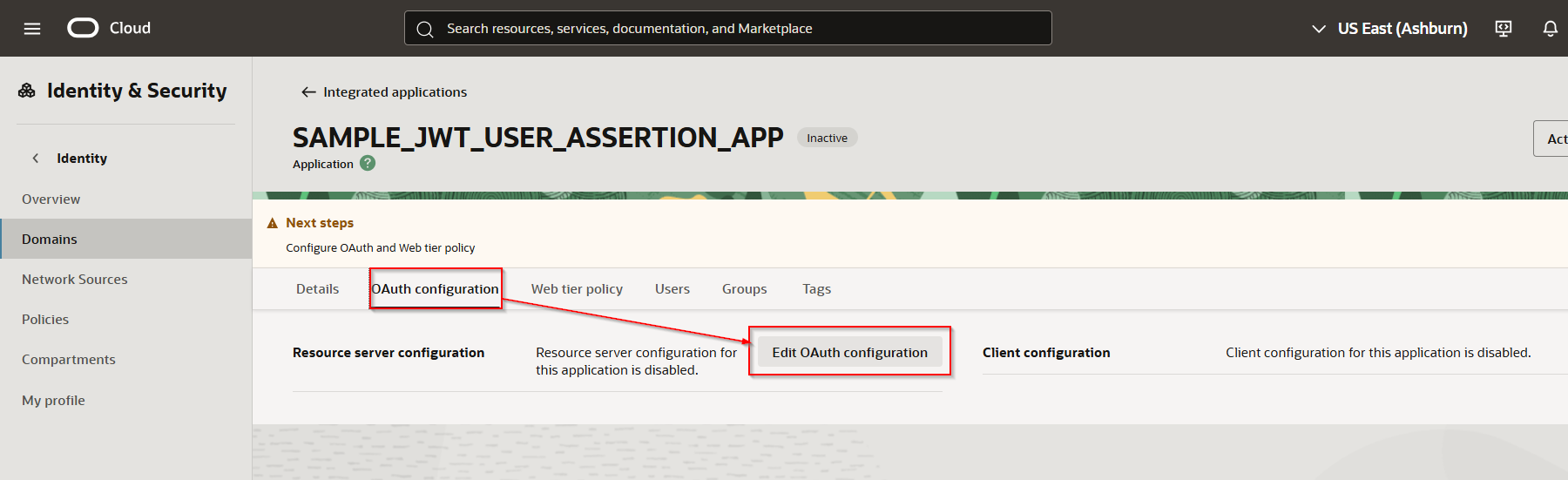
Navigate to OAuth configuration —>Edit OAuth configuration
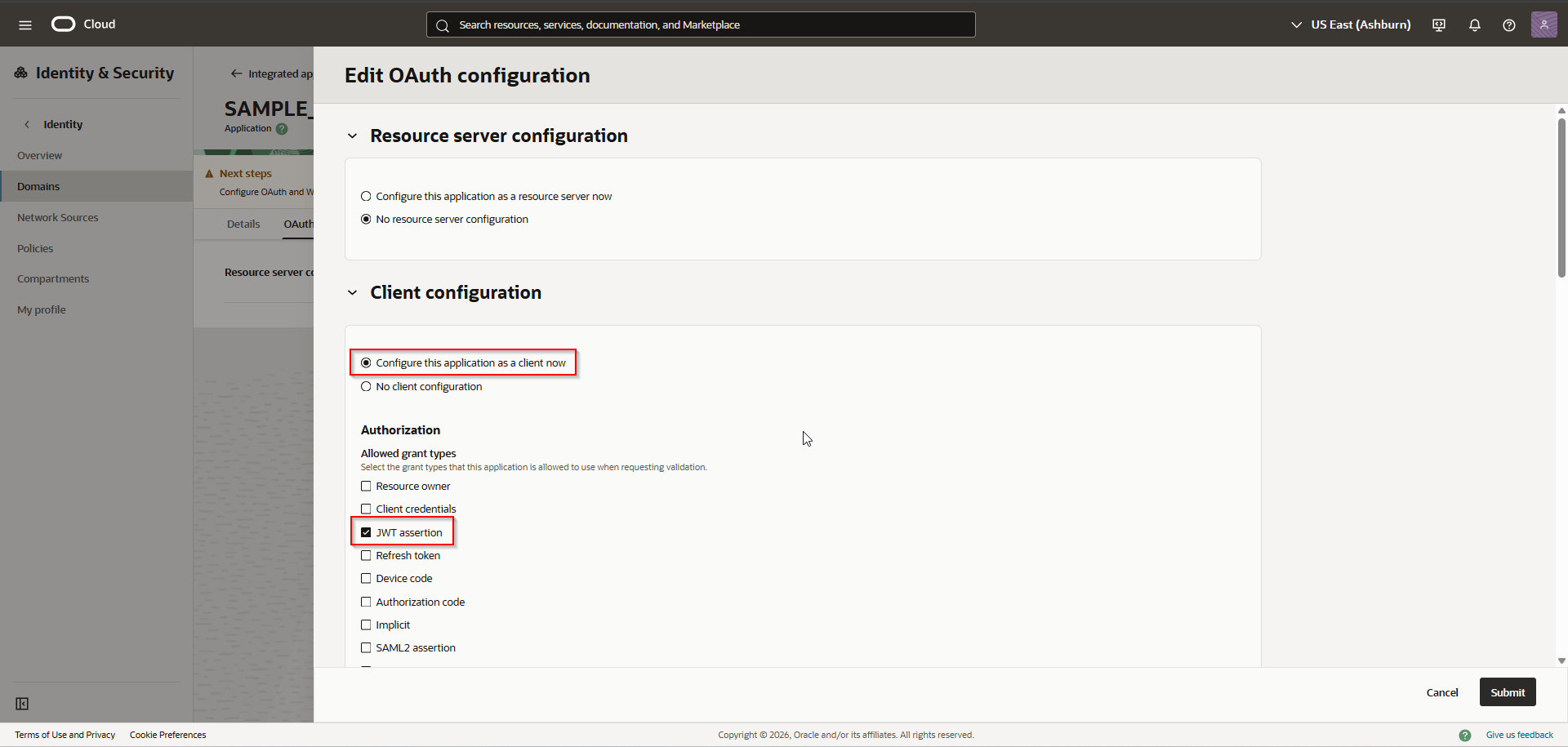
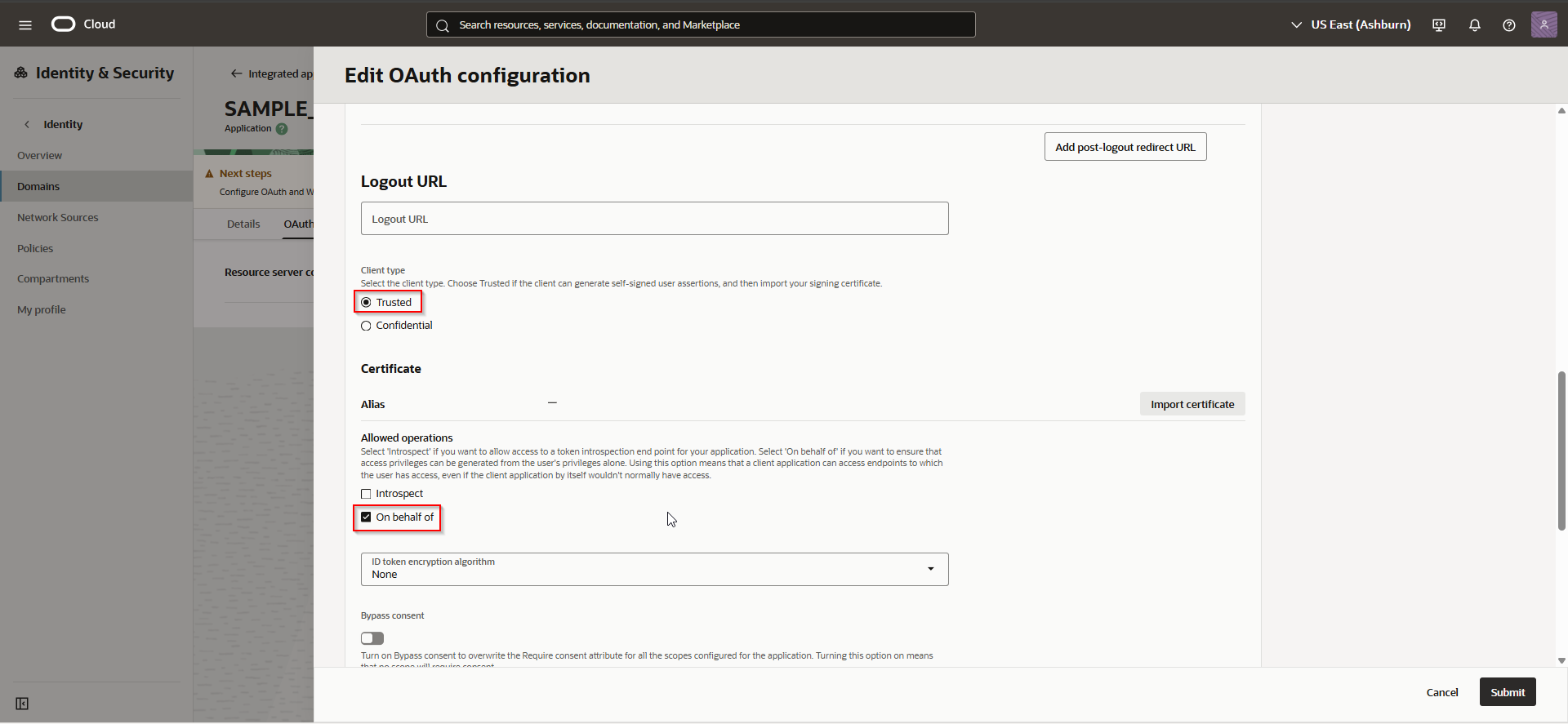
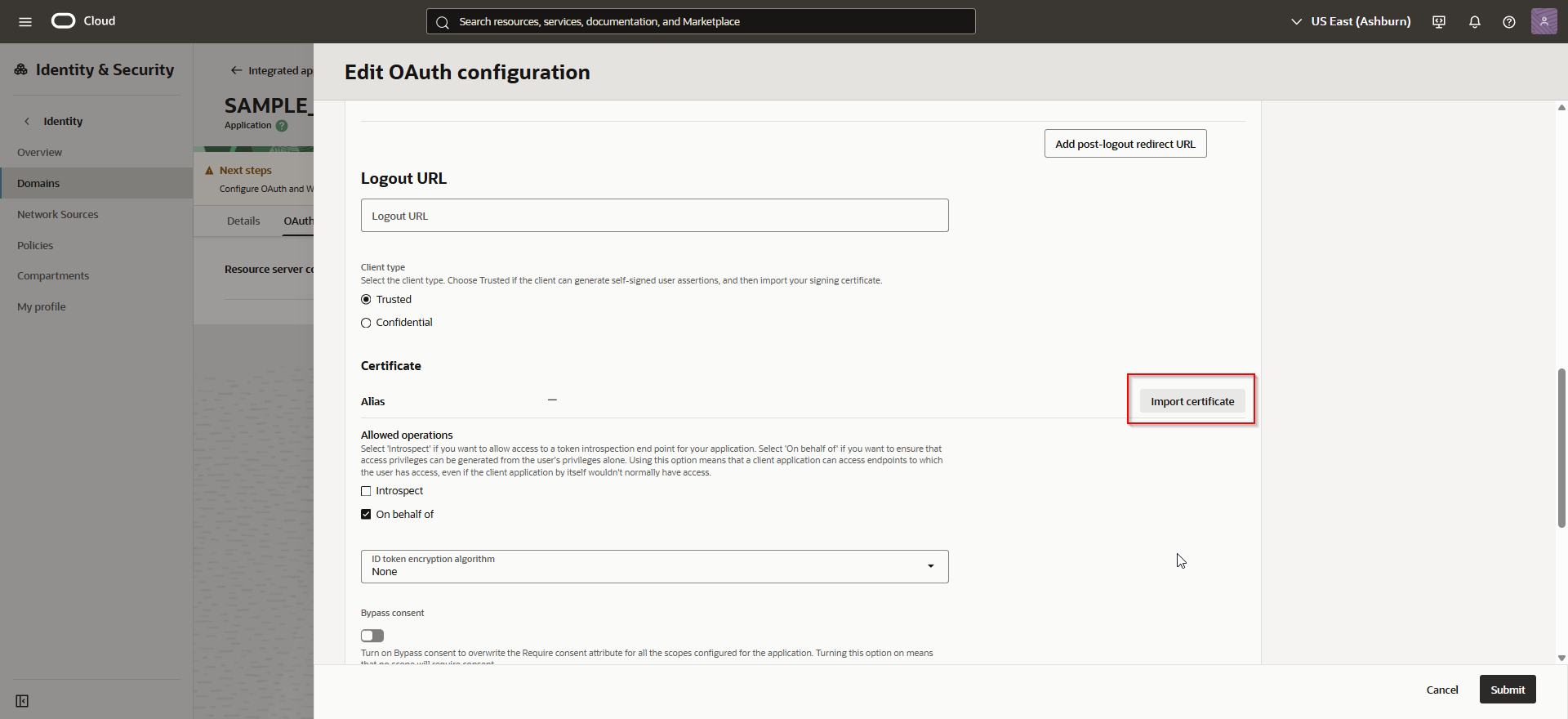
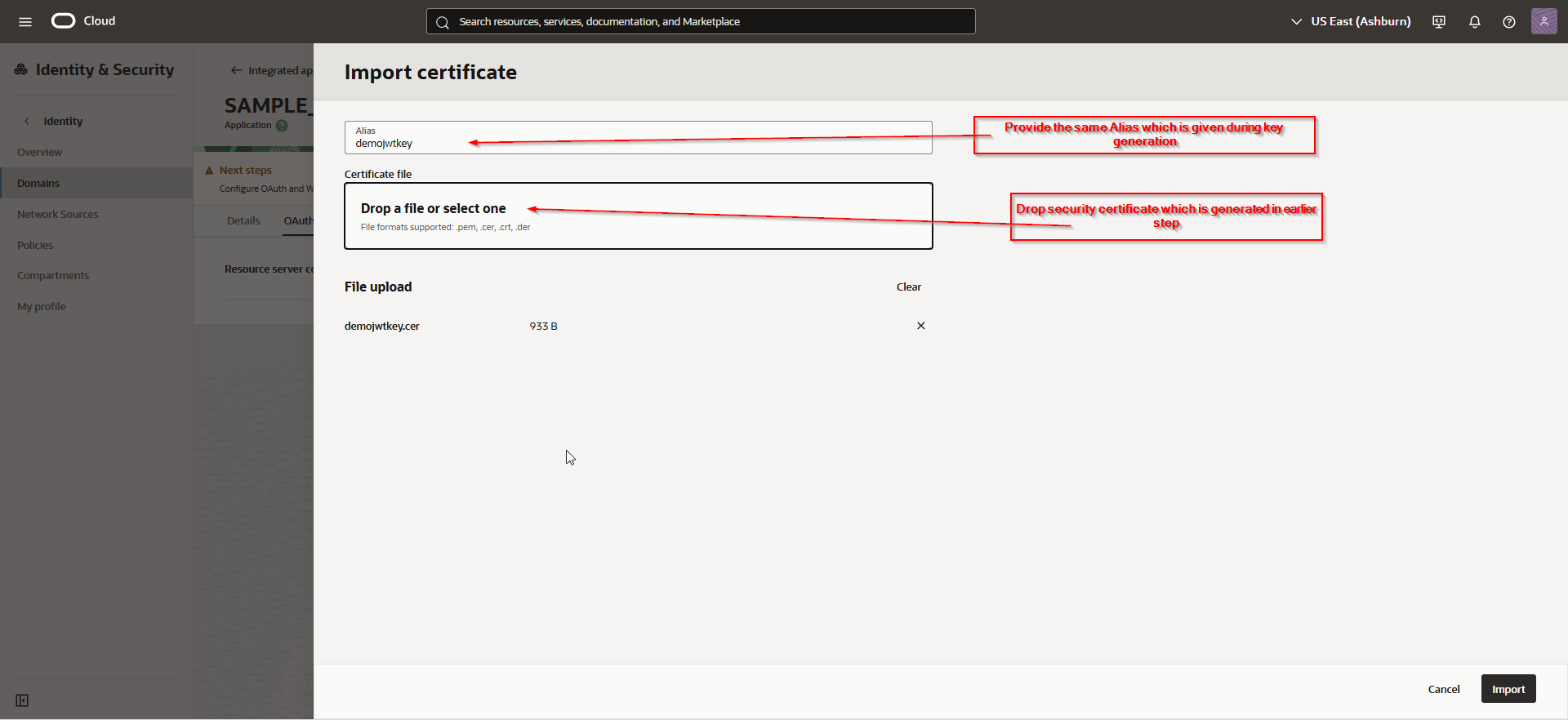
Click on Import.
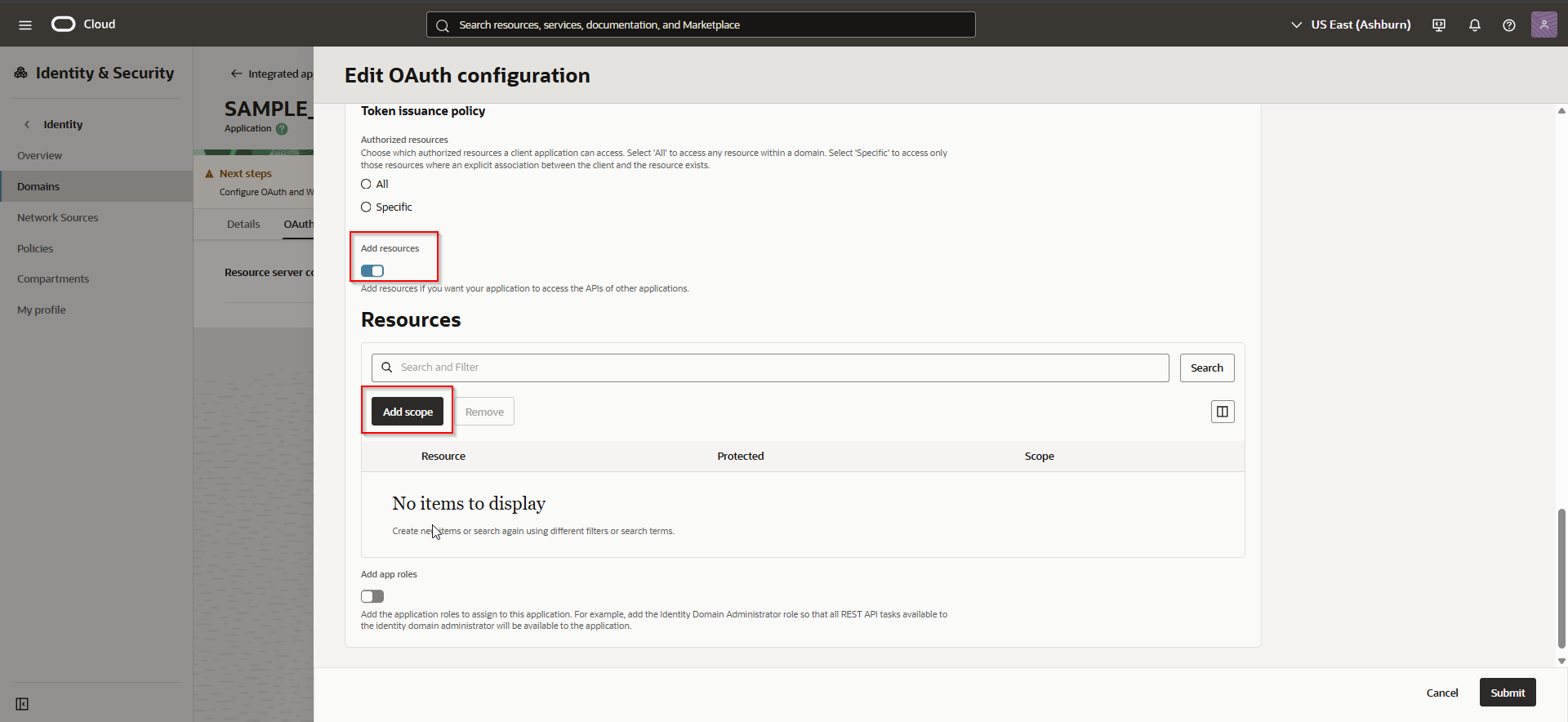
Click on Add Scope.
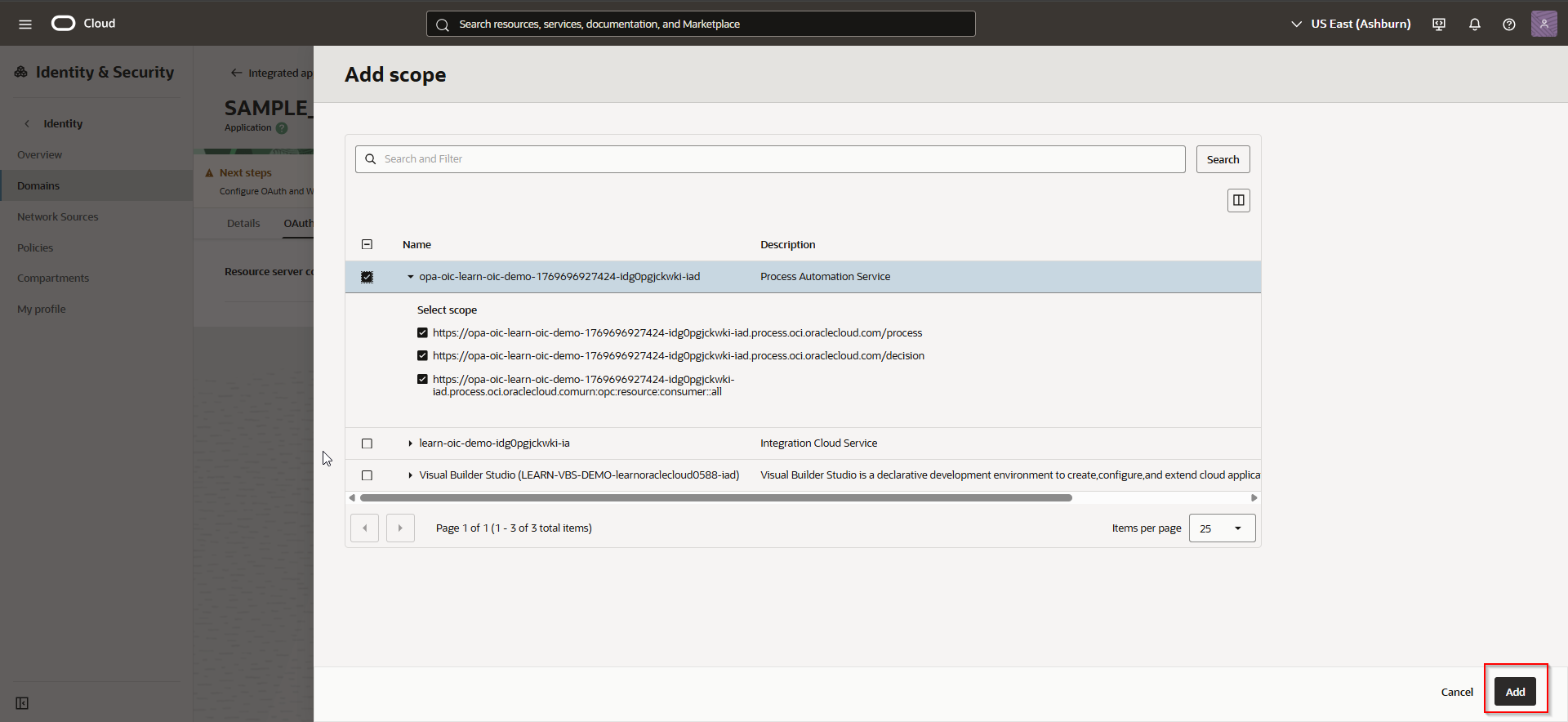
Select all scopes for OPA and click on Add.
Select scope for OIC if we want to enable JWT for OIC REST API.
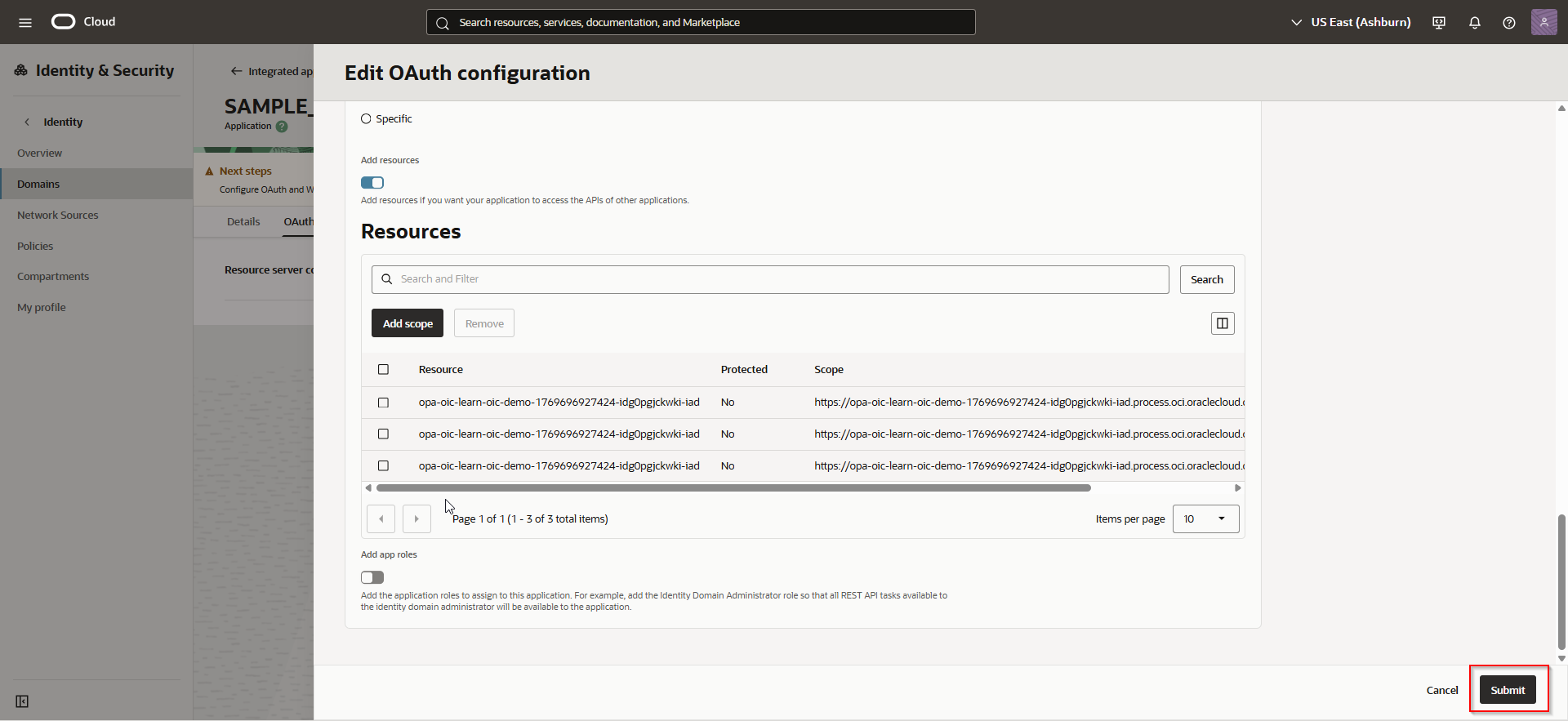
Click on Submit.
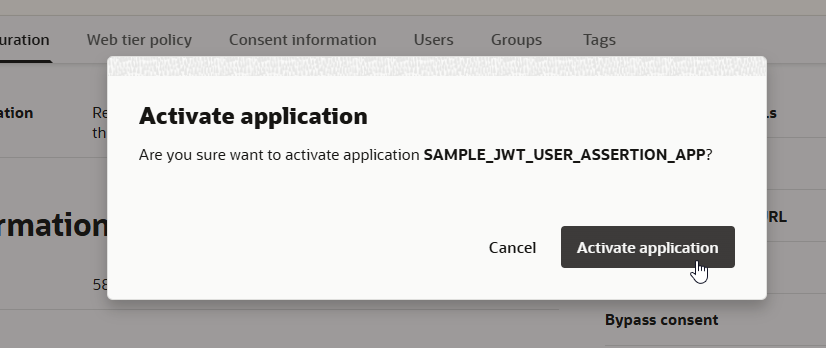
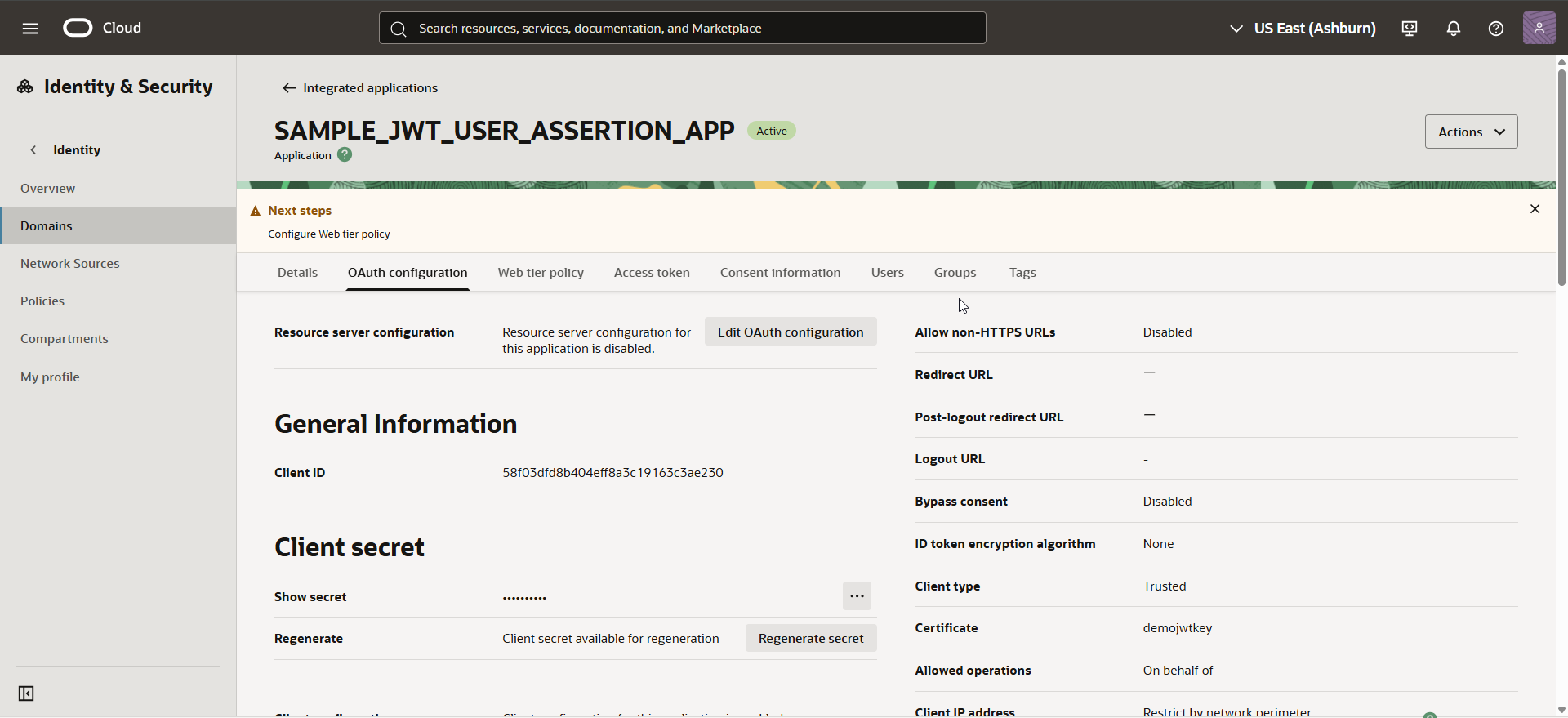
Activate the application.
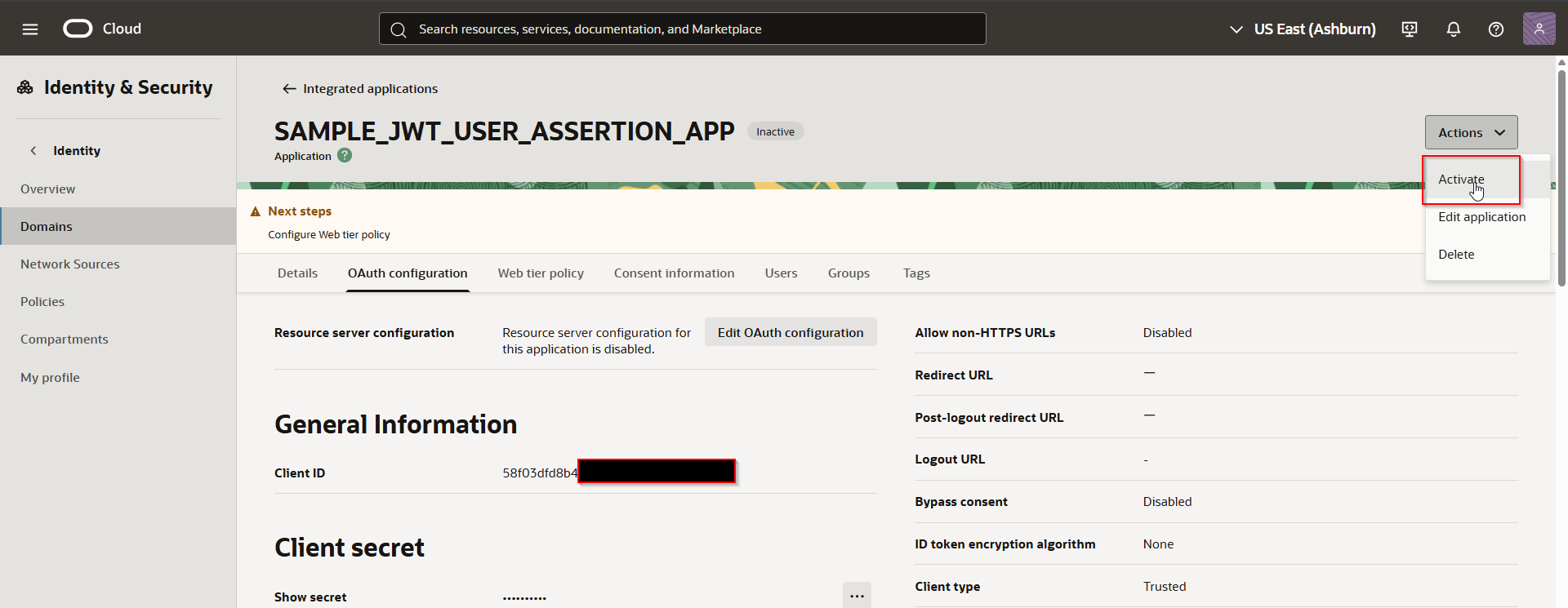
Step3: Upload Certificate as Trusted Partner Certificate.
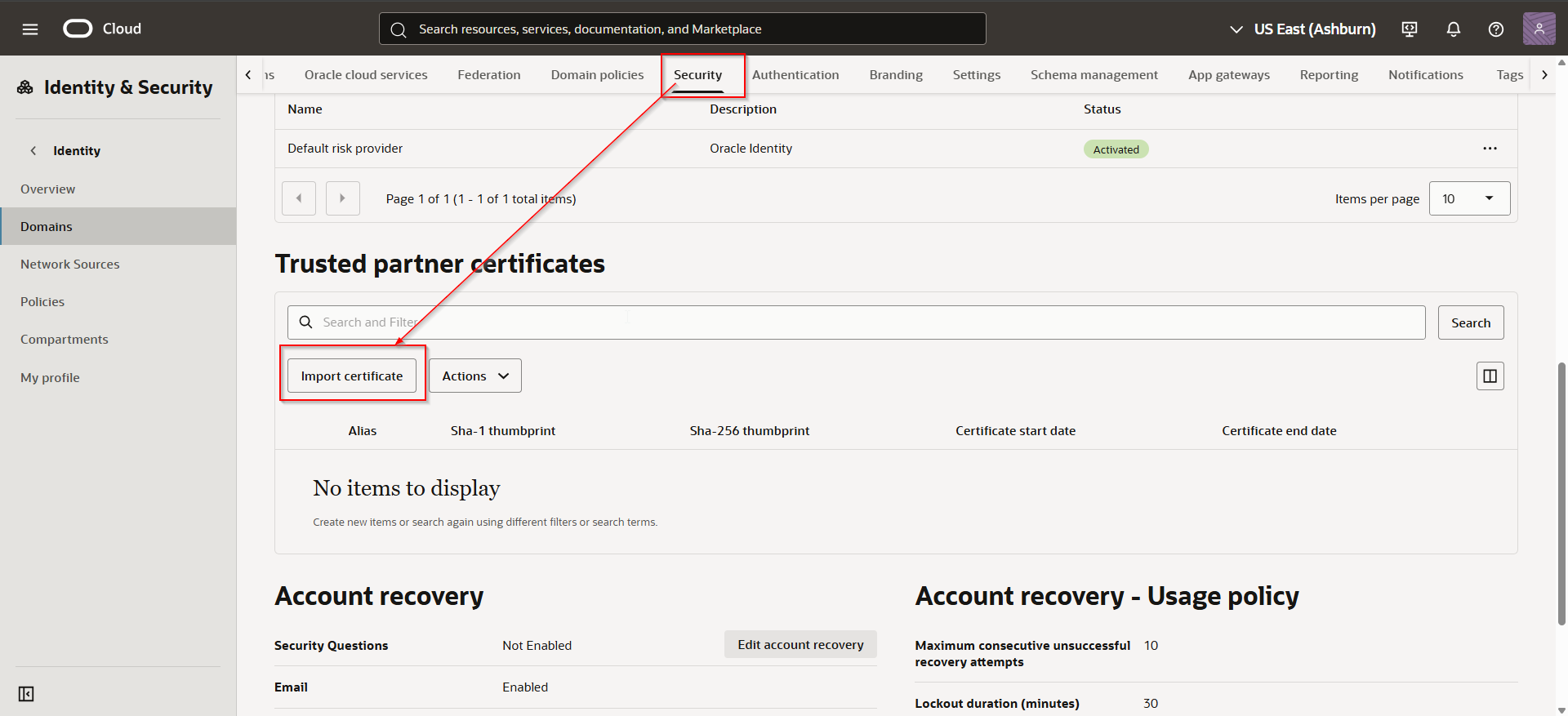
Navigate to domain —>Security —>Trusted partner certificates —>Import certificate.
Import same certificate which is uploaded in earlier step.
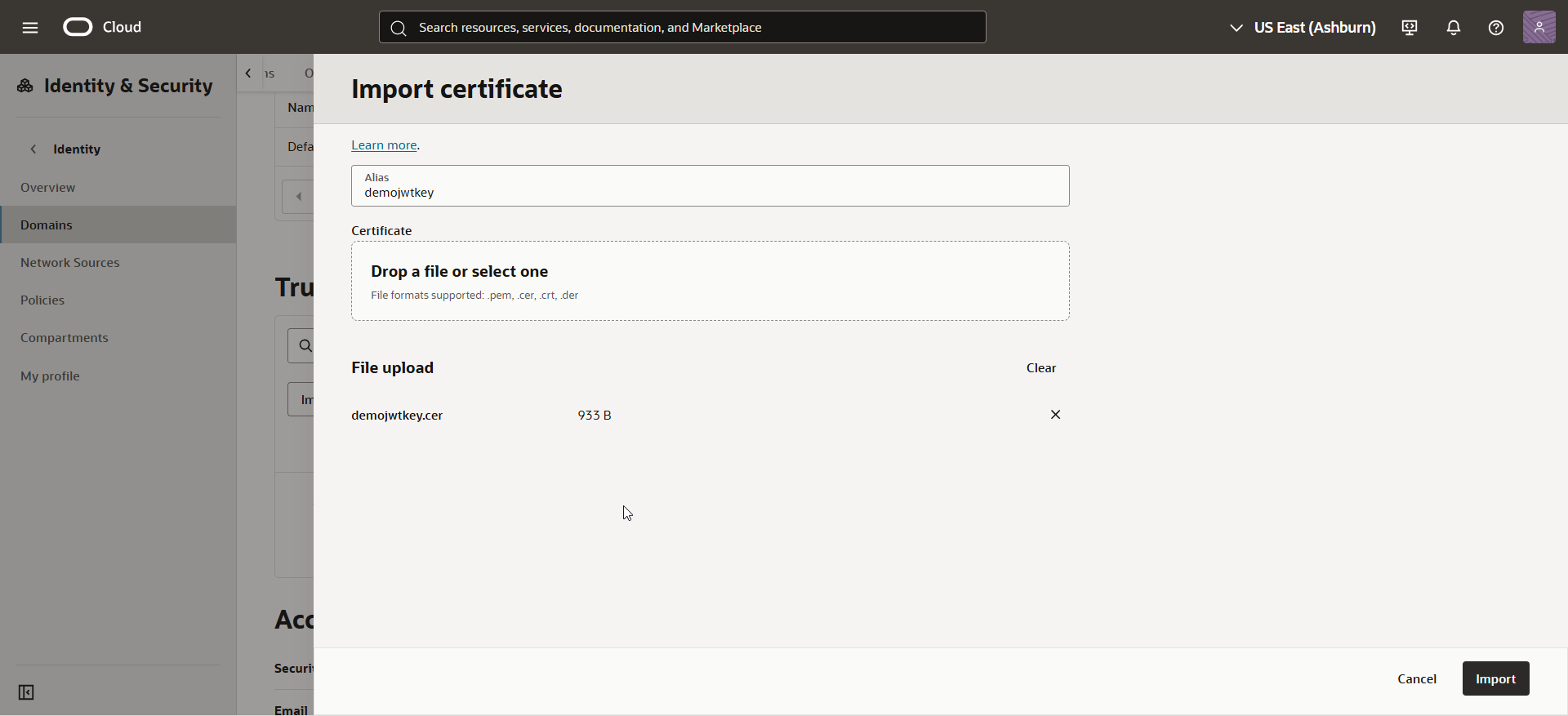
Click Import.
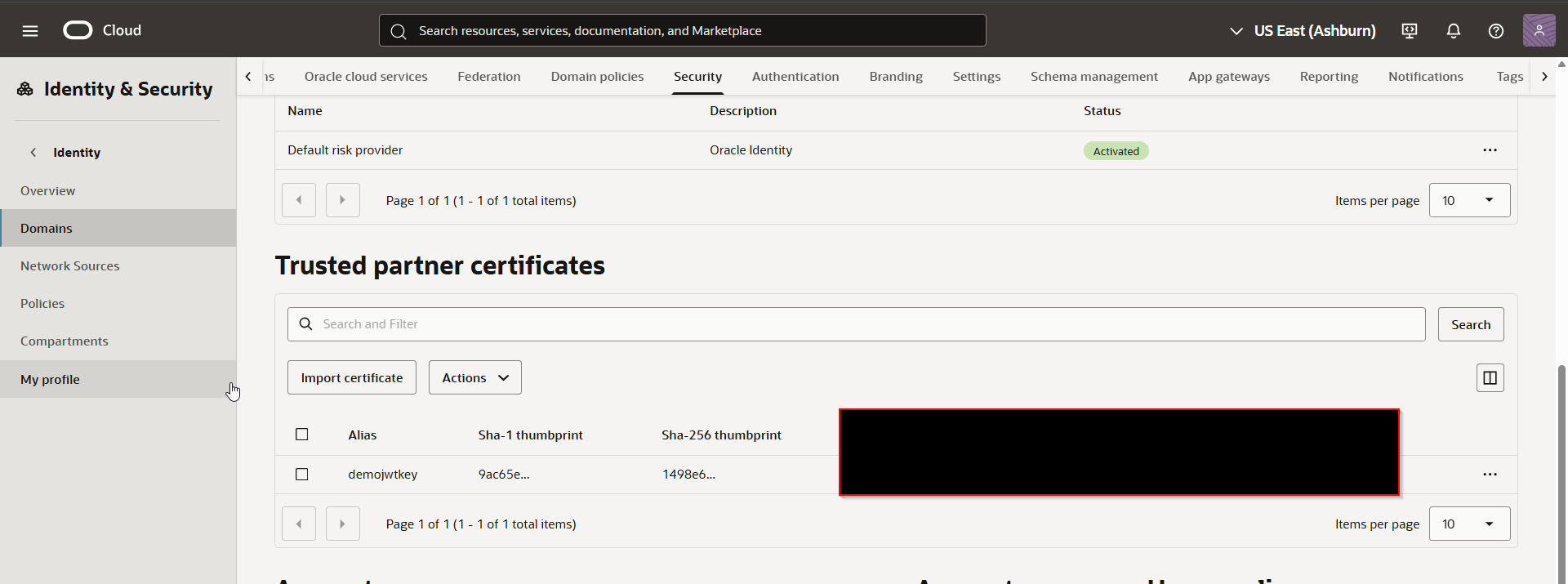
Step4: Upload Private key to OIC.
Login to OIC.
Navigate to Settings —>Certificates
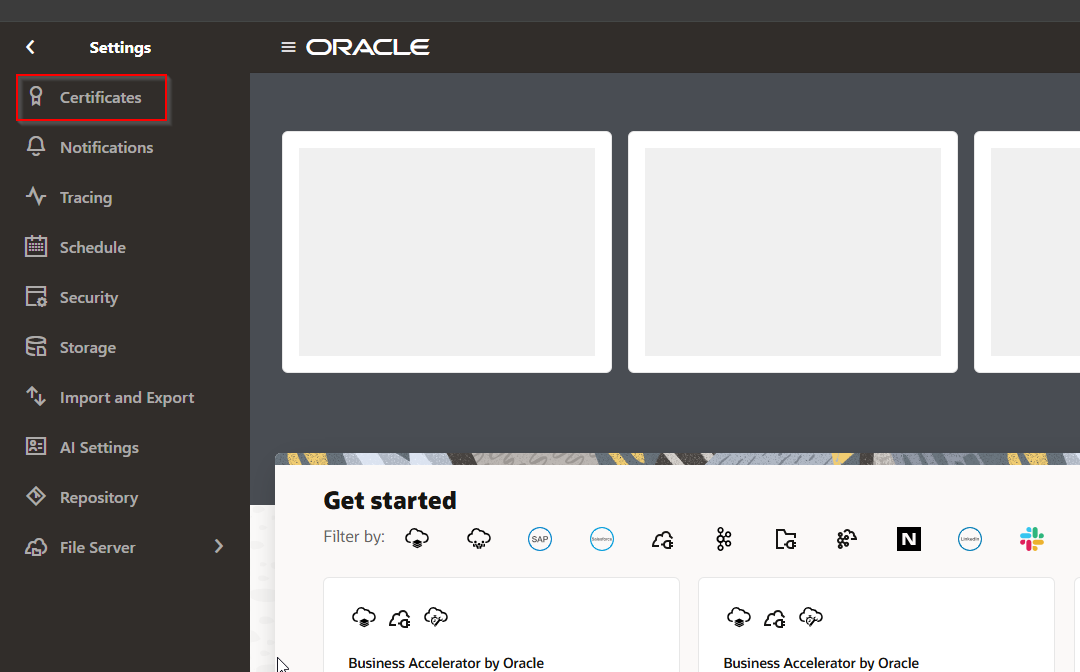
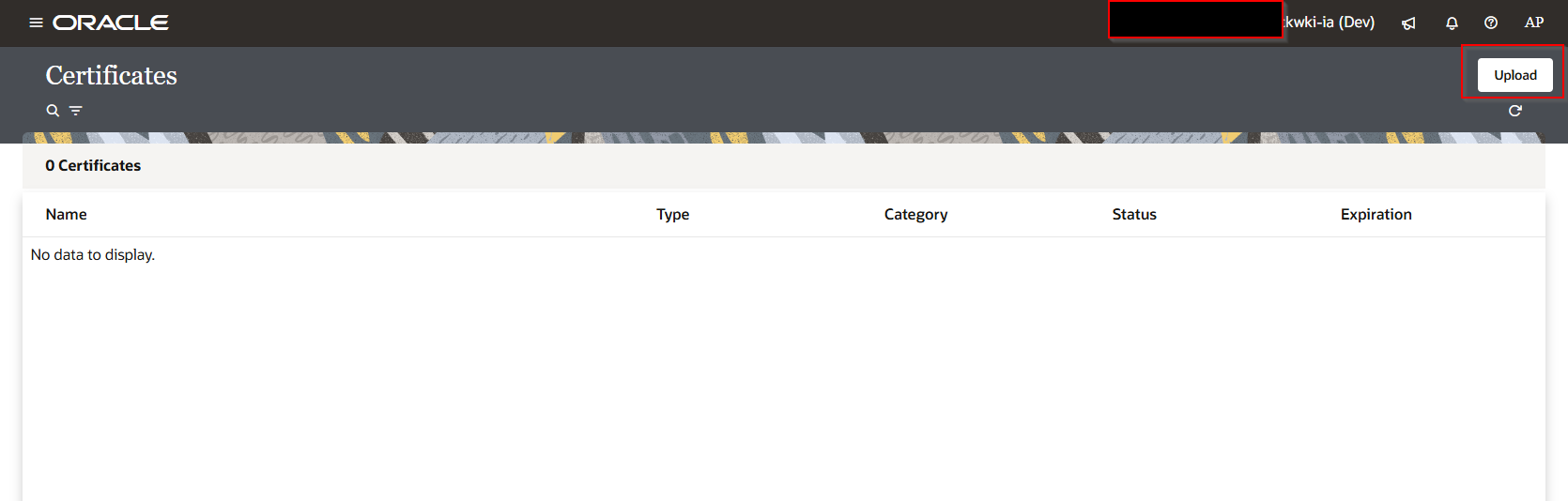 click Upload.
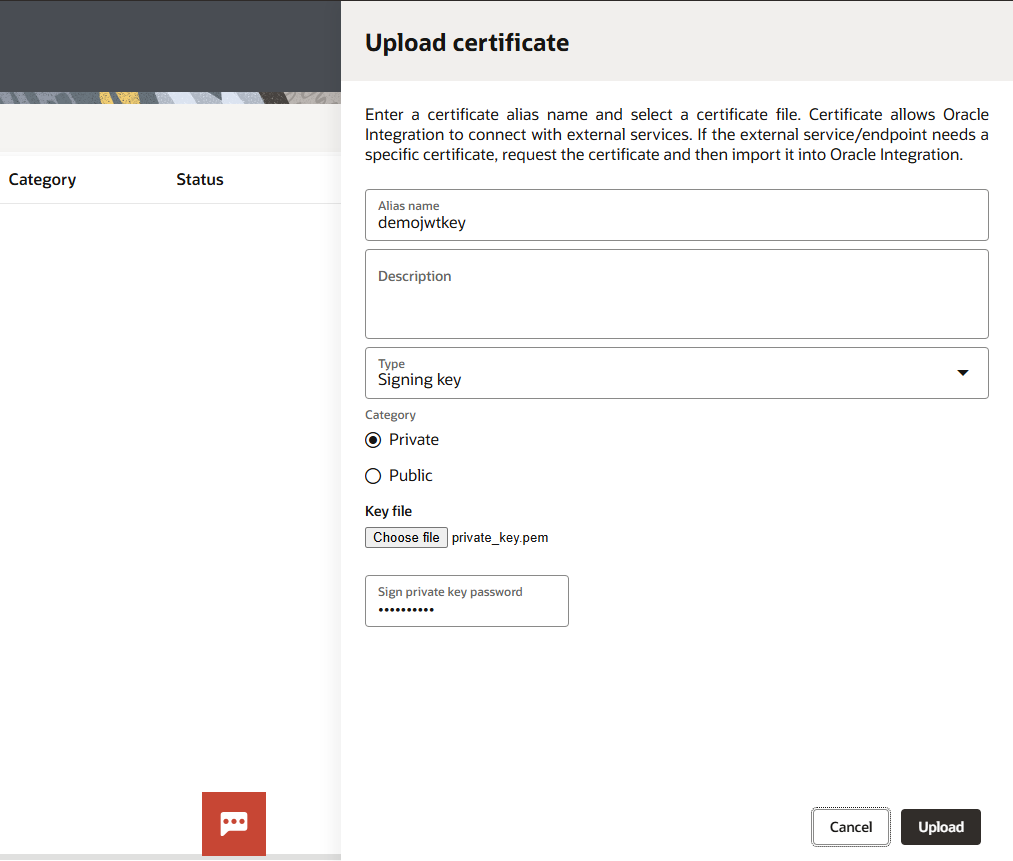
Click Upload.

Step5: Create JWT header and JWT payload.
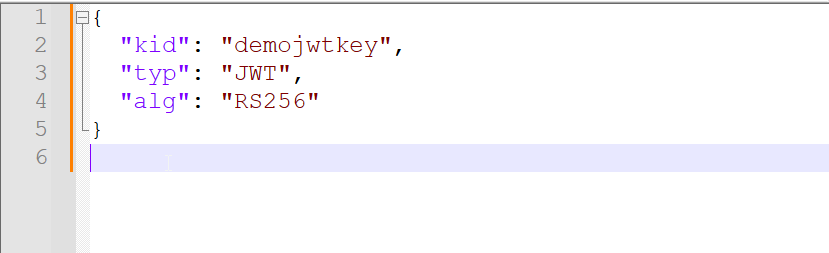
Create new Json file with below content and save this file as demojwtkeyheader.json
Create another Json file with below content and save this as demojwtkeypayload.json
Step5: Create new REST Connection.
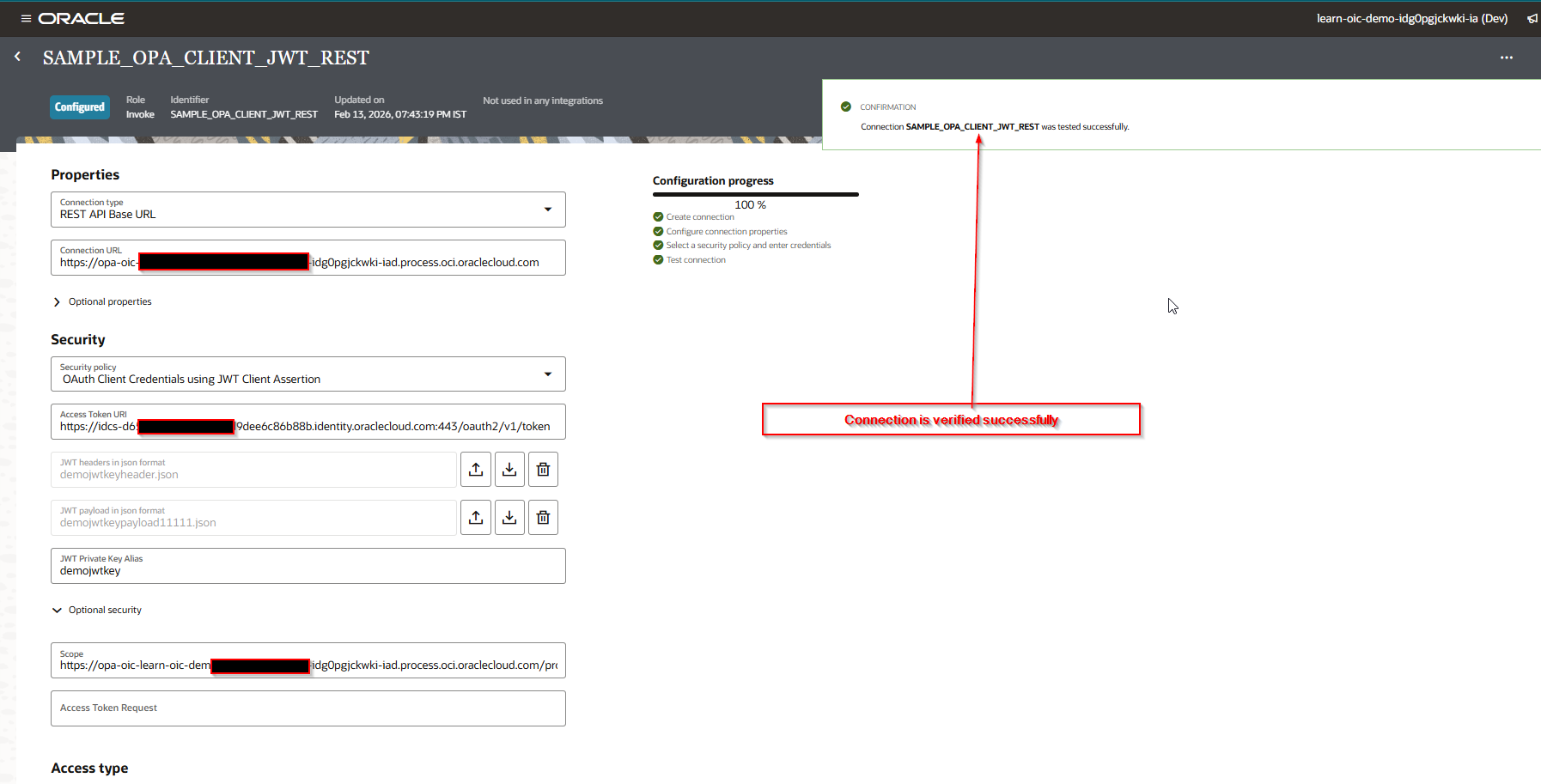
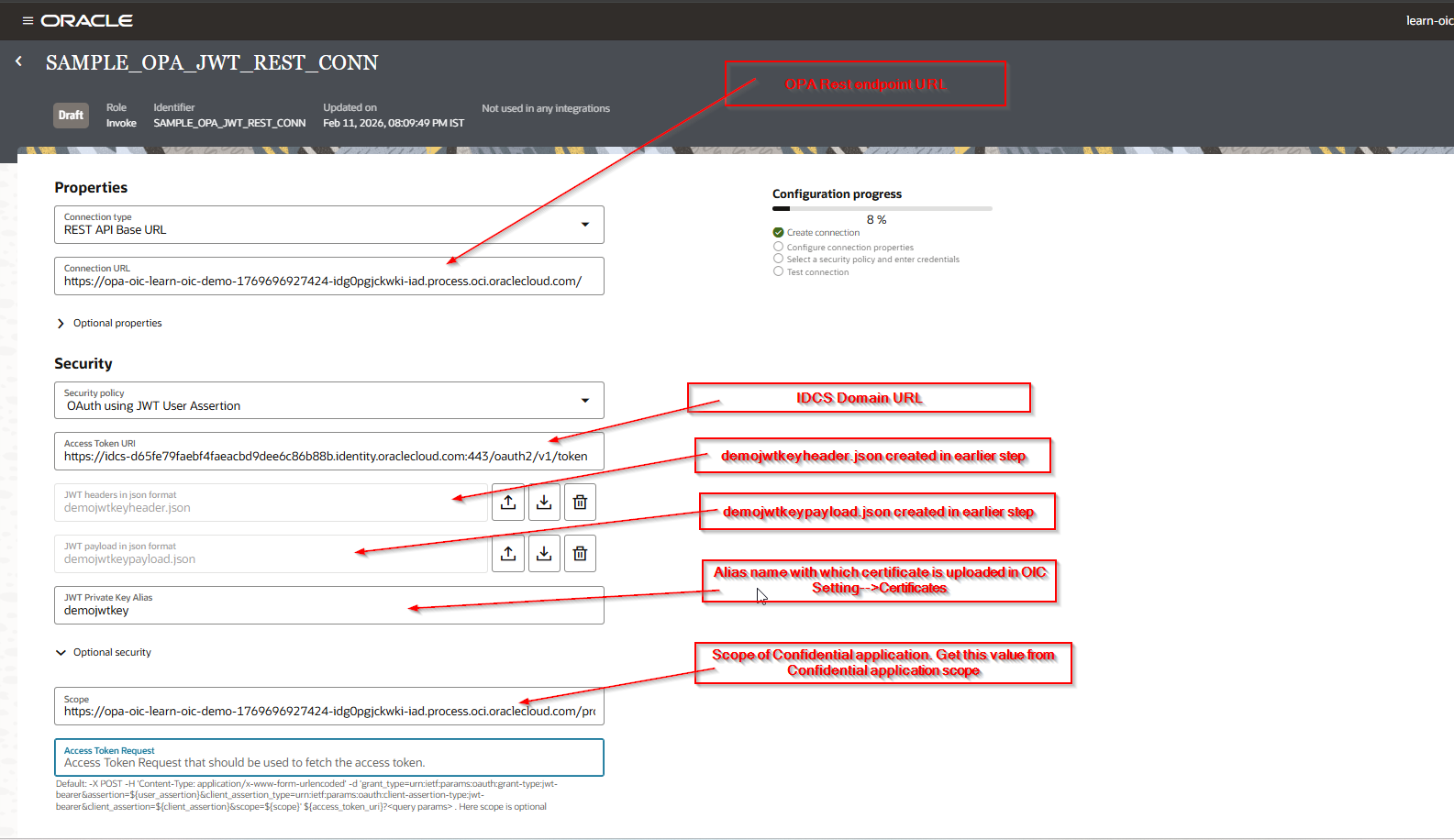
Create new REST Connection for OPA as shown below:
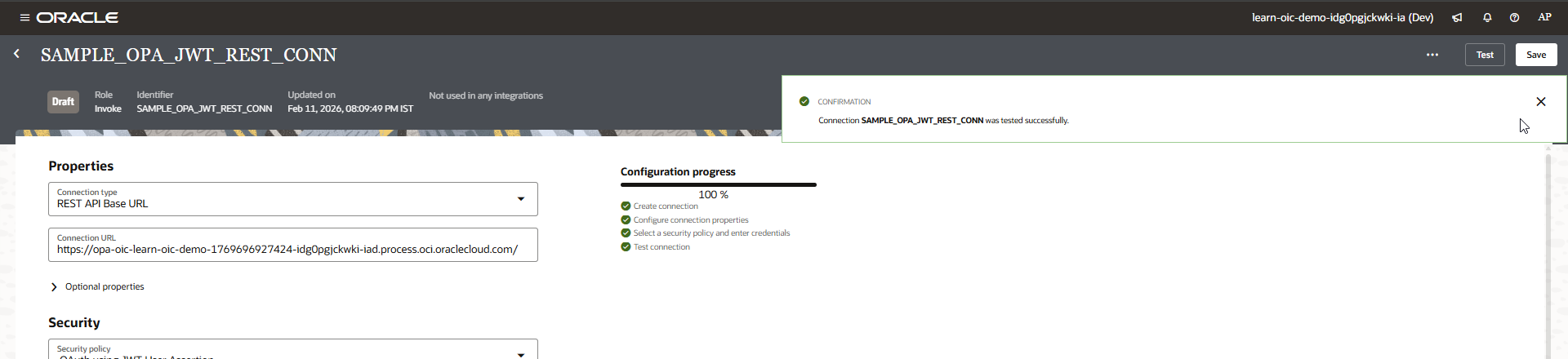
Save the connection.
Step6: Create Simple OPA process Application.
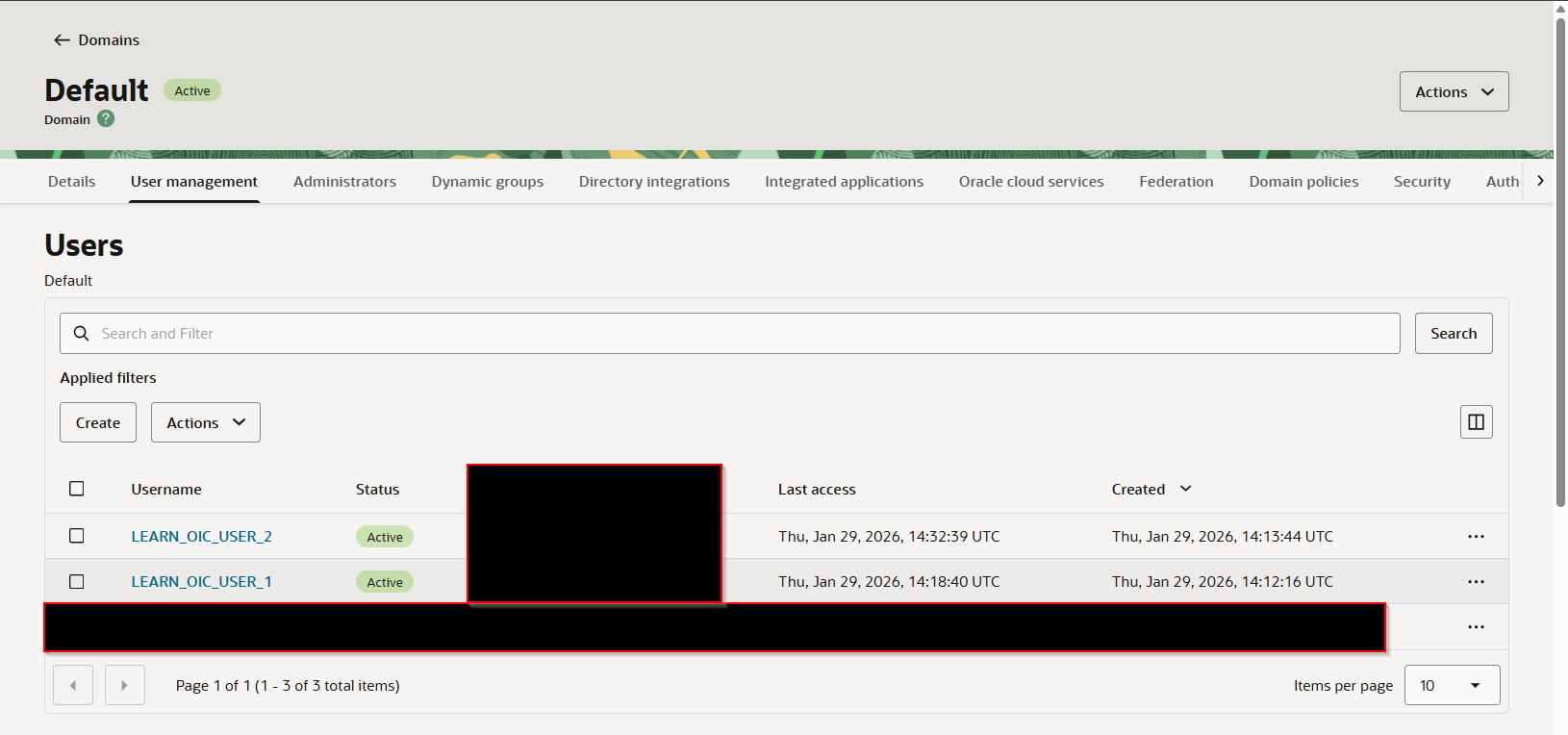
Create two users in IDCS for OPA access as shown below:
Navigate to Oracle Process Automation.
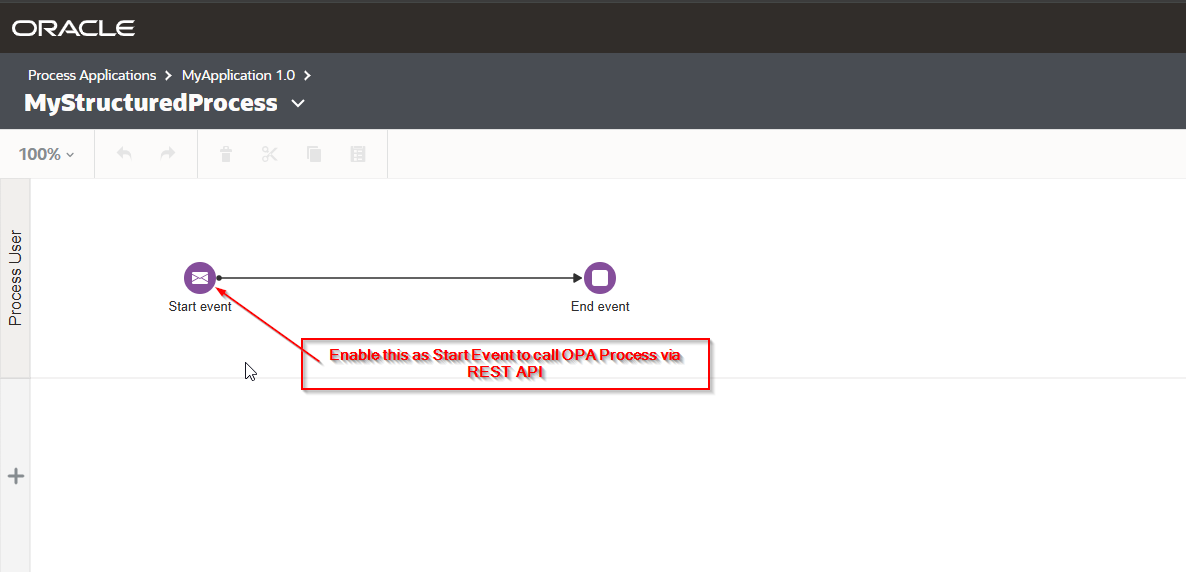
Create very simple application as shown below:
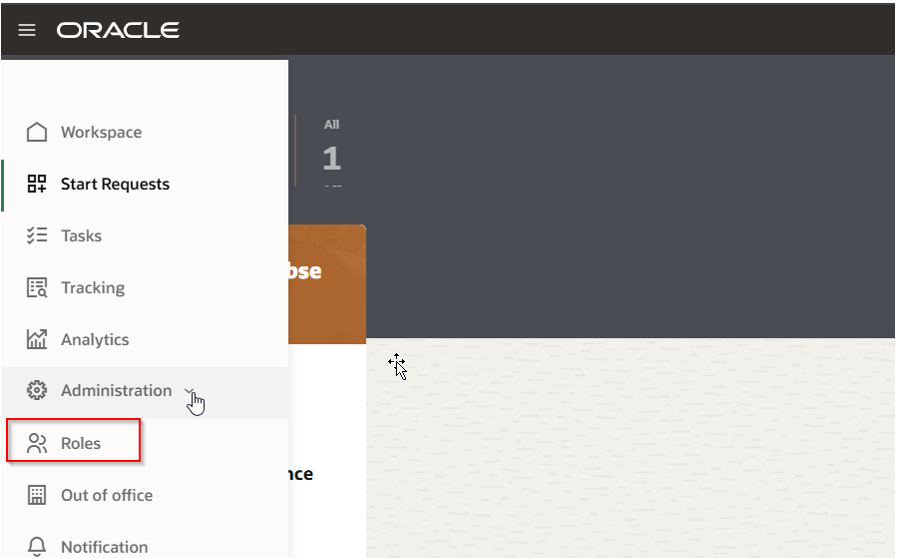
Navigate to Workspace —–>Roles.
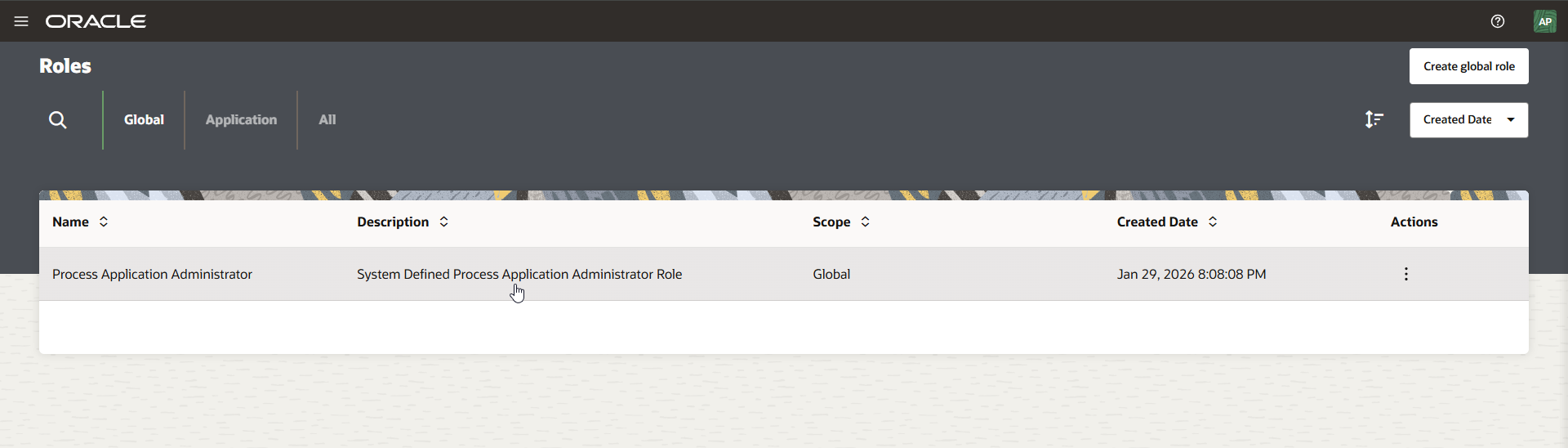
Add above created users to Process Application Administrator role.
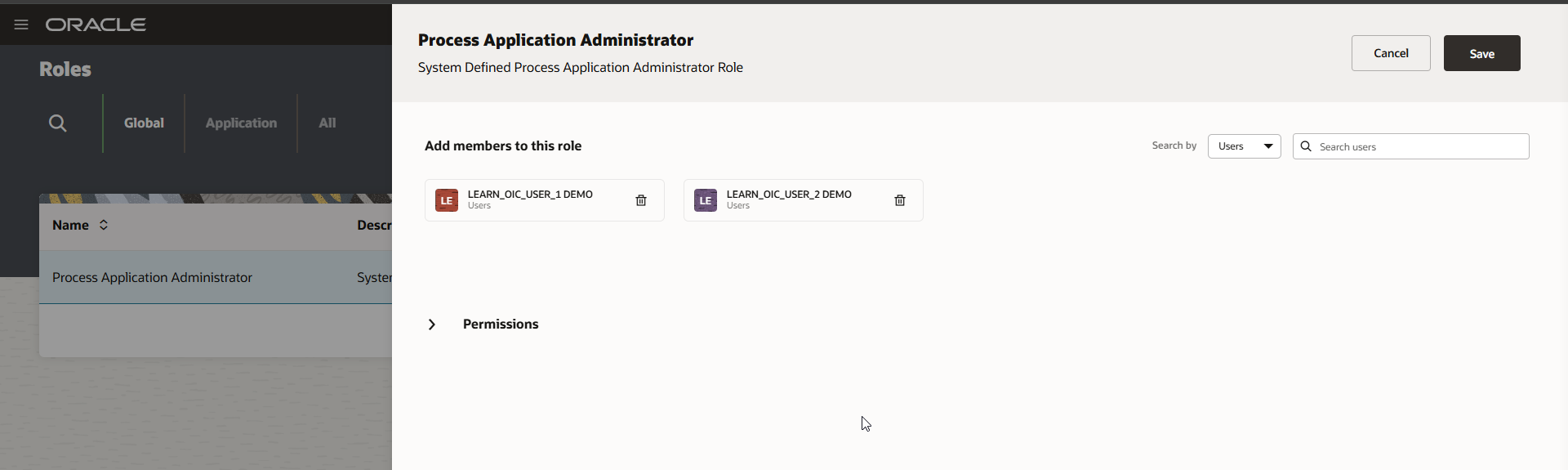
Click Save.
Step6: Create Simple OIC Integration to call OPA Process.
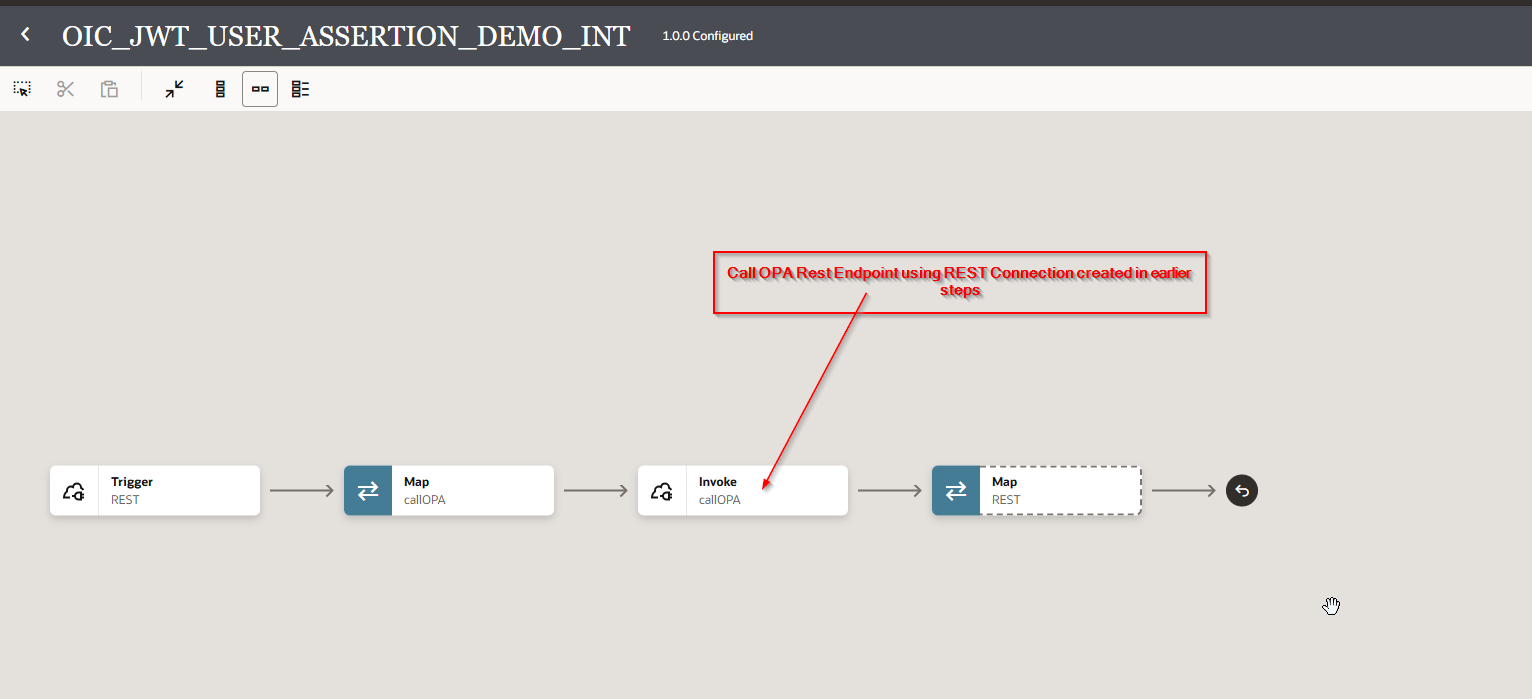
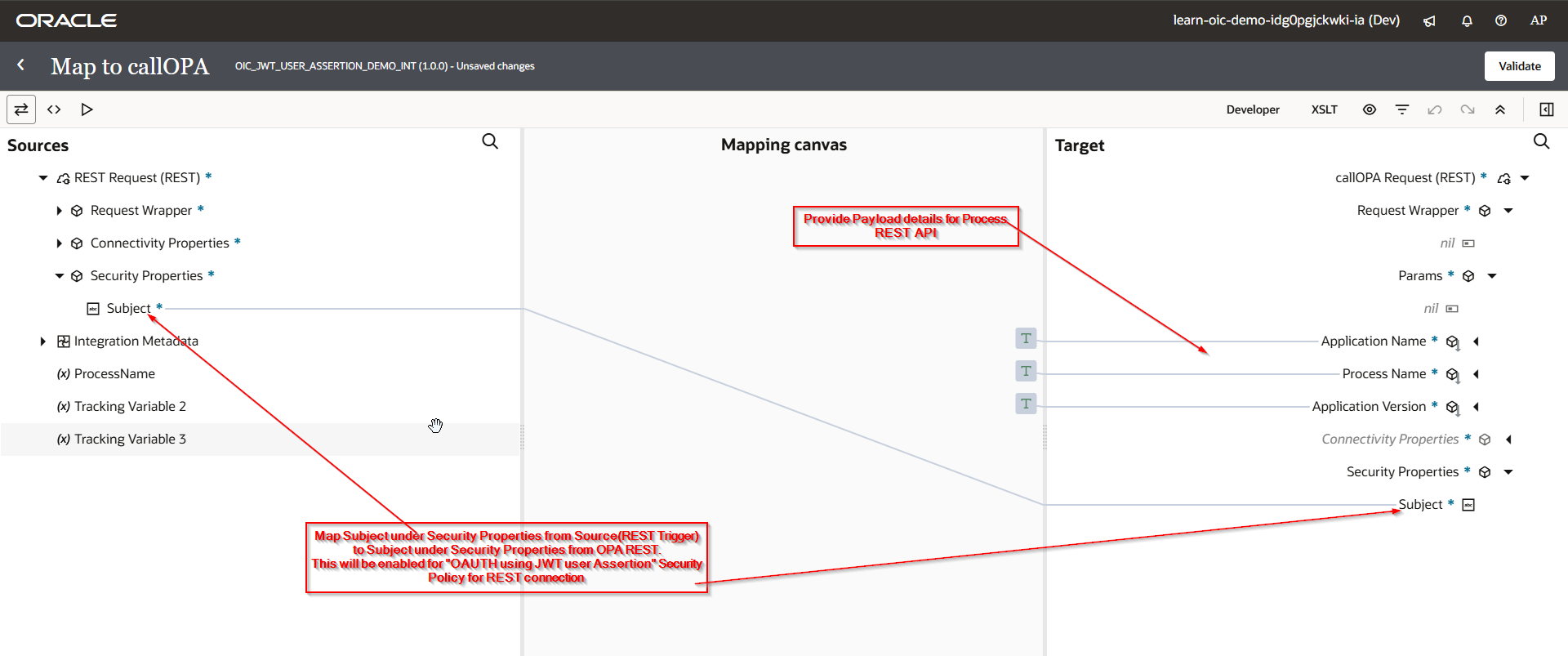
Step7: Create the integration.
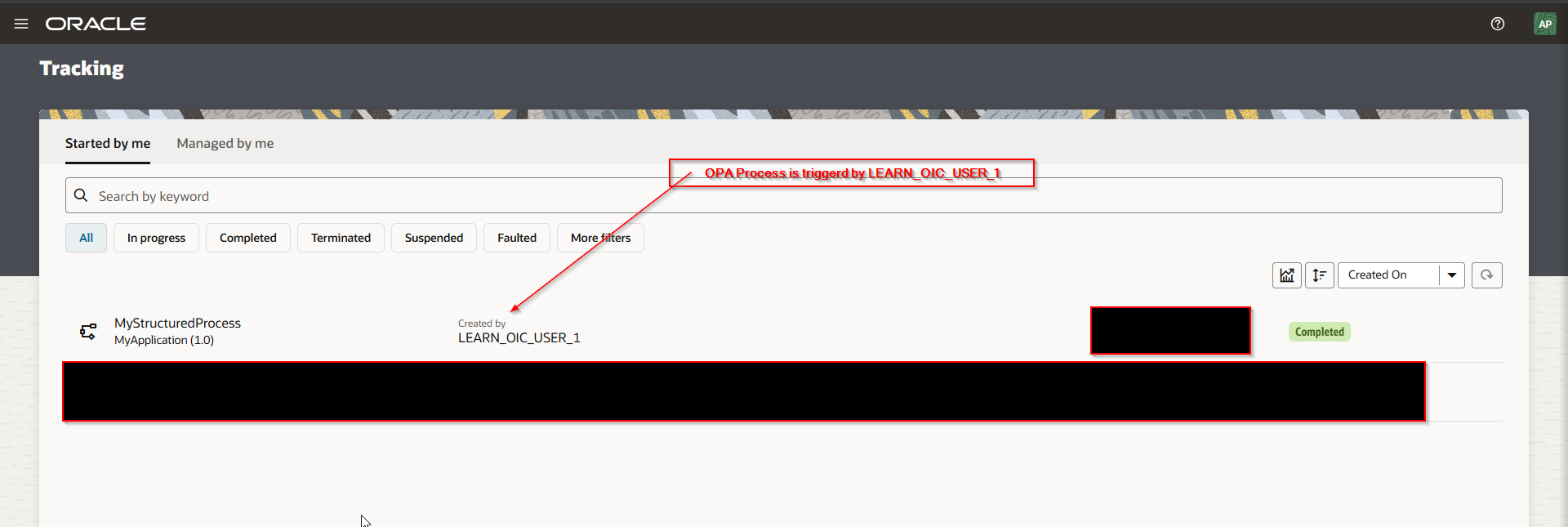
Login to OIC with LEARN_OIC_USER_1and run the integration.
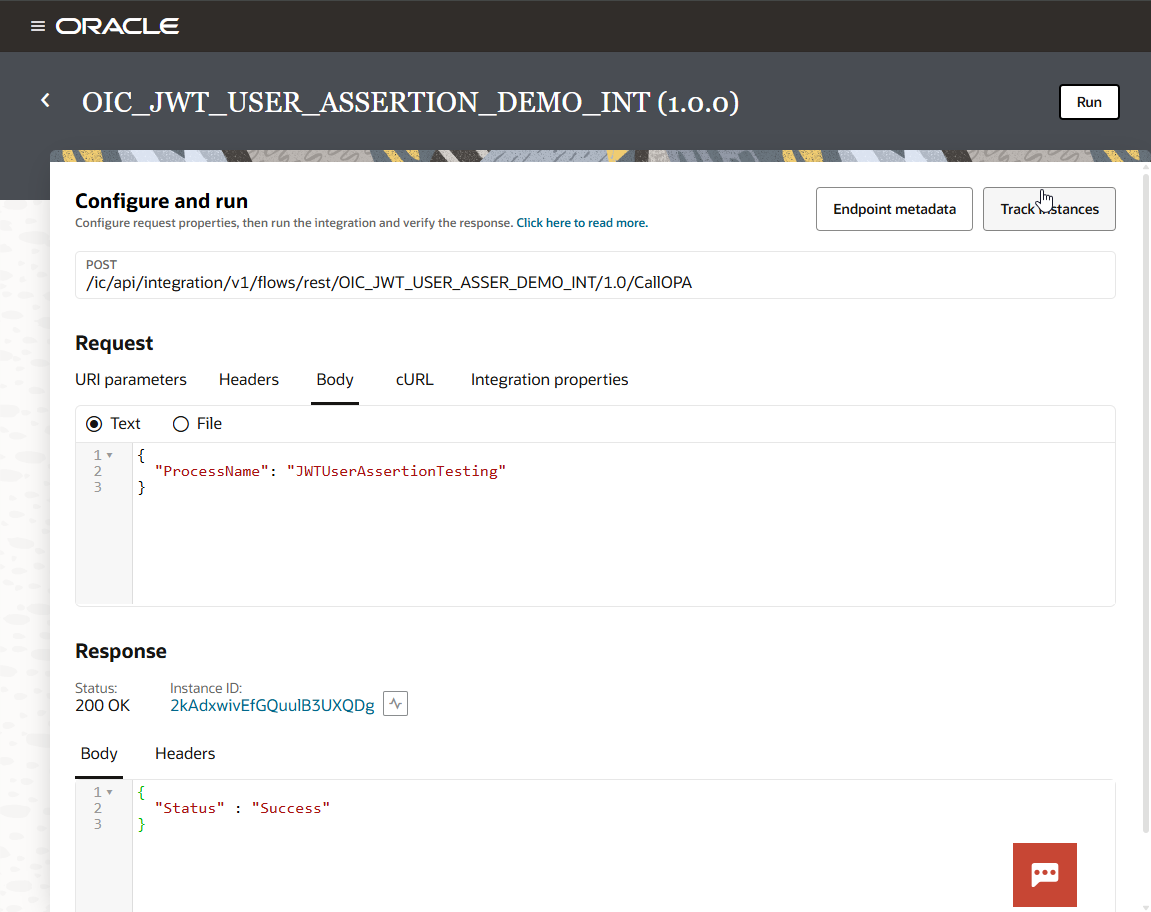
Navigate to OPA Process Tracking.
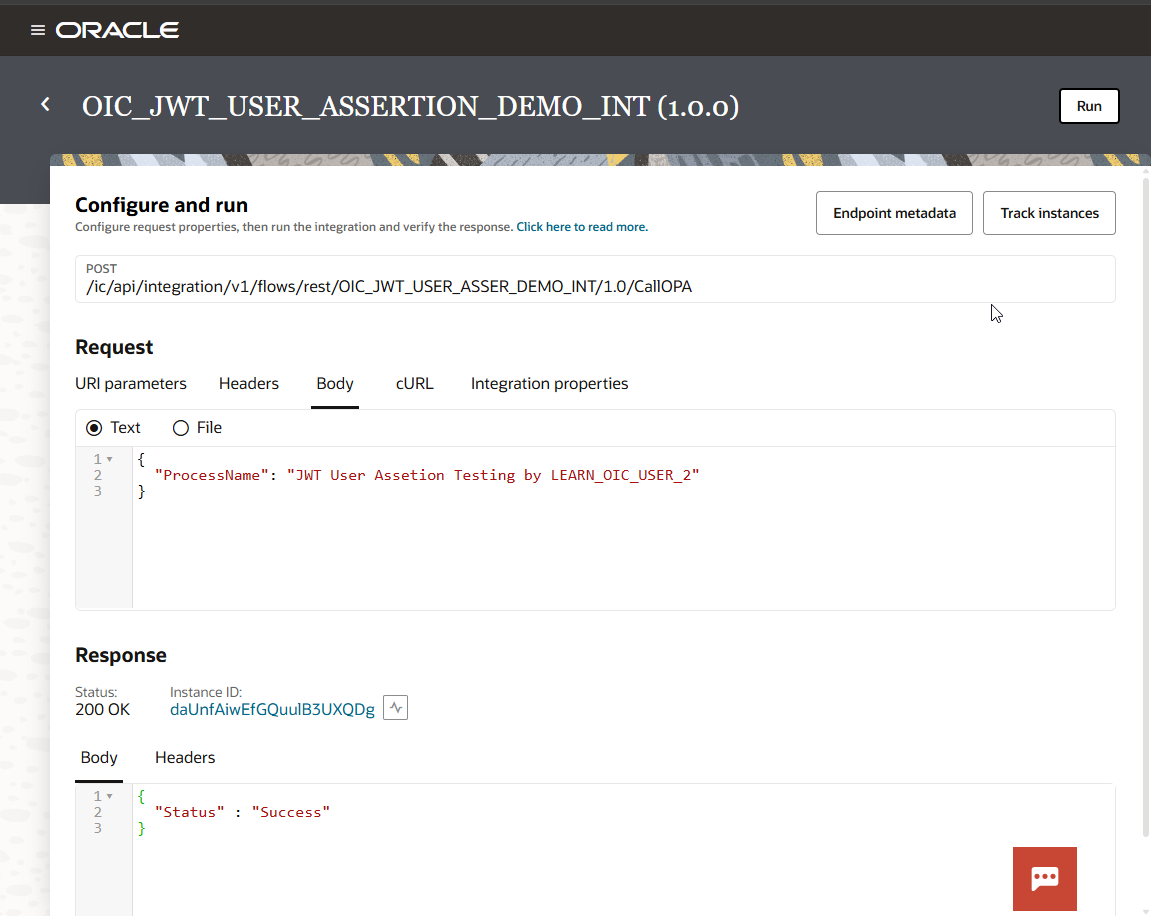
Login to OIC with LEARN_OIC_USER_2 and run the integration.
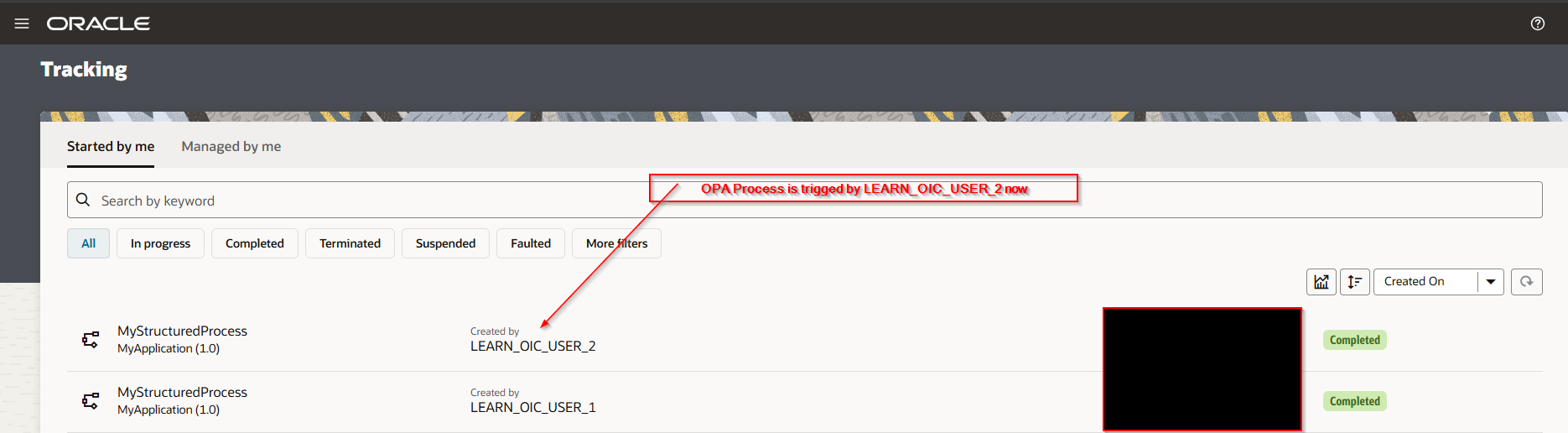
Navigate to OPA Process Tracking.
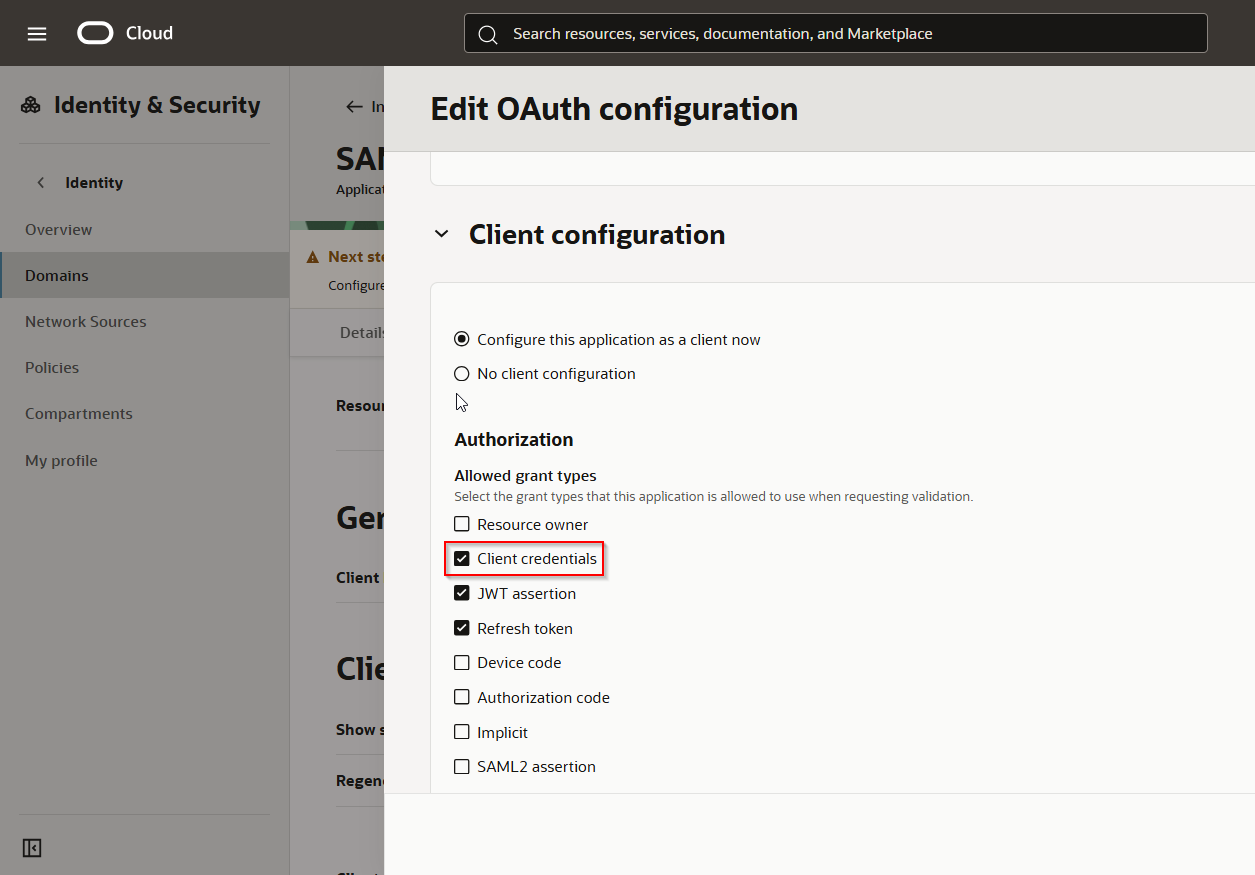
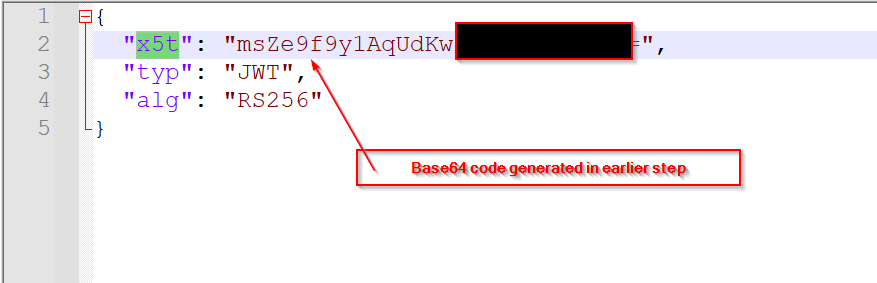
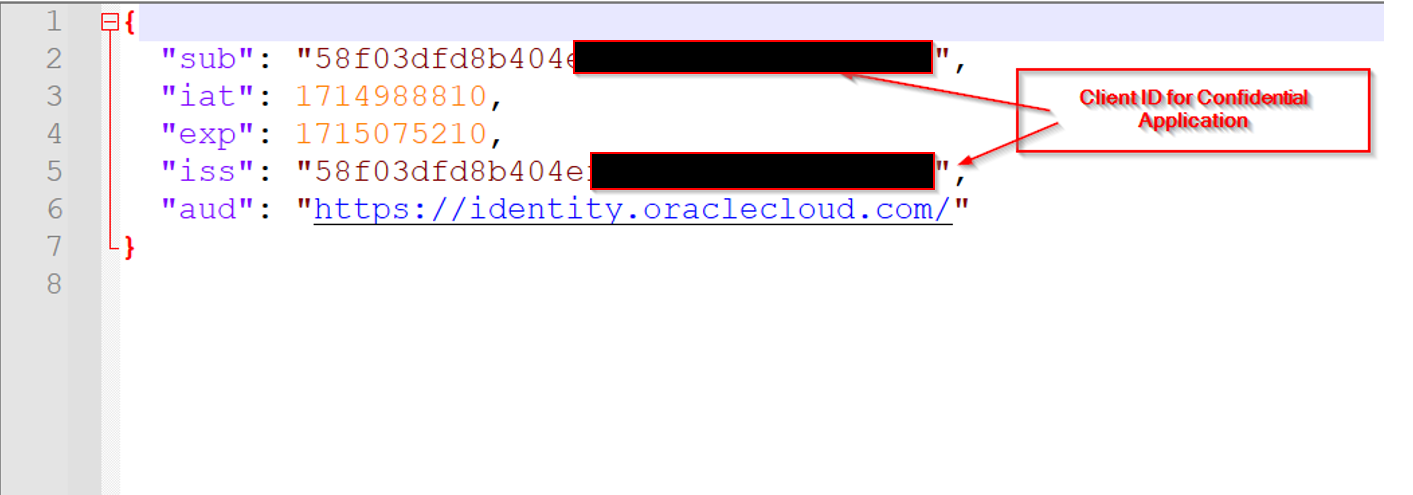
If we want to use “OAuth Client Credentials using JWT Client Assertion” as security Policy, we need to change header and payload JSON file.
Make sure client credentials checkbox is enabled at Confidential application.
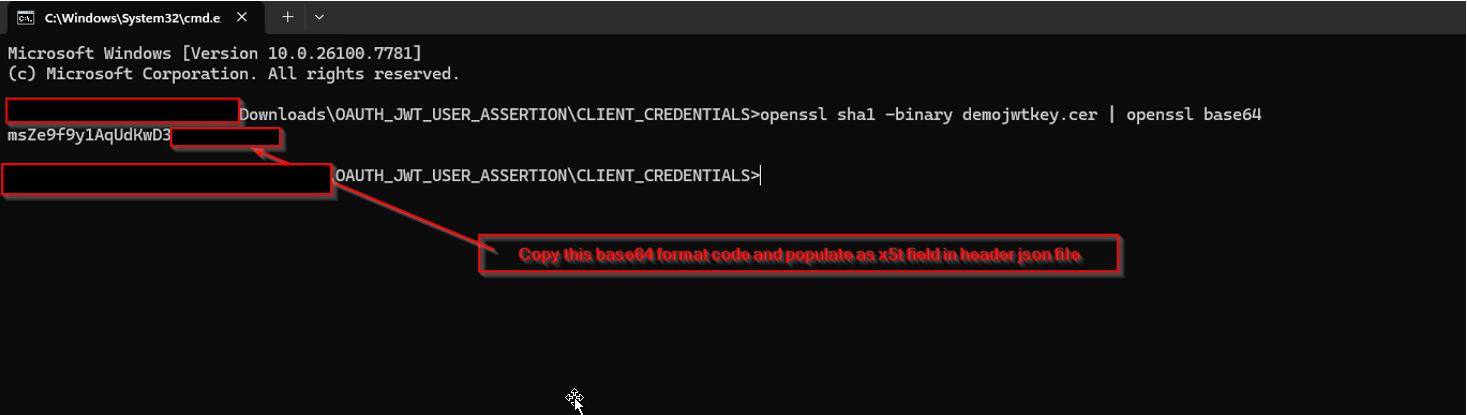
Generate x5t from security certificate (.cer file):
Run the following OpenSSL command
openssl sha1 -binary demojwtkey.cer | openssl base64
JSON Header File:
JSON Payload File:
Create new REST Connection as shown below: