How to Navigate to Page Flow from Fragments

How to Navigate to Page Flow from Fragments

In this post, we will see how to navigate to Flow (Page) from Fragments.

When we create fragments and want to navigate to flow, there is no action available for navigation.

We need to follow the steps below to navigate to Page/Flow from fragments.

Step1: Create Sample VBCS Application.

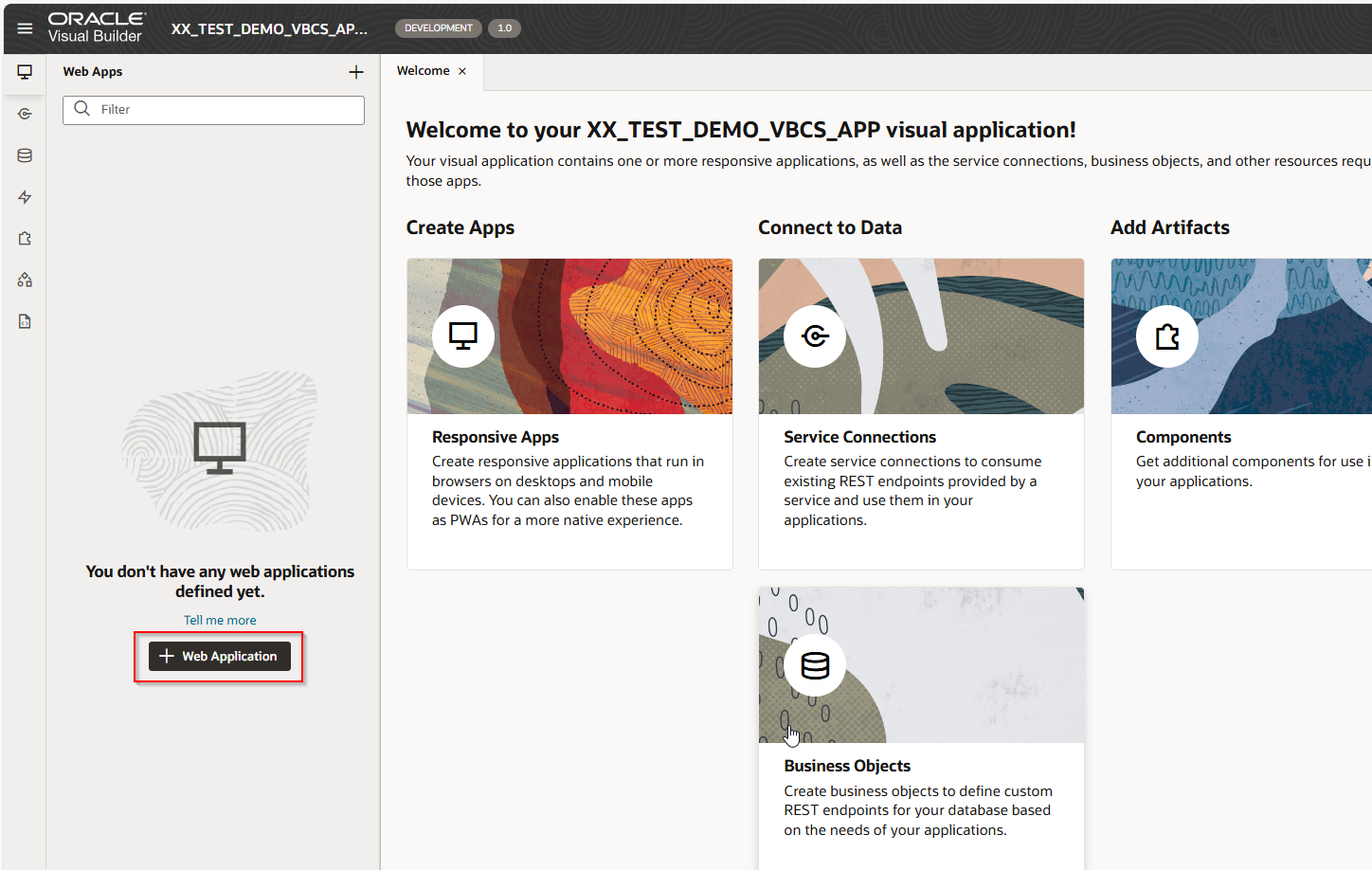
Navigate to Web Application.
A screenshot of a computer

AI-generated content may be incorrect.

Click on Web Application.

A screenshot of a computer

AI-generated content may be incorrect.

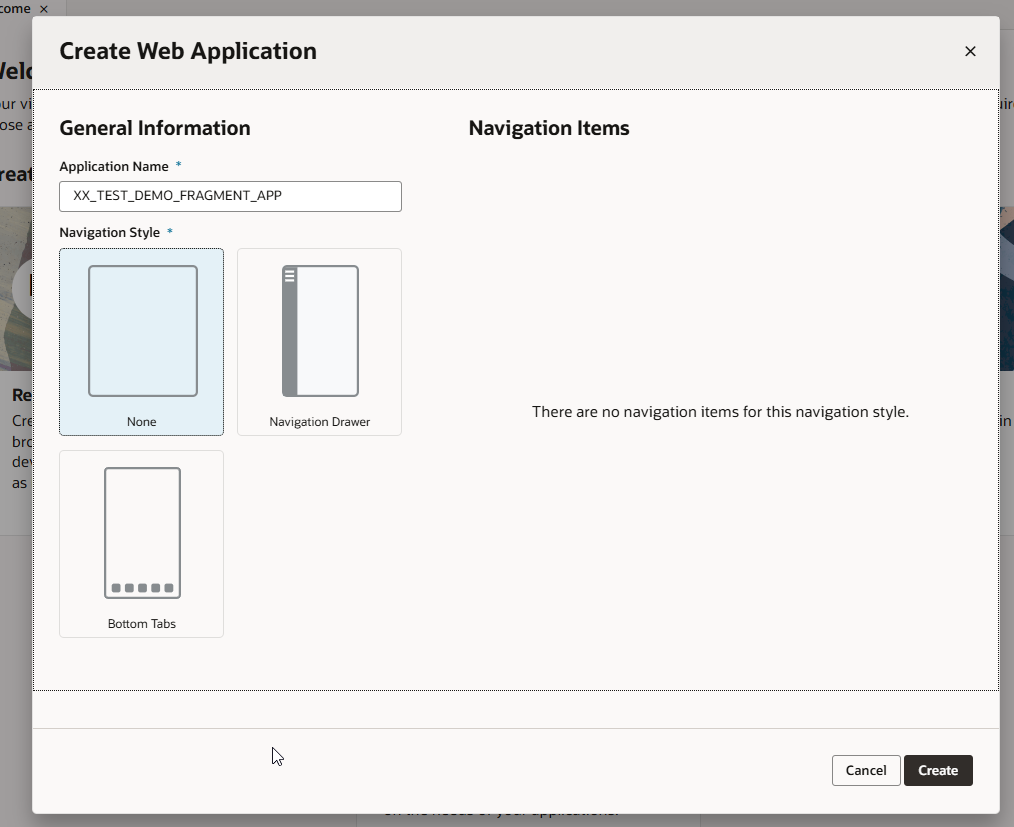
Provide Web application name and click on Create.

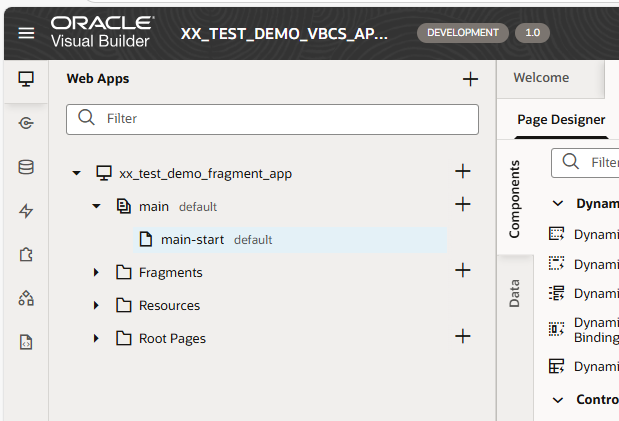
This will create VBCS Web application as shown below.
A screenshot of a computer

AI-generated content may be incorrect.

Let us create three different flows as shown below:


  1. Employee

  2. Supplier

  3. Customer.

Each flow will be created with default page.
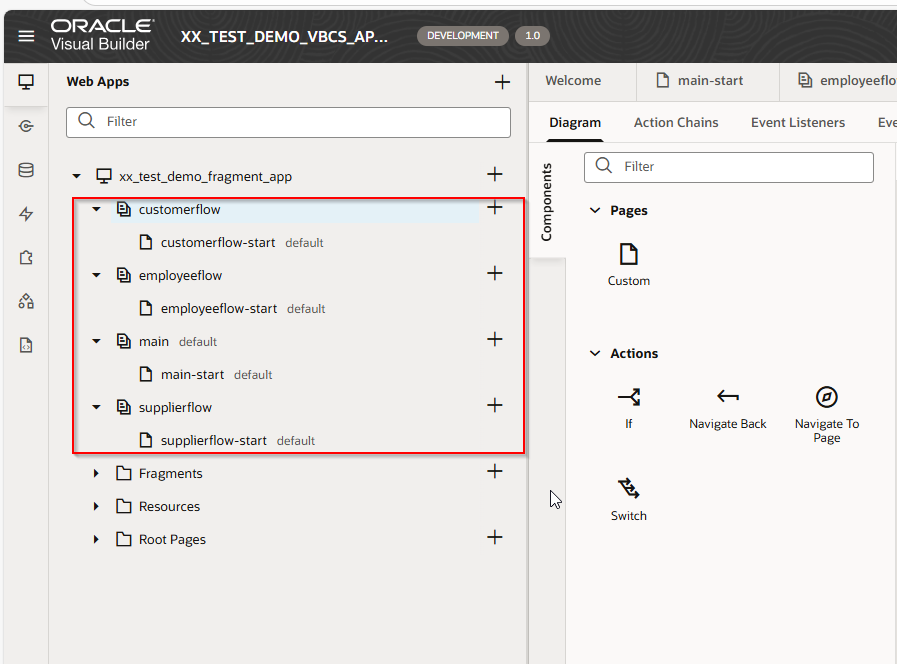
A screenshot of a computer

AI-generated content may be incorrect.

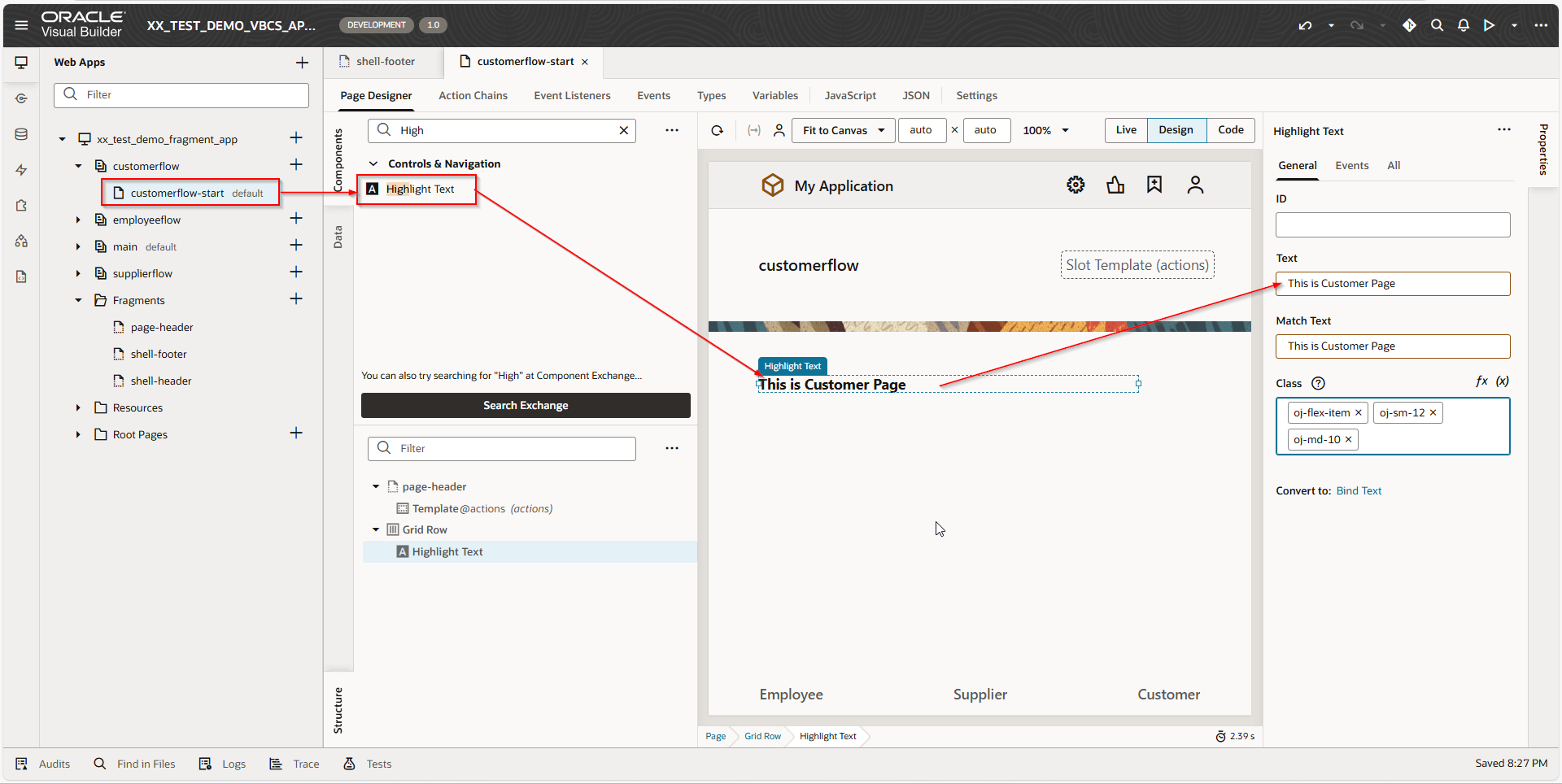
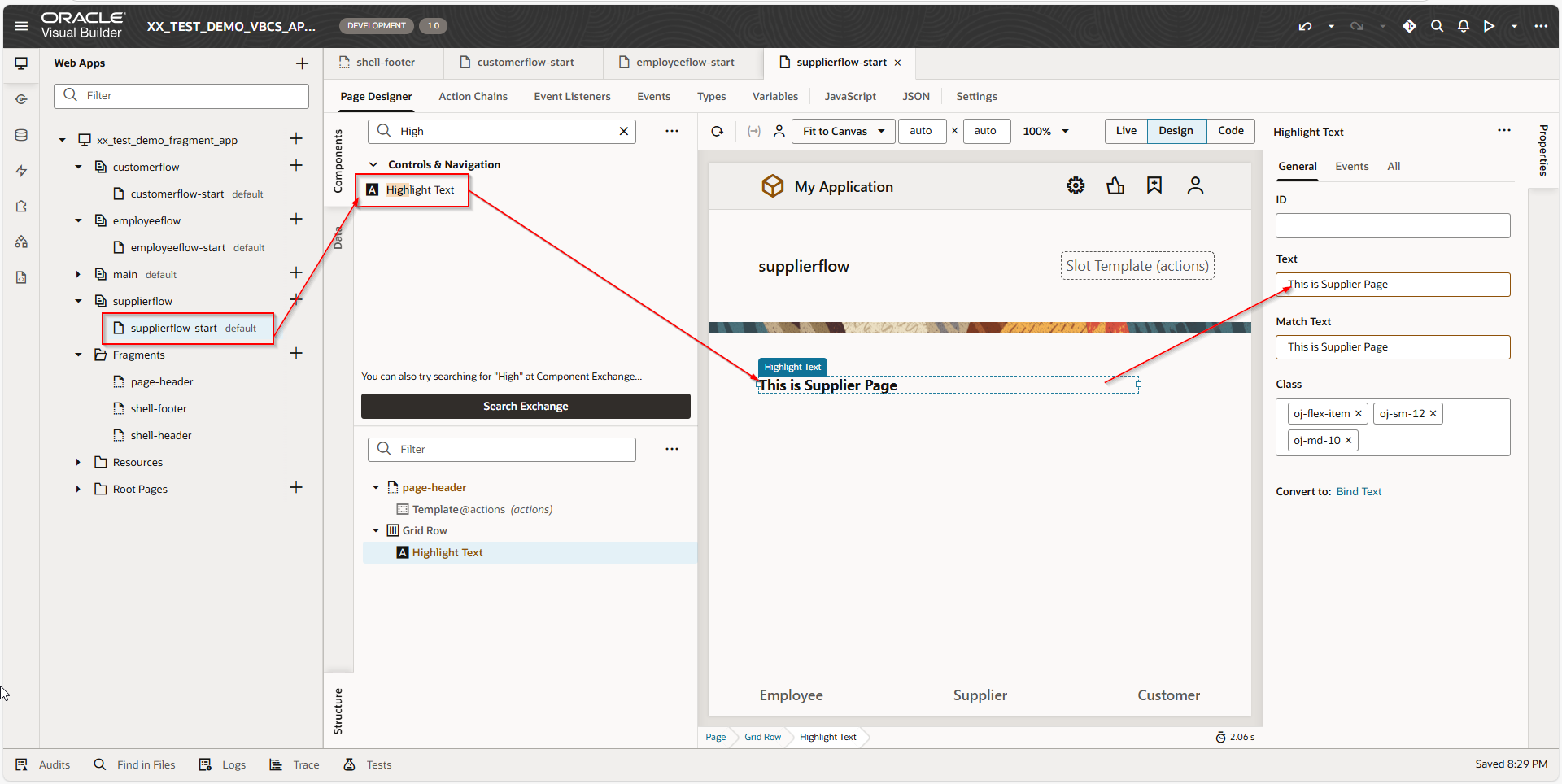
Let us create Highlight Text for each page.
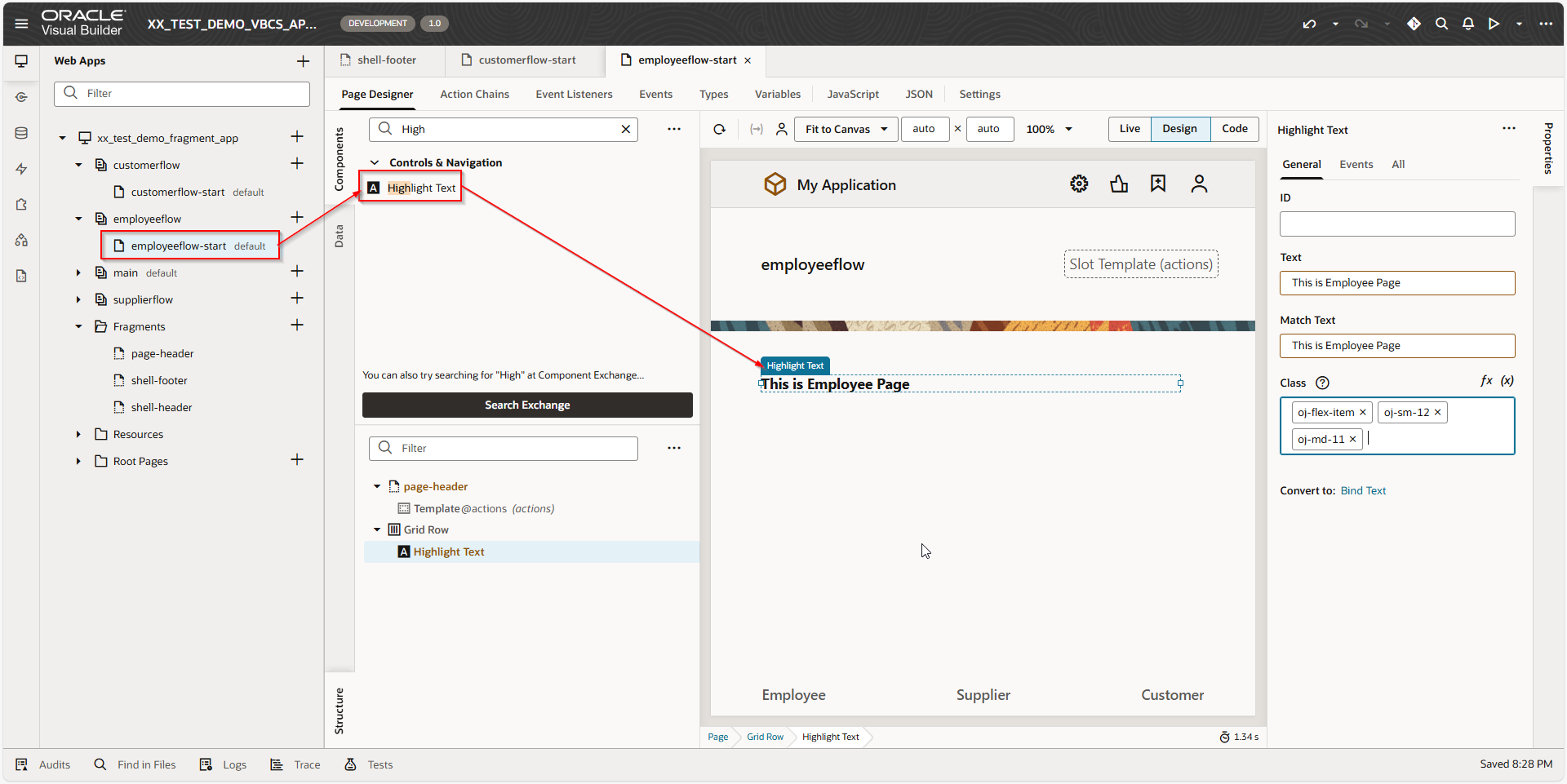
A screenshot of a computer

AI-generated content may be incorrect.

A screenshot of a computer

AI-generated content may be incorrect.

A screenshot of a computer

AI-generated content may be incorrect.

Step2: Modify Fragments

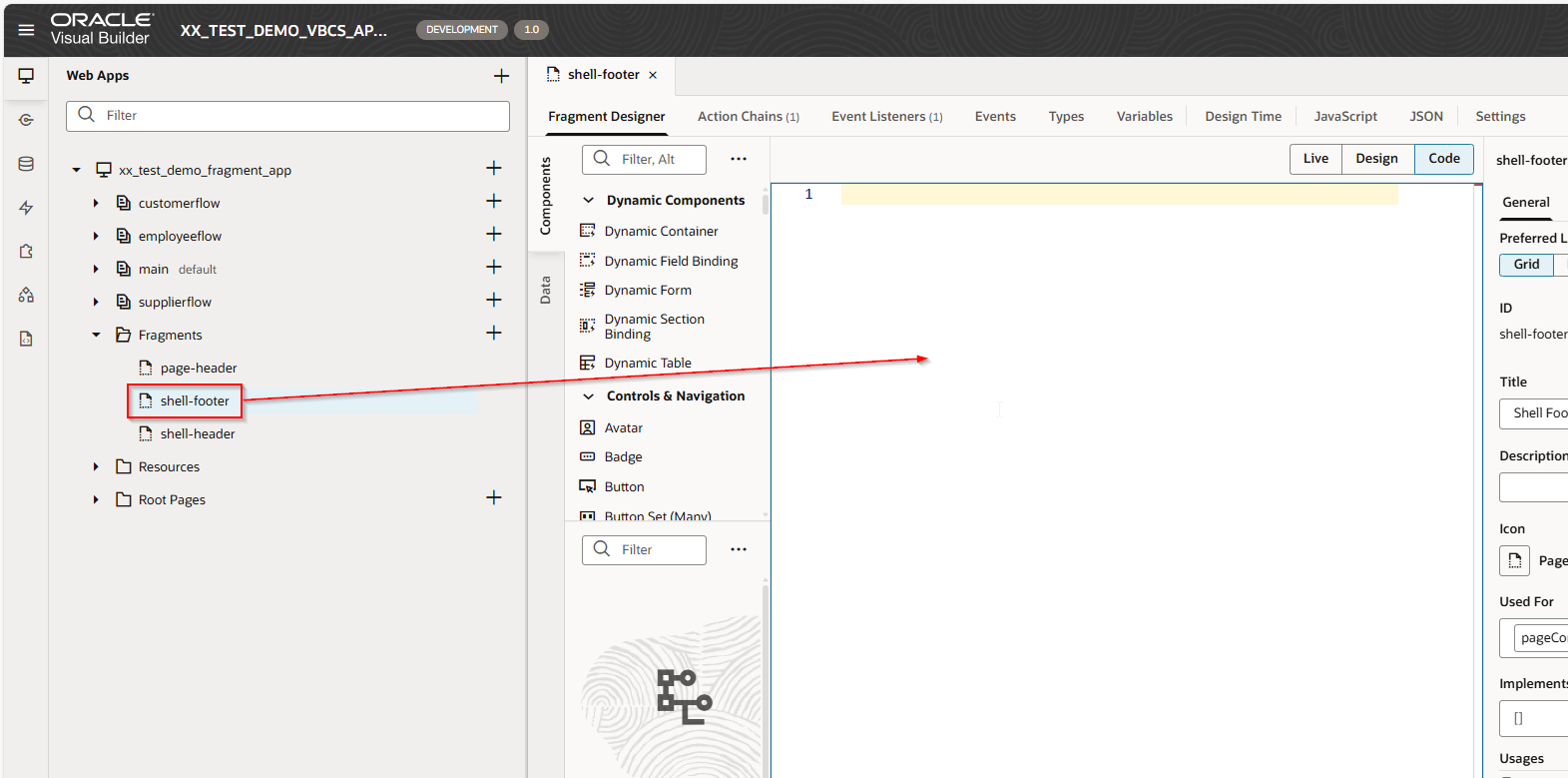
Navigate to Fragments —->Shell Footer —> Code
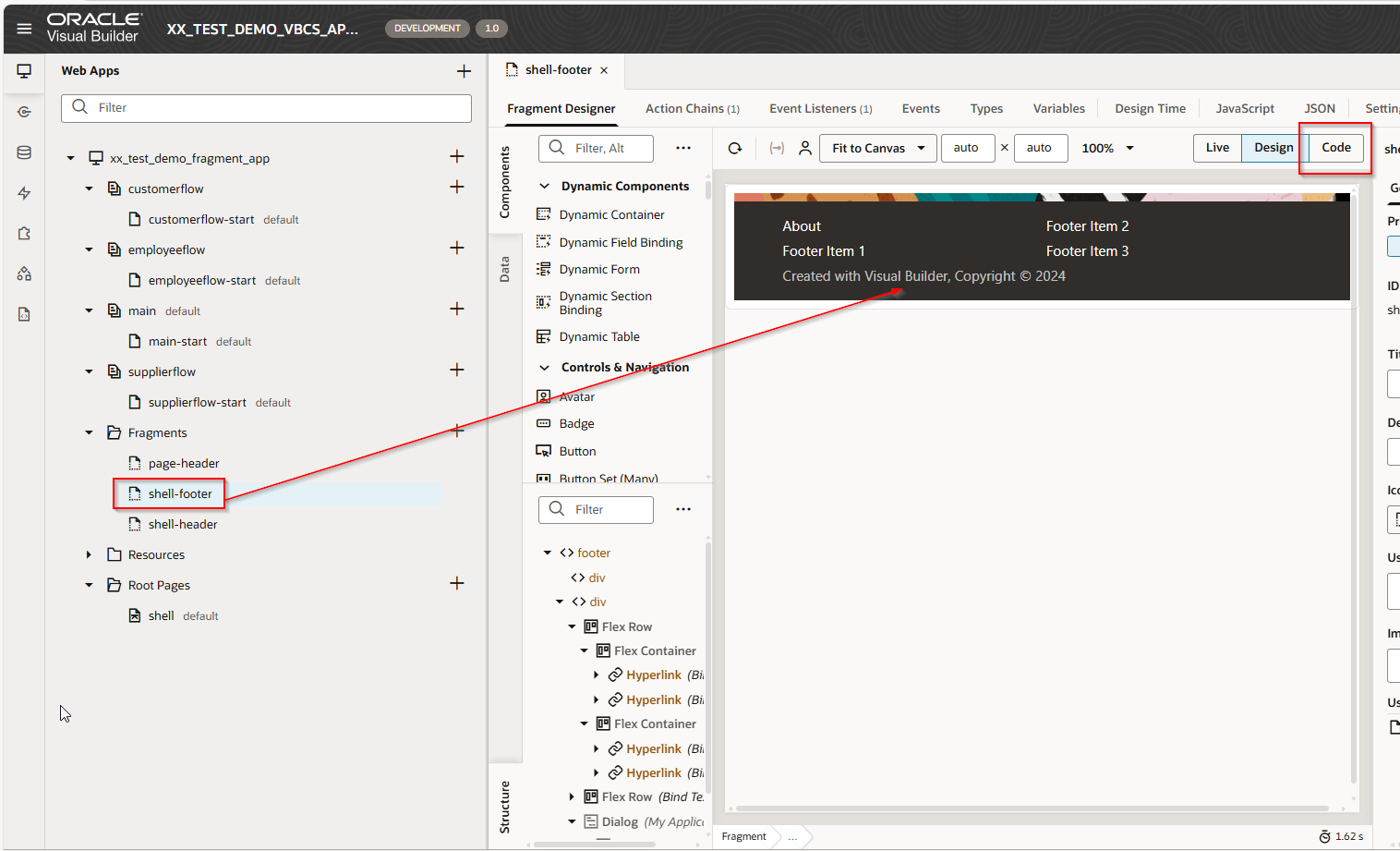
A screenshot of a computer

AI-generated content may be incorrect.

Remove all existing code.

A screenshot of a computer

AI-generated content may be incorrect.

Drag and Drop Tab Bar Layout to footer.
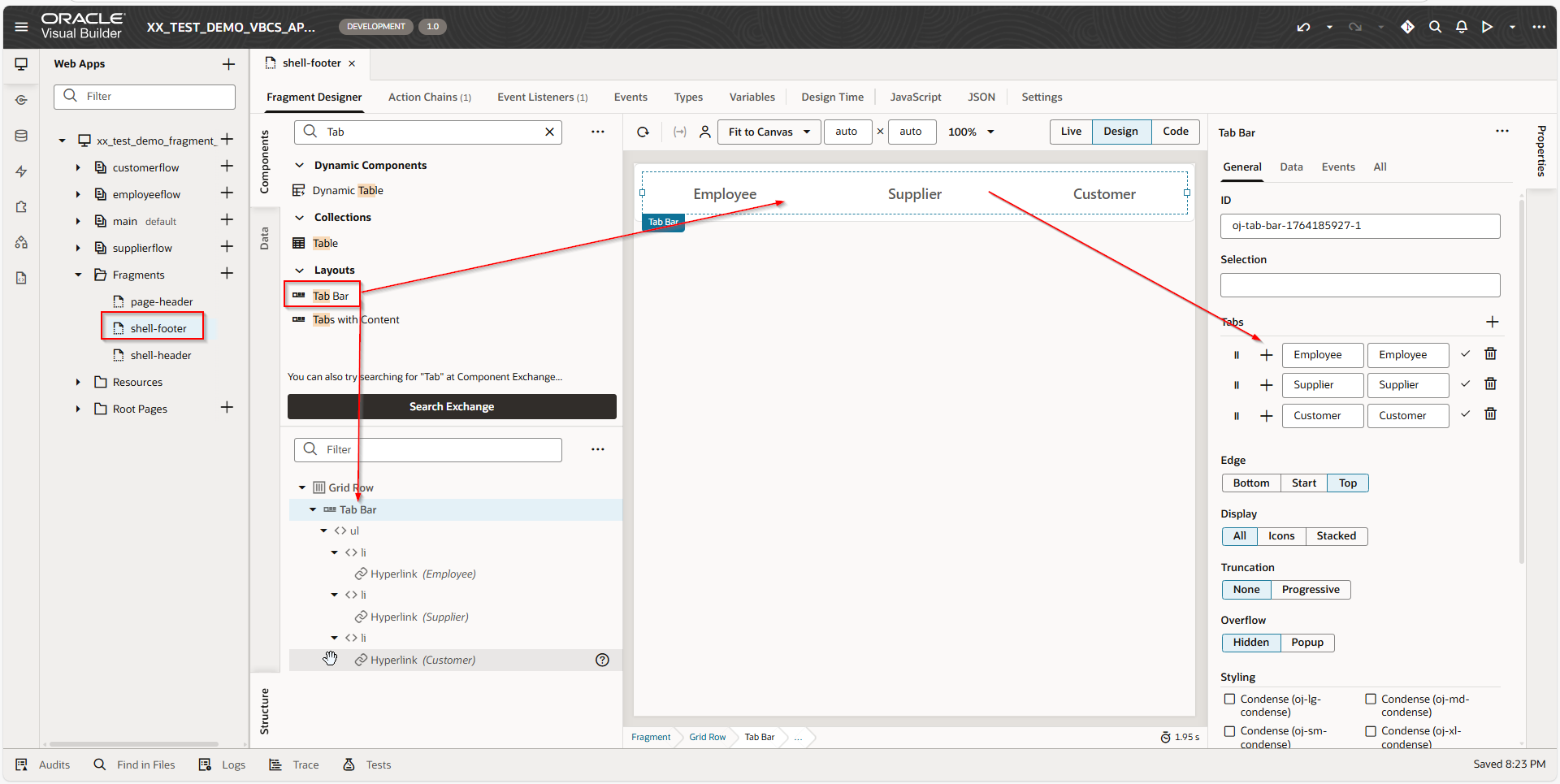
A screenshot of a computer

AI-generated content may be incorrect.

Add tabs for Employee, Supplier, Customer.

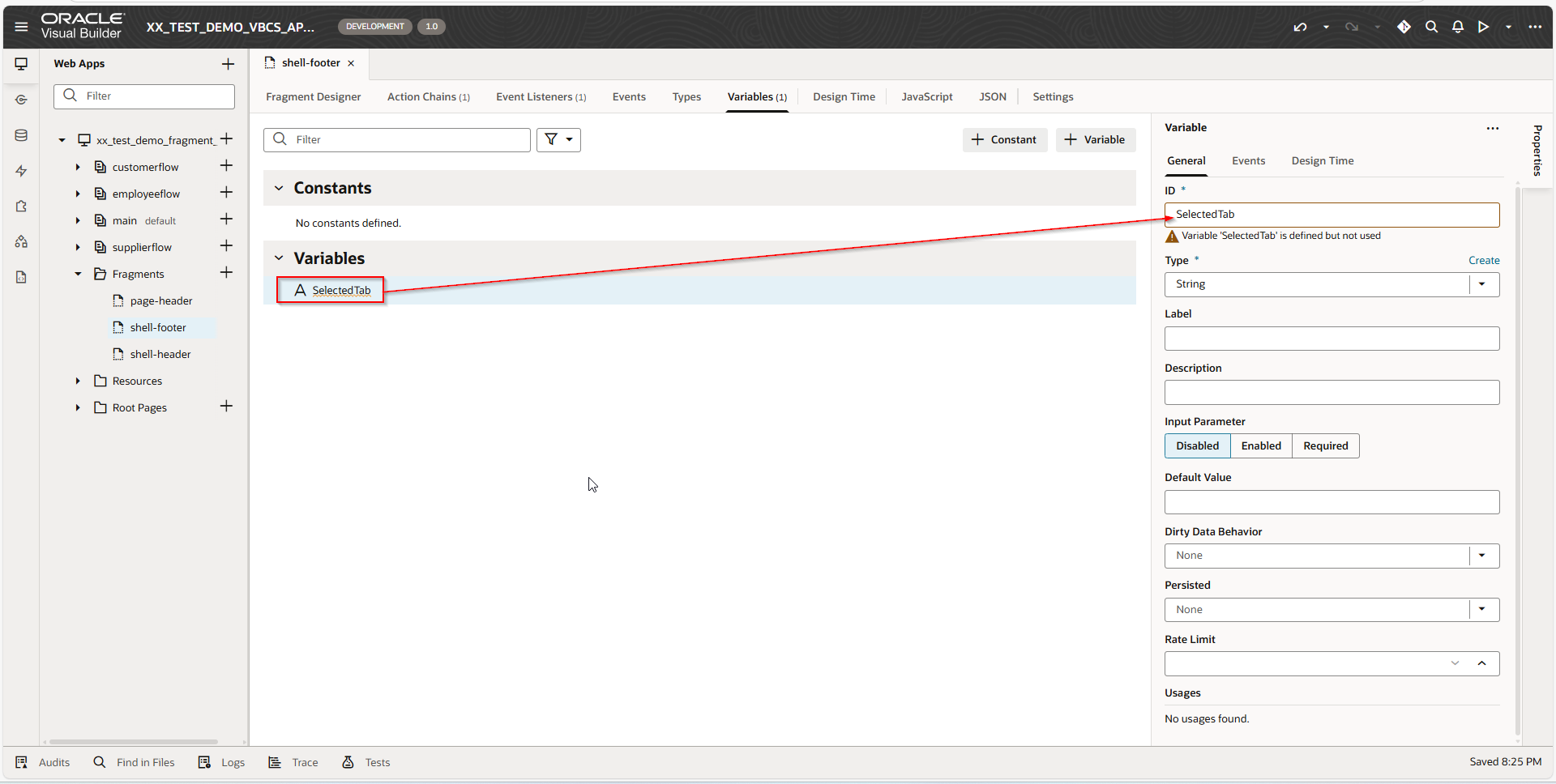
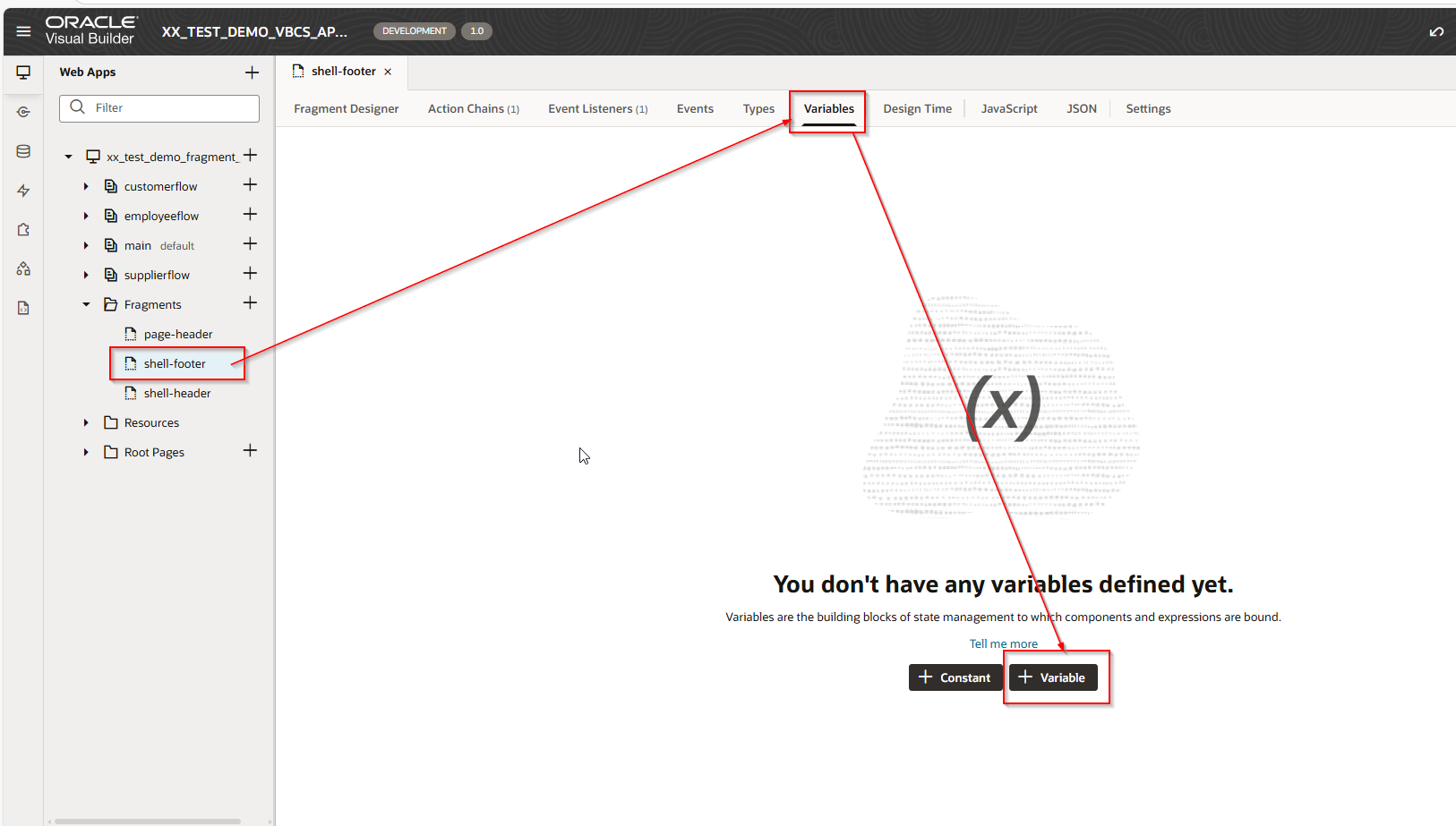
Let us create one variable to store current selected Tab as shown below:
A screenshot of a computer

AI-generated content may be incorrect.

A screen shot of a computer

AI-generated content may be incorrect.

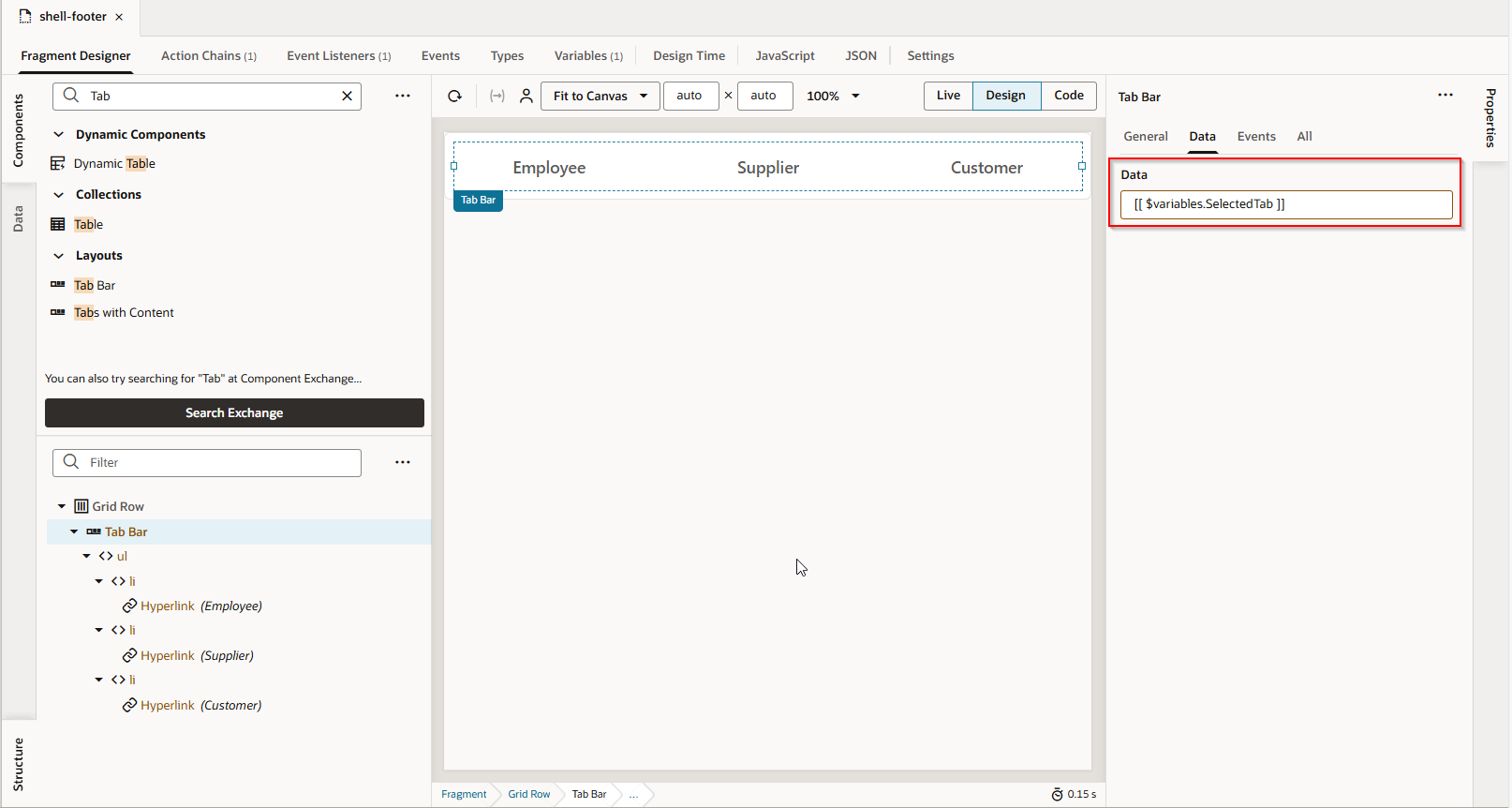
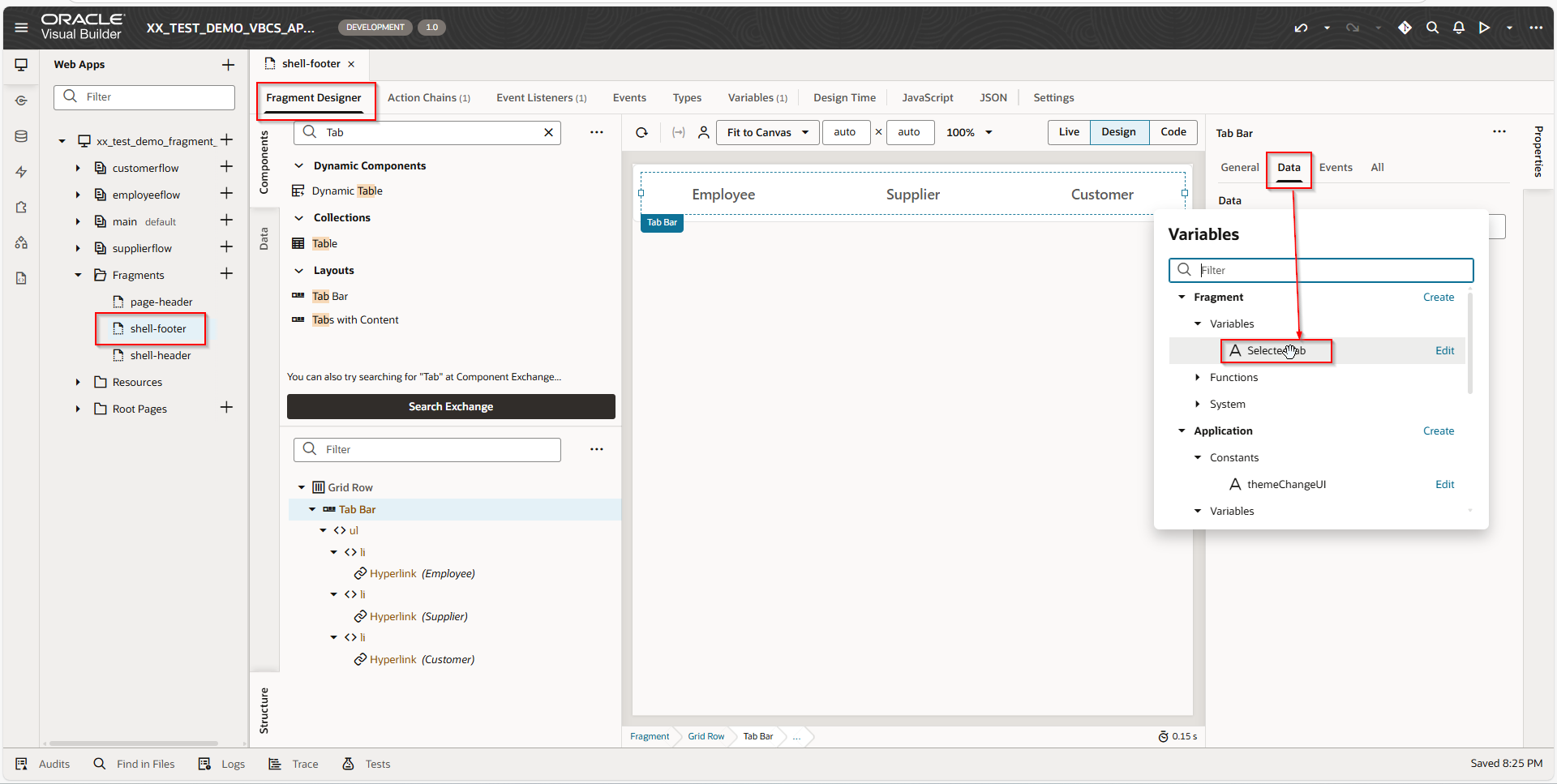
Let us assign this variable to Tab Bar data.
A screenshot of a computer

AI-generated content may be incorrect.

A screenshot of a computer

AI-generated content may be incorrect.

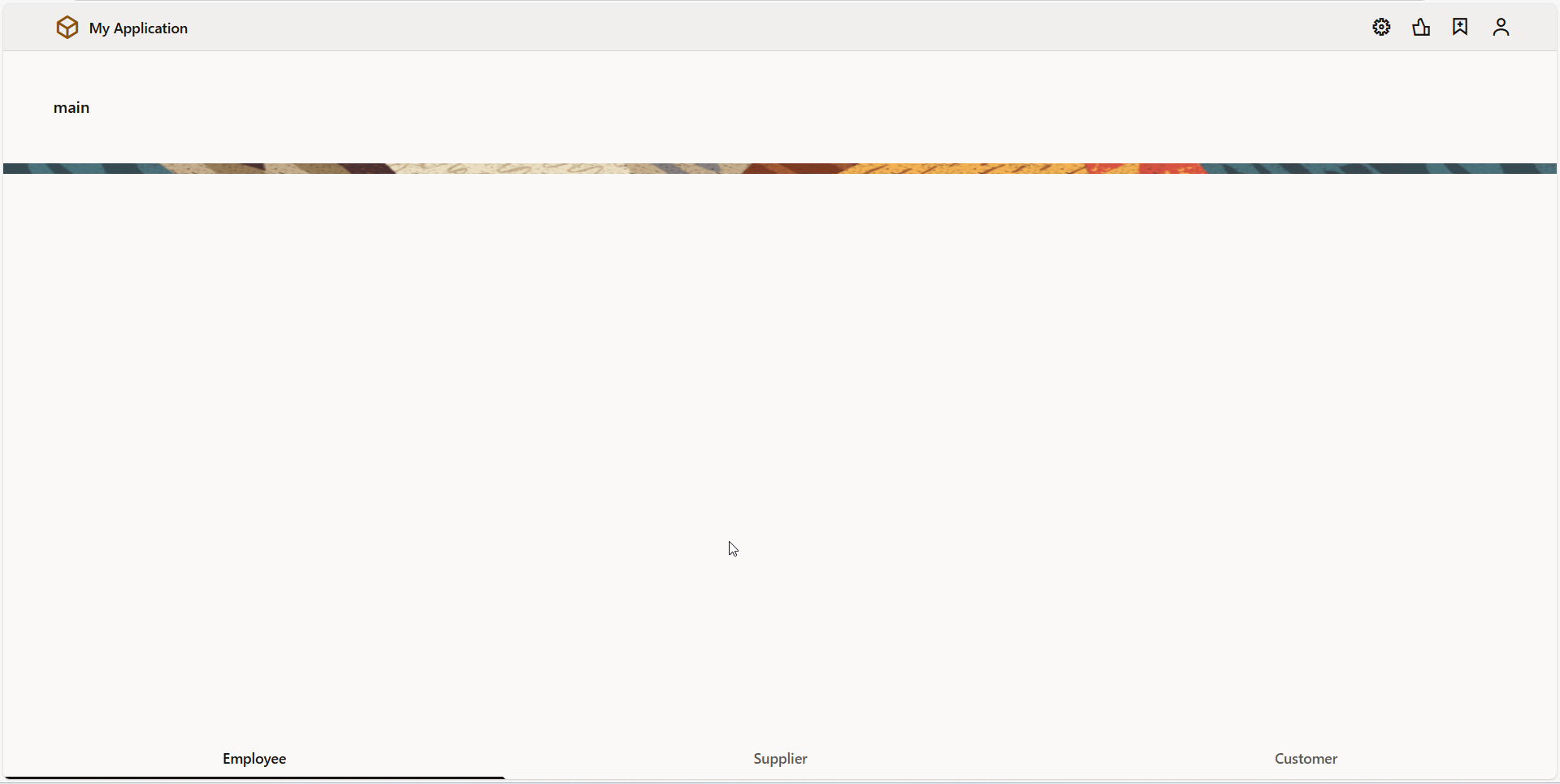
This will create Tab Bar region as shown below:
A screenshot of a computer

AI-generated content may be incorrect.

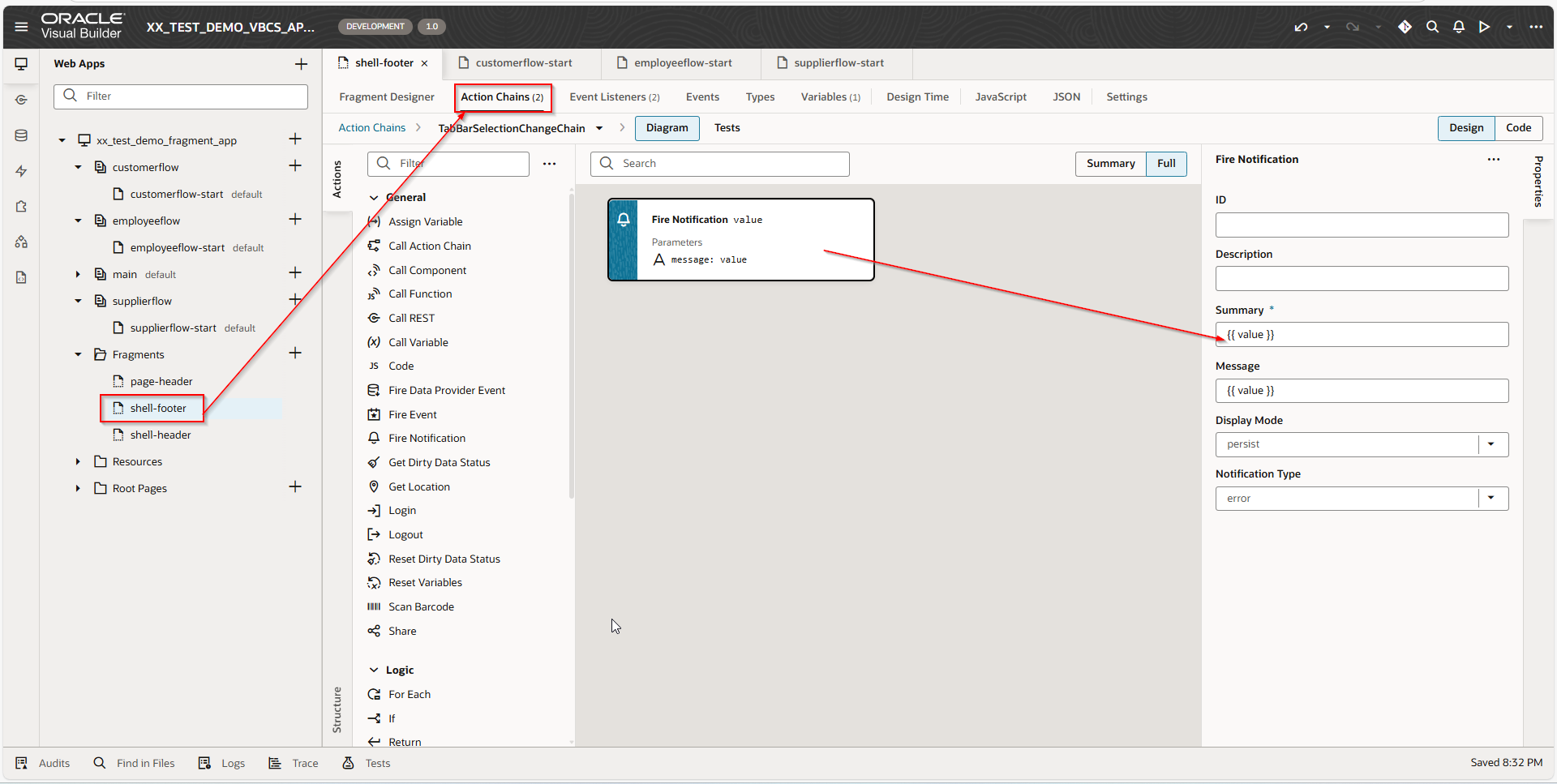
Step3: Create Event for Tab Bar as shown below.
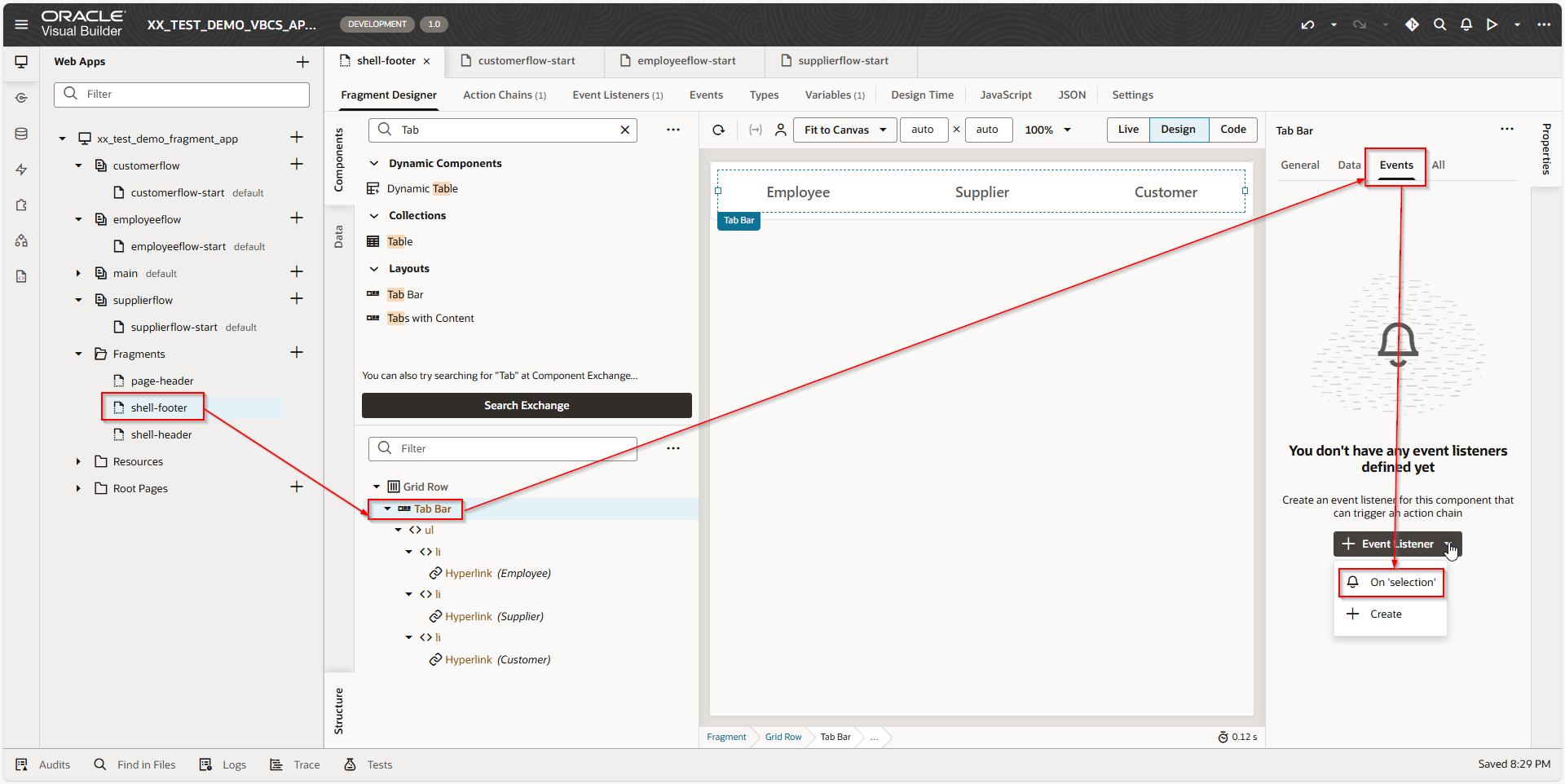
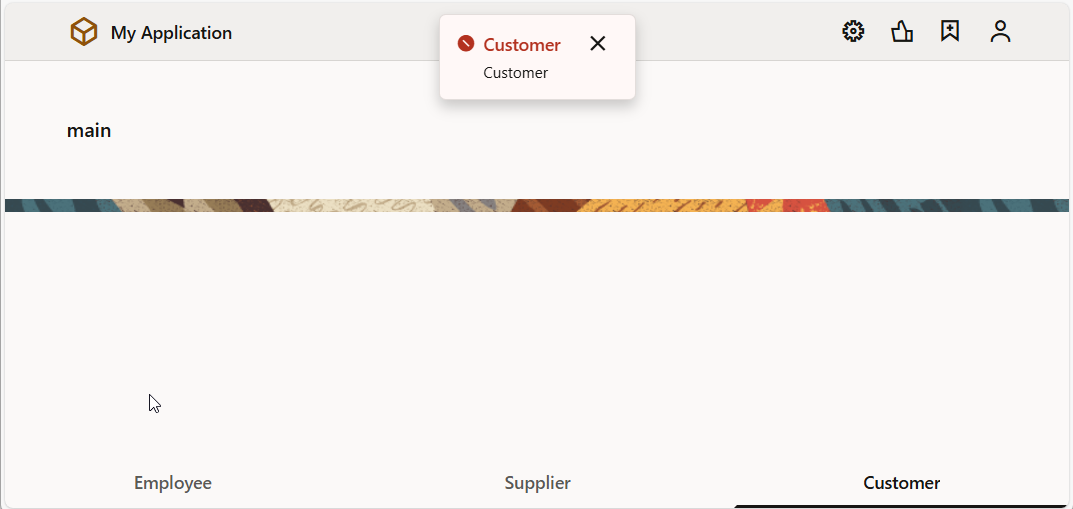
Let us add Fire Notification for action chain to verify and display selected Tab element.
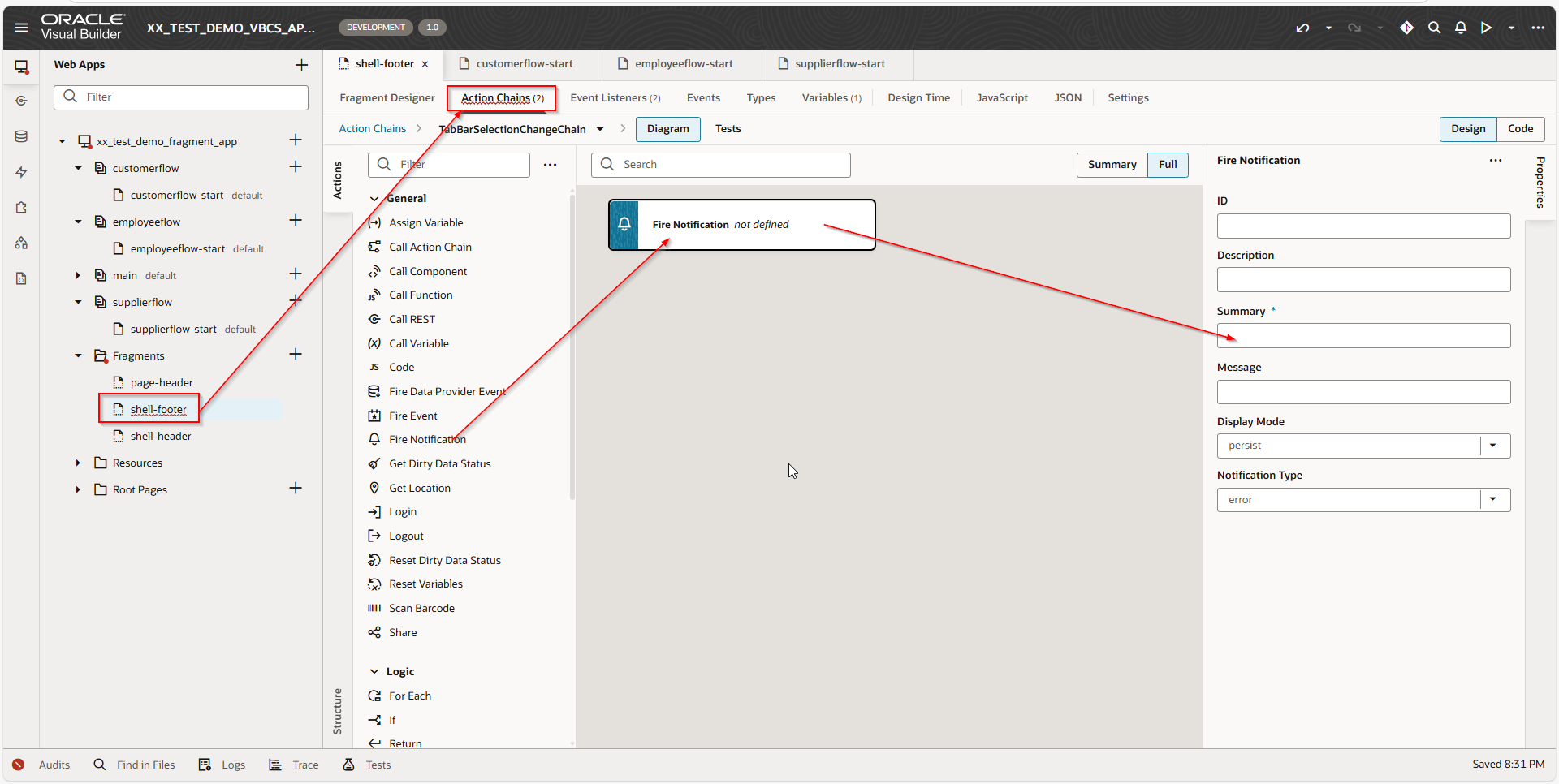
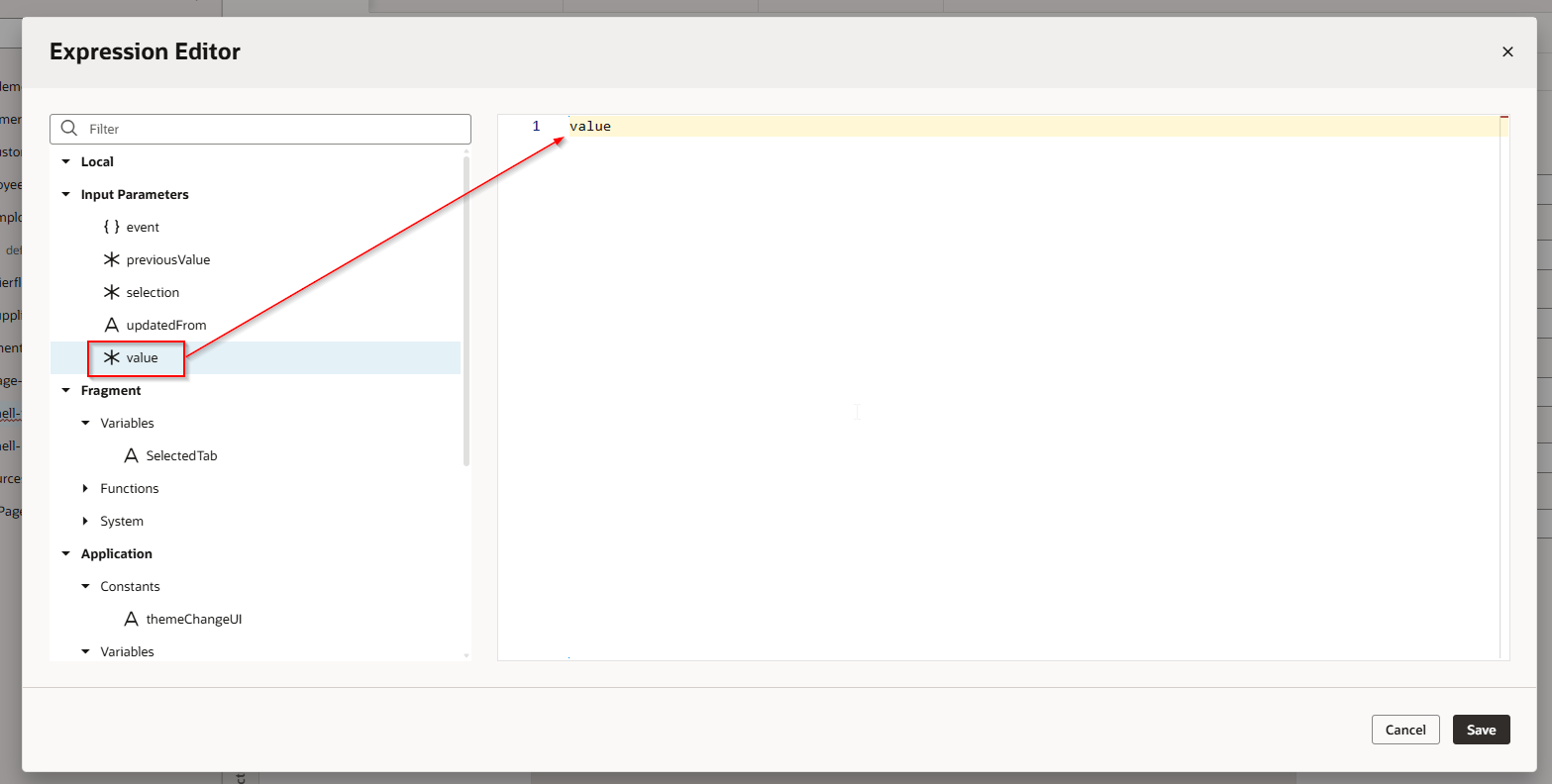
A screenshot of a computer

AI-generated content may be incorrect.

A screenshot of a computer

AI-generated content may be incorrect.

A screenshot of a computer

AI-generated content may be incorrect.

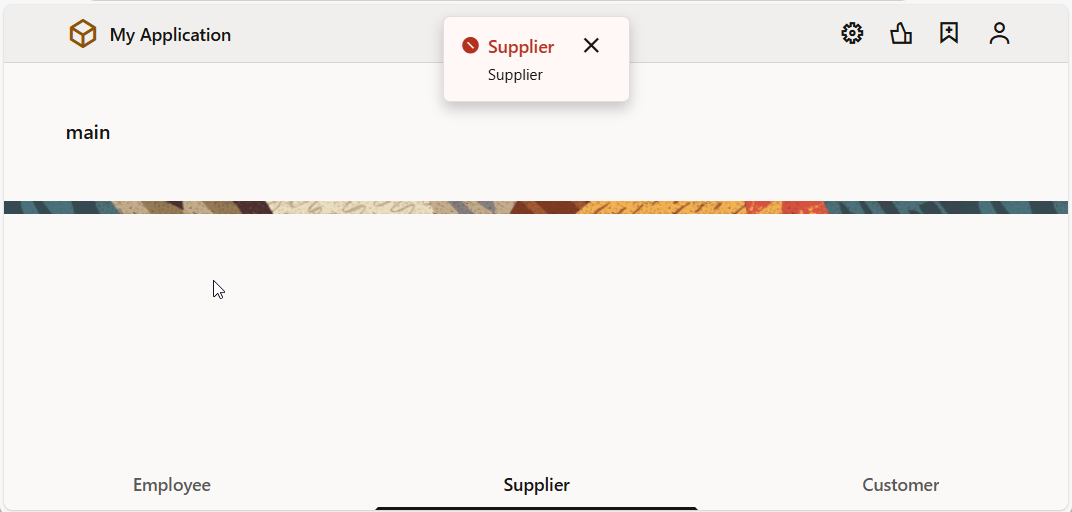
Let us run the application and click on each Tab.
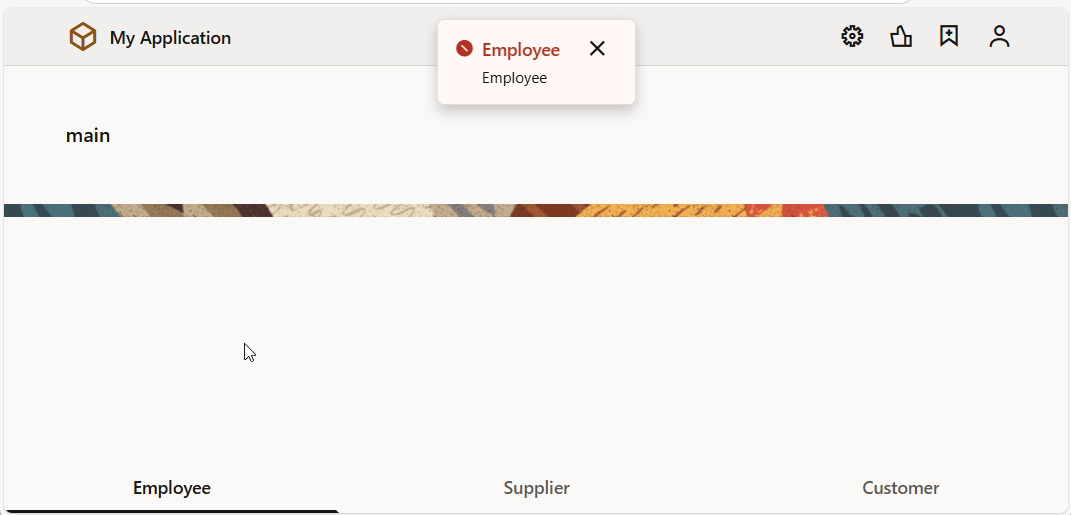
A screenshot of a computer

AI-generated content may be incorrect.

A screenshot of a computer

AI-generated content may be incorrect.

A screenshot of a computer

AI-generated content may be incorrect.

Now if we try to use “Navigate to page” action inside this action chain, it is not available as shown below.

Hence, we cannot navigate to Page from fragments directly.
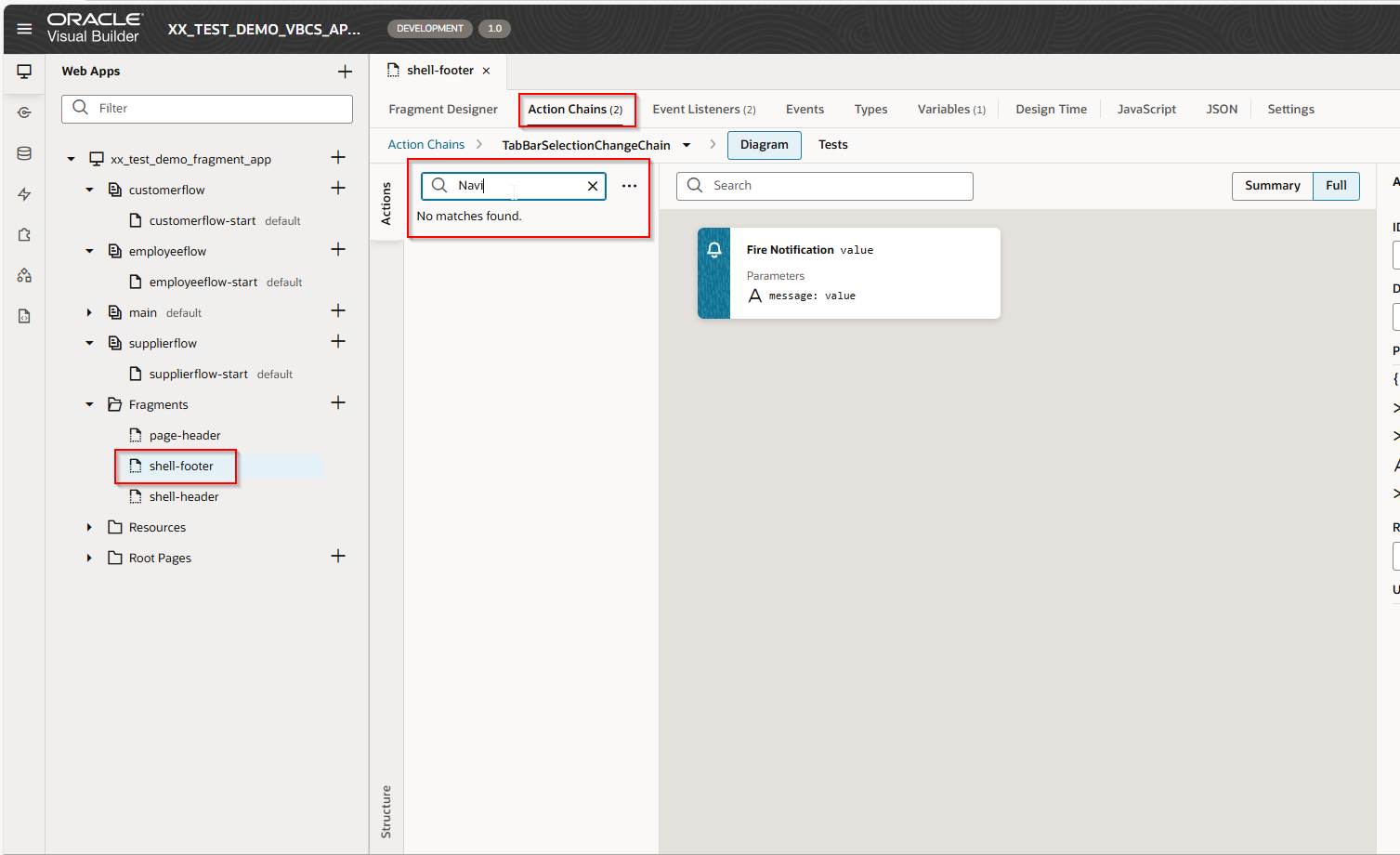
A screenshot of a computer

AI-generated content may be incorrect.

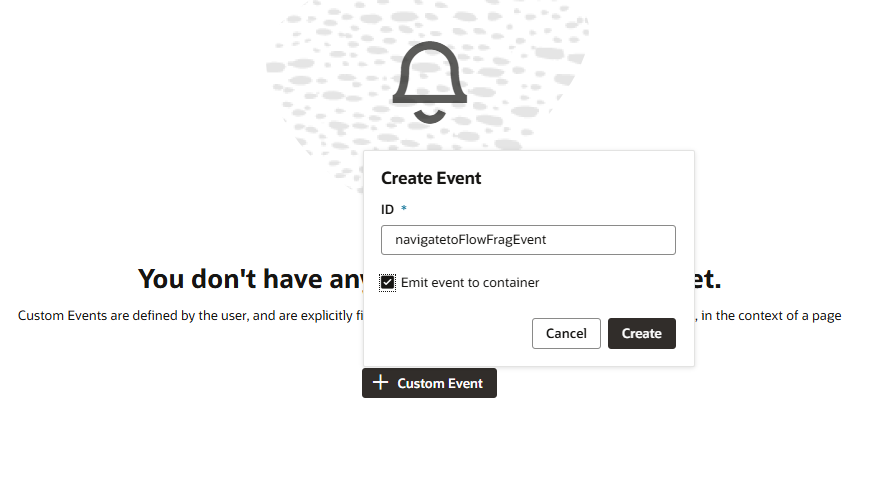
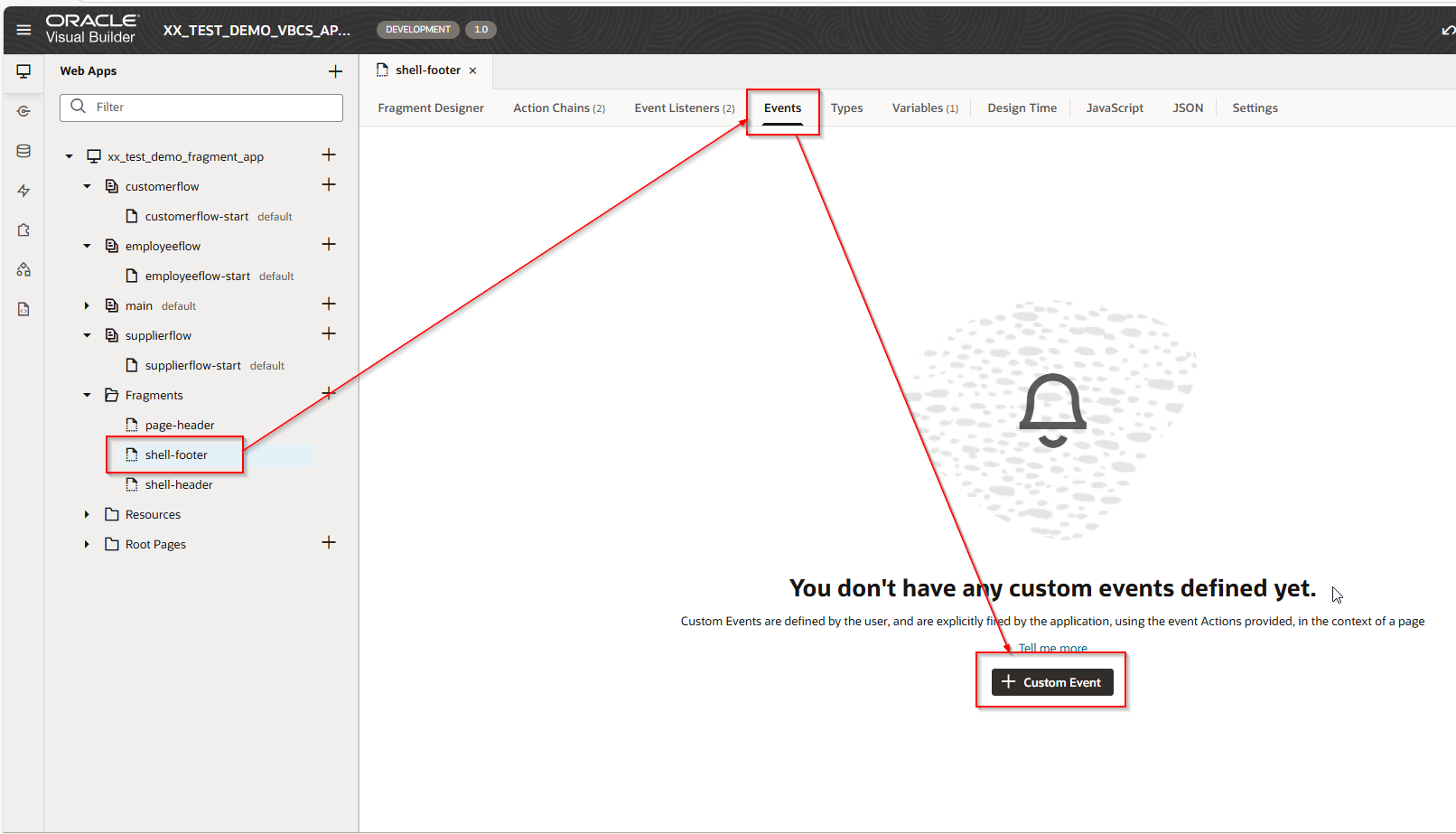
Step4: Create Custom Event for fragment.

Navigate to Fragments —>Shell-footer —>Events —>Custom Event.
A screenshot of a computer

AI-generated content may be incorrect.

A screenshot of a screen

AI-generated content may be incorrect.

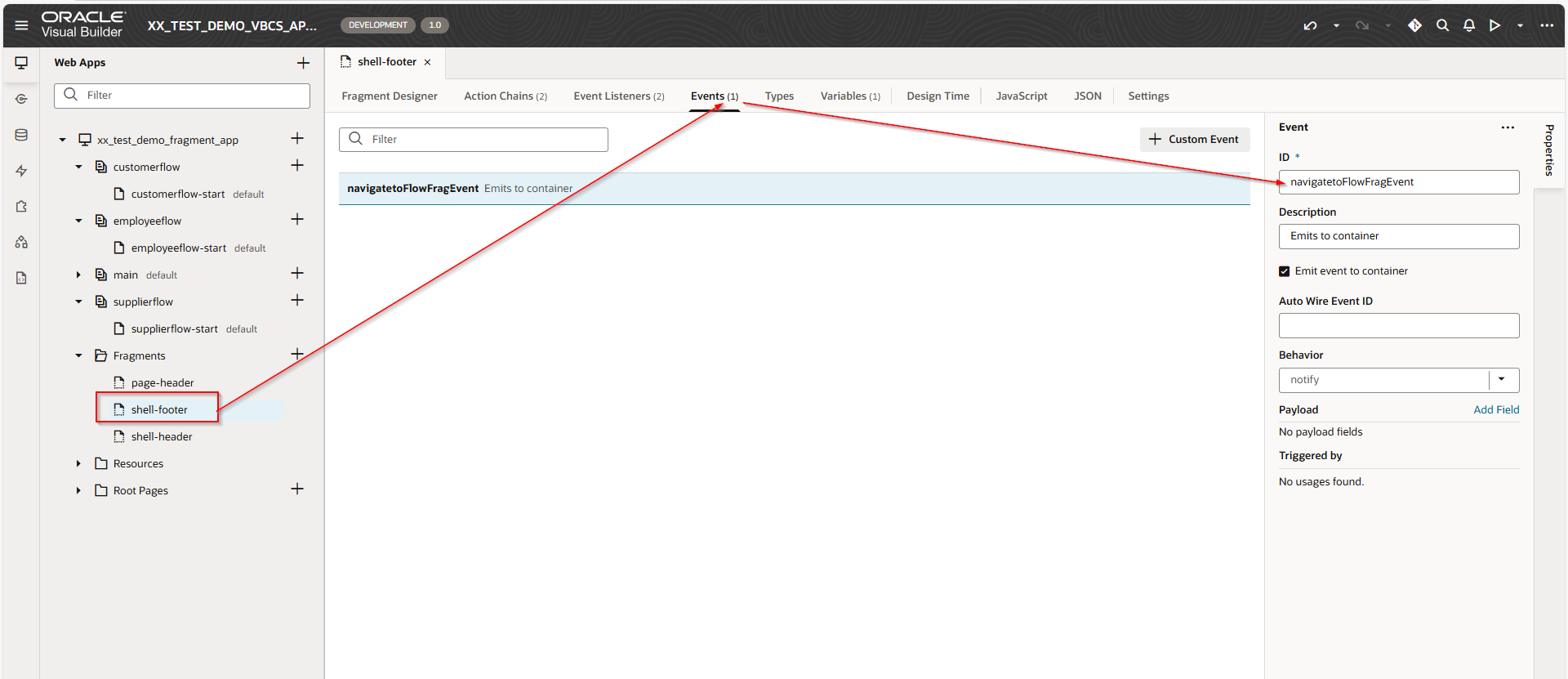
Provide ID and enable “Emit event to container” check box.

Click on Create.
A screen shot of a computer

AI-generated content may be incorrect.

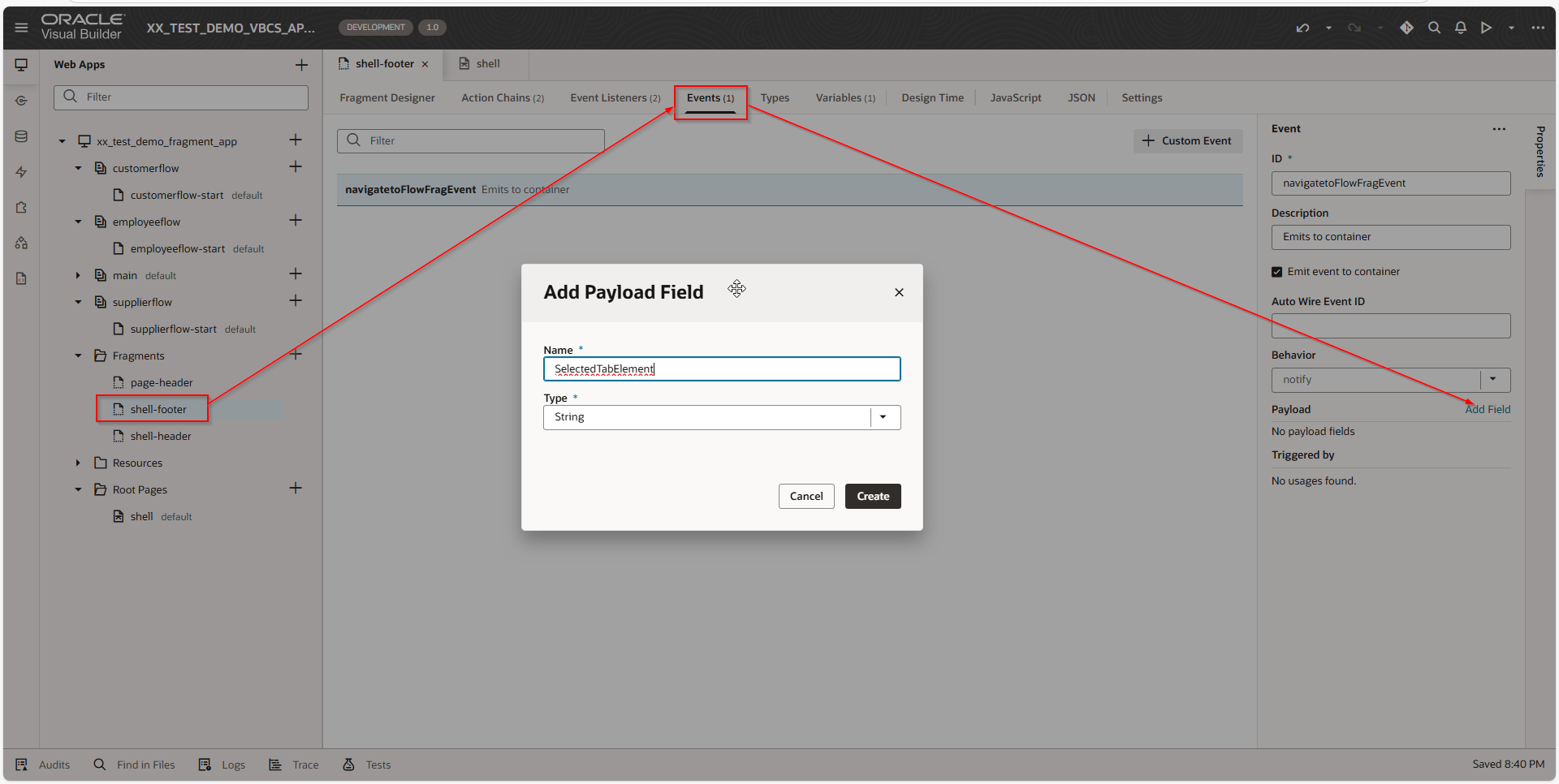
Let us add payload to this custom event to pass selected tab ID.
A screenshot of a computer

AI-generated content may be incorrect.

Click on Create.

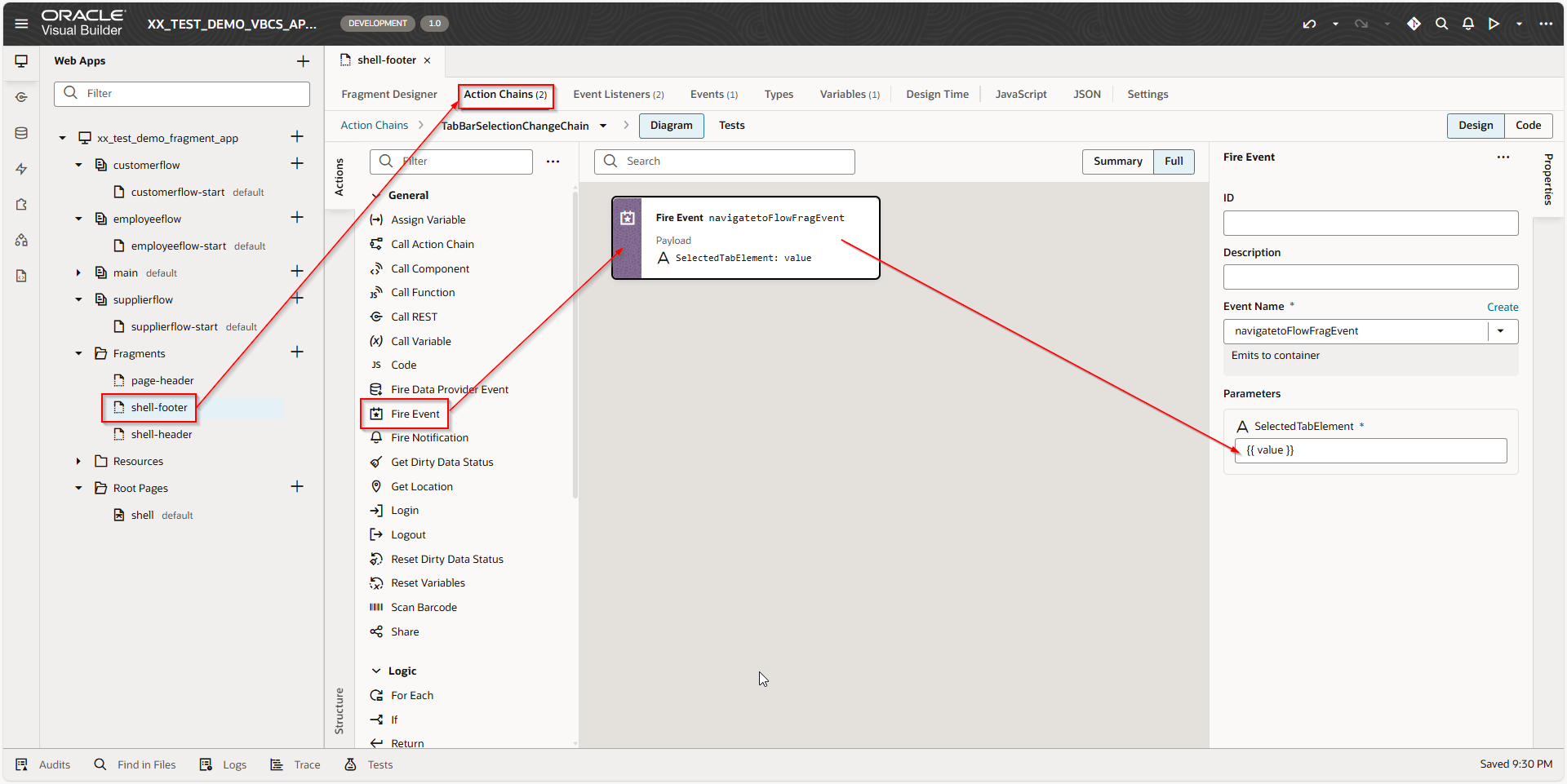
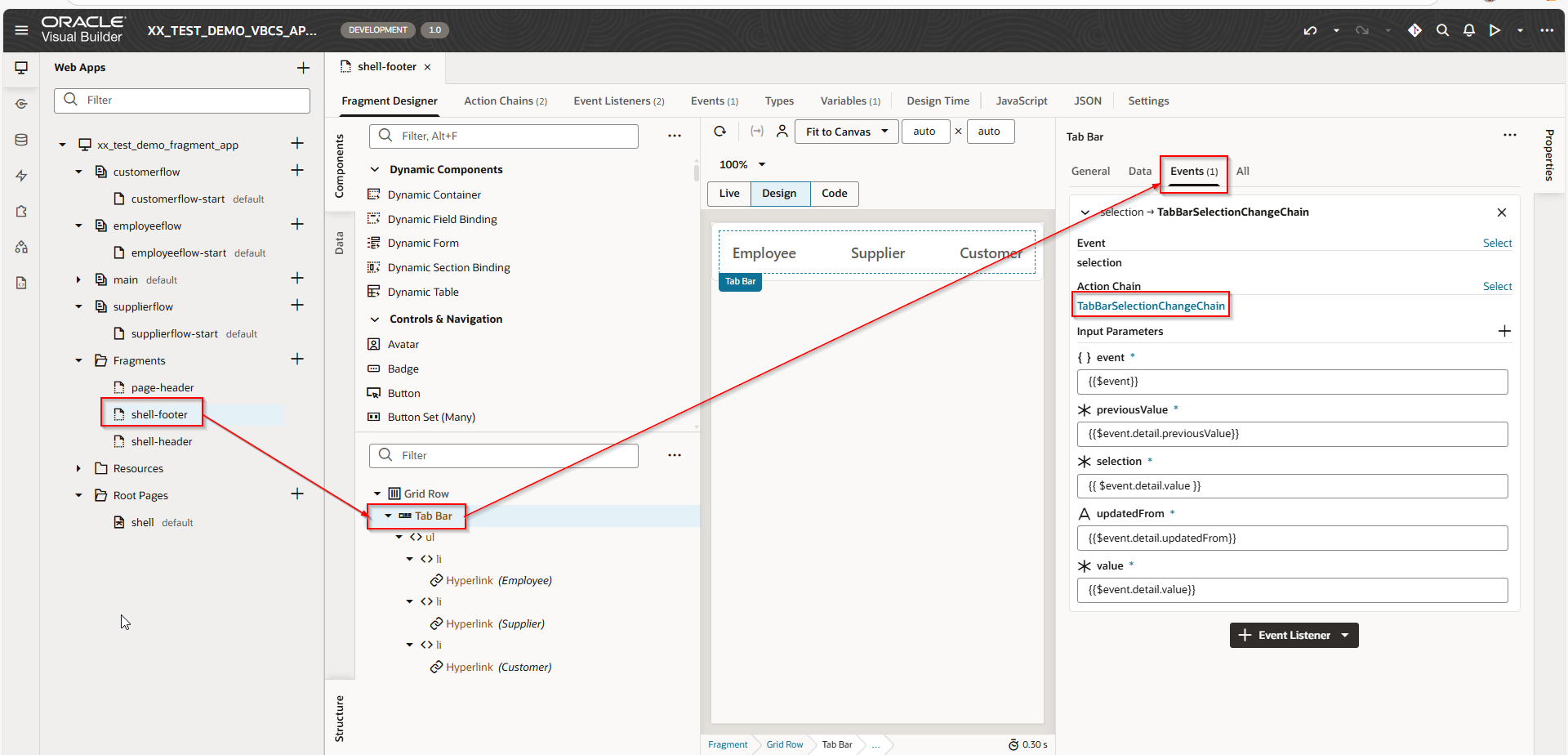
Navigate to shell-footer —>Fragment Designer —>Tab Bar —->Events —->Action chain
A screenshot of a computer

AI-generated content may be incorrect.

A screenshot of a computer

AI-generated content may be incorrect.

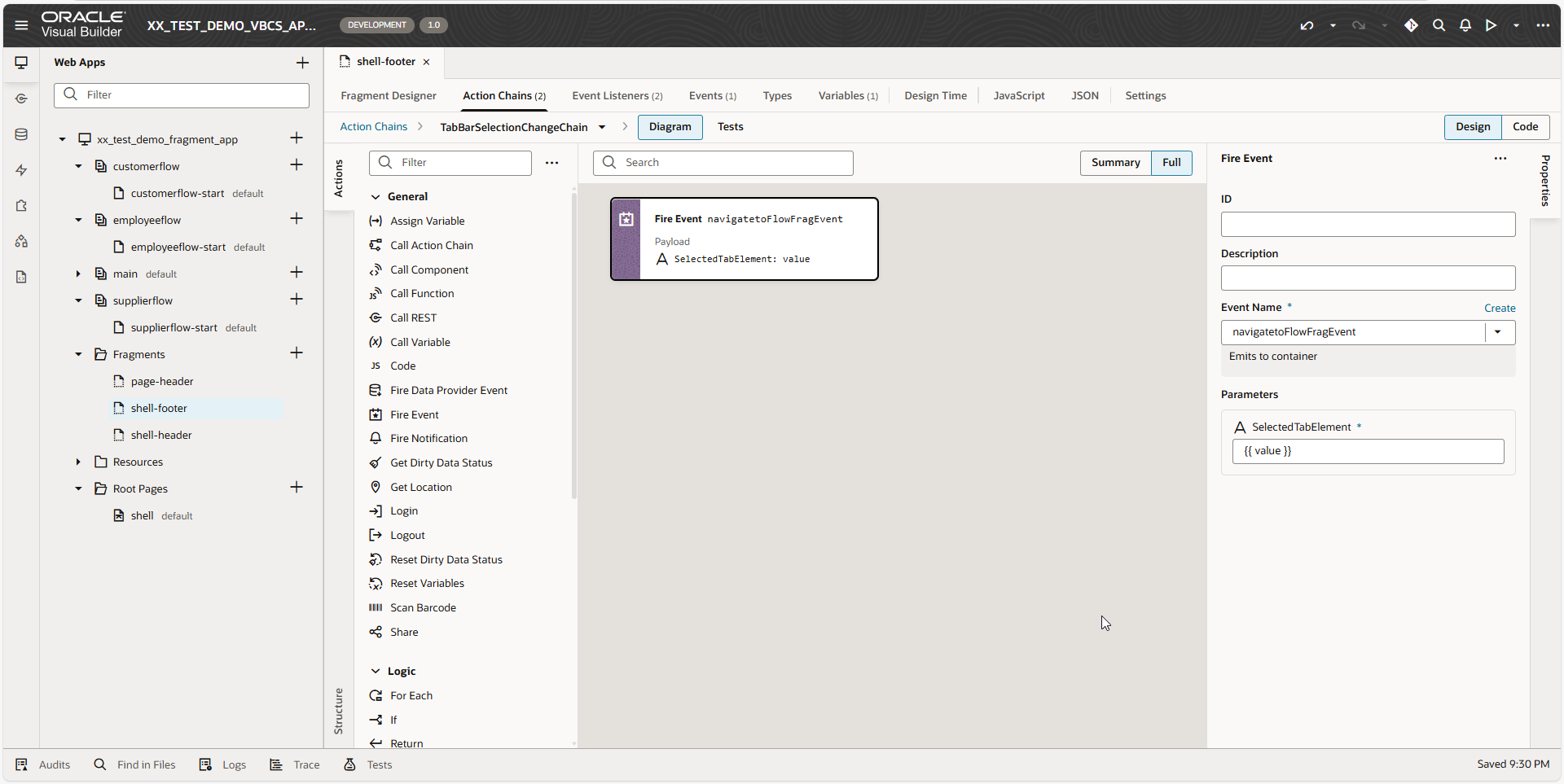
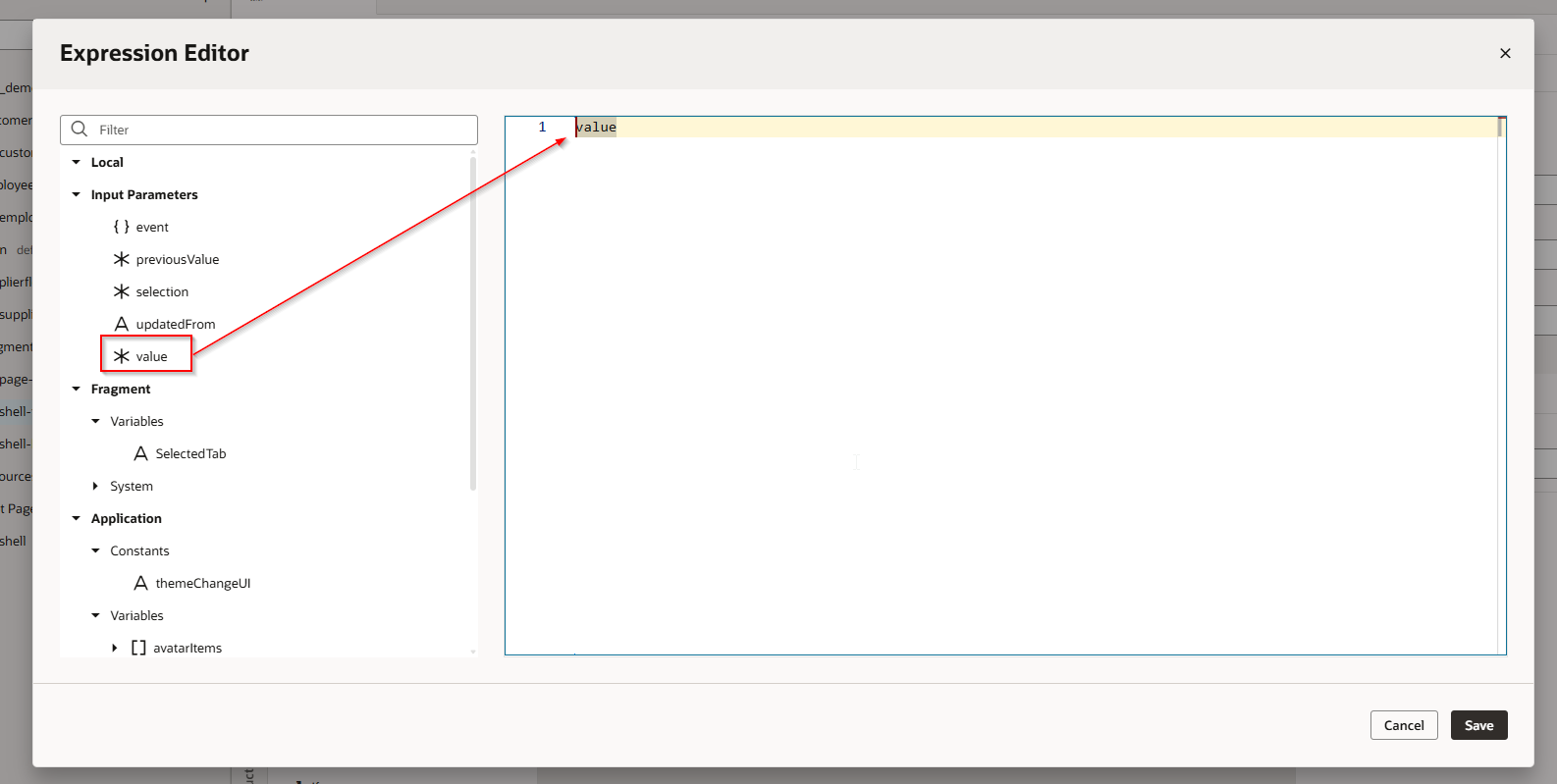
Drag and drop Fire Event —>select custom event which we have created earlier.

Pass payload input to current selected Tab value as shown below.
A screenshot of a computer

AI-generated content may be incorrect.

Click on save.

A screenshot of a computer

AI-generated content may be incorrect.

Step5: Create Event from Shell Page.

Let us create Event as shown below from shell footer page (this is containing page for that fragment).
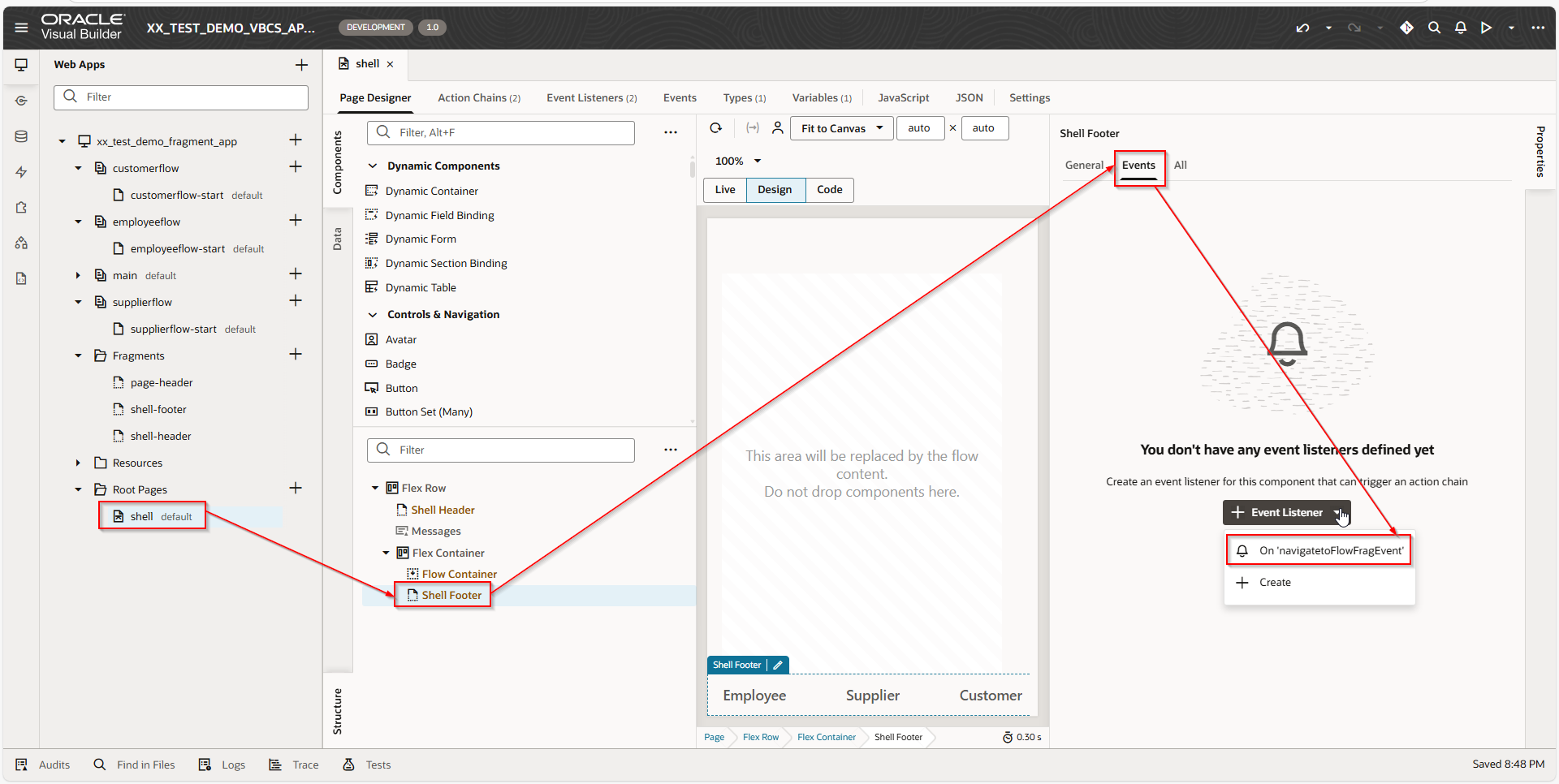
A screenshot of a computer

AI-generated content may be incorrect.

Select custom event which we have created.

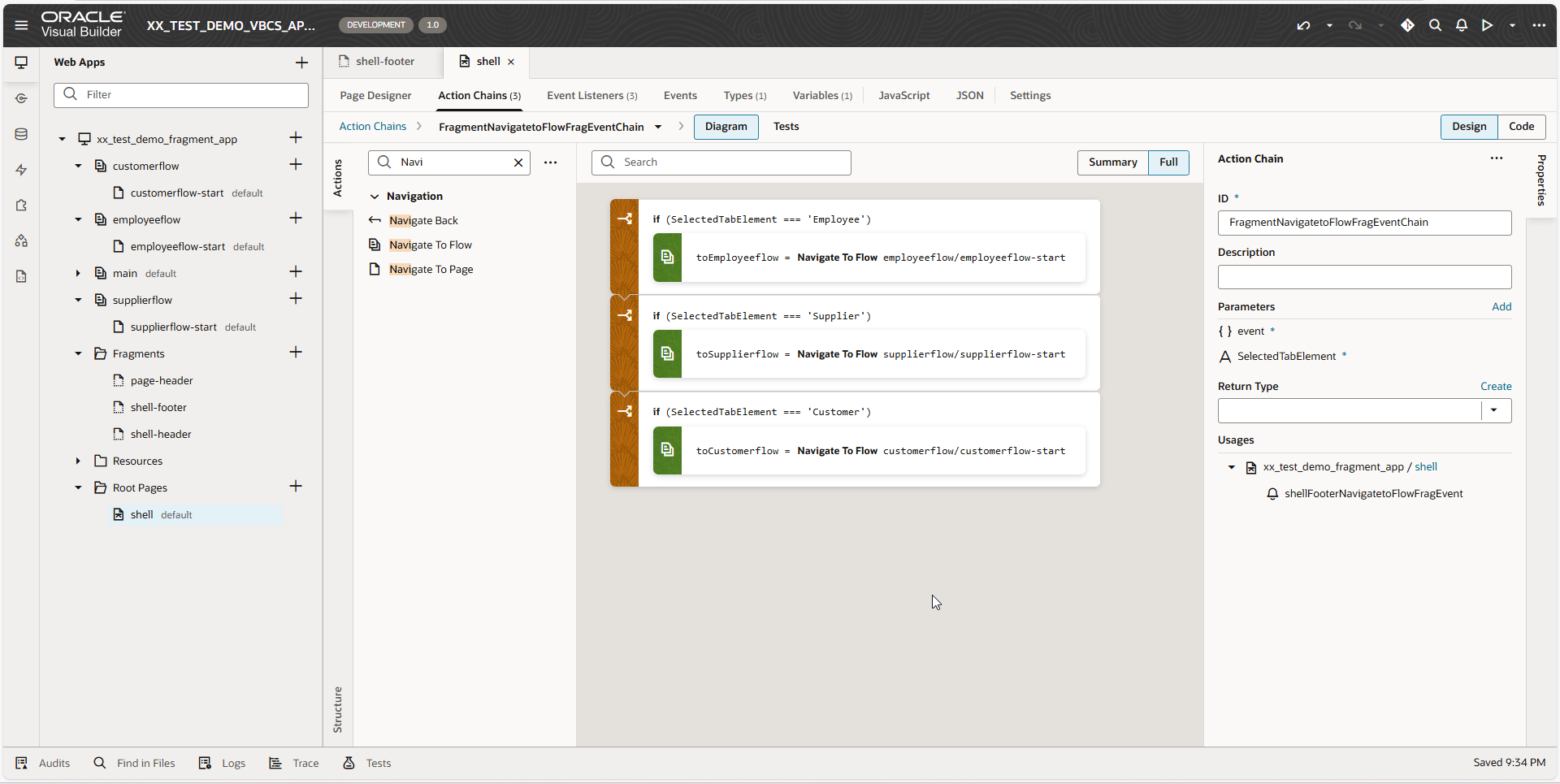
Here we can use Navigate to Flow action as shown below.
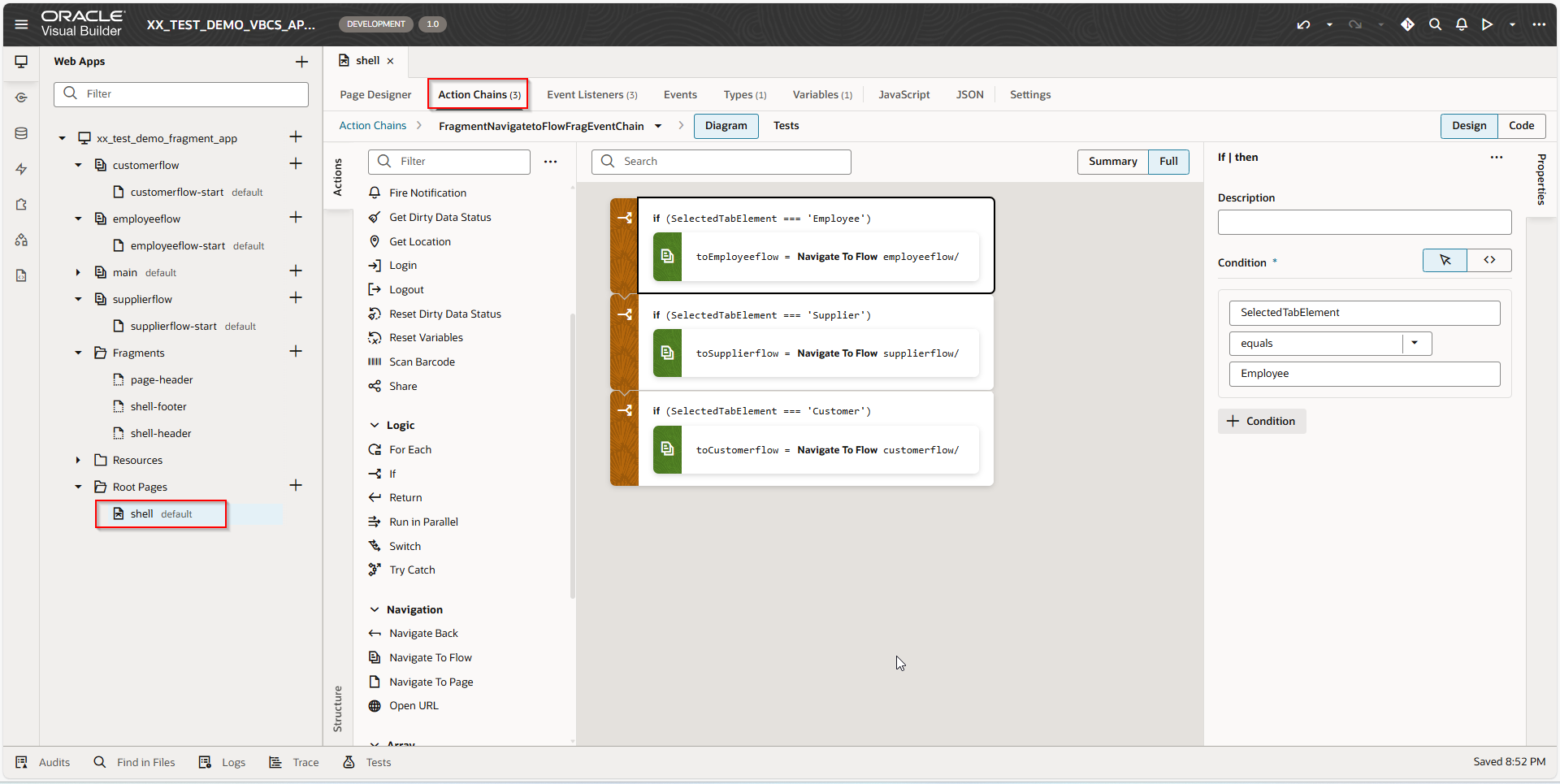
A screenshot of a computer

AI-generated content may be incorrect.

A screenshot of a computer

AI-generated content may be incorrect.

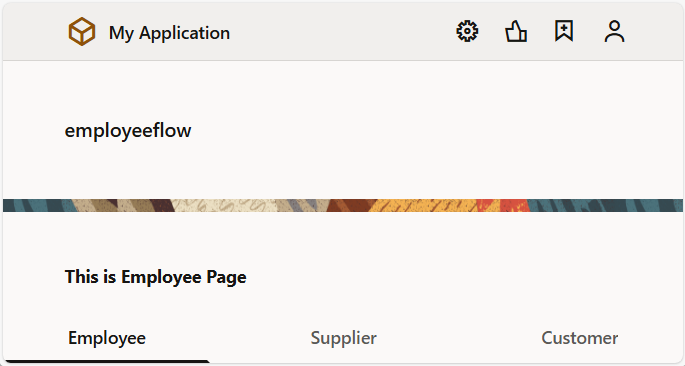
Let us run the application now.

When we click on Employee tab, it will navigate to Employee Page.
A screenshot of a computer

AI-generated content may be incorrect.

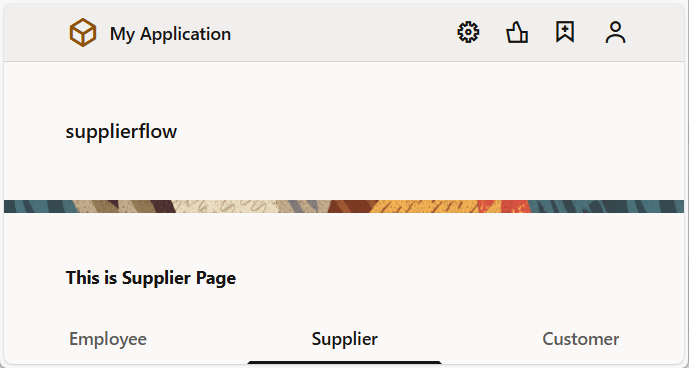
When we click on Supplier tab, it will navigate to Supplier Page.
A screenshot of a computer

AI-generated content may be incorrect.

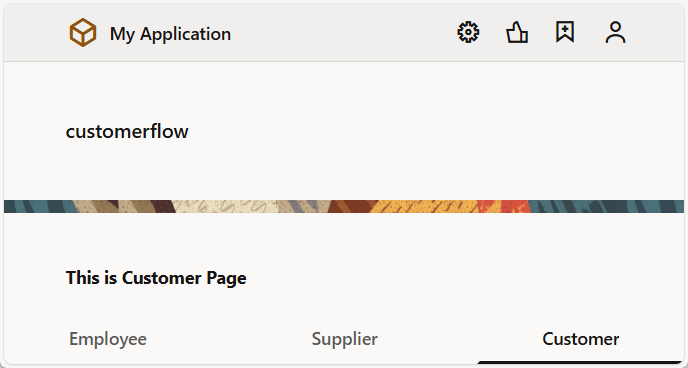
When we click on Customer tab, it will navigate to Customer Page.
Leave a Reply

Your email address will not be published. Required fields are marked *

Back To Top