How to Integrate OPA (Oracle Process Automation) with Oracle VBCS
In this section, we will see how to Integrate process defined in OPA with Oracle VBCS.
Note: VBCS and OPA should have same identity domain to work on the steps below.
Let us consider below sample Oracle Process Automation structured process created:


Navigate to Processes.

Here we have created simple Leave application process with Initiator and Approval role as shown above.
Let us run this OPA application.
Navigate to Applications —> Workspace.

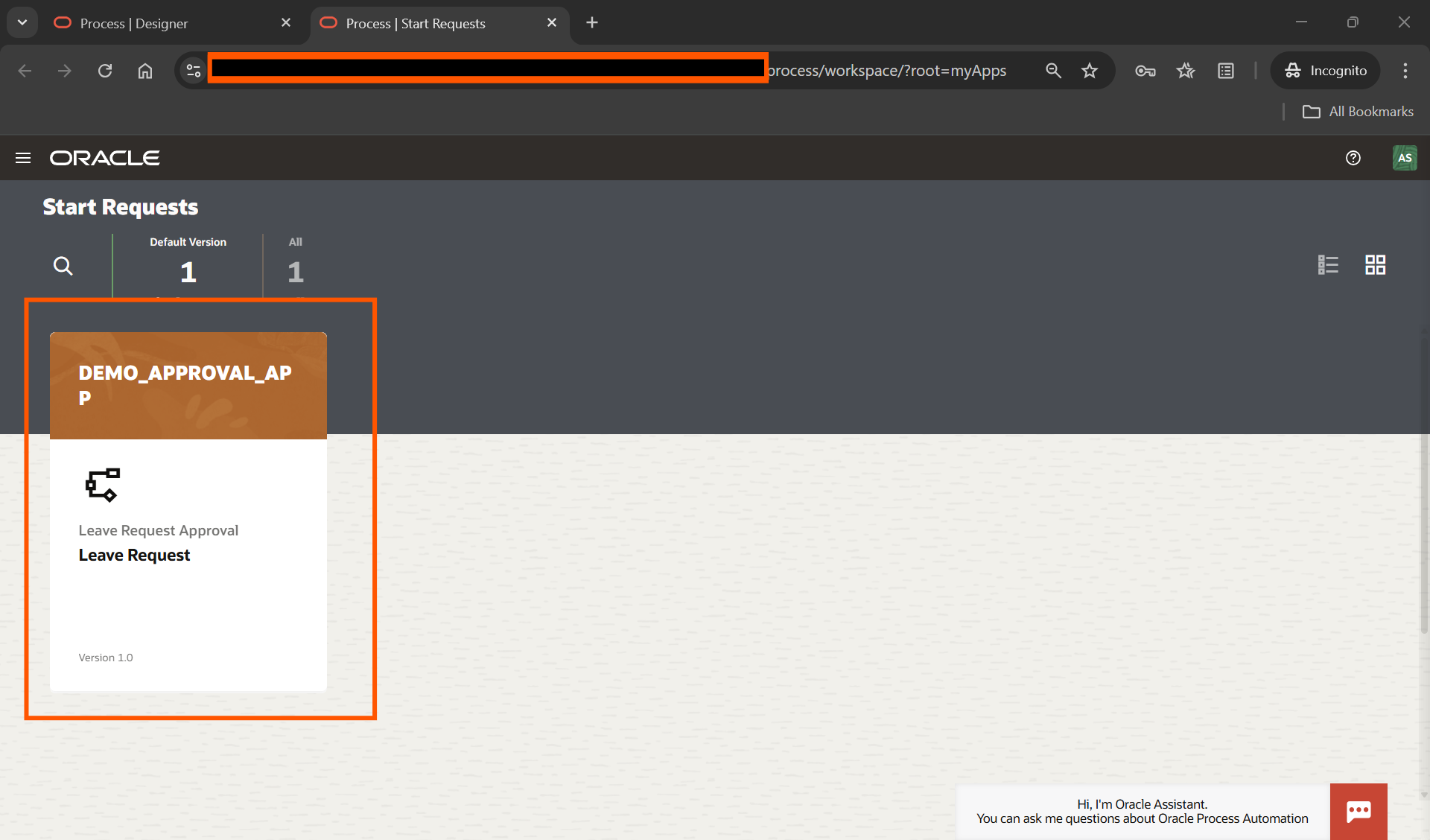
Click on DEMO_APPROVAL_APP.
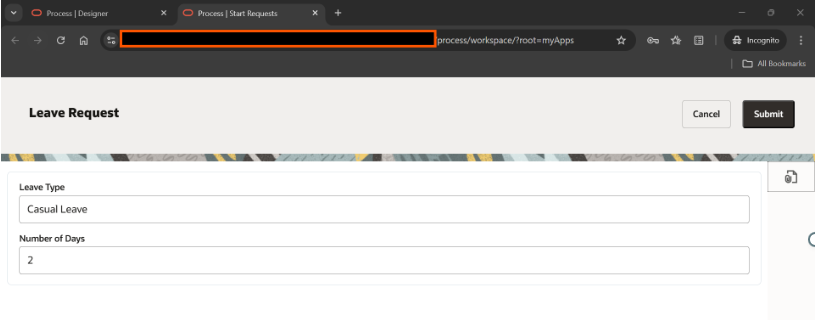
Provide values for Leave Type and Number of Days and click on Submit.

Click on Open Now.

Here we can see Process is initiated and assigned to APPROVAL_ROLE users.
Now we will call same process from VBCS application.
Navigate to VBCS.
Create Simple VBCS Application as shown below:
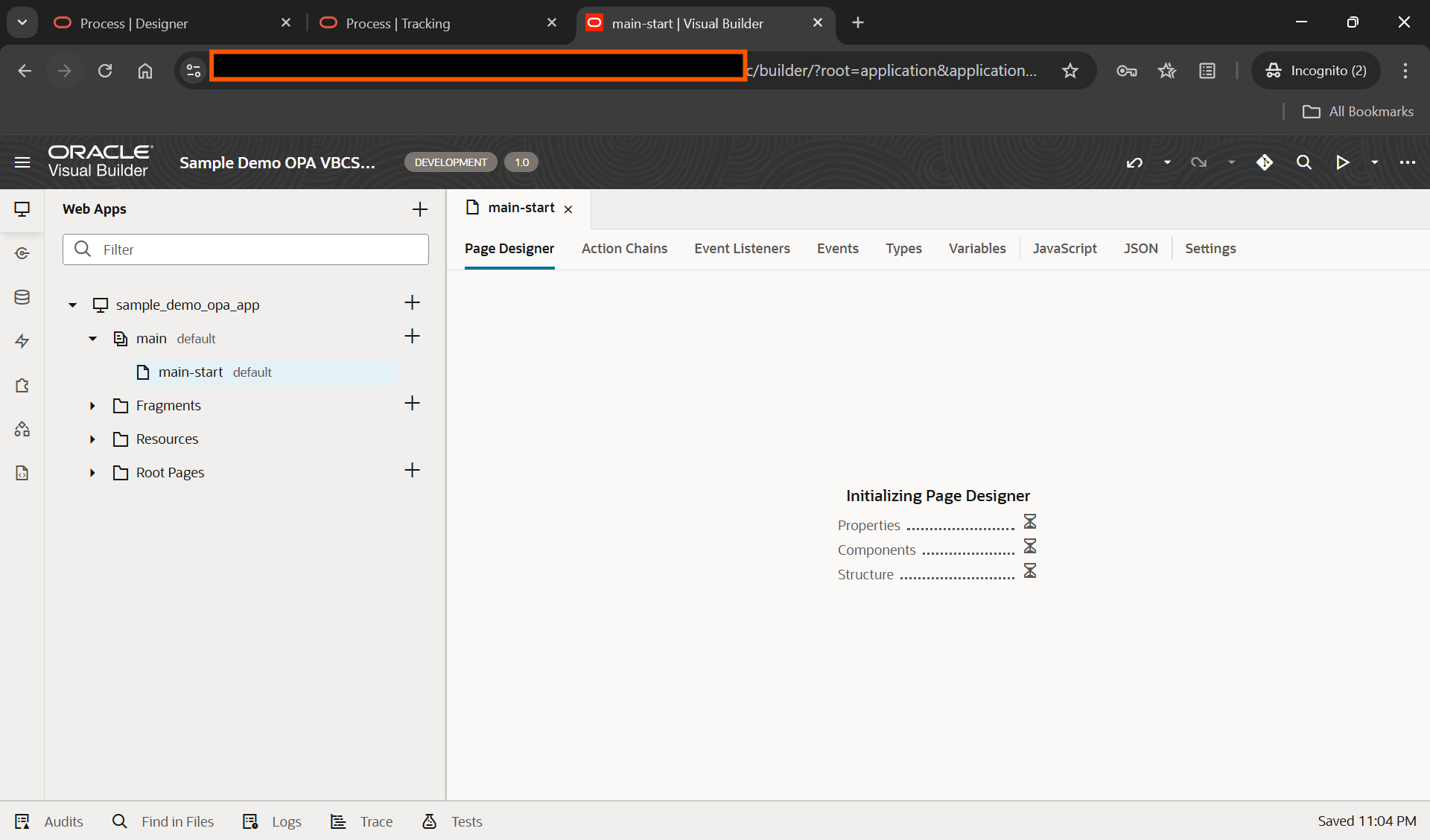
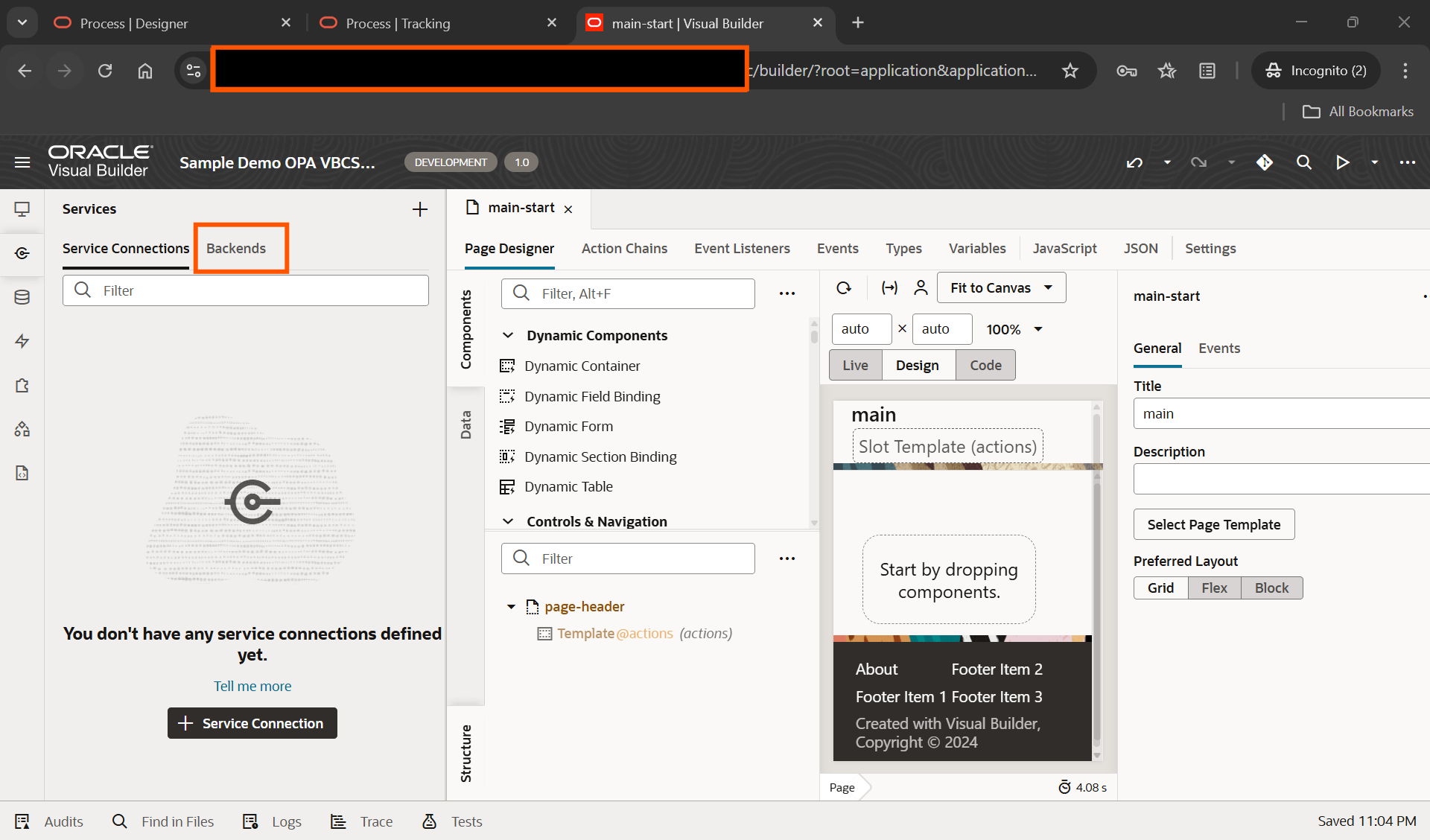
Create new Backend to configure Process Automation from VBCS.
Navigate to Services —>Backends.
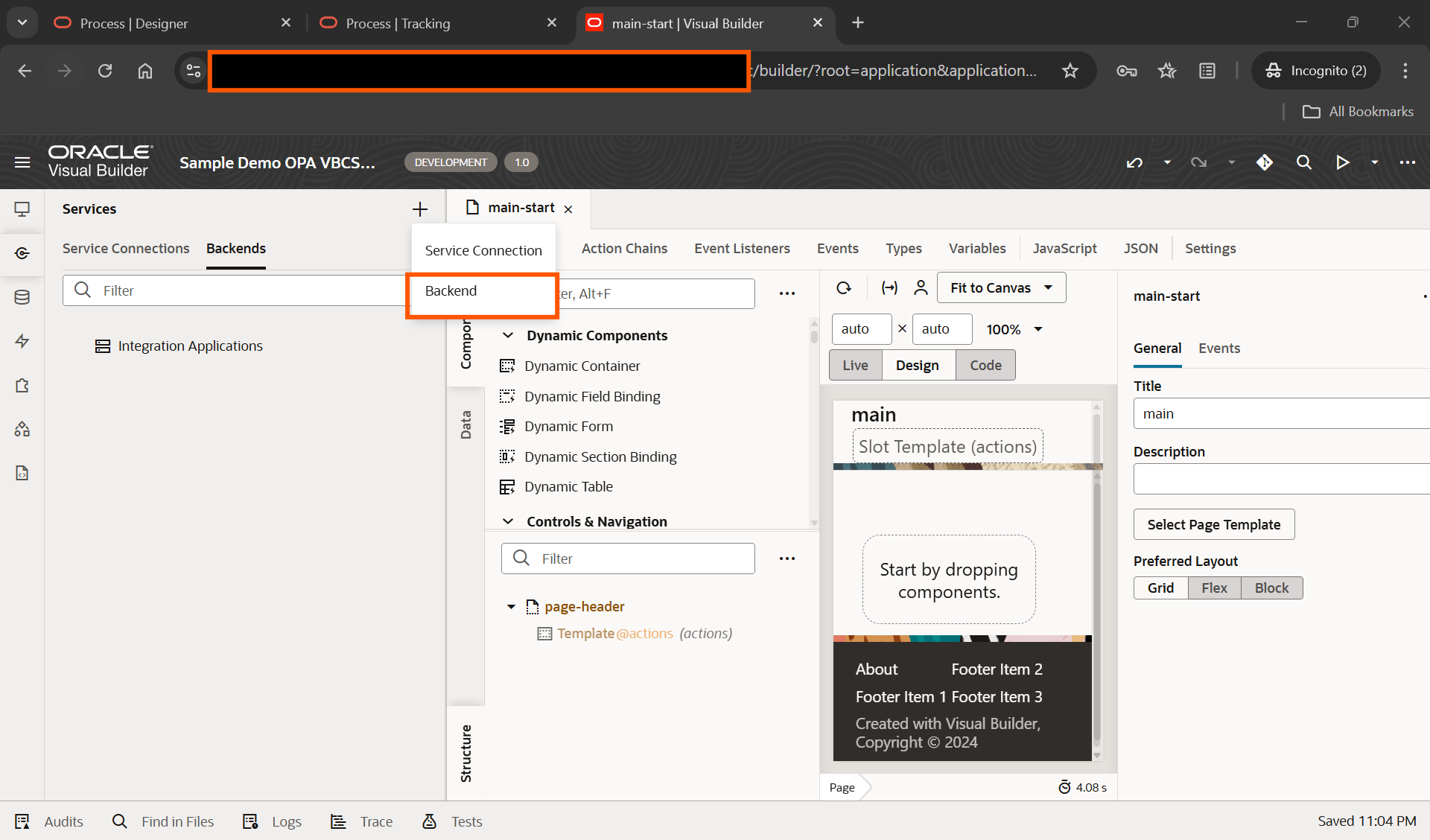
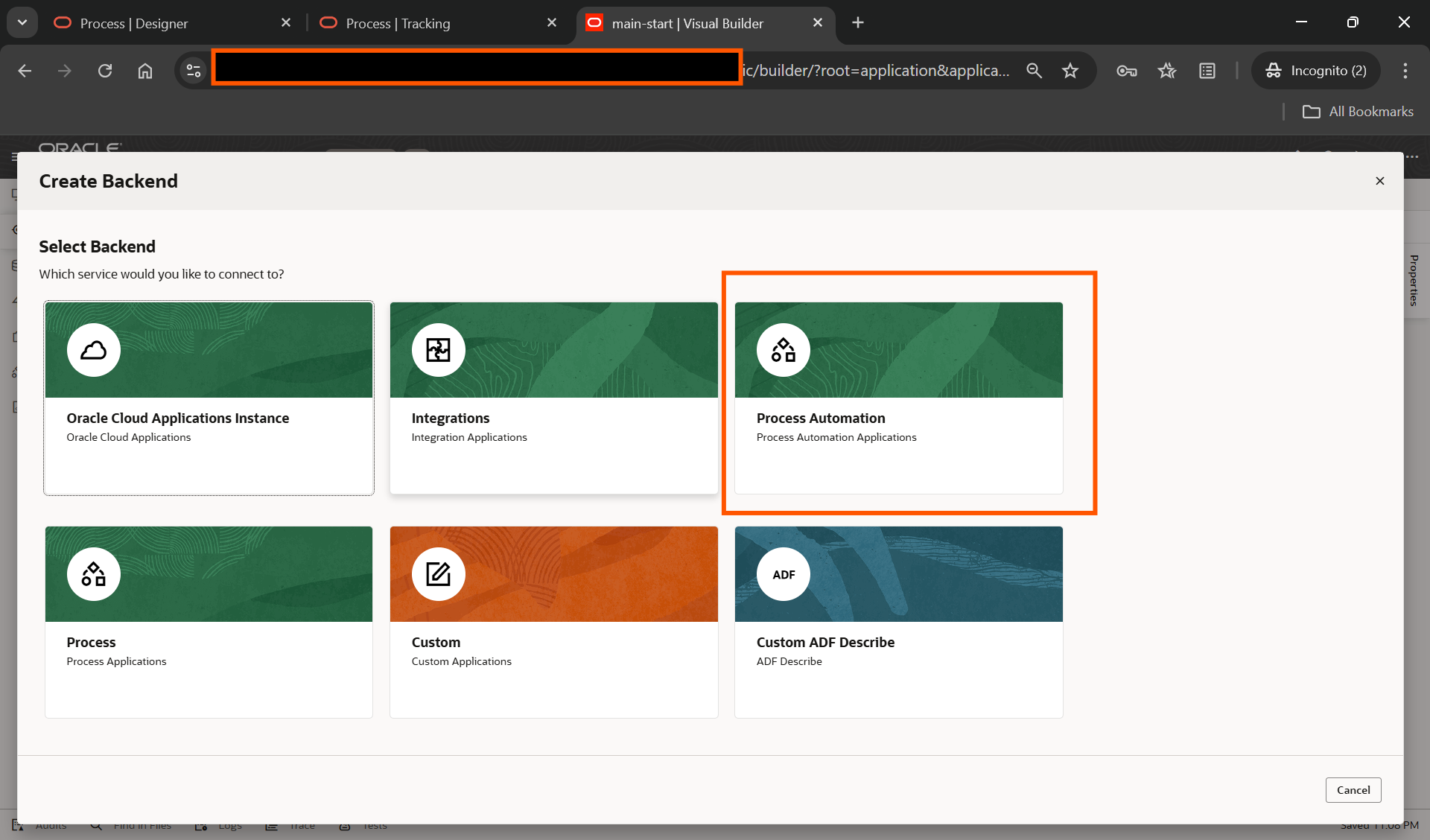
Select Process Automation.
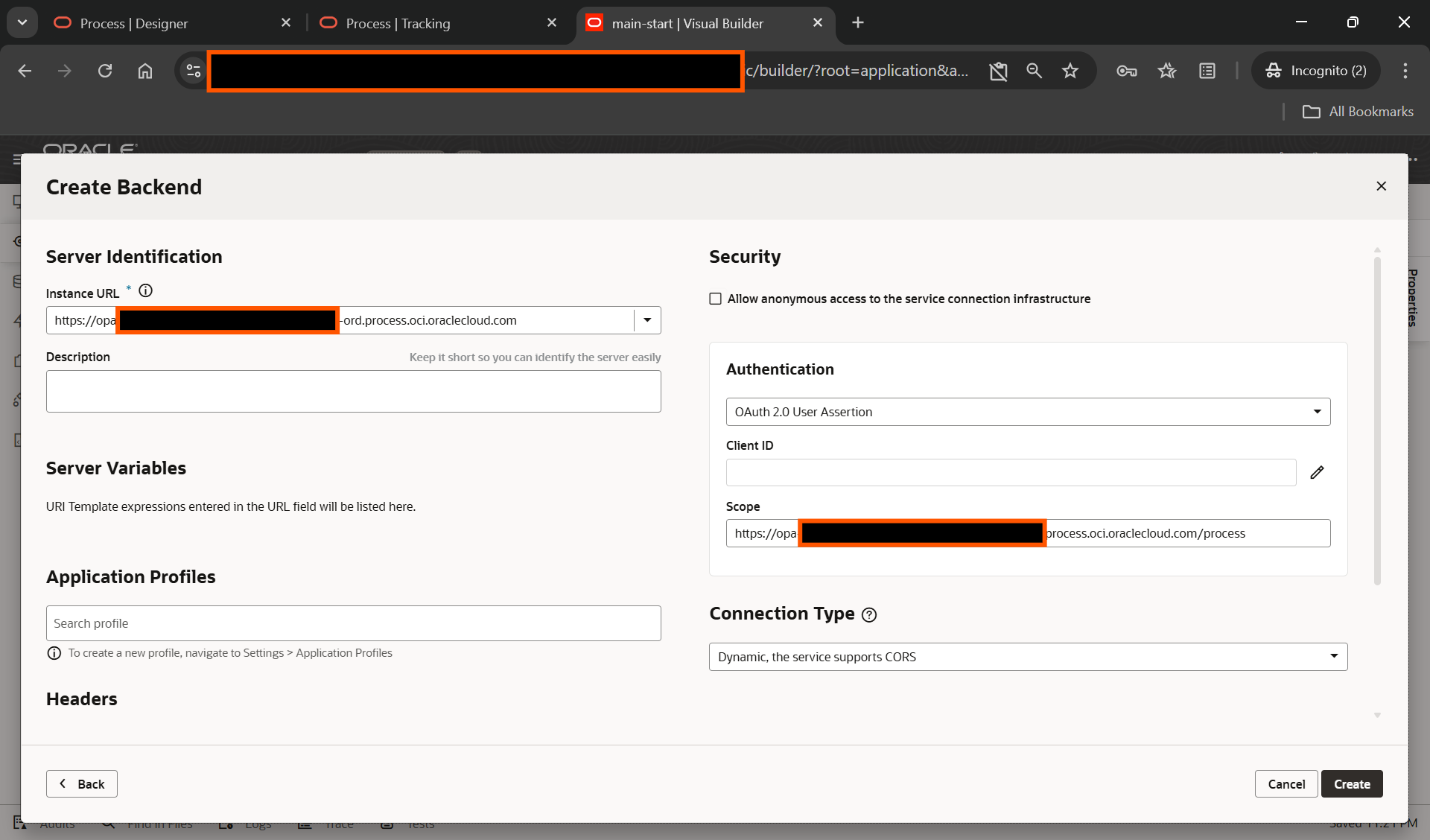
Provide details as below:
Instance URL: OPA instance URL
Authentication: OAuth 2.0 User Assertion.
Scope: OPA instance URL/process.
Click on Create.
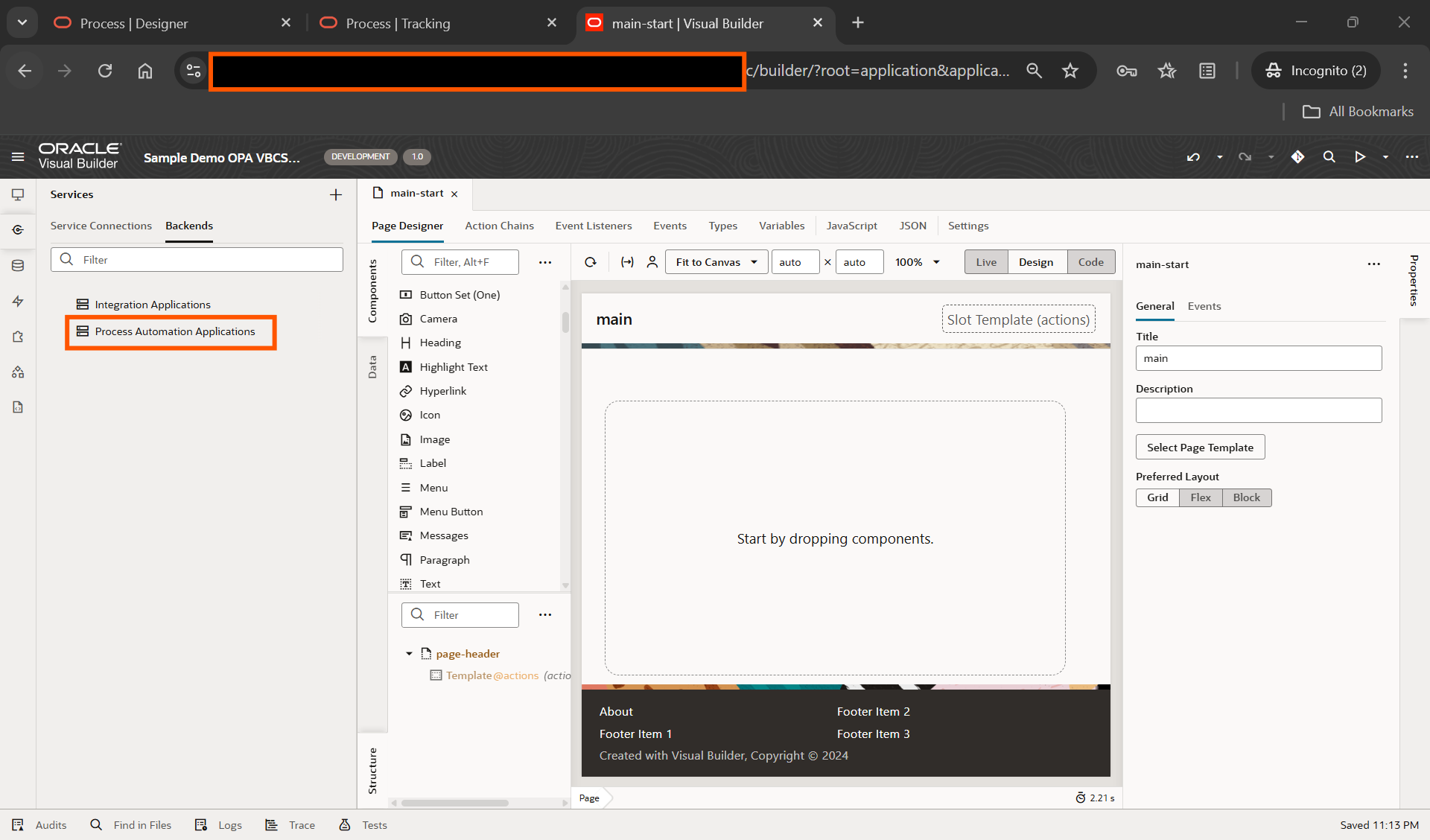
New Backend for OPA is created now.
let us create Service Connection based on backend.
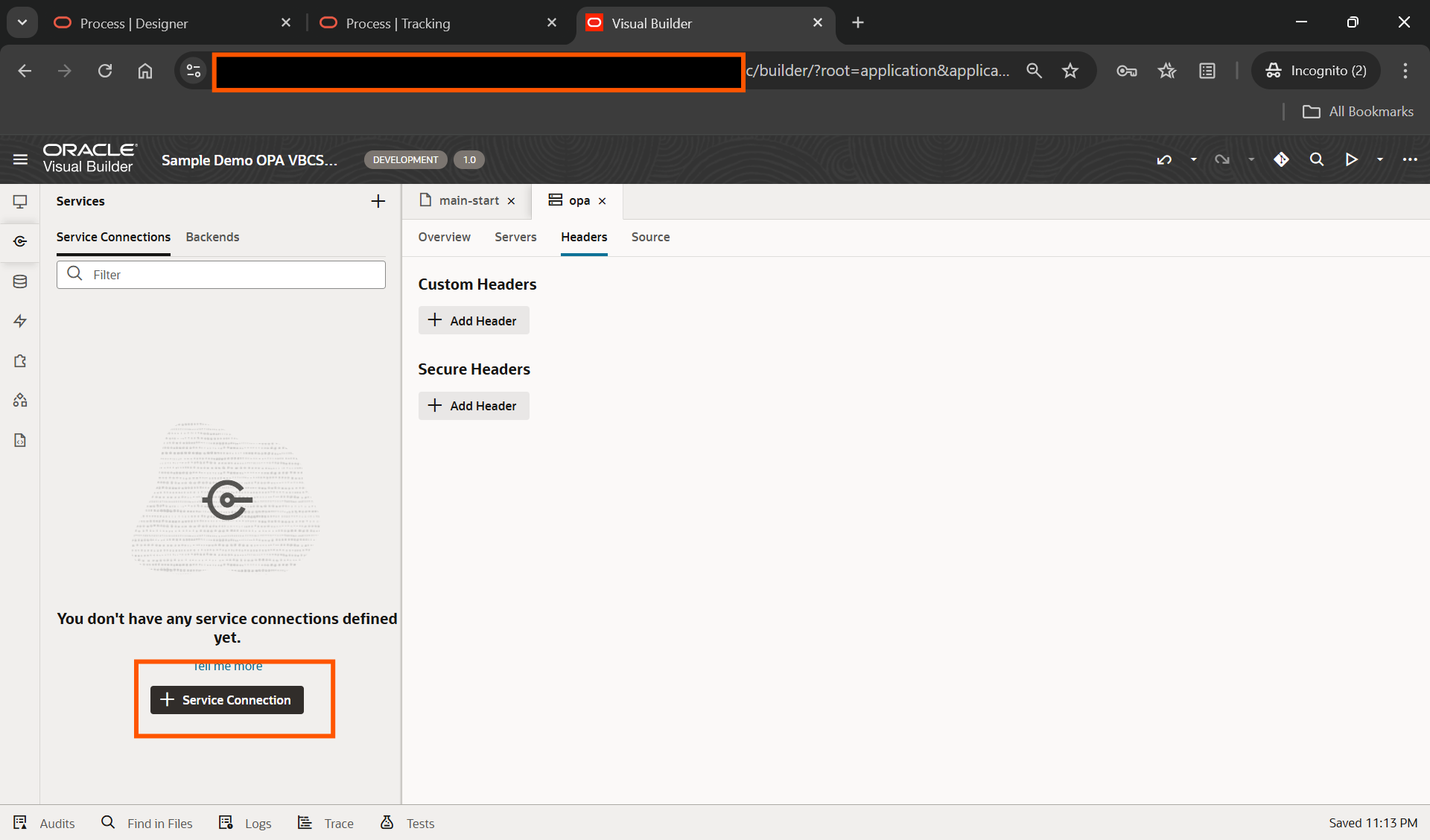
Click on Service Connection.
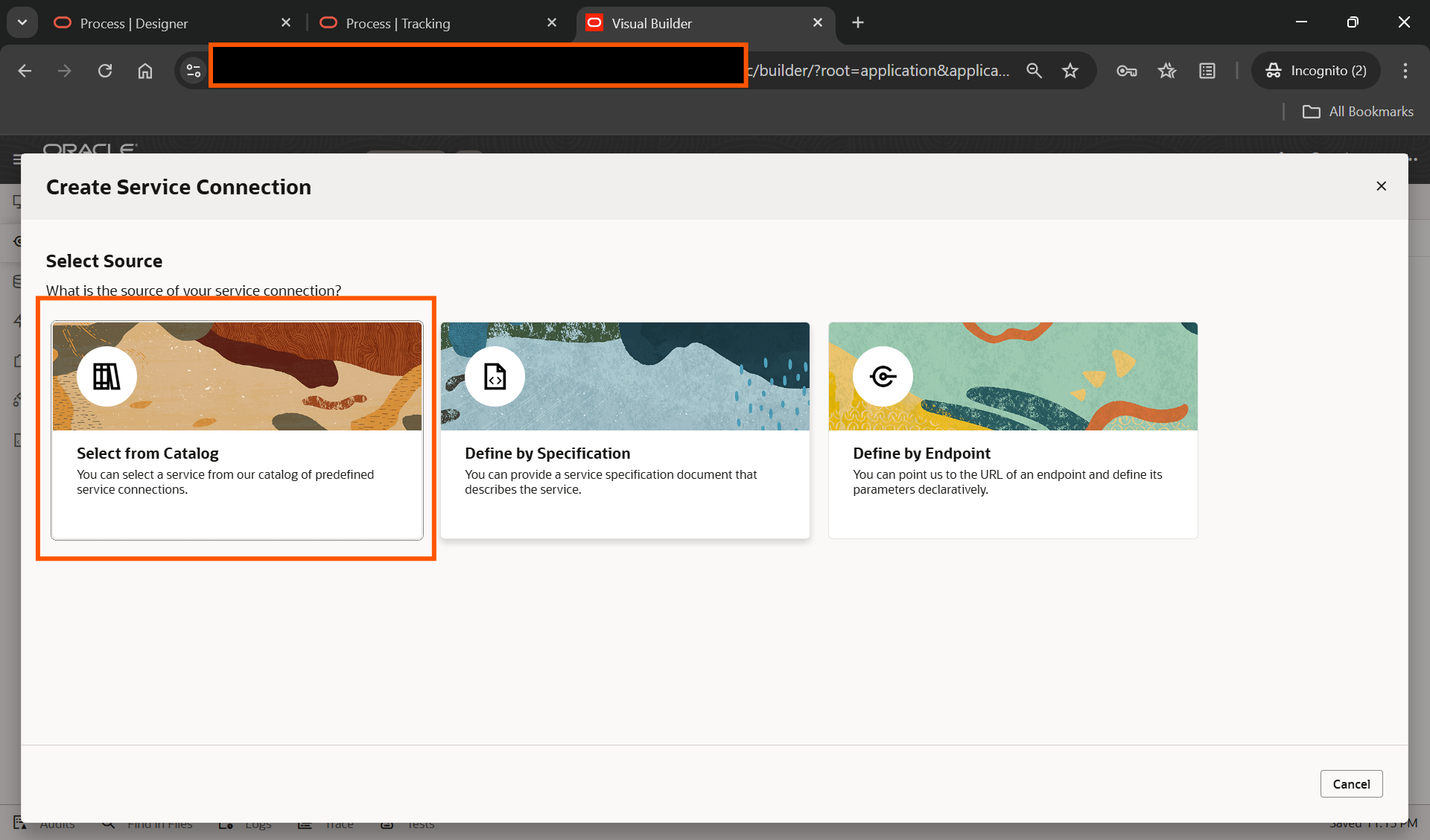
Select “Select from Catalog”.
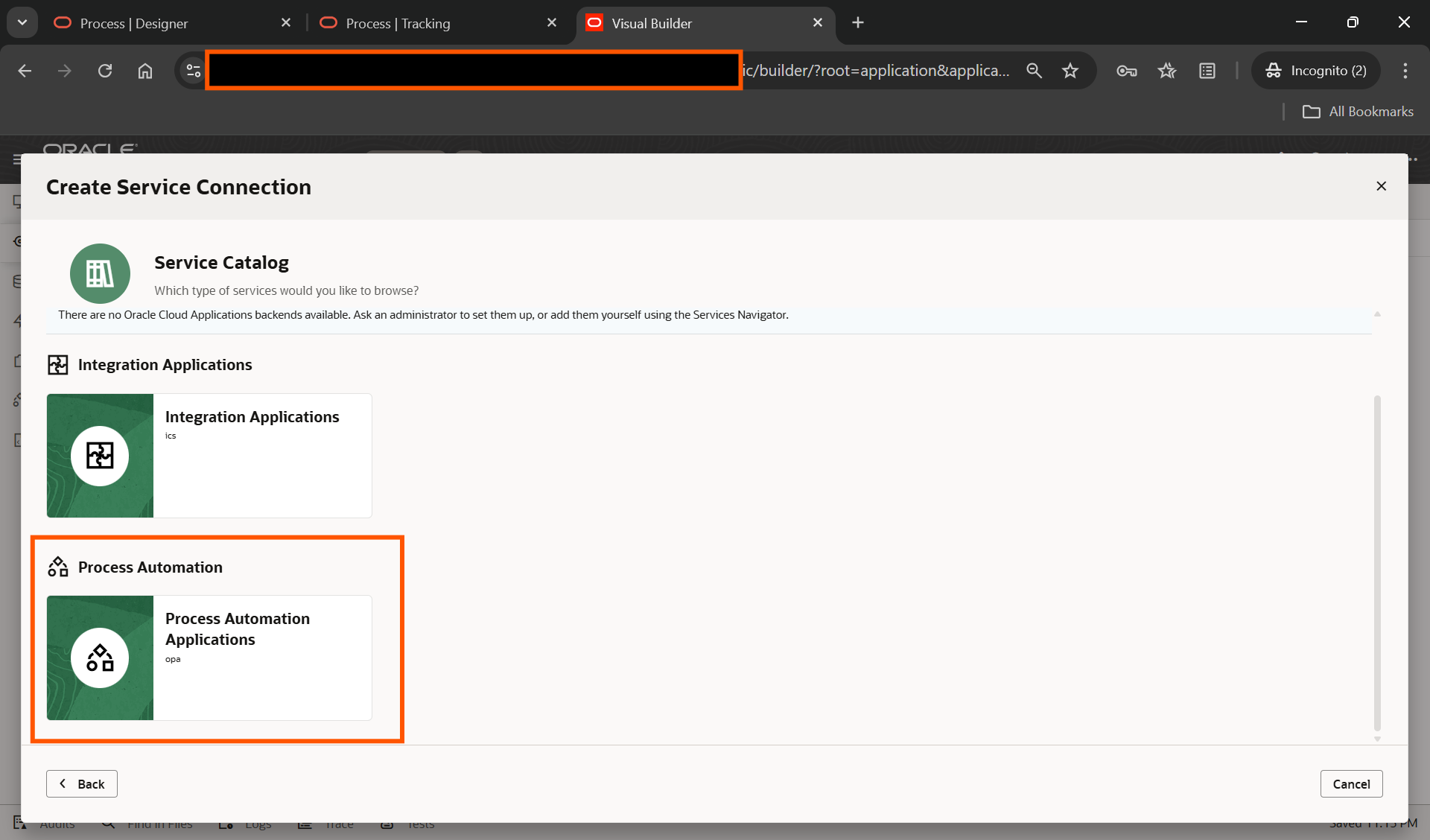
Select “Process Automation Applications”.
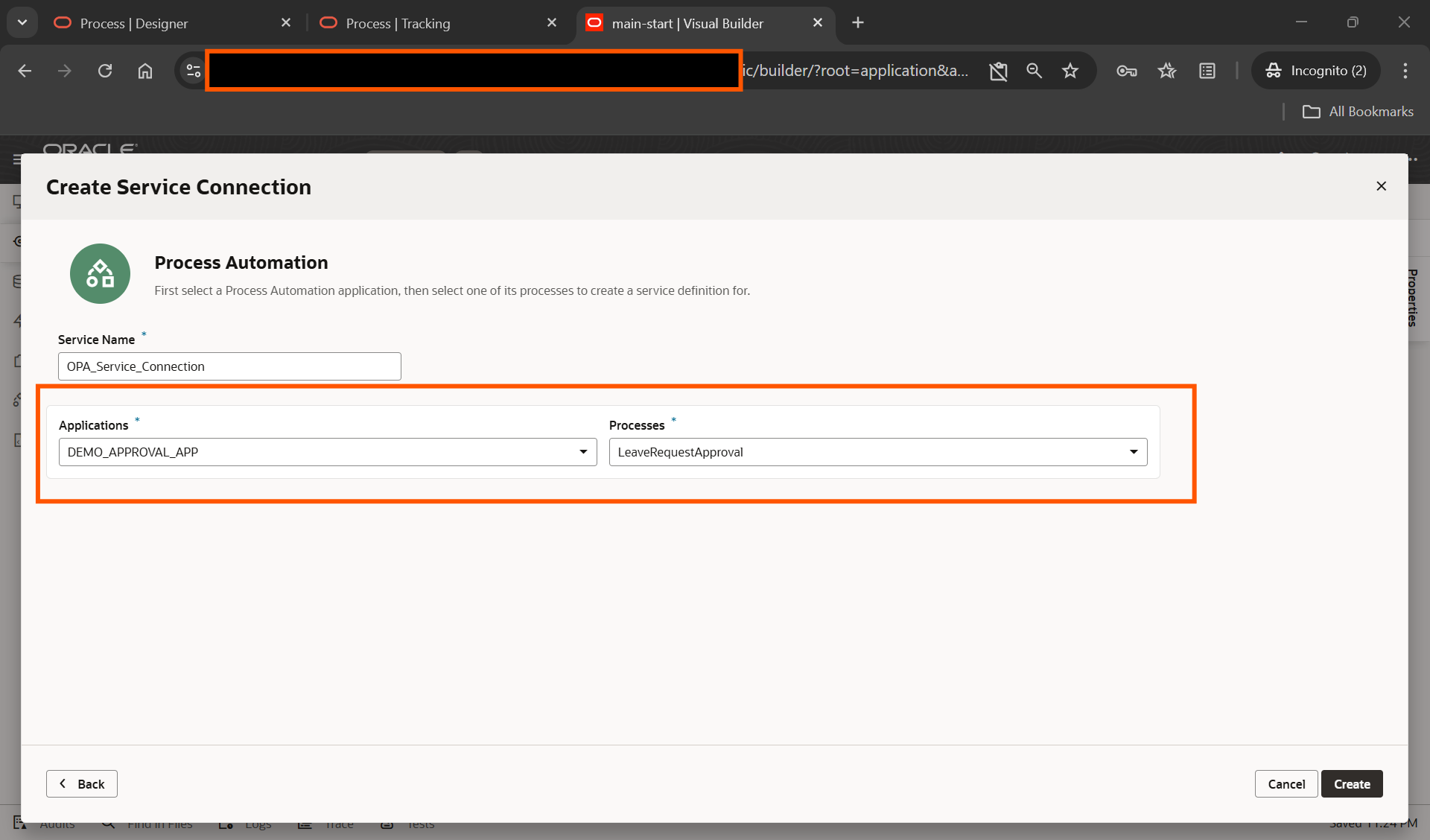
Click on Create.
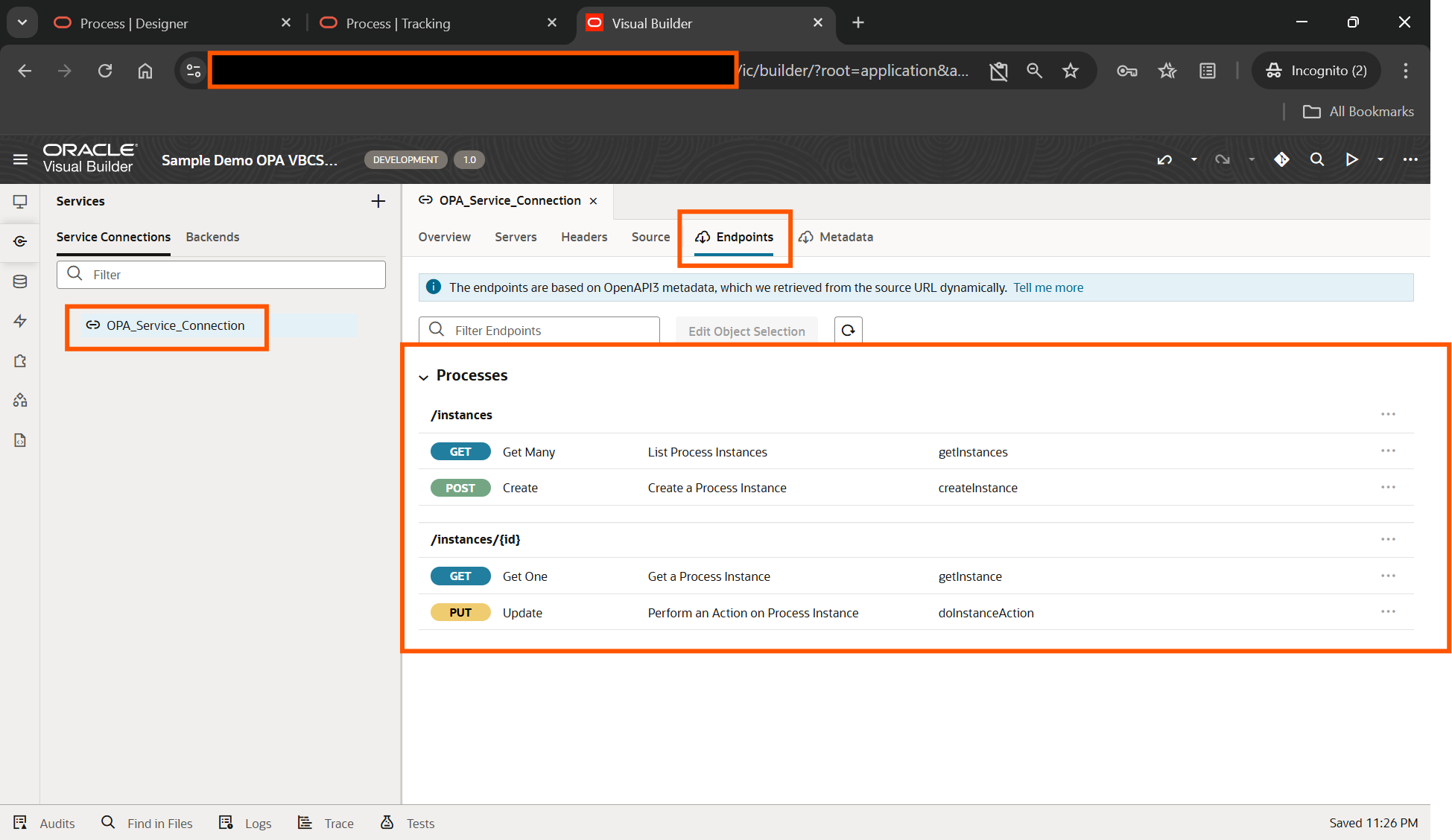
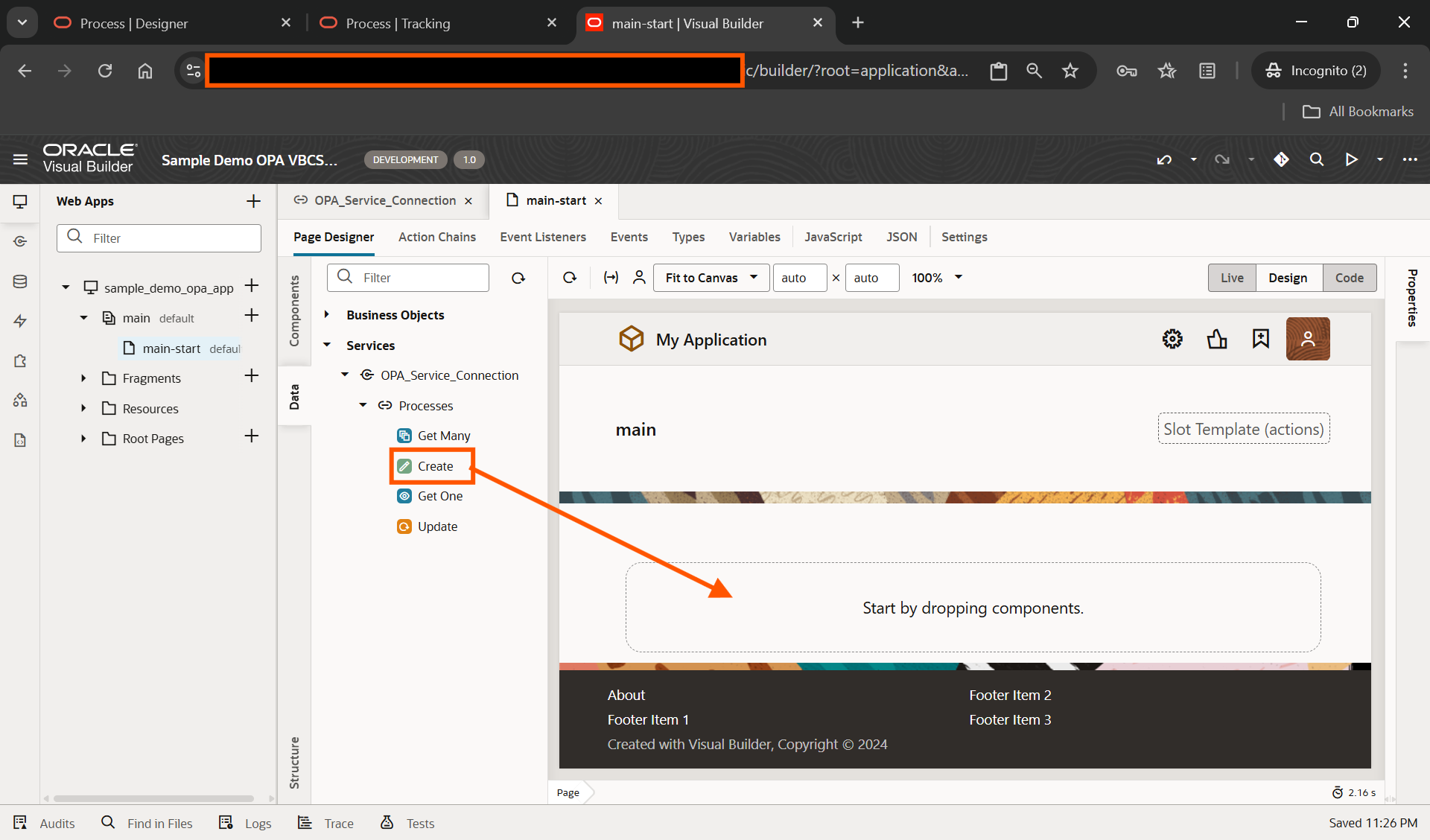
Create new VBCS Page and navigate to Data—-> Services —>Processes —> Create
Drag on VBCS page.
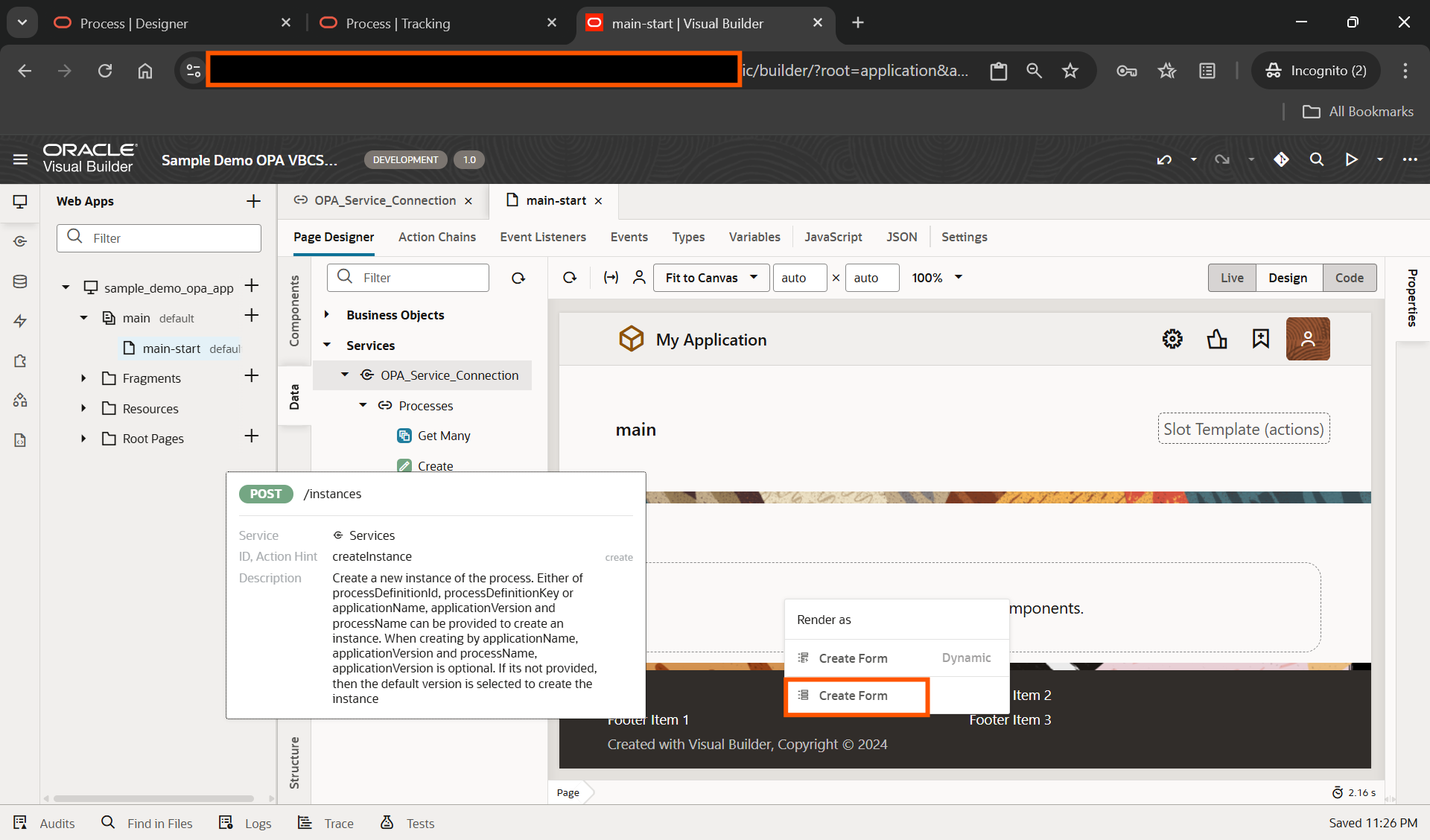
Click on Create Form.
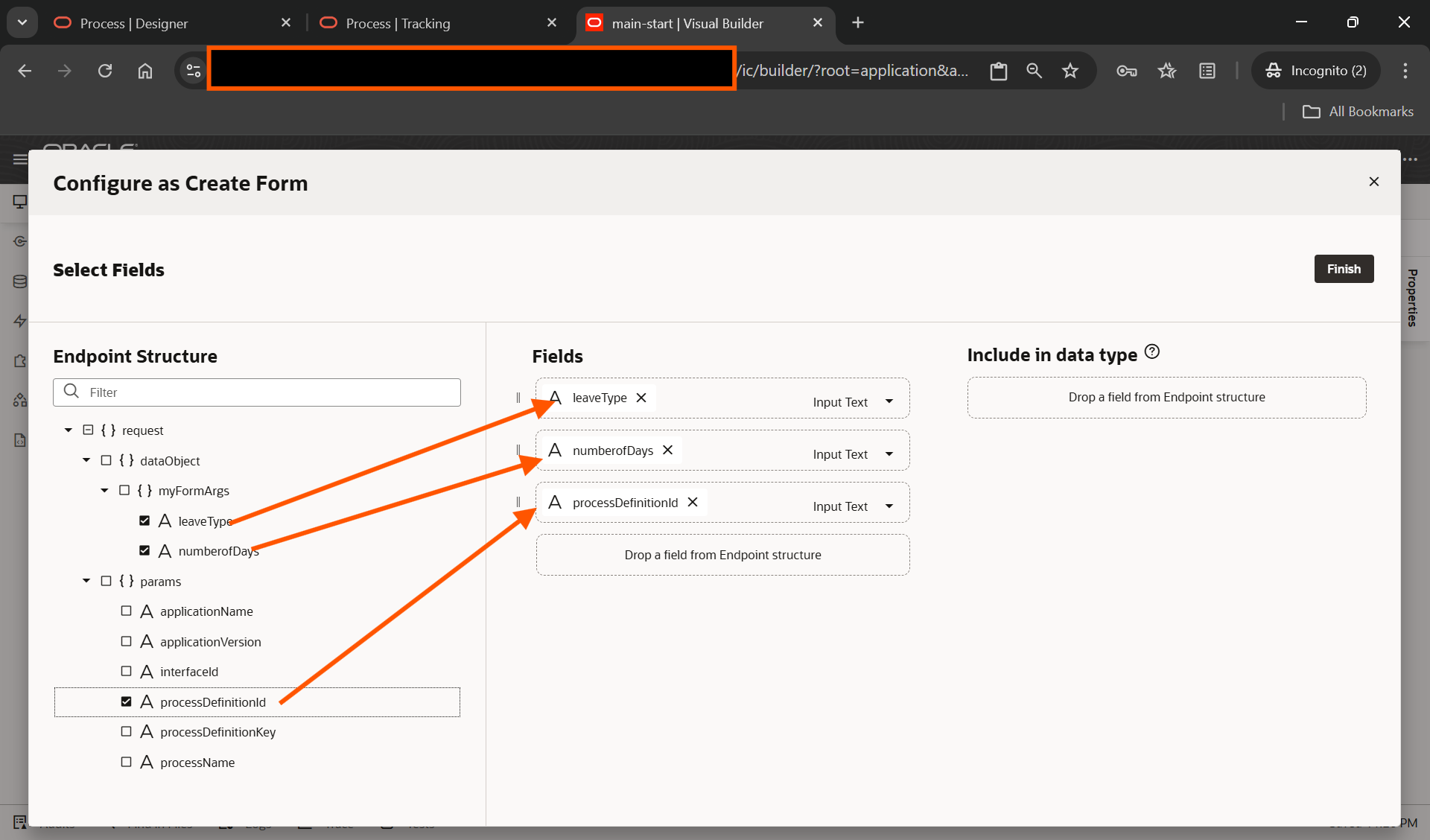
Drag and drop “leave Type, numberofDays and processDefinitionid to fields and Click on Finish.
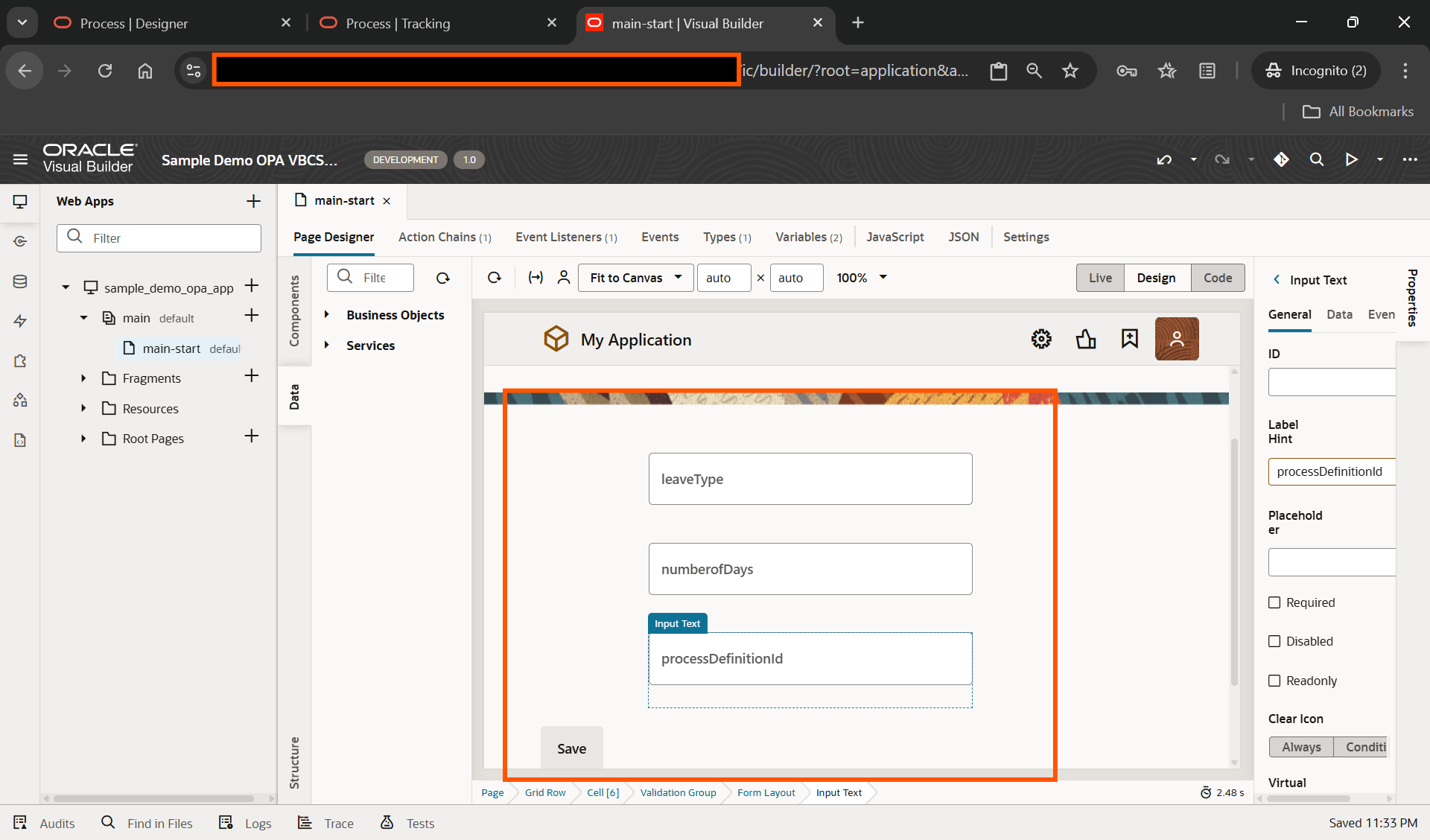
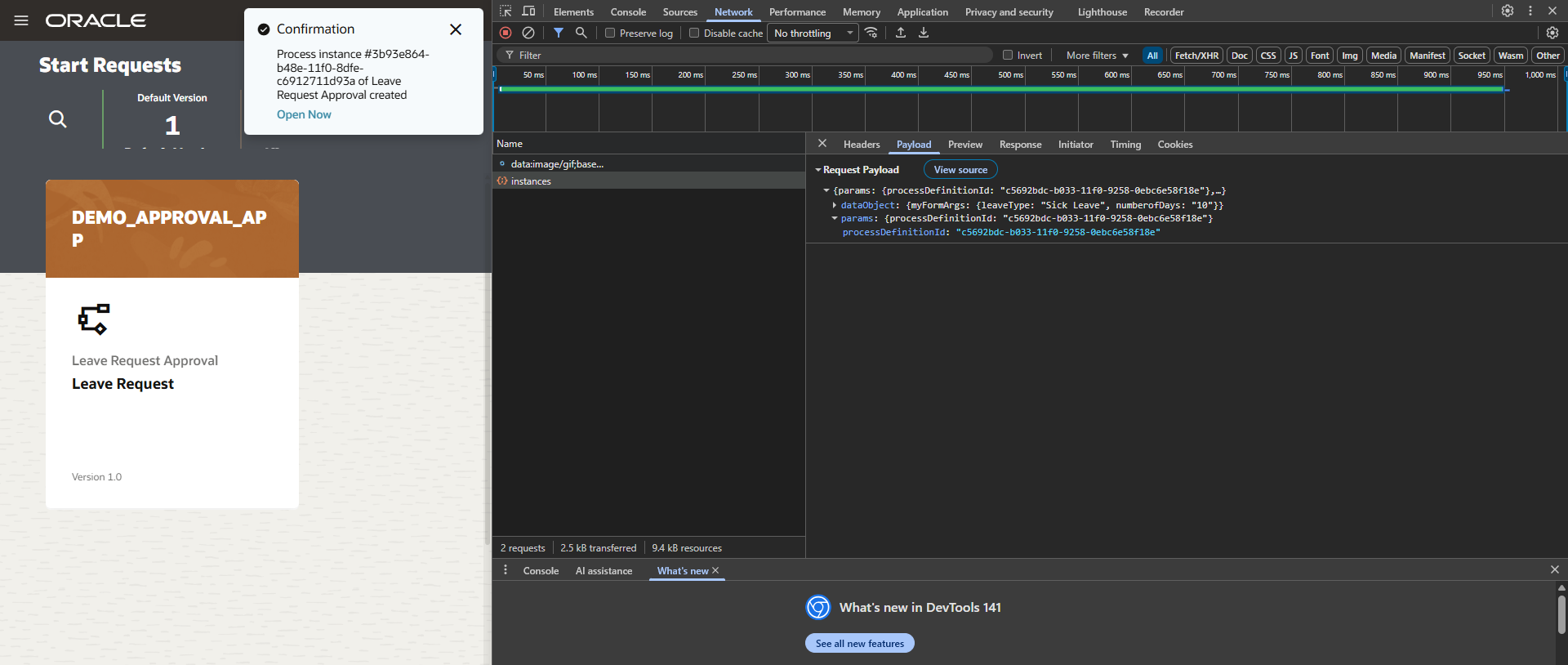
To submit OPA process from VBCS, we need to get processDefinitionid.
To get processDefinitionid, submit the process manually and get processDefinitionid from inspect 🡪Network.
Now submit process from VBCS with below details:
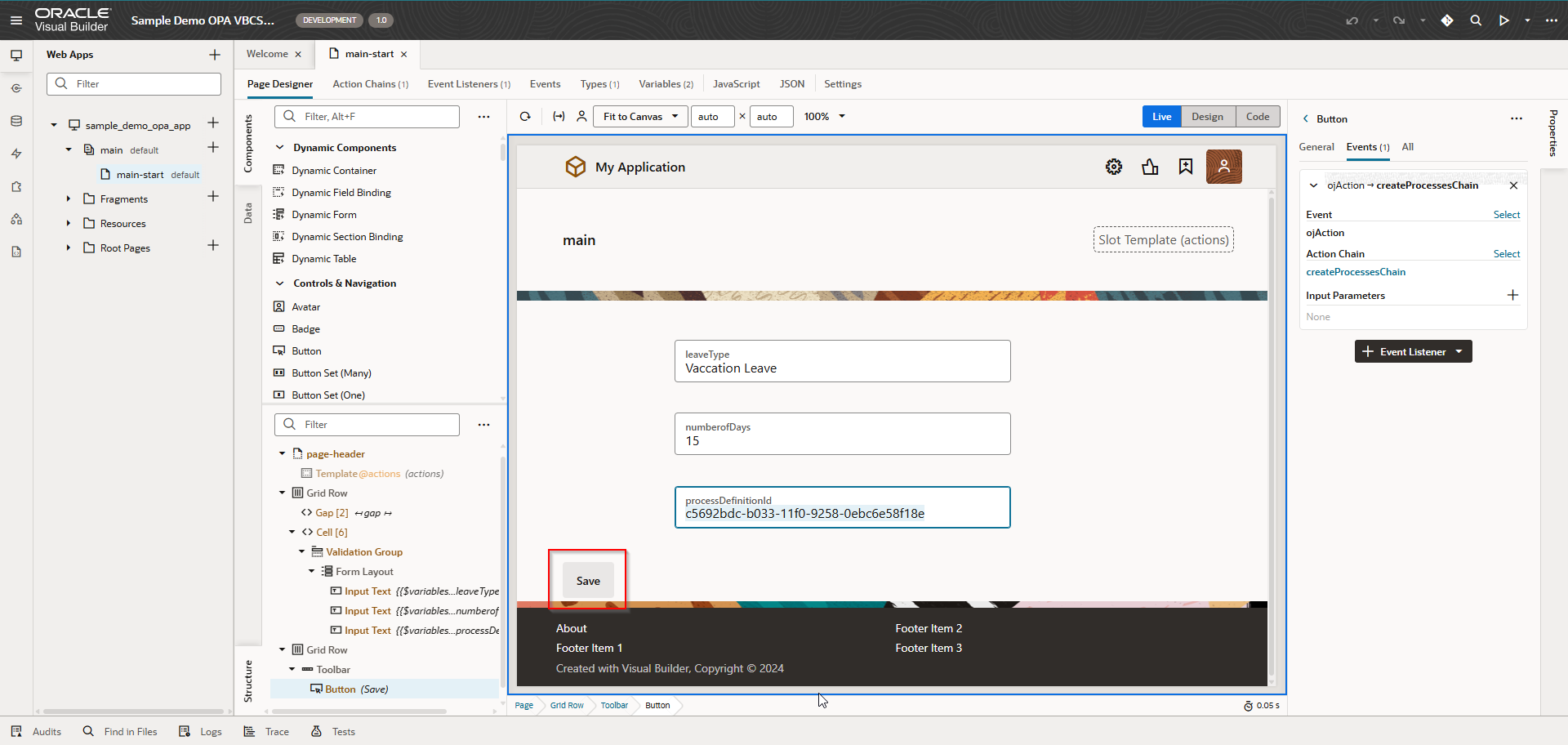
Click on Save.
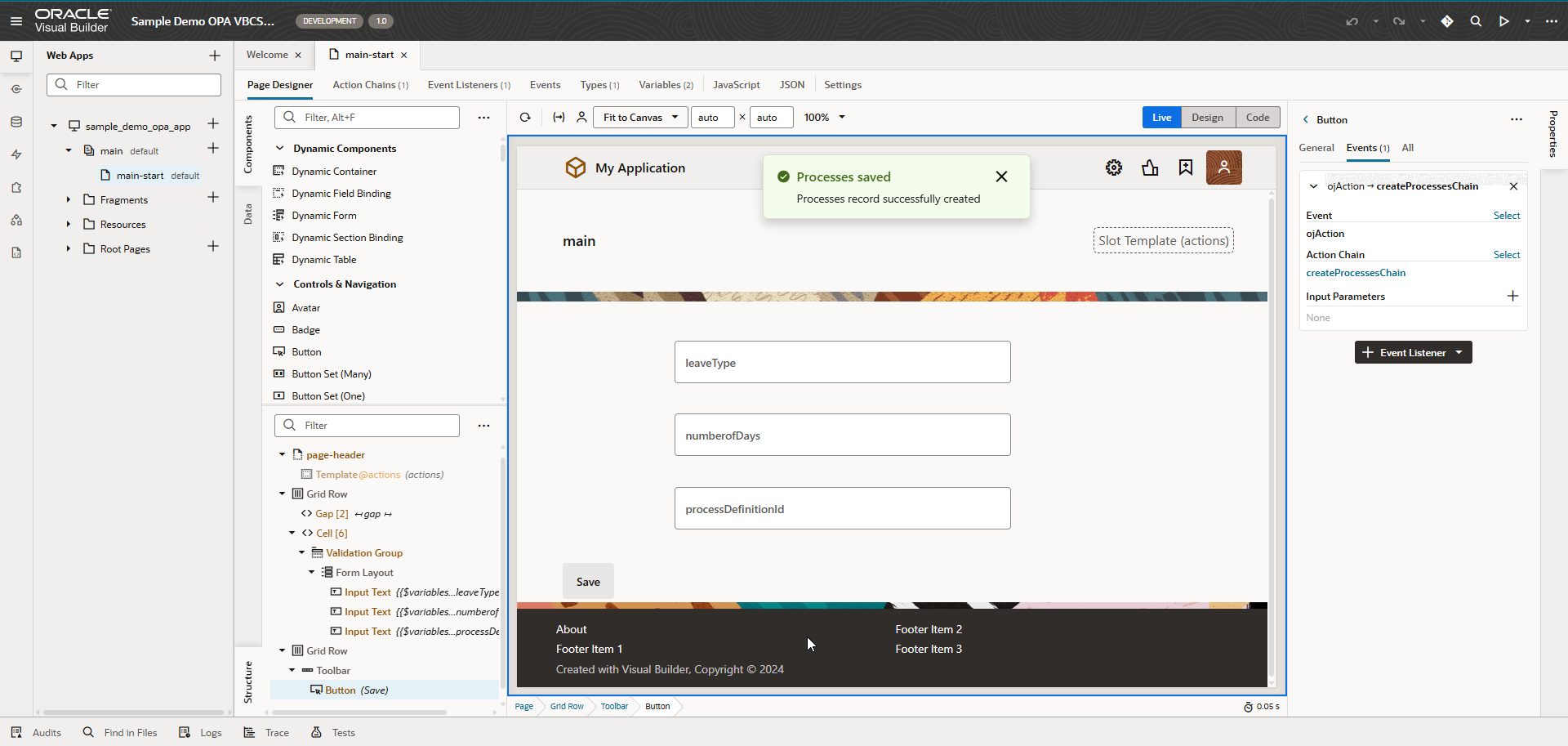
Here we can see Process record successfully created.
Navigate to OPA to verify.
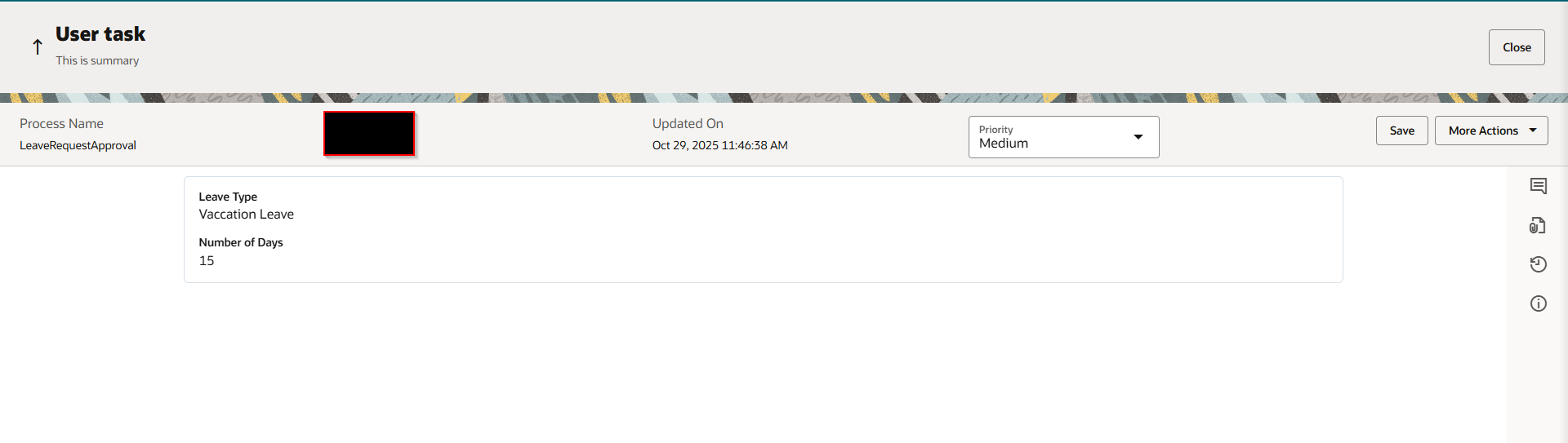
Here we can see, process record created in OPA.
In this way, we can call OPA process from VBCS page.
