How to Call OIC Integration from VBCS
In this post, we will see how to call OIC integration from VBCS.
Note: We are considering OIC and VBCS available on same OCI tenancy and domain.
Let us consider below Sample OIC Integration (App Driven).
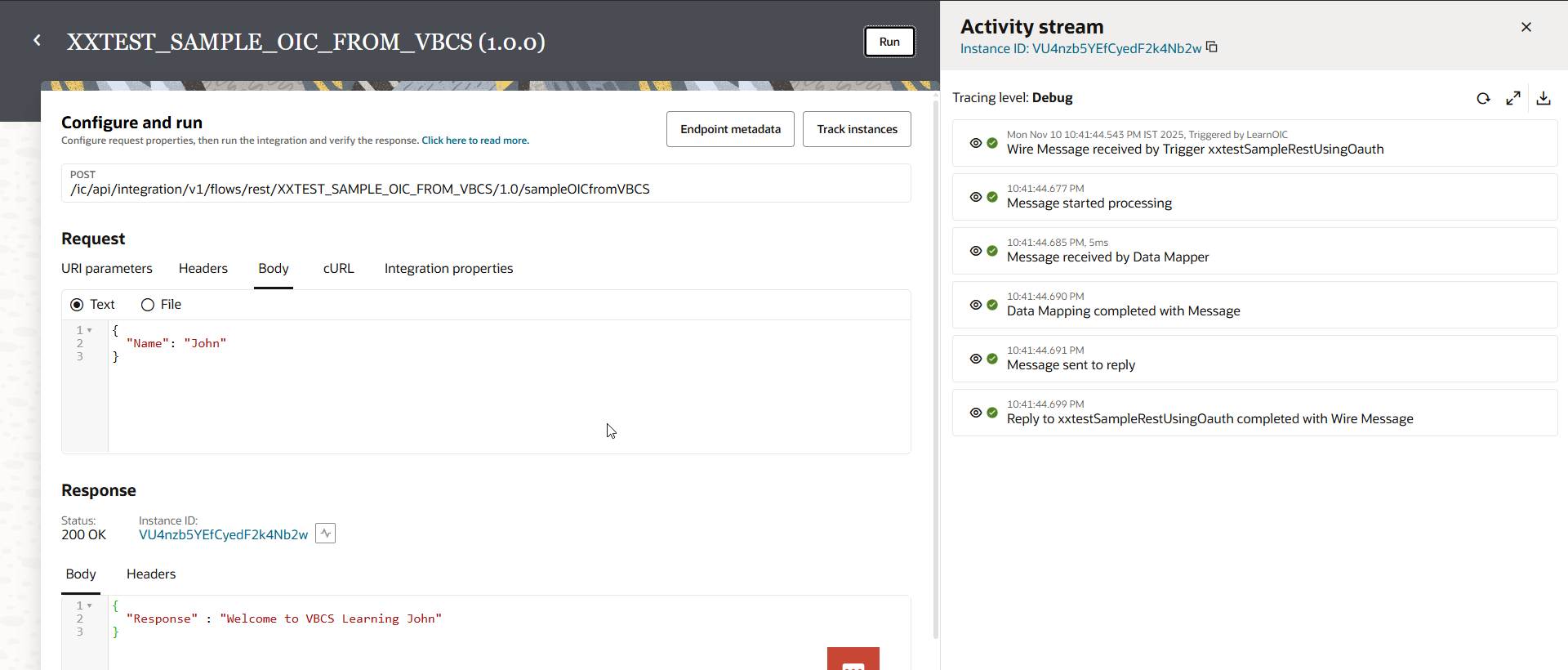
The integration is having Name as input Payload, and it is giving Welcome message for that name as shown above. We will call this Integration from VBCS page in this post.
Let us login to Oracle VBCS and Create New application.
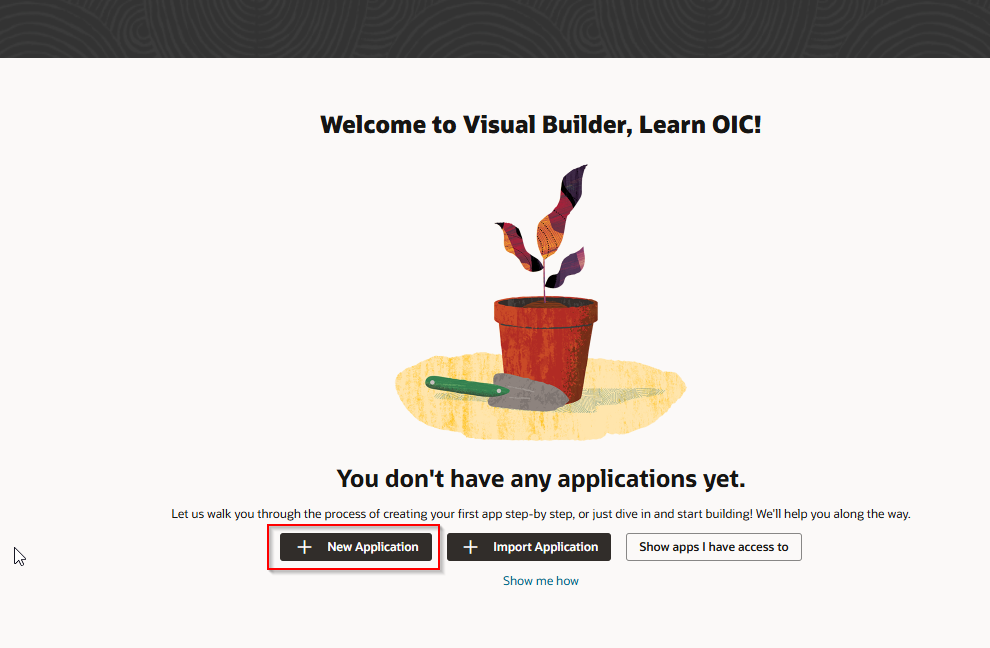
Click on New Application.
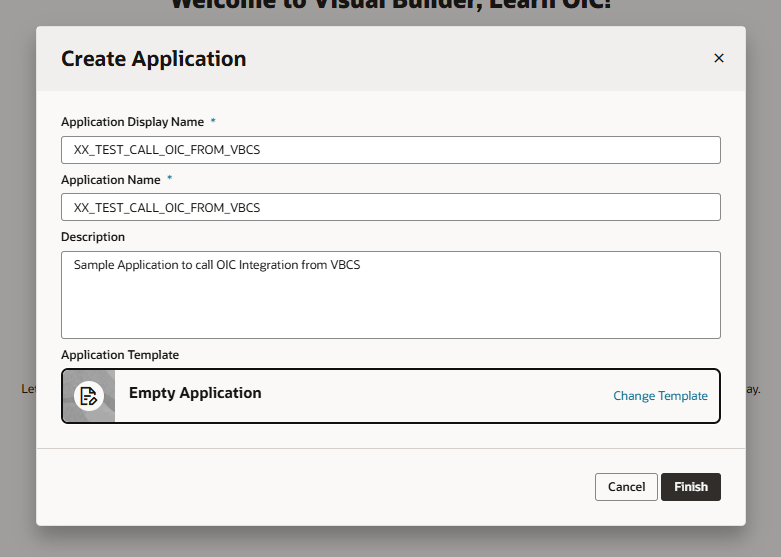
Provide any valid Application display Name, Application Name and description.
Click on Finish.
This will create VBCS application as shown below.
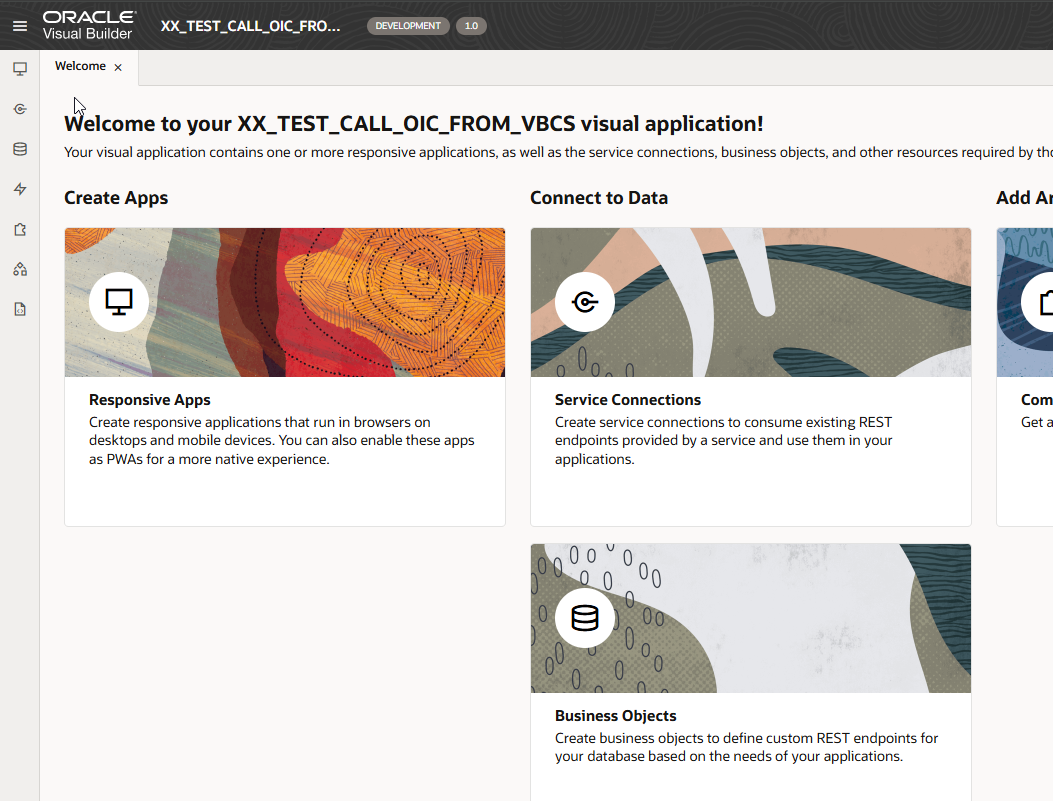
The application is created now.
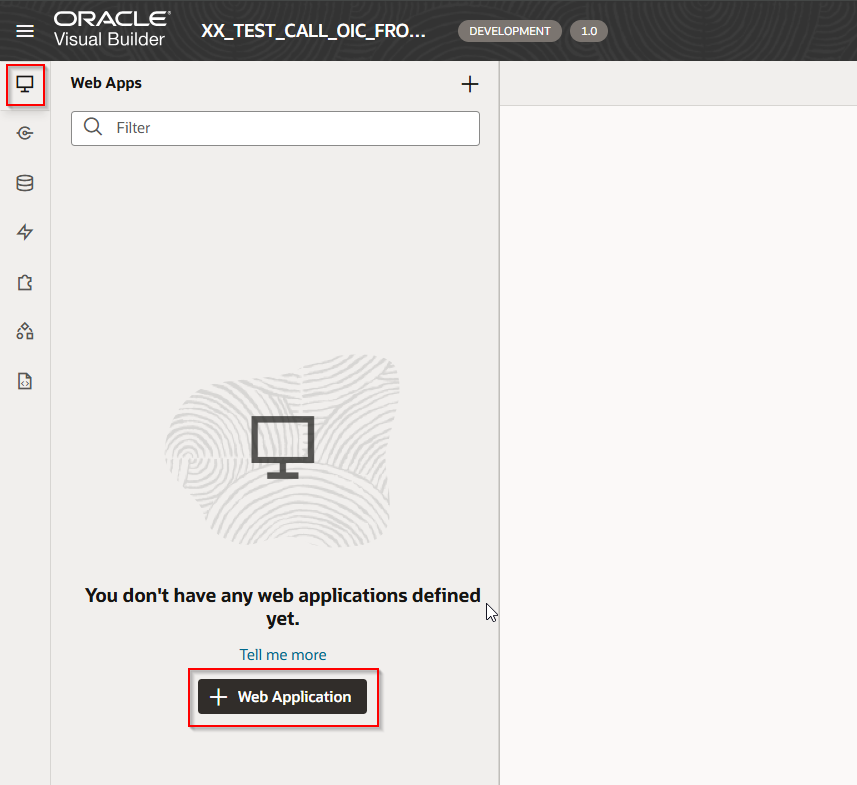
Navigate to Web Apps —>Web Application.
Provide Valid Application Name and Click on Create.
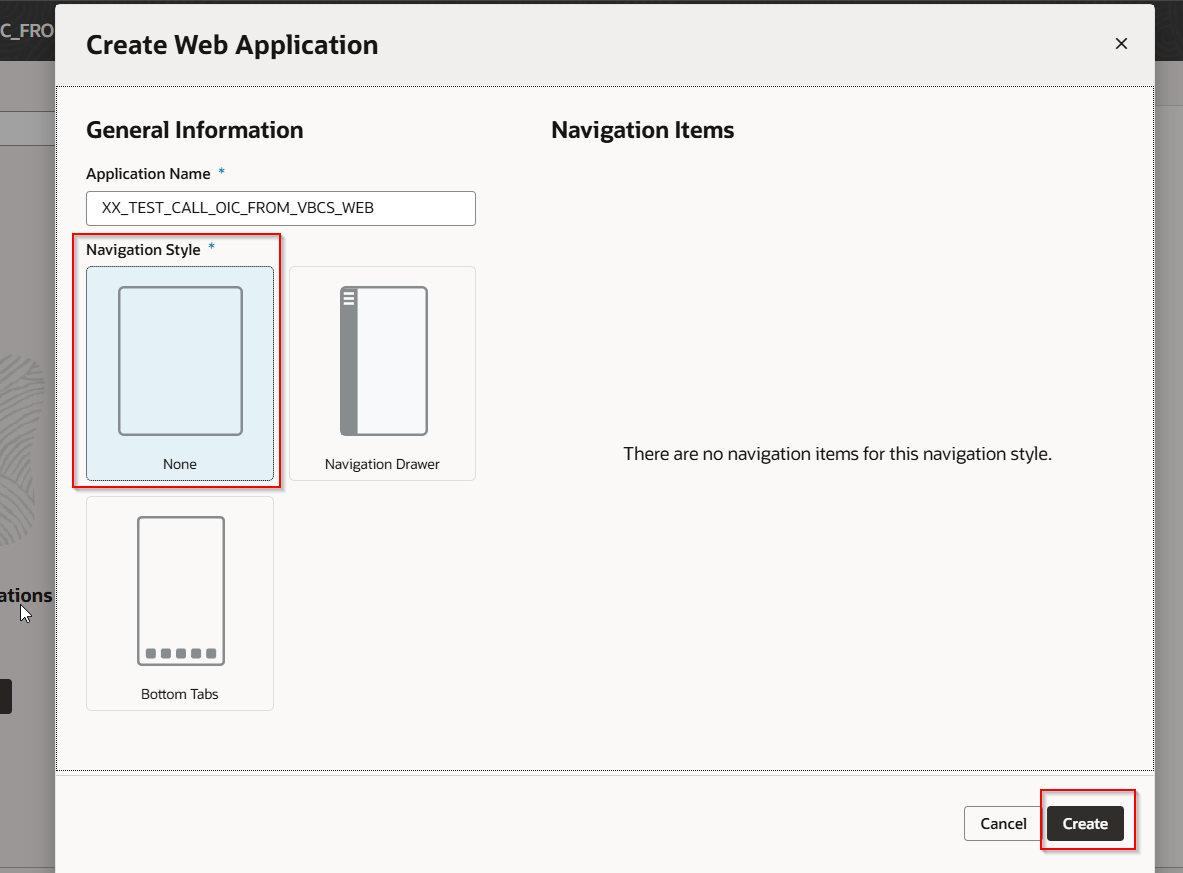
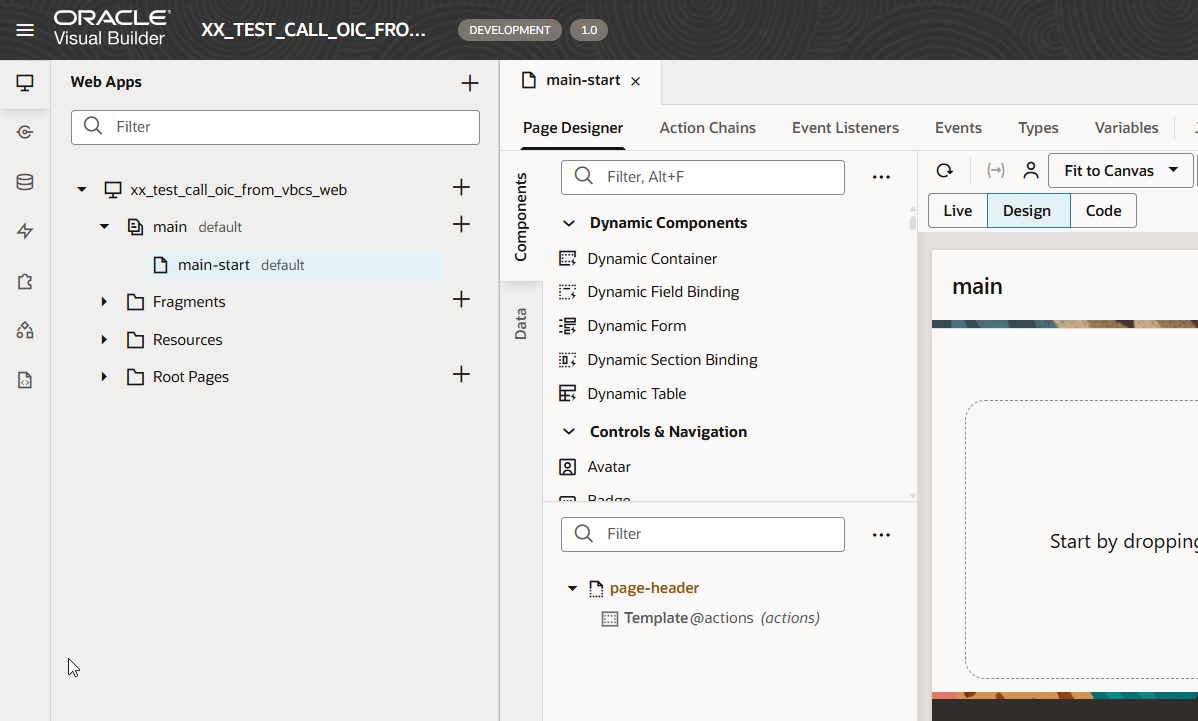
This will create Web apps as shown below. The application will be created with one default page as main-start. We will call OIC integration from this page.
To call OIC Integration, we need to create Service connection with OIC endpoint.
Let us navigate to Service Connections —->Backend.
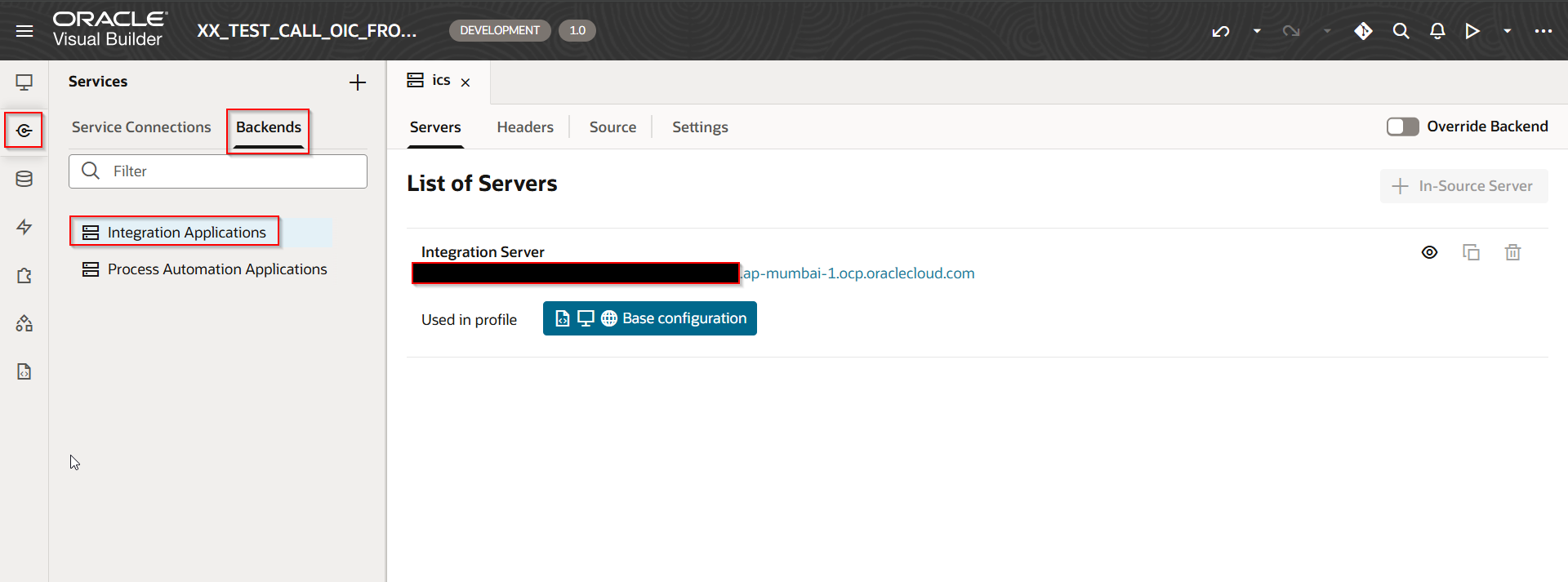
Backend connection is automatically created with OIC when we create VBCS Web Application.
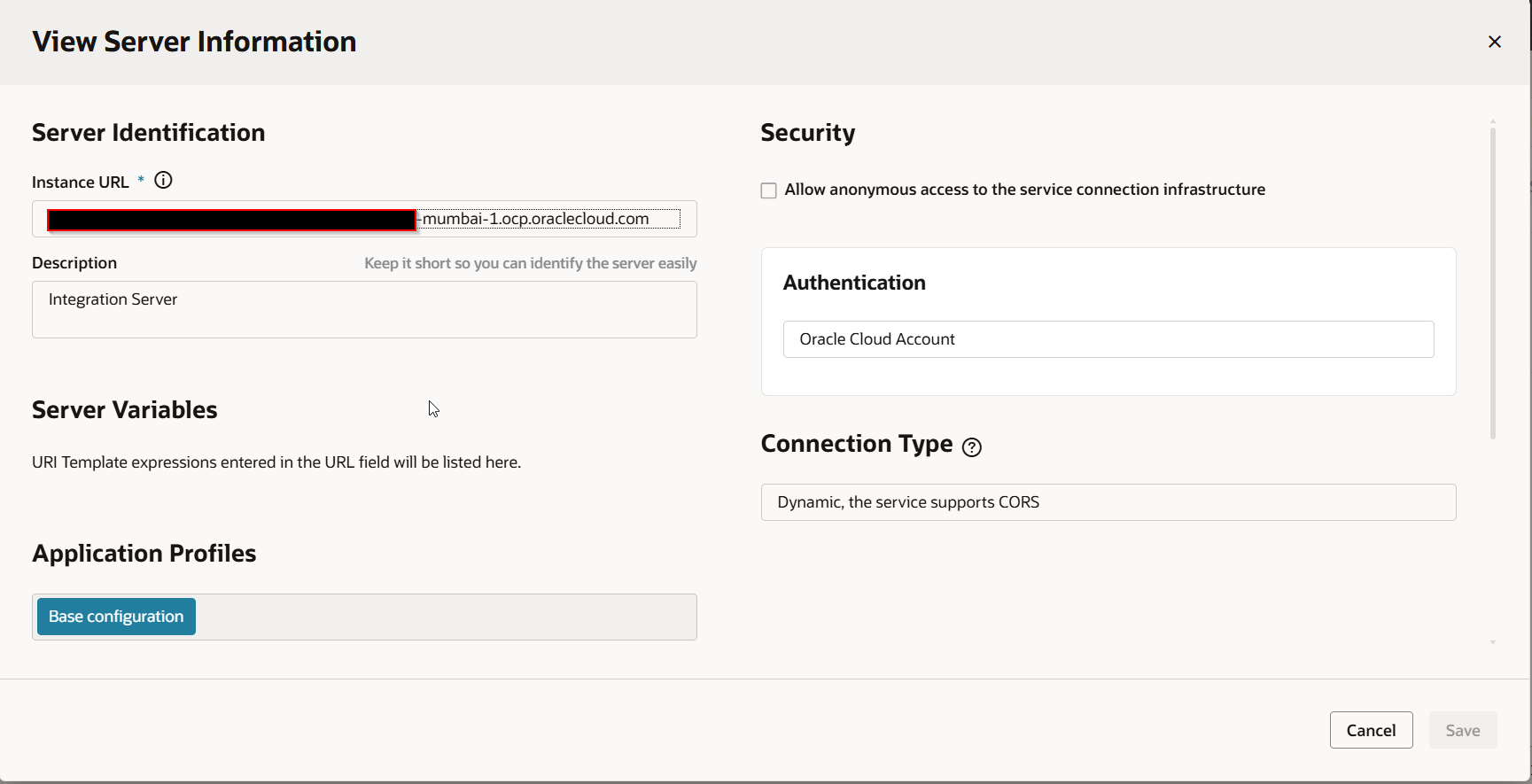
Click on OIC Backend details to get all details as shown below:
Now we will create Service Connection based on Backend for using it in VBCS page.
Navigate to Service Connections —>Service Connection.
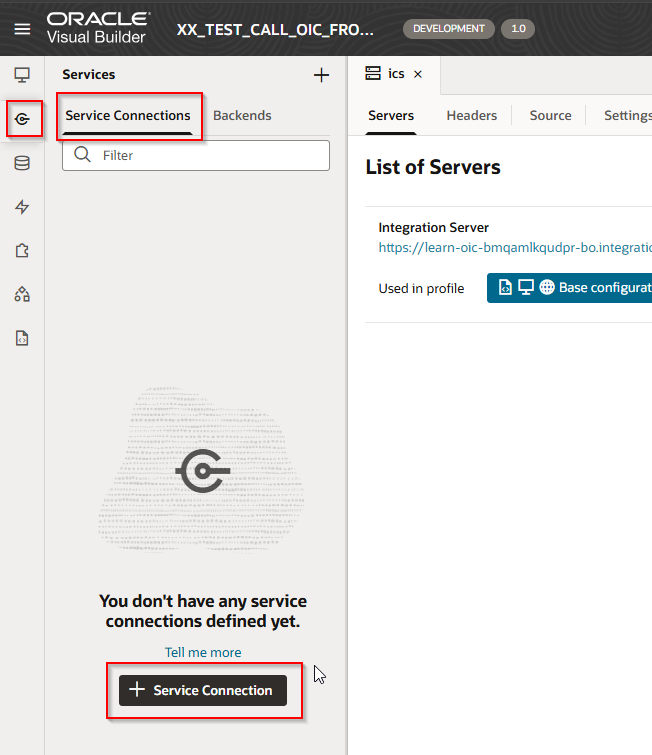
Click on Service Connection to create new Service Connection.
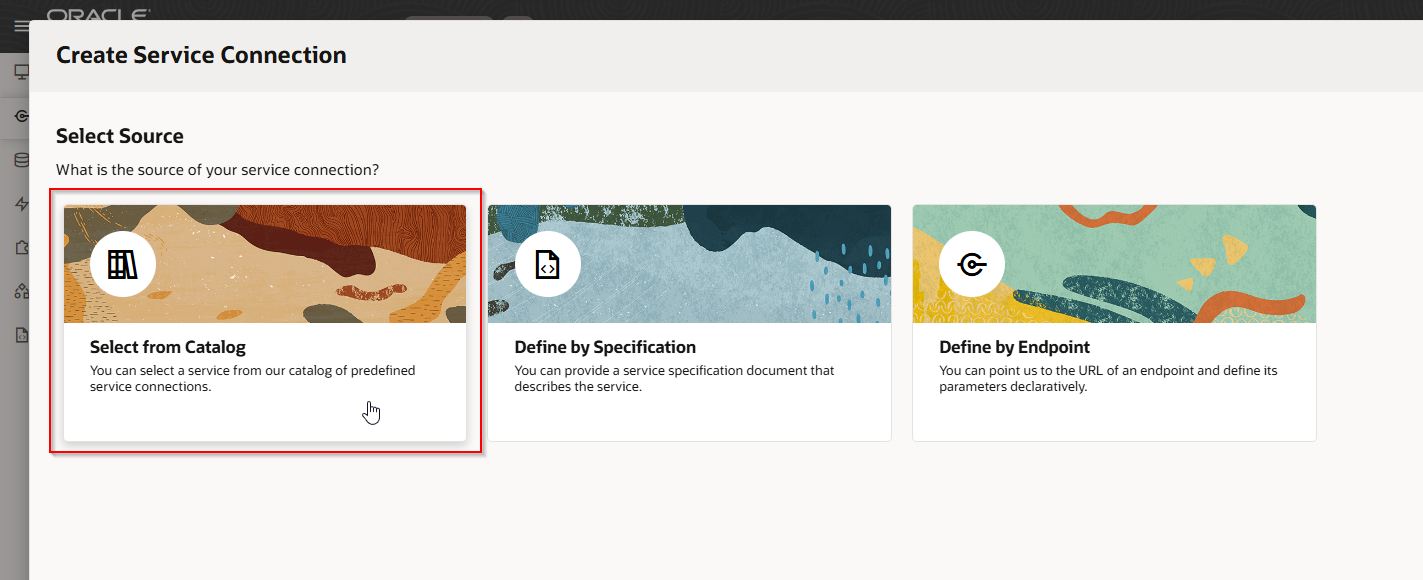
Select “Select from Catalog” to access backend.
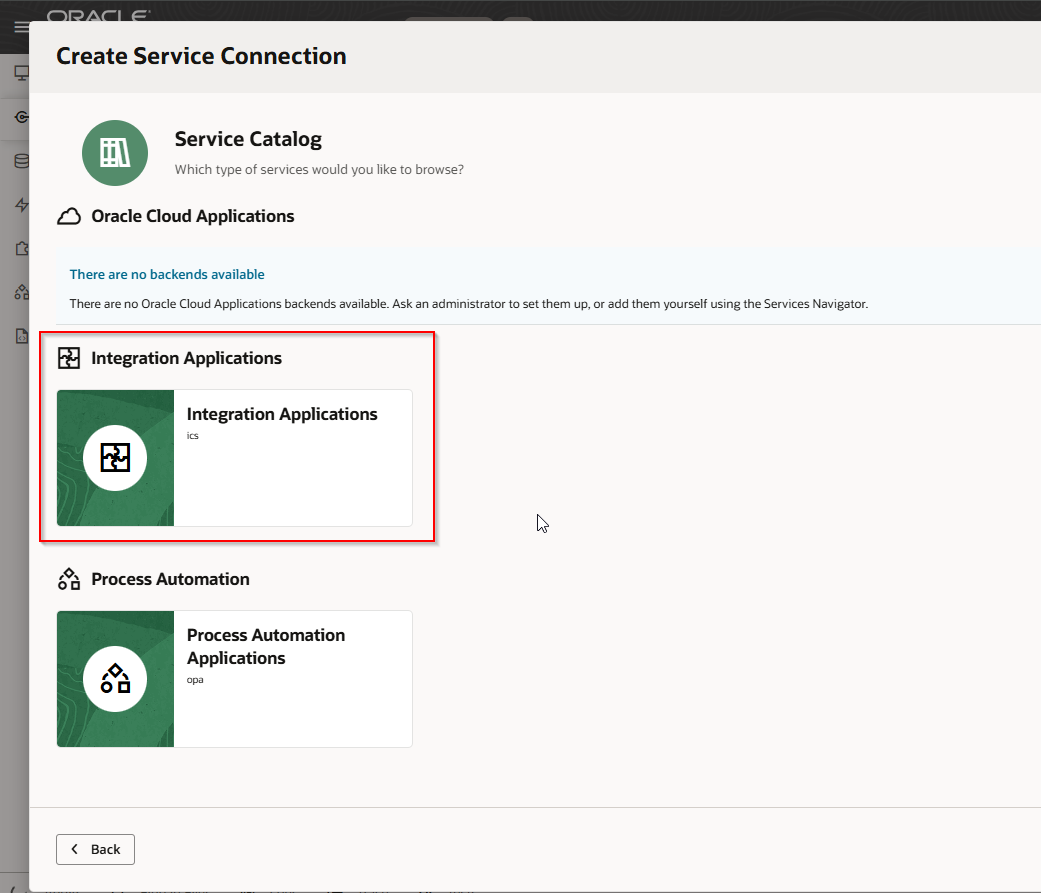
Select “Integration Applications”.
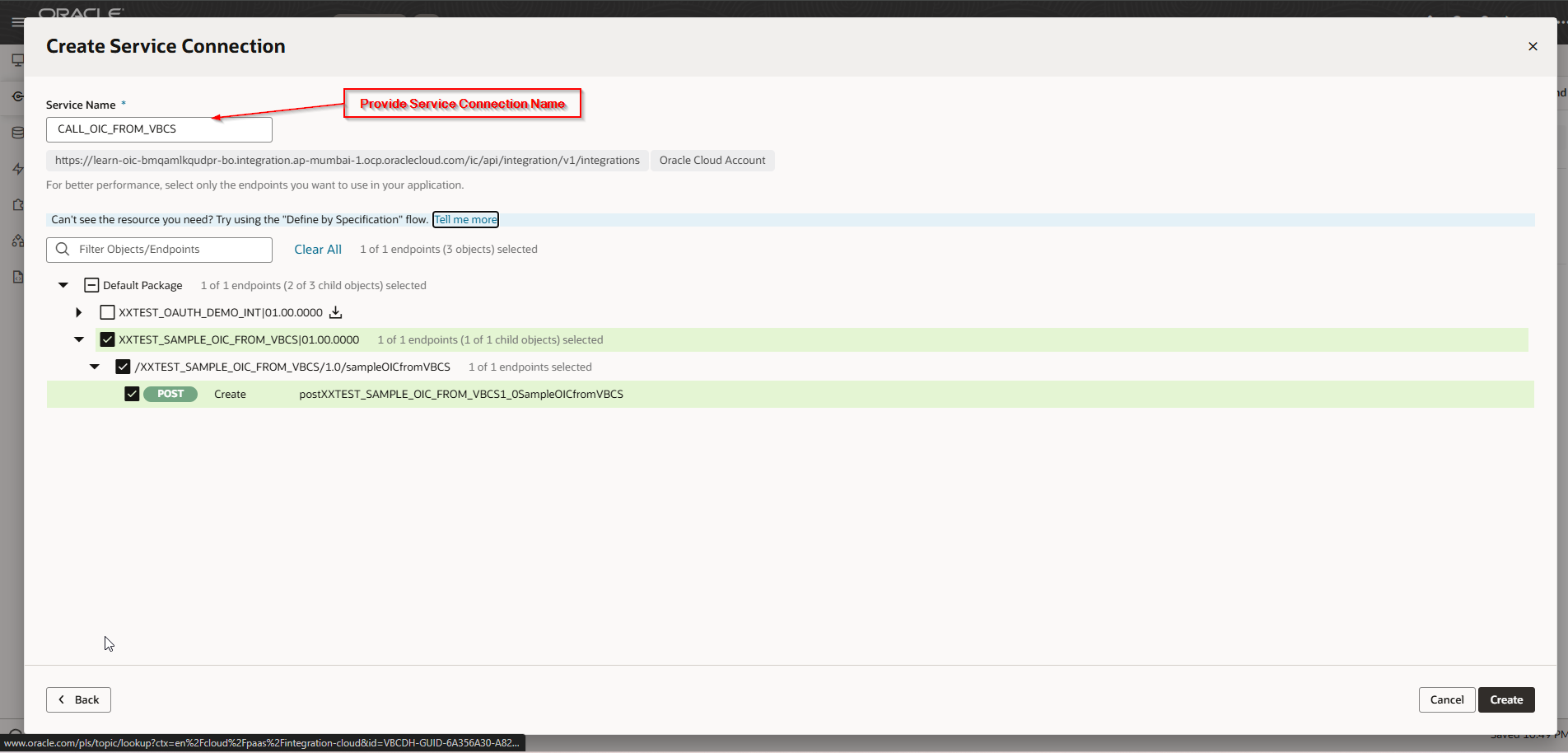
This will list all the OIC integrations created in OIC instance.
Select Integration which we want to call from VBCS and Click on Create.
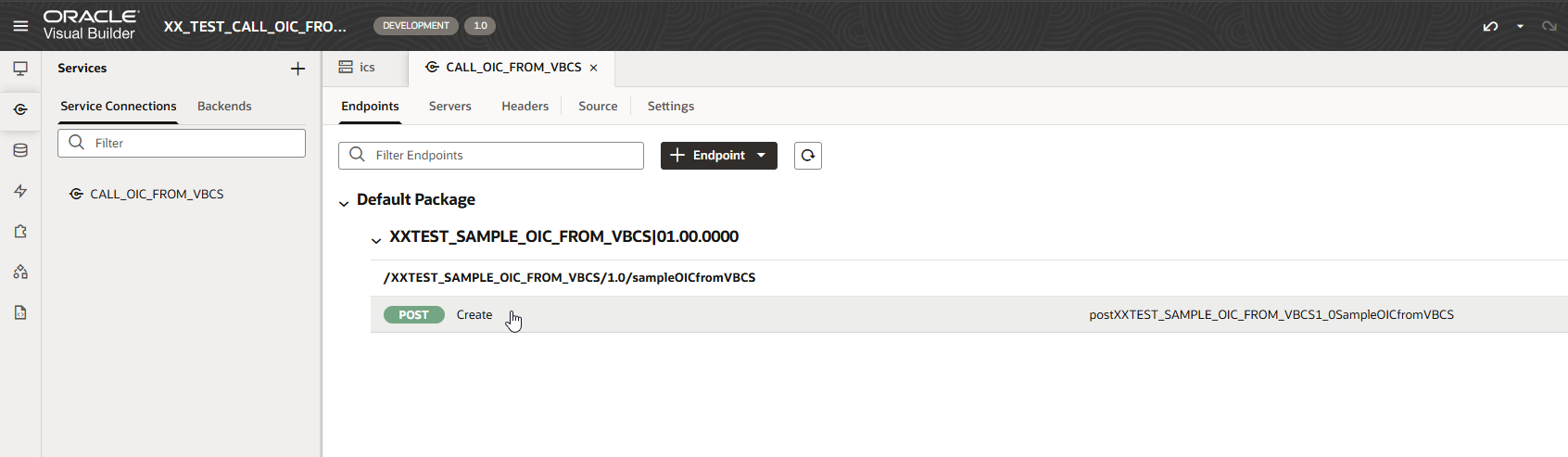
Service Connection with OIC Integration is created now.
Click on Endpoints to get more details.
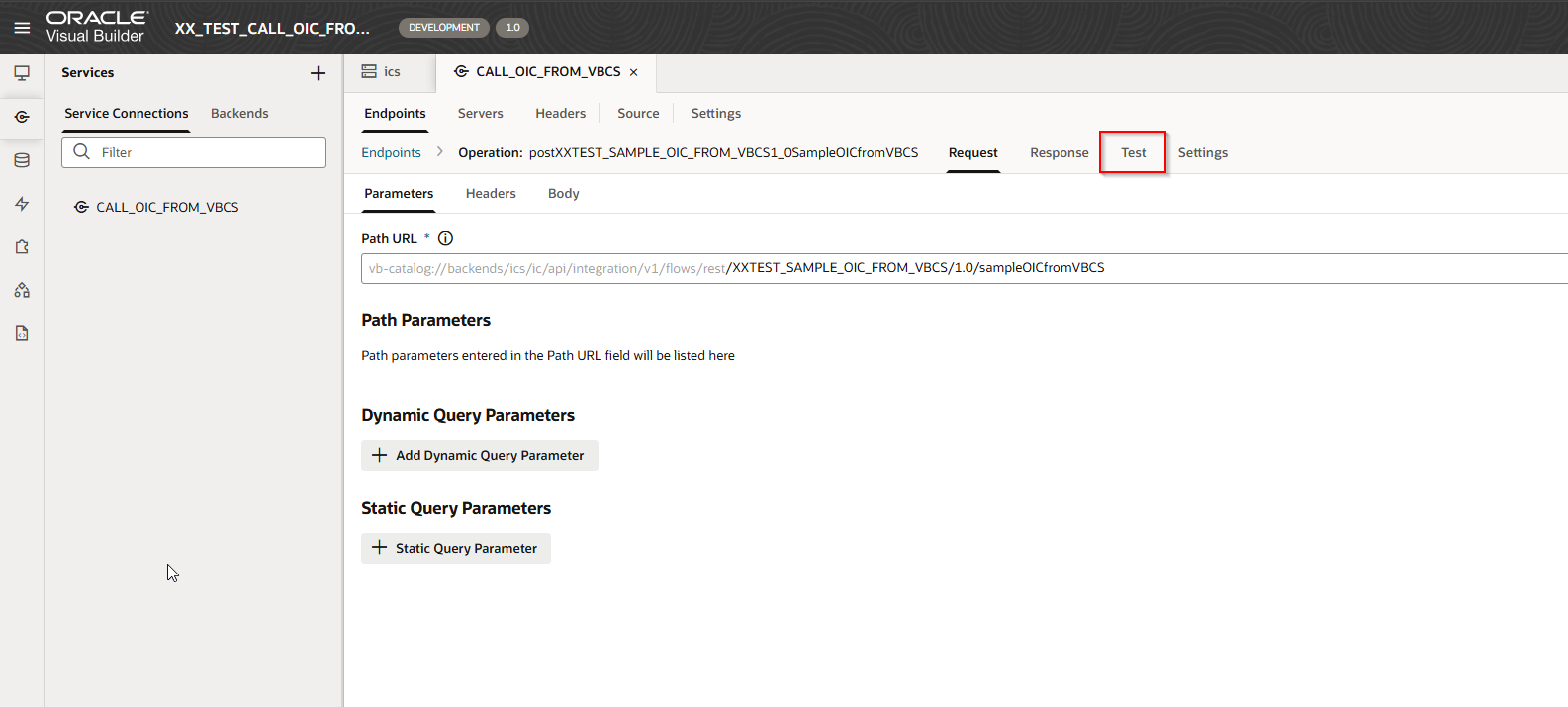
Navigate to Test to validate Endpoints in VBCS before using it in page.
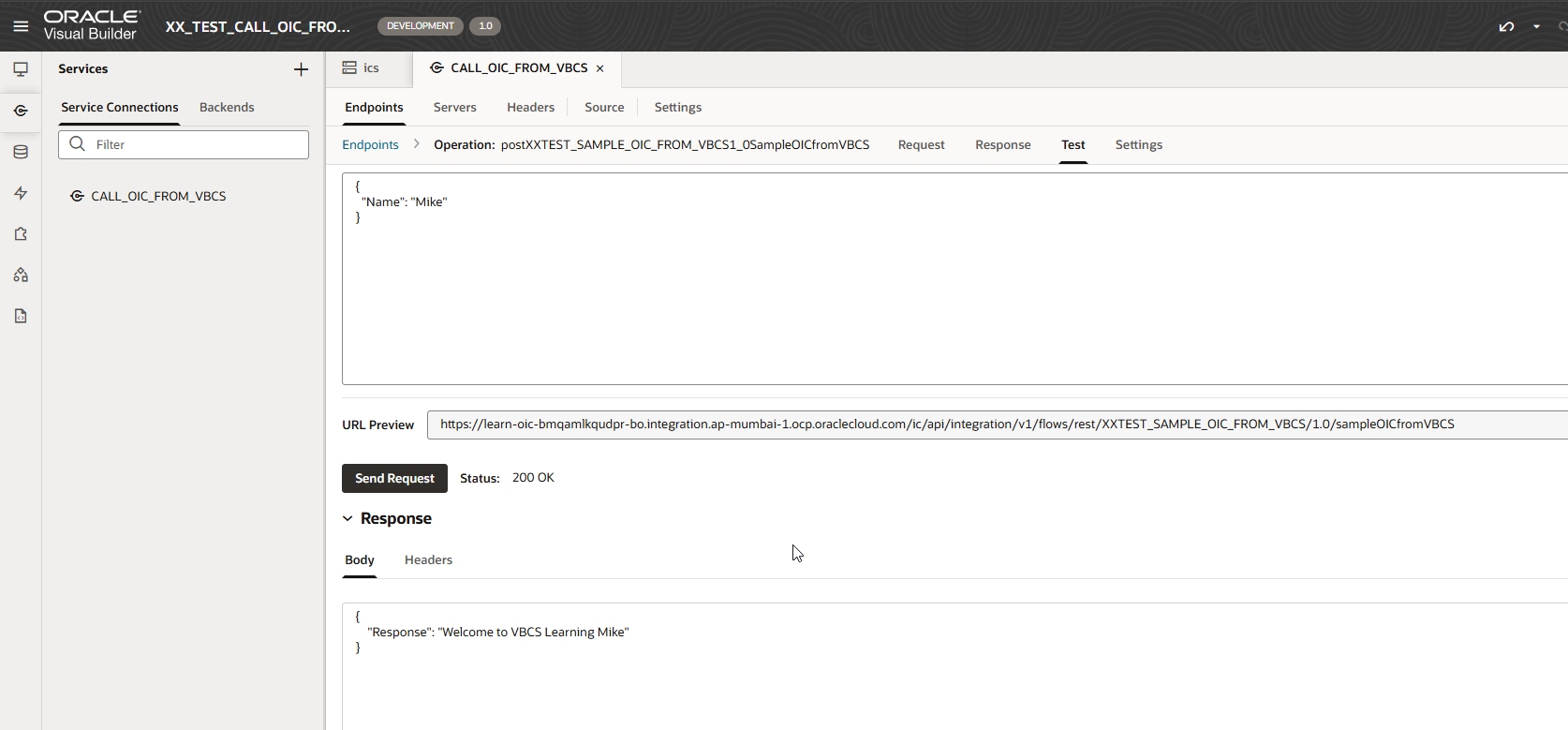
Provide Payload (same as we provided in OIC) and click on “Send Request”.
This will call OIC Integration and display response in JSON format.
This will ensure Service Connection is configured correctly.
Now we will use this Service Connection in our VBCS page.
Navigate to main-start page —>Page Designer.
Drag “Input Text” field from Control & Navigation and drop on page, also set properties for the Input Text Field as shown below
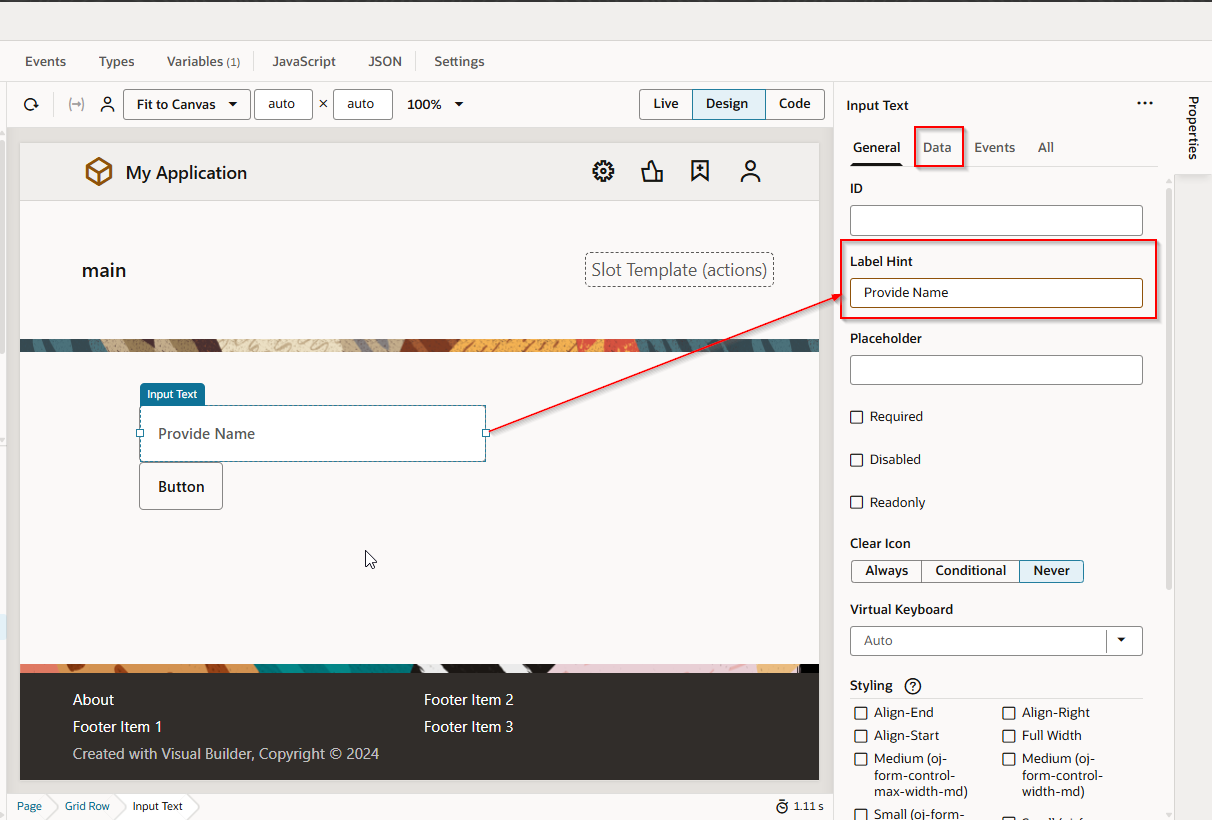
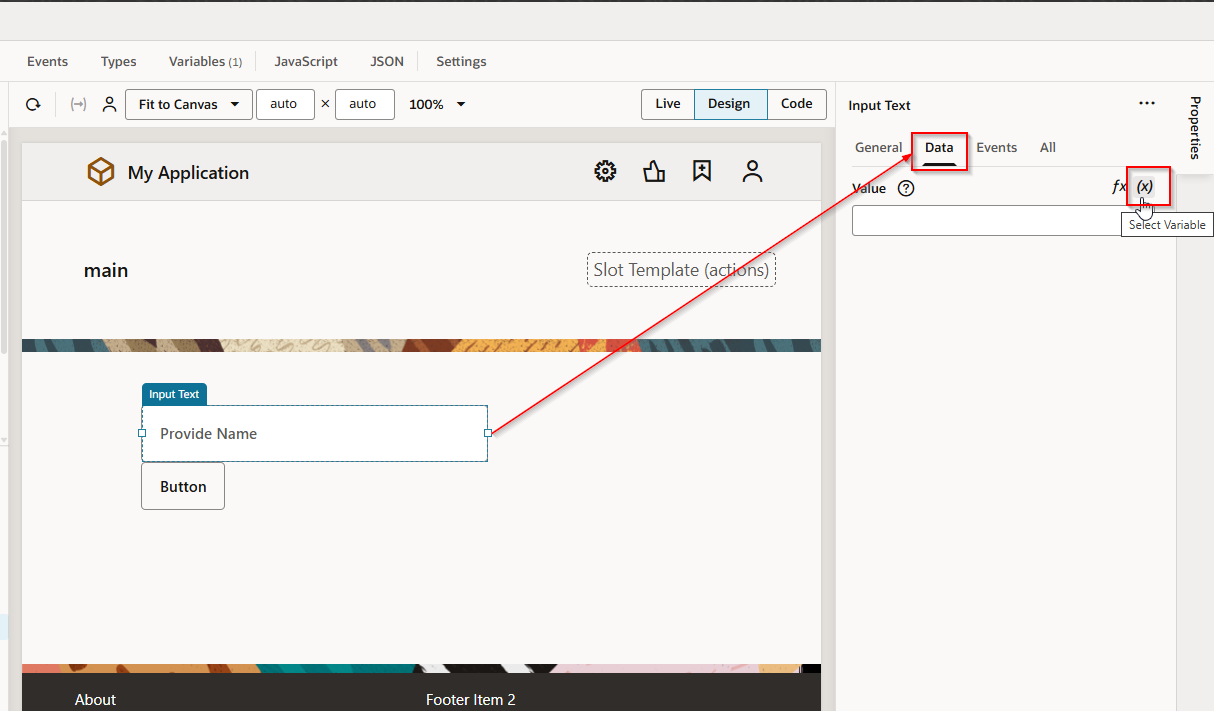
We need to associate InputText with variable to capture value.
Go to Data and click on Select Variable.
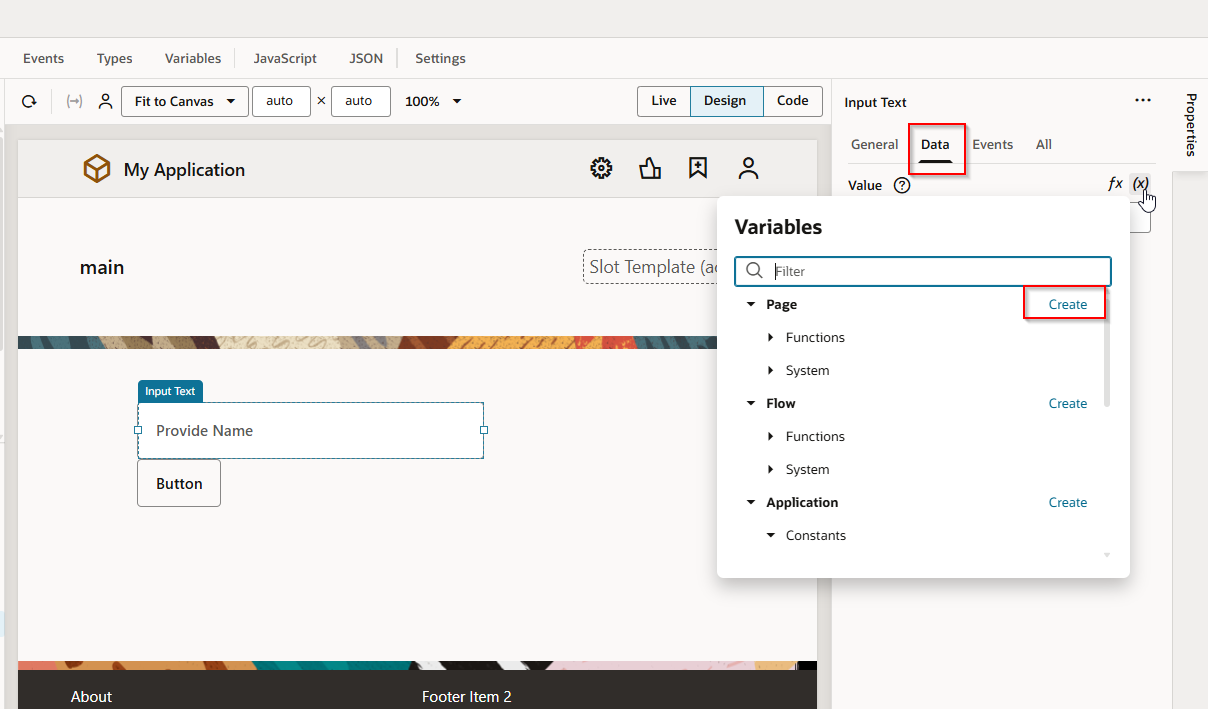
Click on Create-to-create new variable.
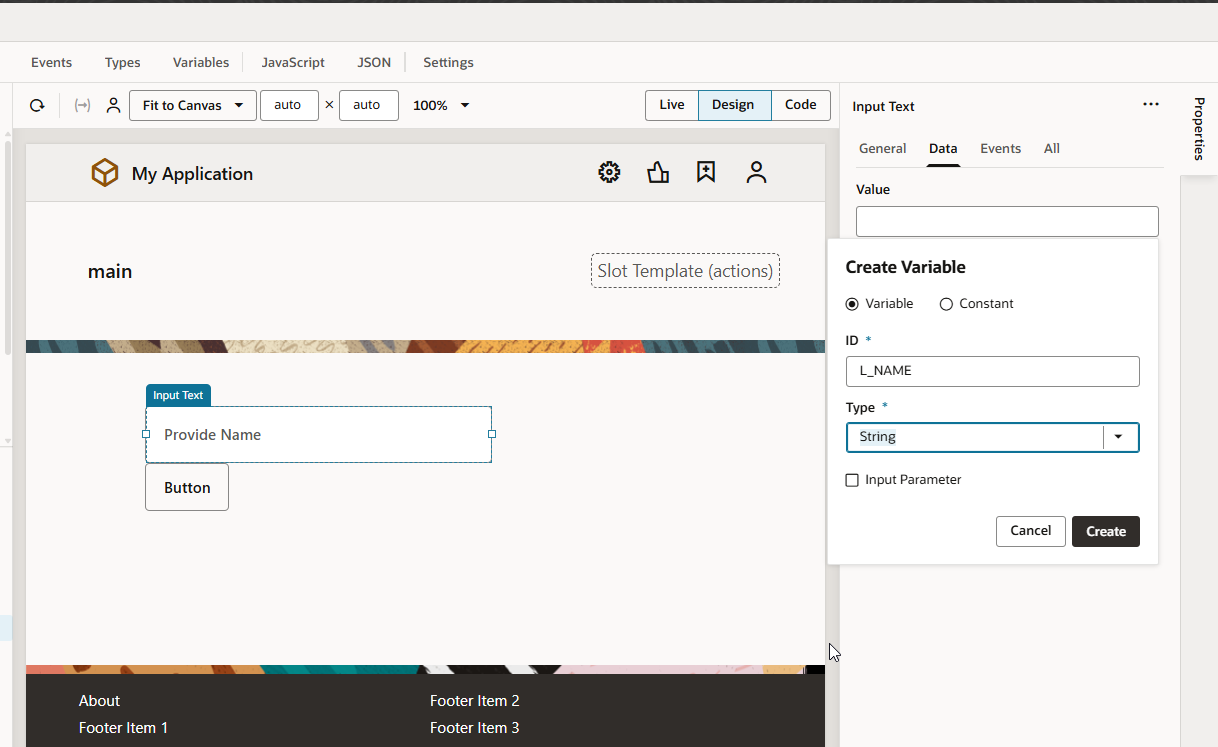
Click on Create.
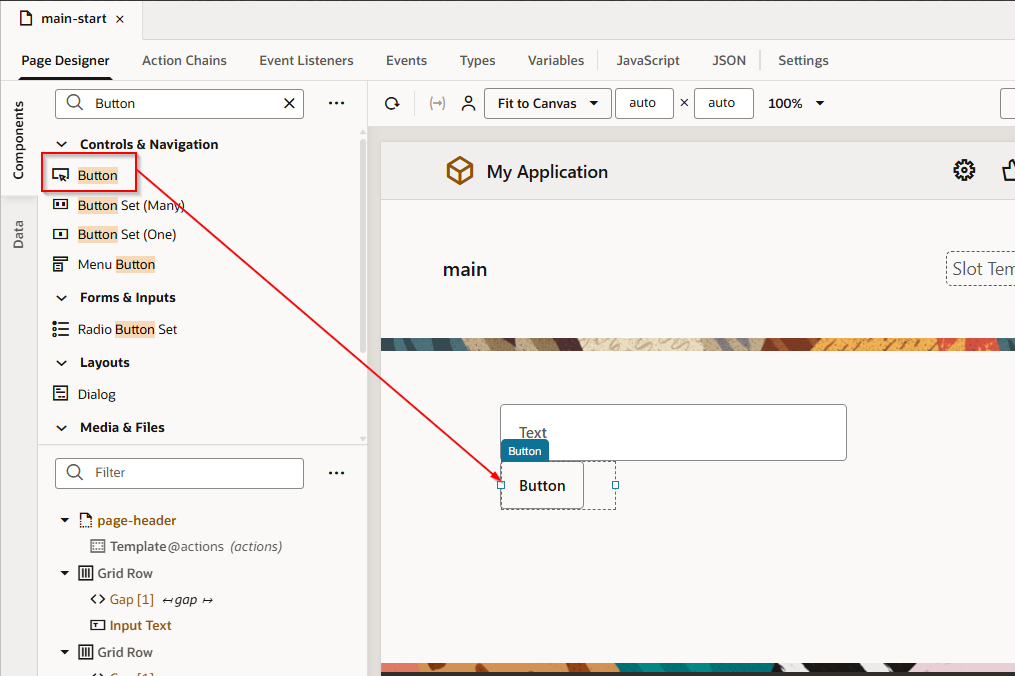
Similarly Drag and Drop Button Component from Controls & Navigation to VBCS page.
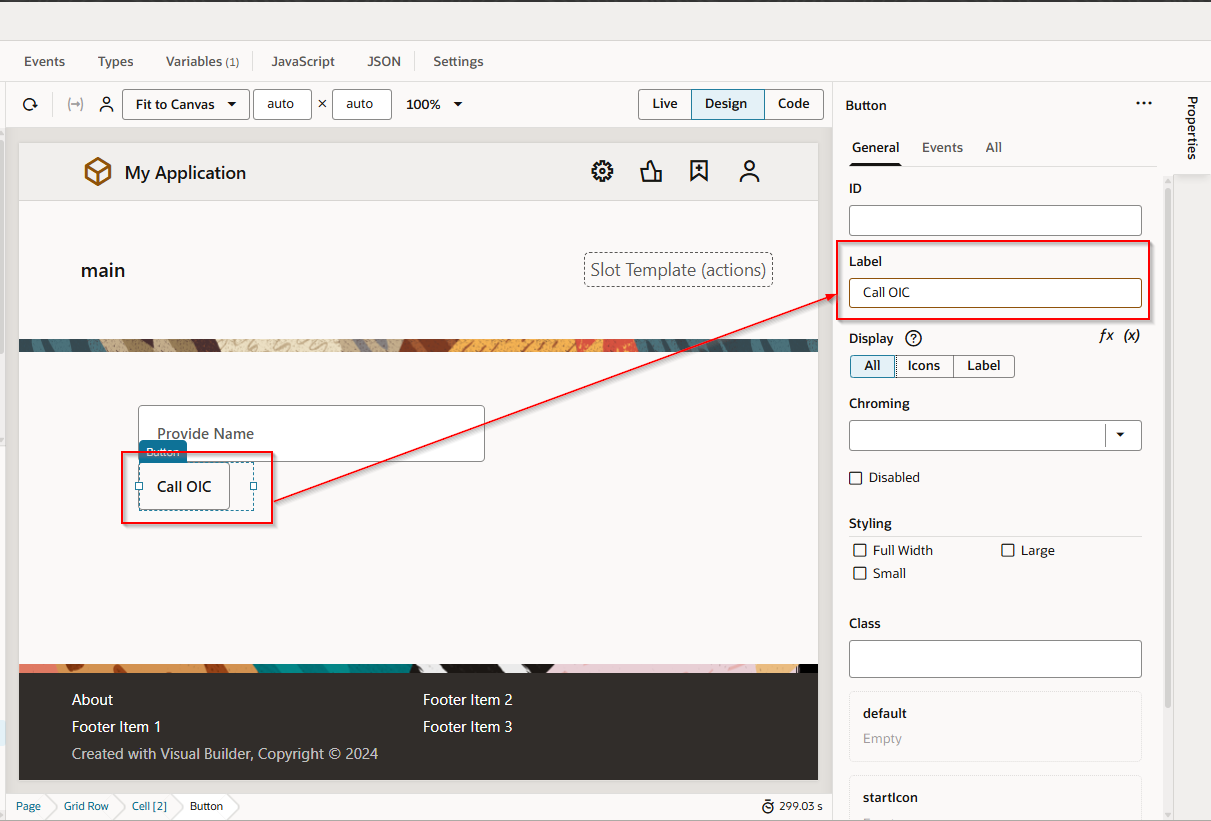
Add Label for Button
Go to Events —> Event Listener —->On ‘ojAction’
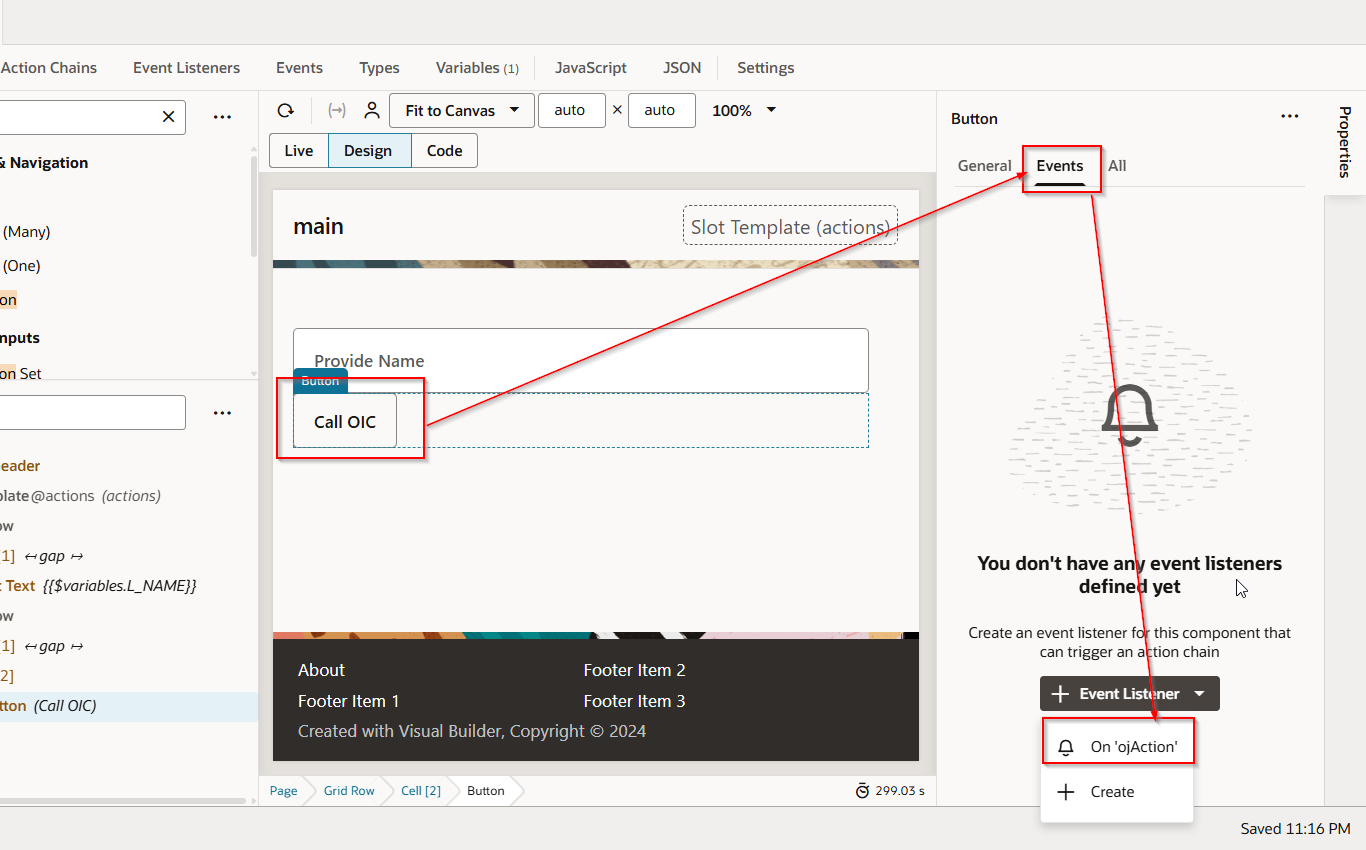
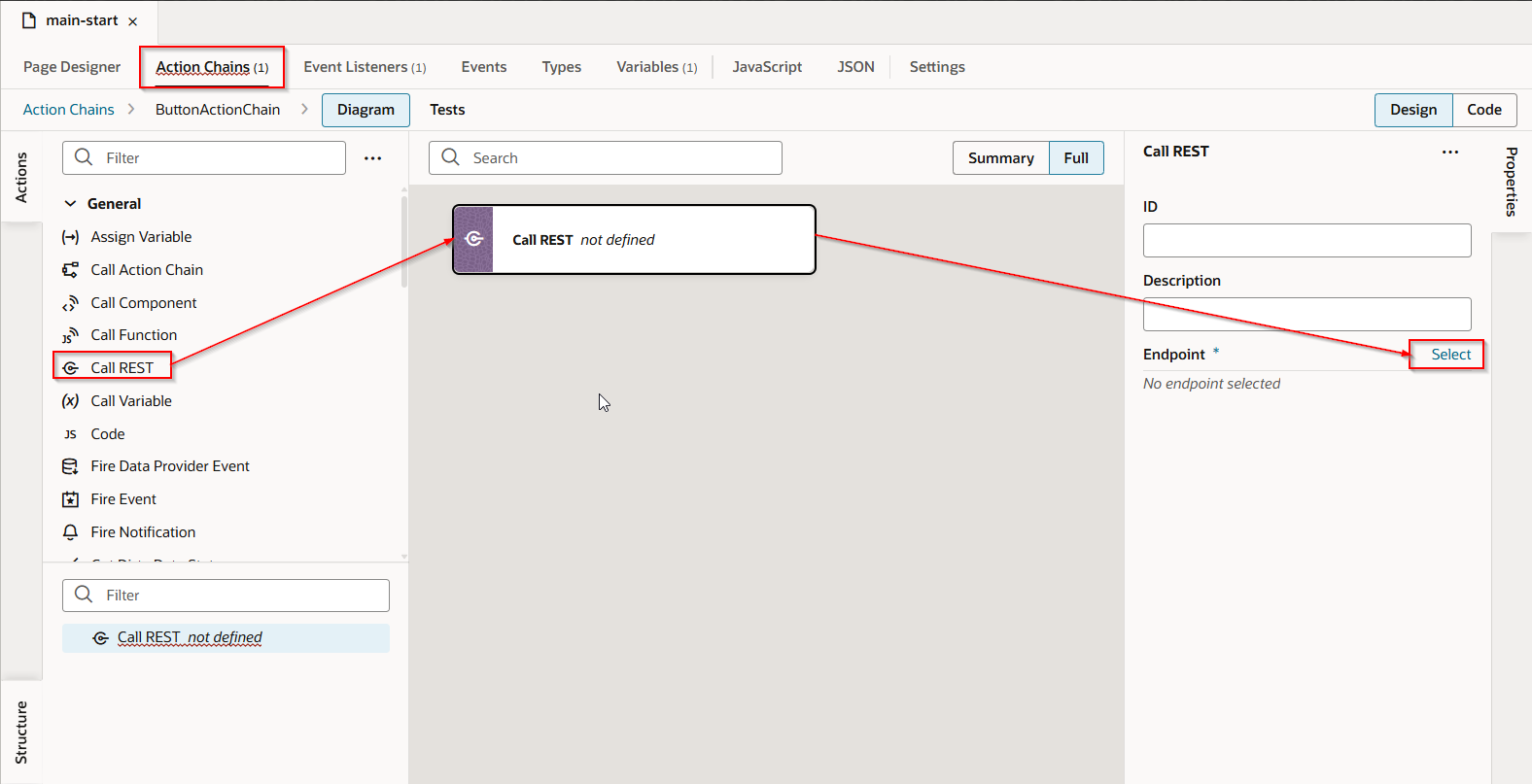
This will create new action chain.
Open the action chain and Drag and Drop “Call REST” function as shown below. We will use this to configure OIC REST Service Connection.
Click on Select.
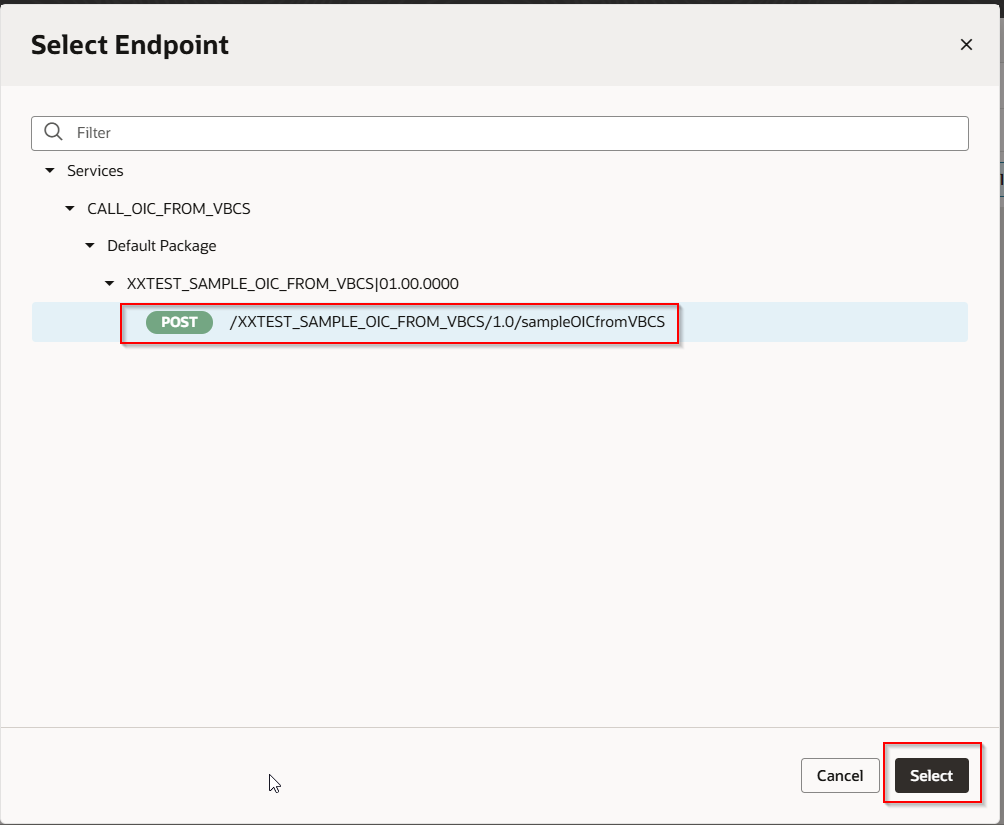
This will show all the service connections which have been created. Select OIC Service Connection.
Click on Select.
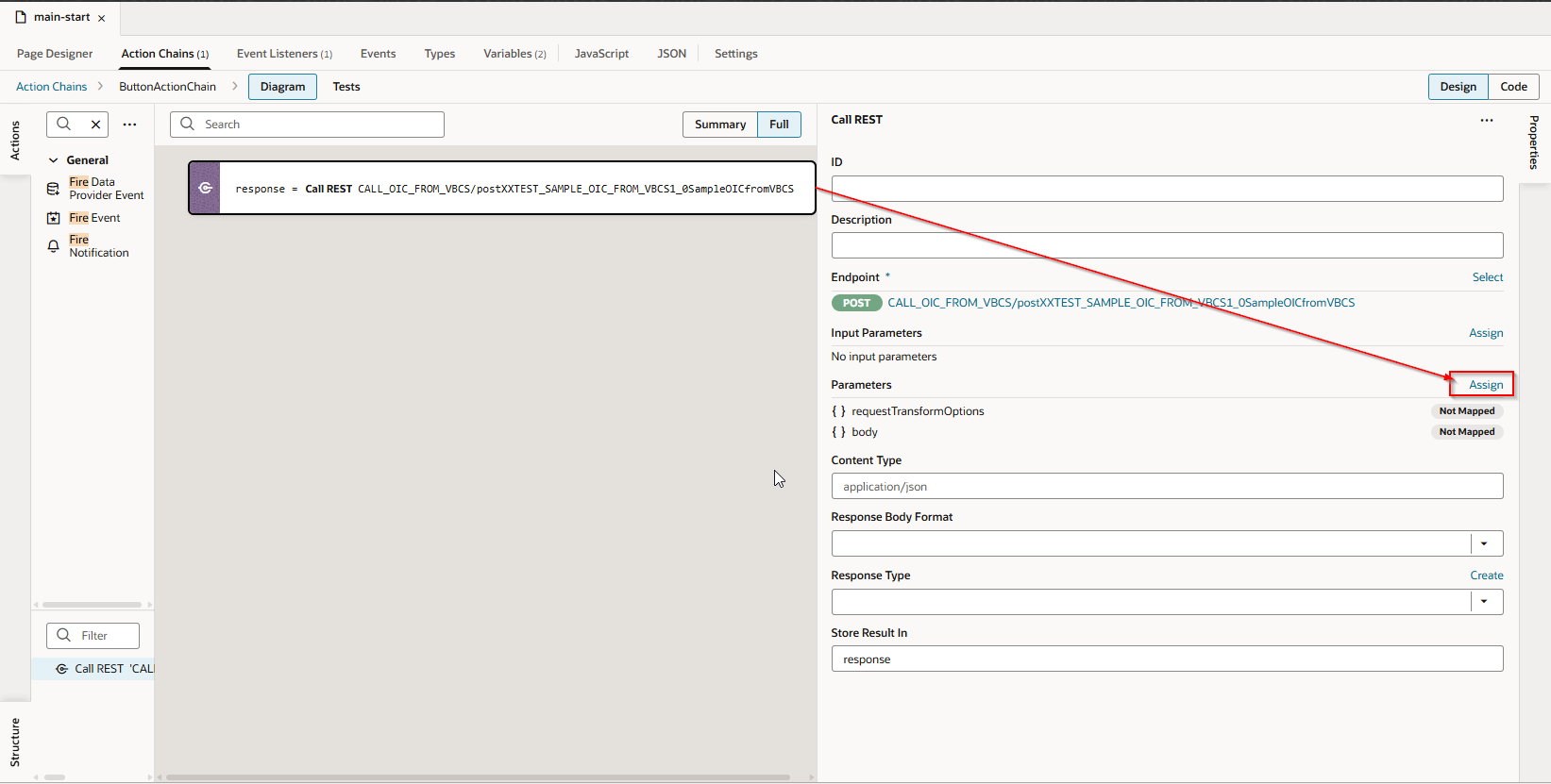
Click on Assign to configure Request Payload and pass value from Input Text Field.
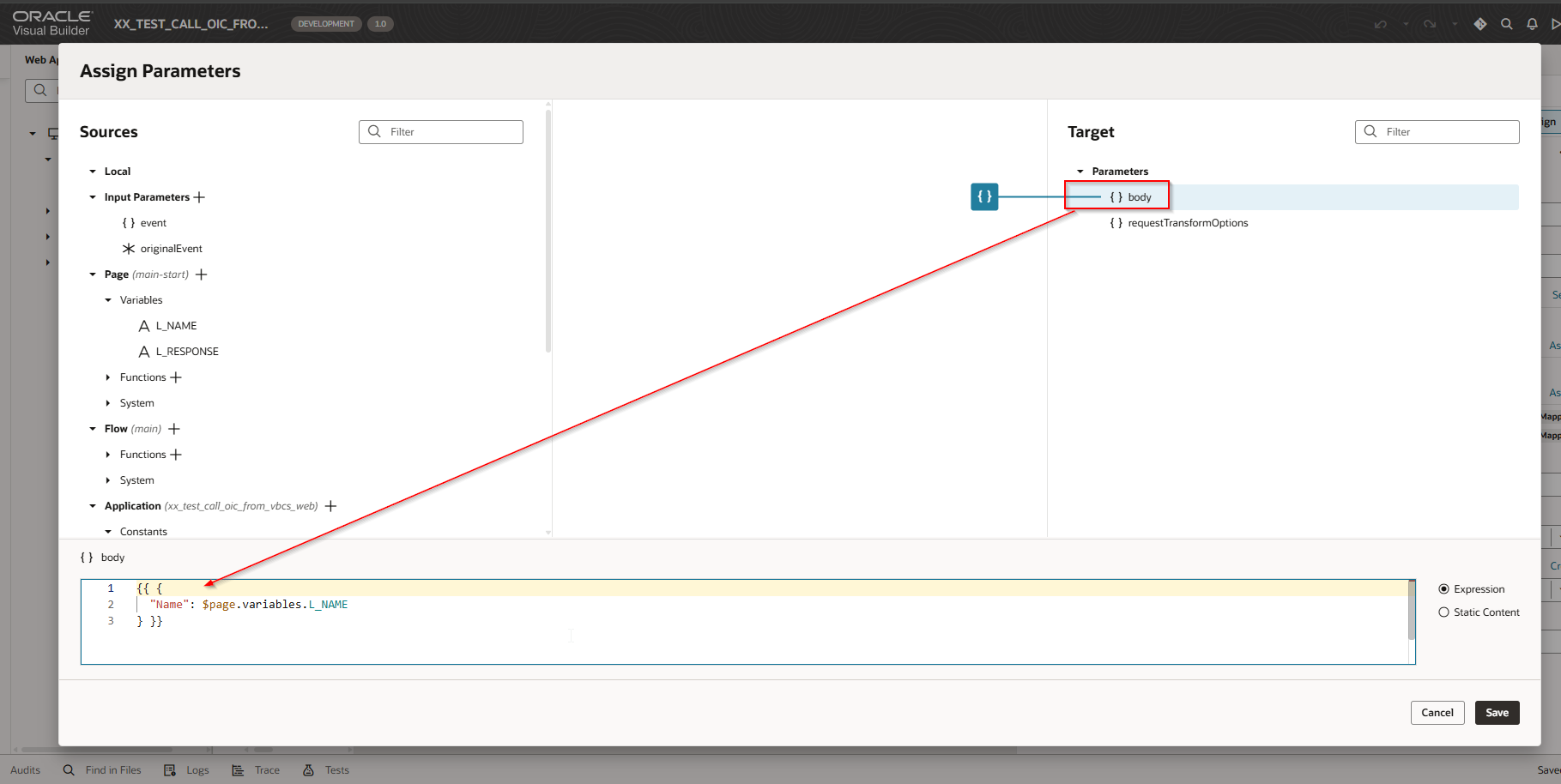
Click on Body and add Request payload with Page Variable which we have created earlier for input Text Field.
Click on Save.
Let us add Fire Notification to display the OIC integration response.
Drag and drop Fire Notification function.
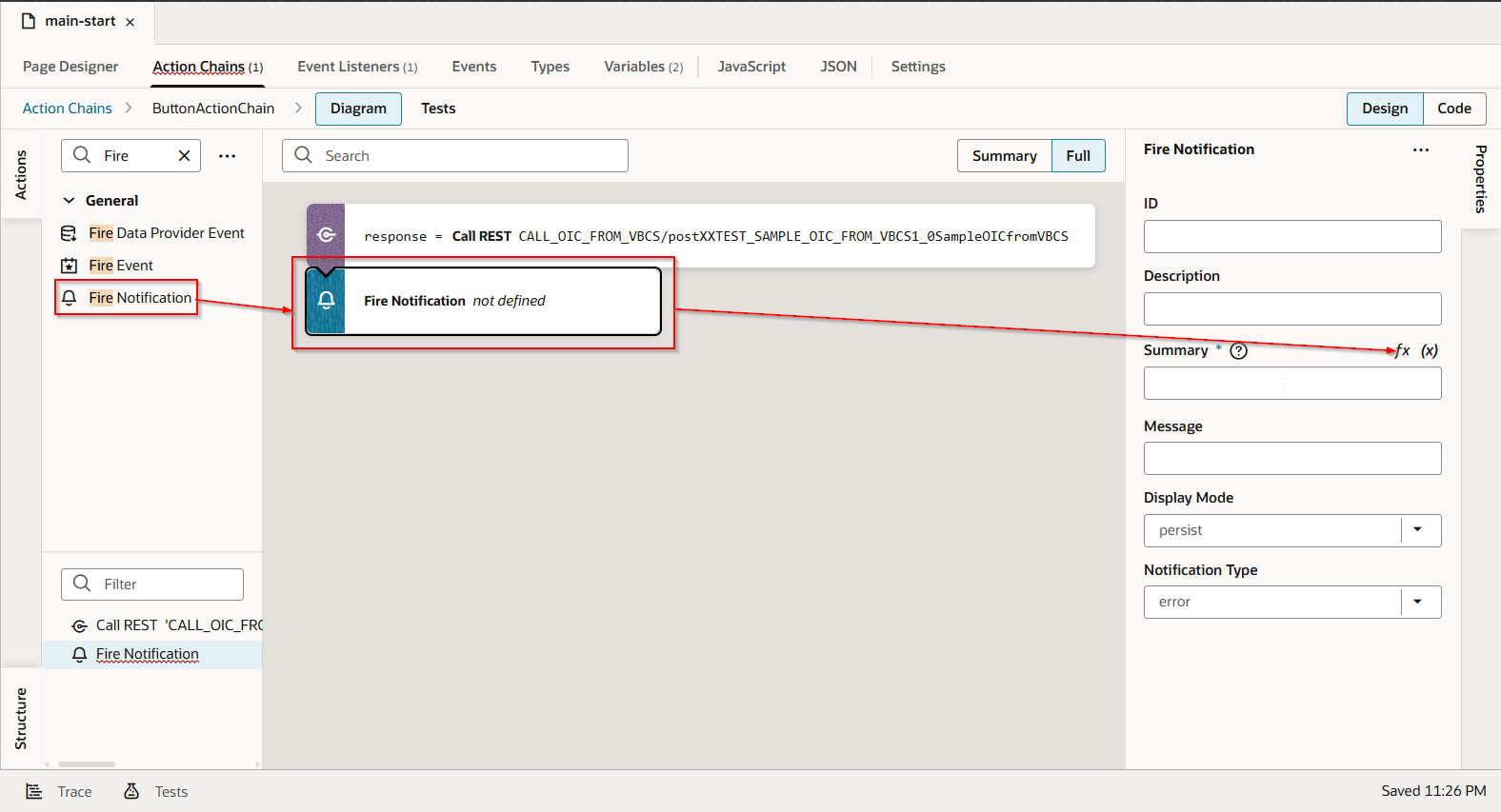
Drag and drop Response and click on save.
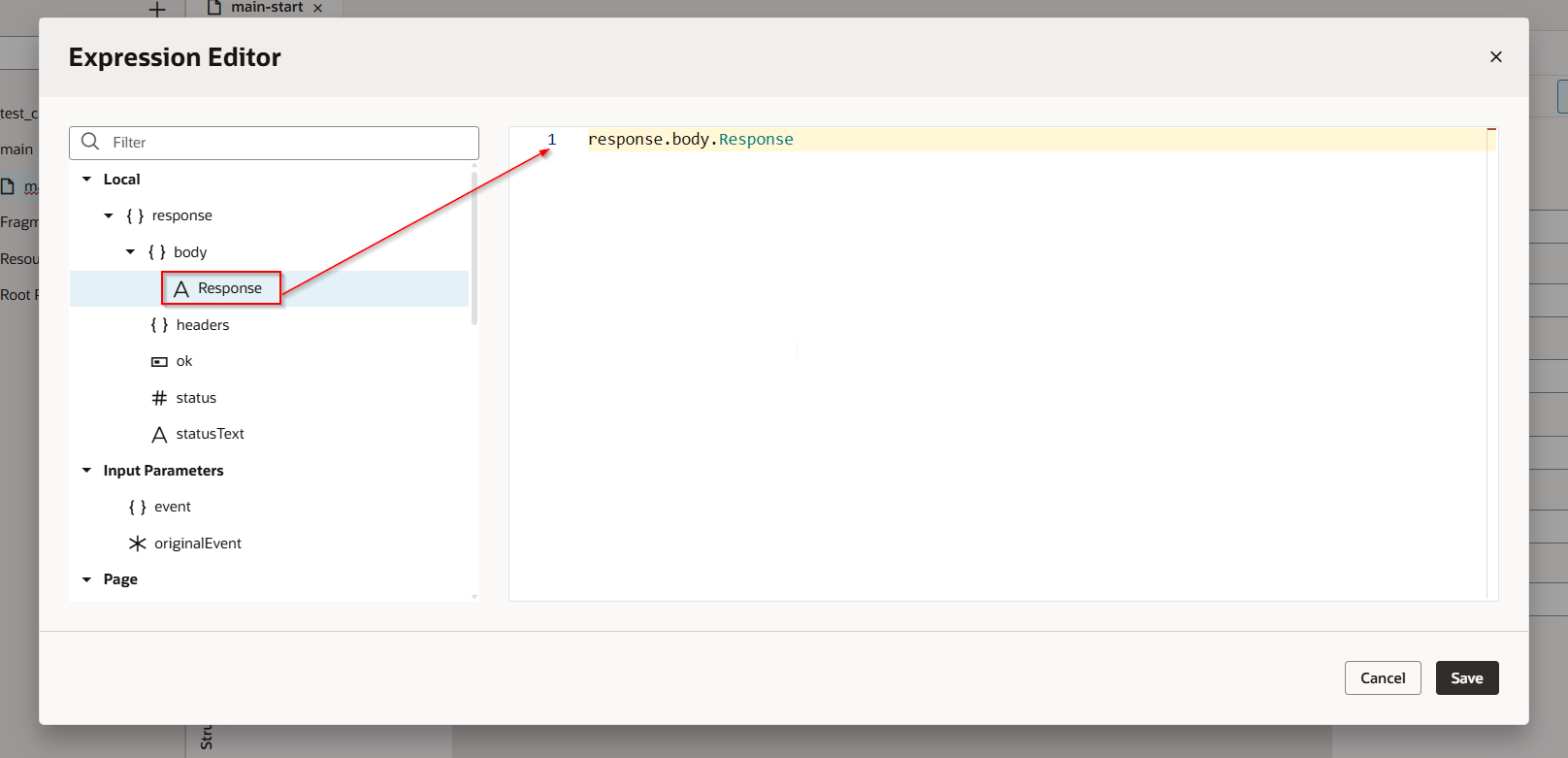
Repeat the same step for Message.
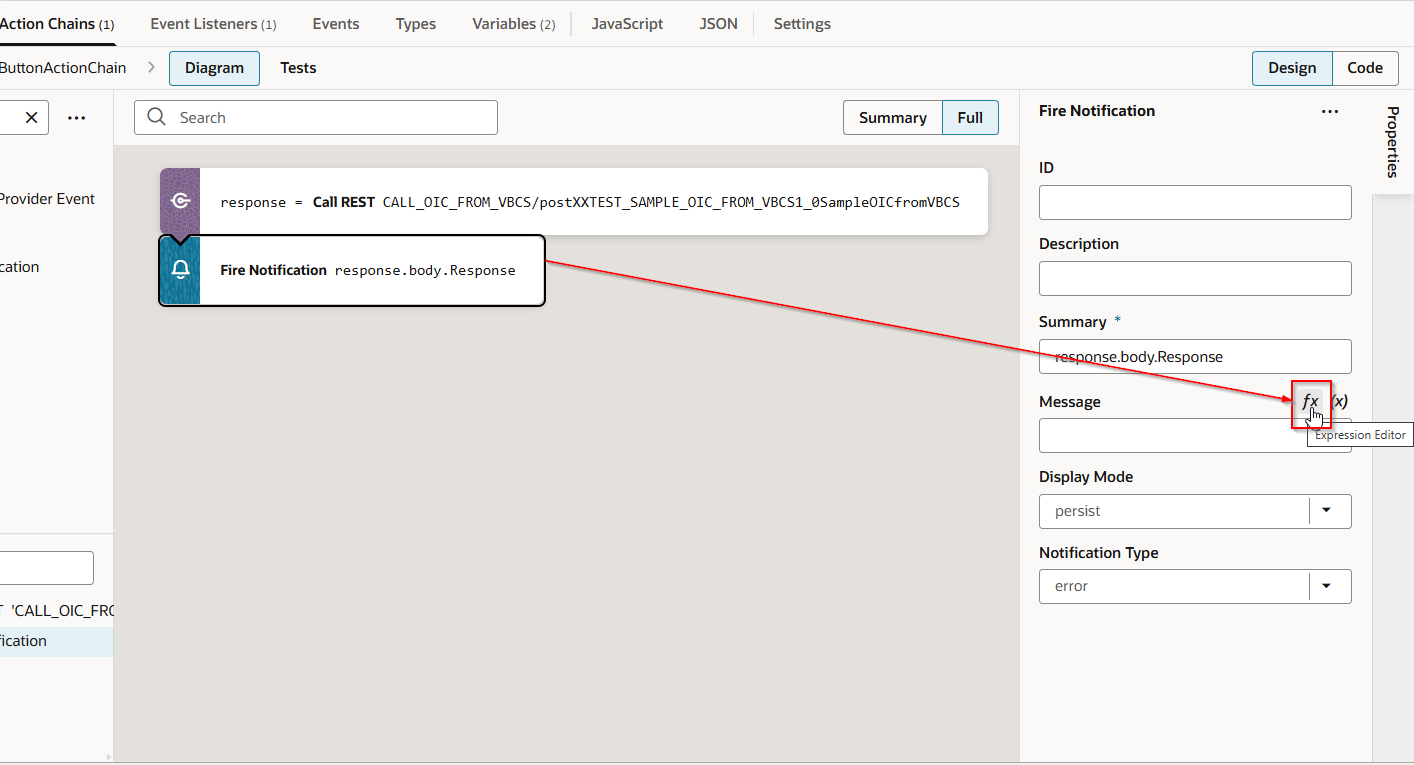
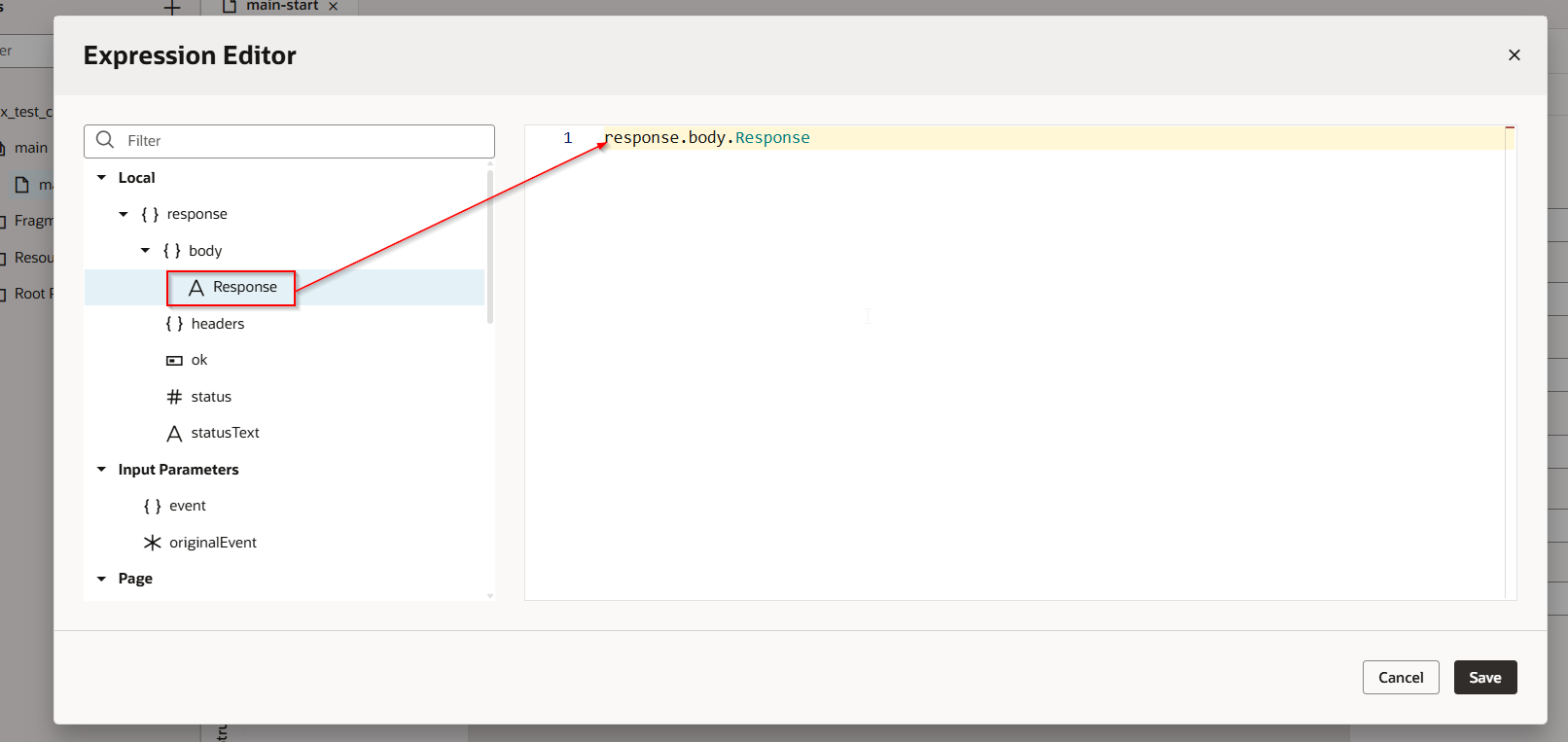
Let us remove single quotes which are added by VBCS.
Click on Code.
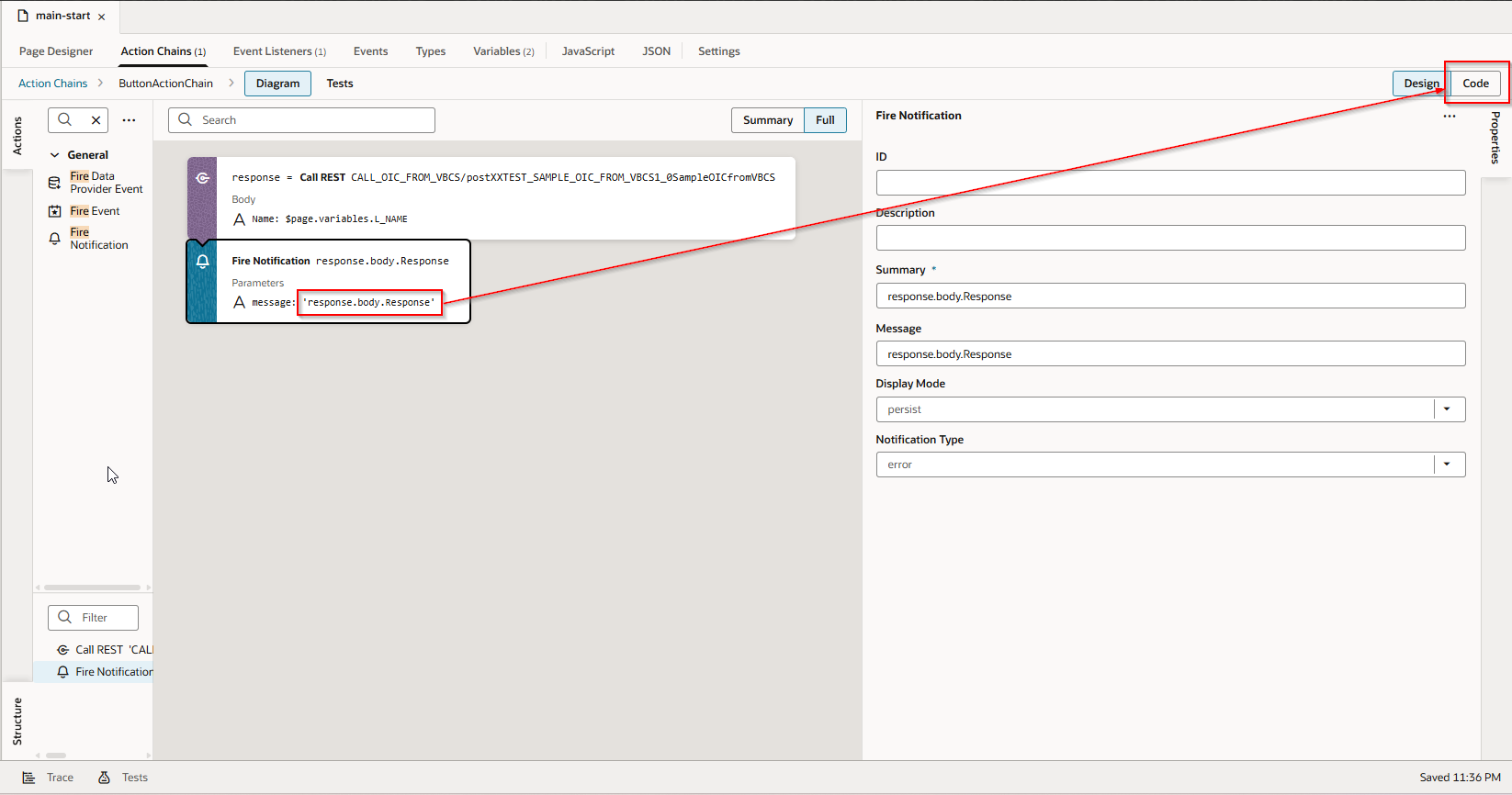
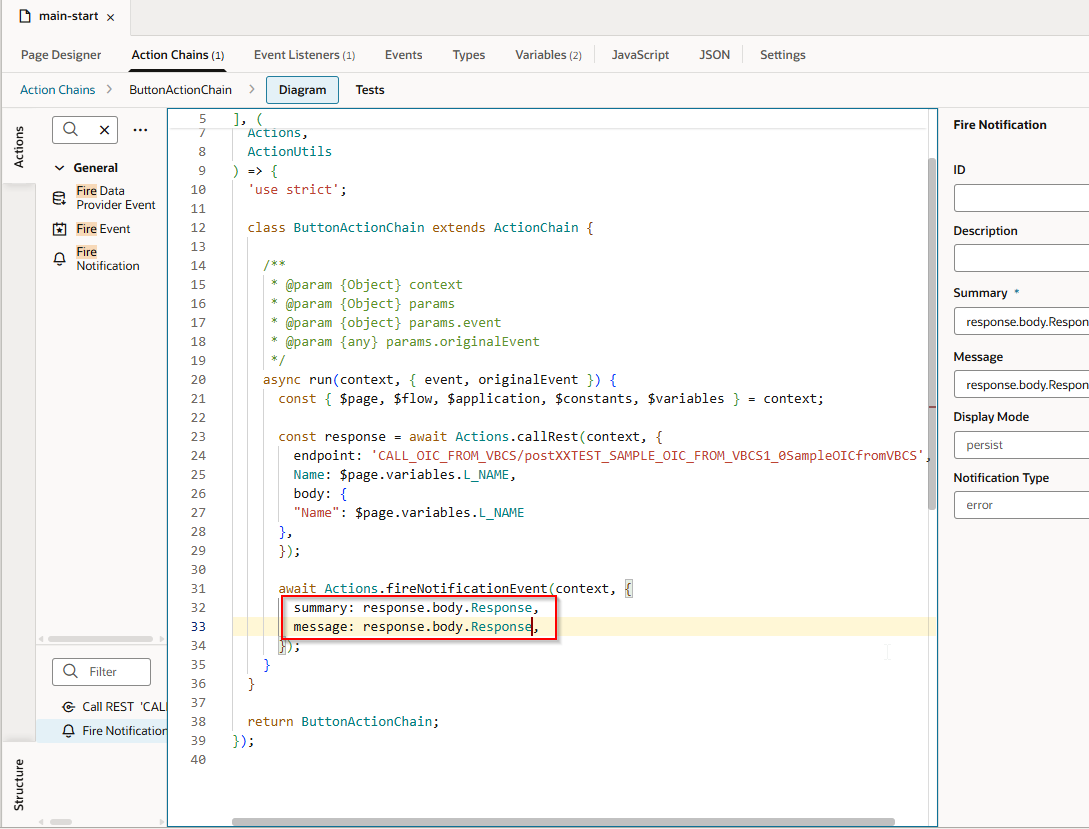
Remove single quotes
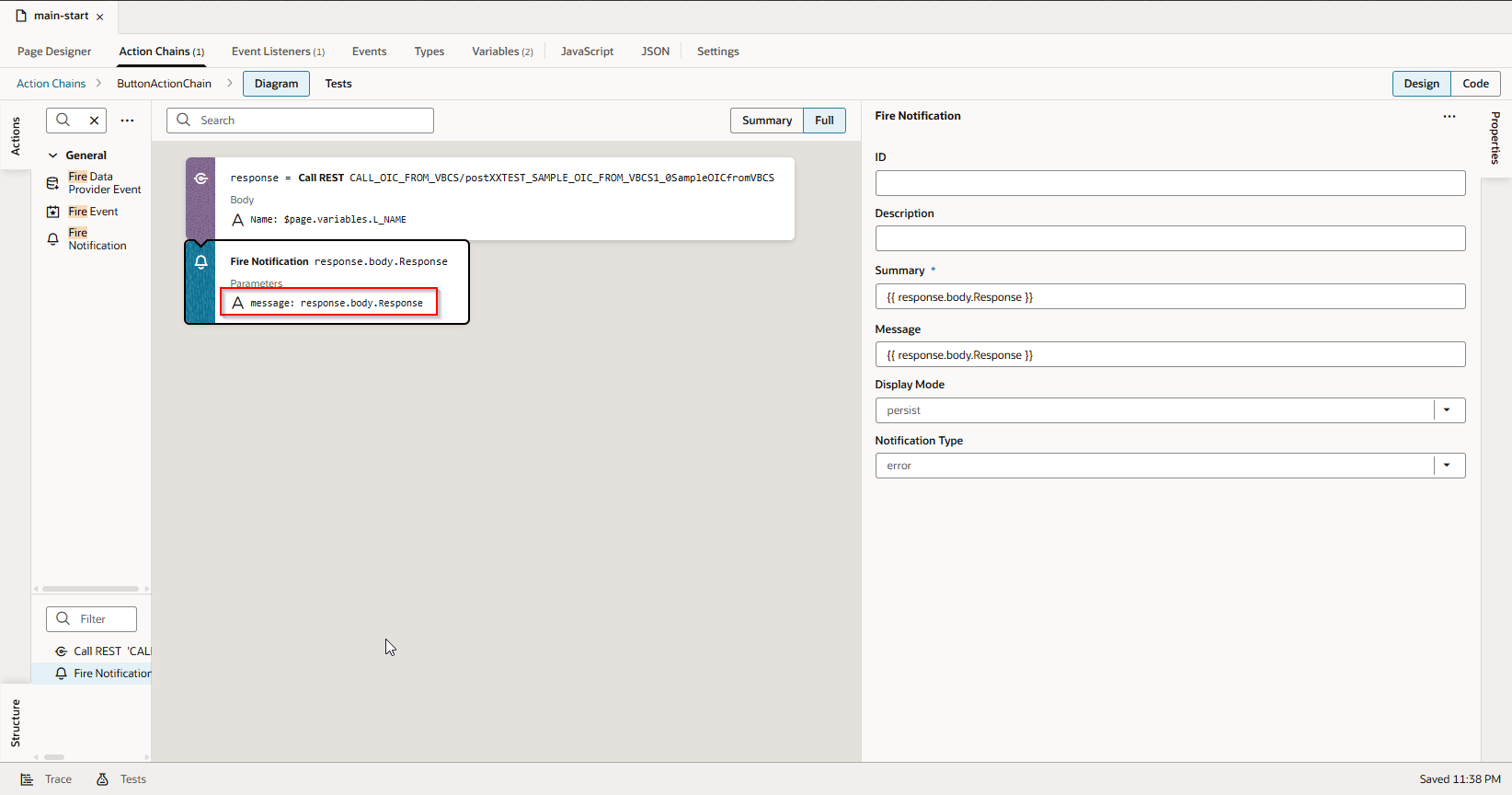
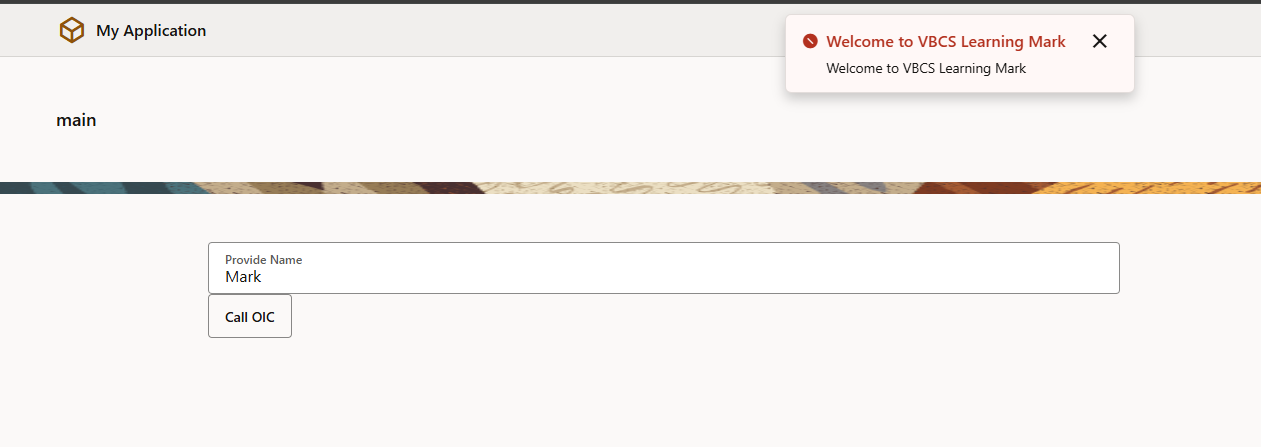
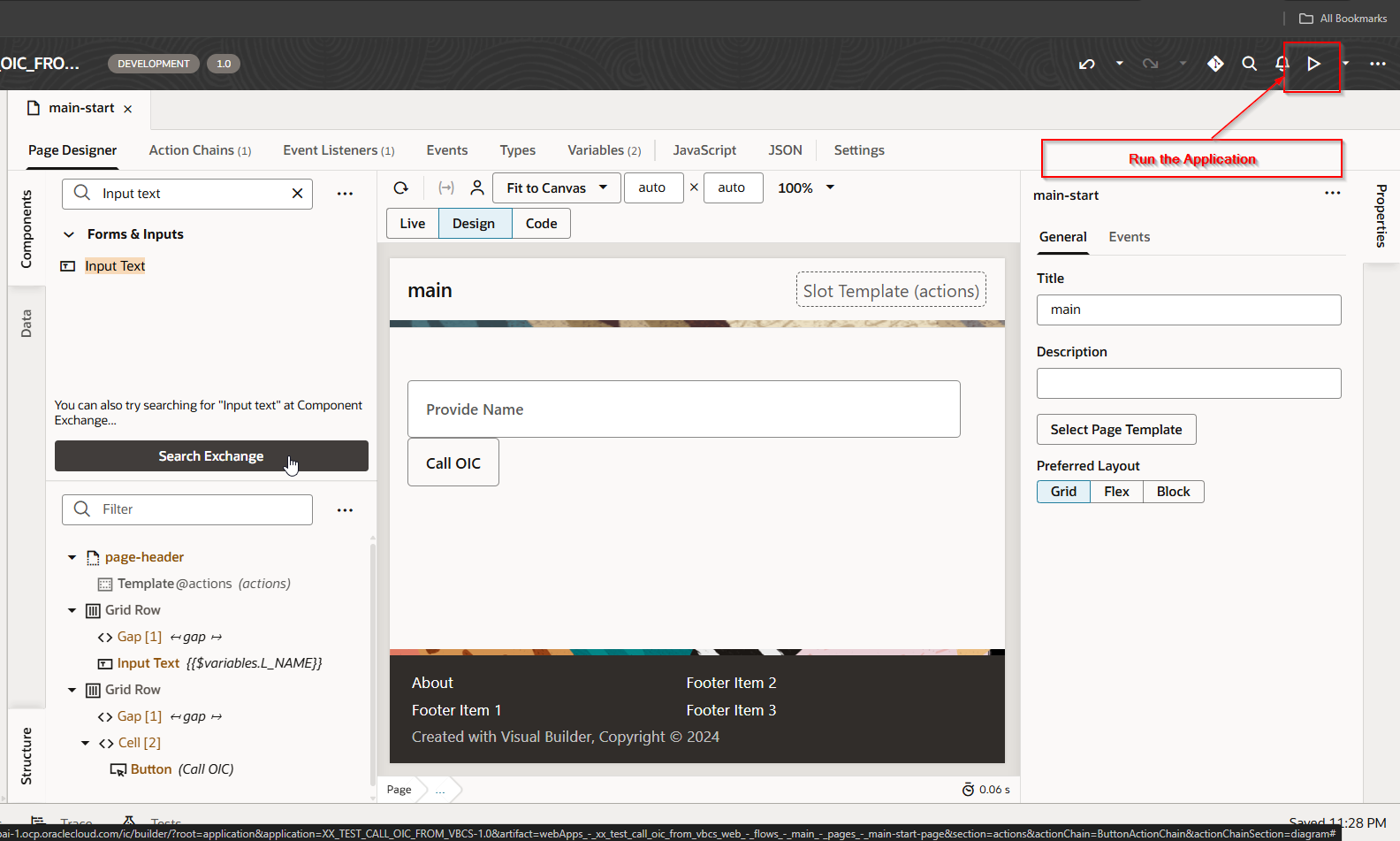
Now Run the Application.
Provide Name and Click on “Call OIC” Button.
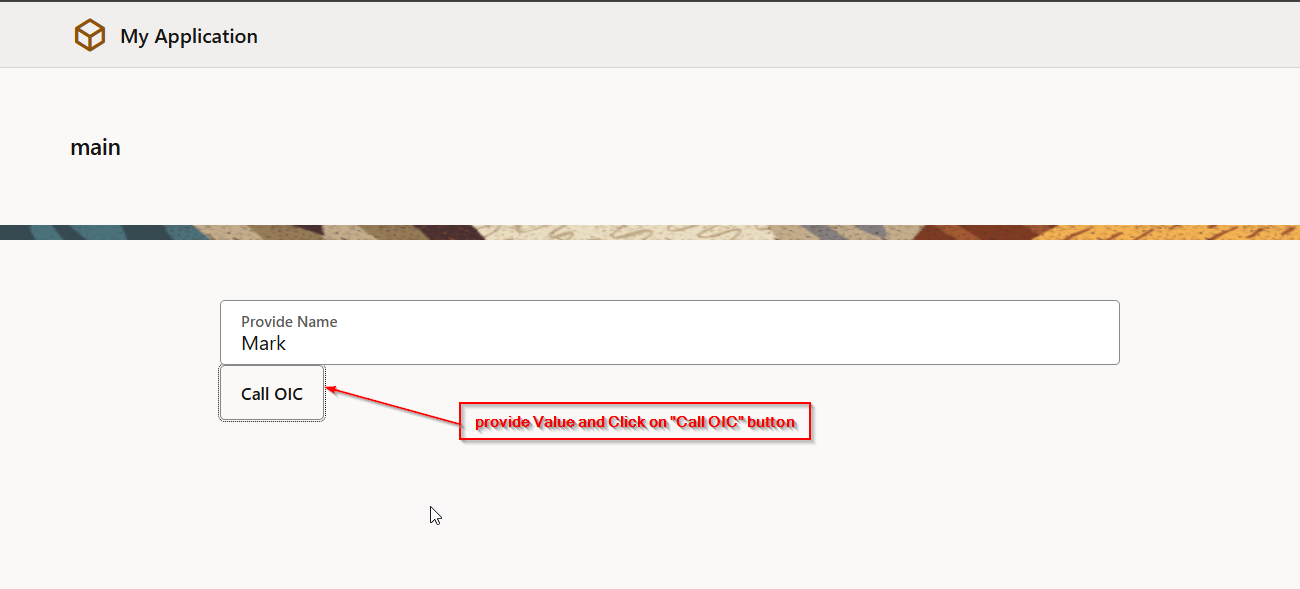
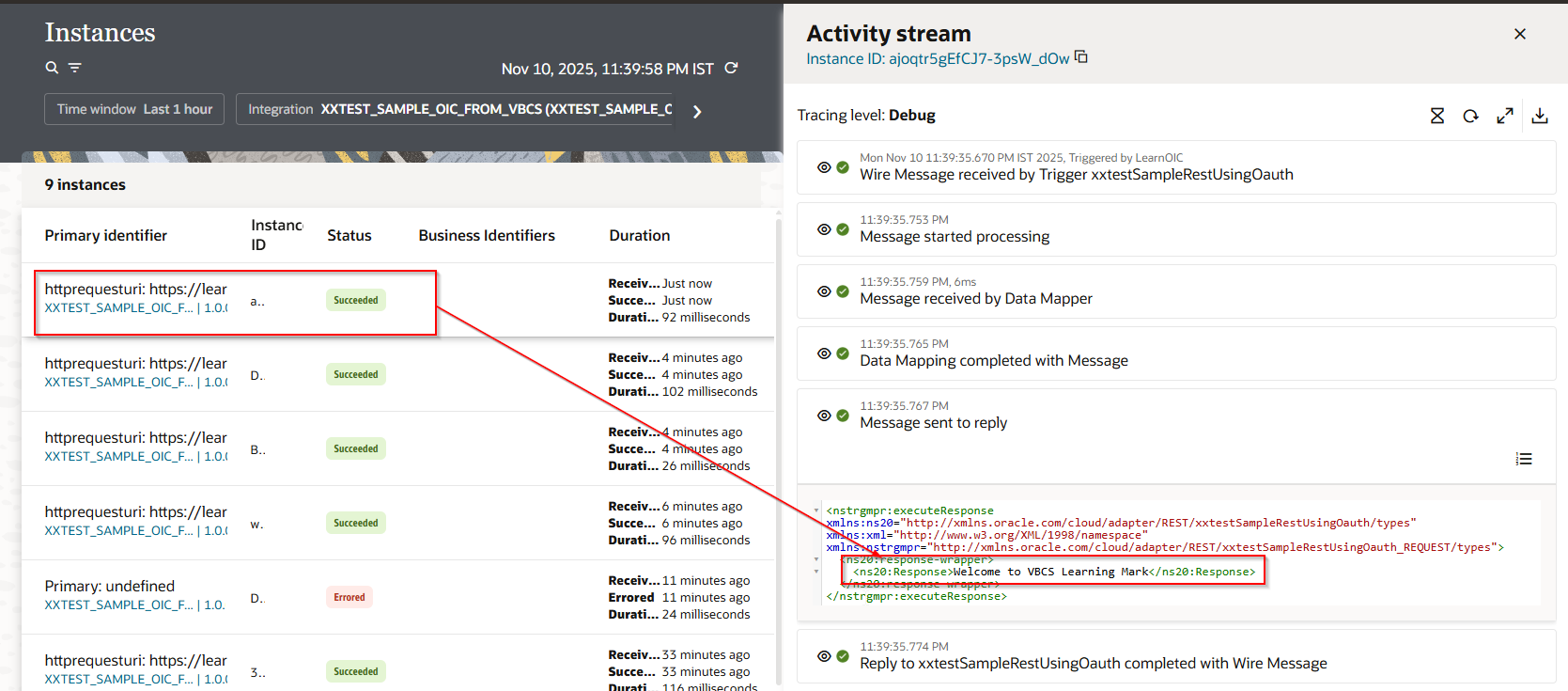
Button click will call OIC Service connection and will run OIC Integration. The OIC Integration response is then displayed using fire Notification.